[ROS Q&A] 194 – Add Pressure sensors in RVIZ

[ROS Q&A] 194 – Add Pressure sensors in RVIZ

What will you learn in this post

  • How to connect world frame to base_link of DogBot
  • How to publish pressure sensors Markers for RVIZ

List of resources used in this post

Overview

In the previous post, we learned how to add pressure sensors in a gazebo simulation. Now we are going to learn how to see then on RViz (ROS Visualization tool). Remember that there is a question on ROS Answers about contact sensors, which is what originated this post.

Start the provided ROSject

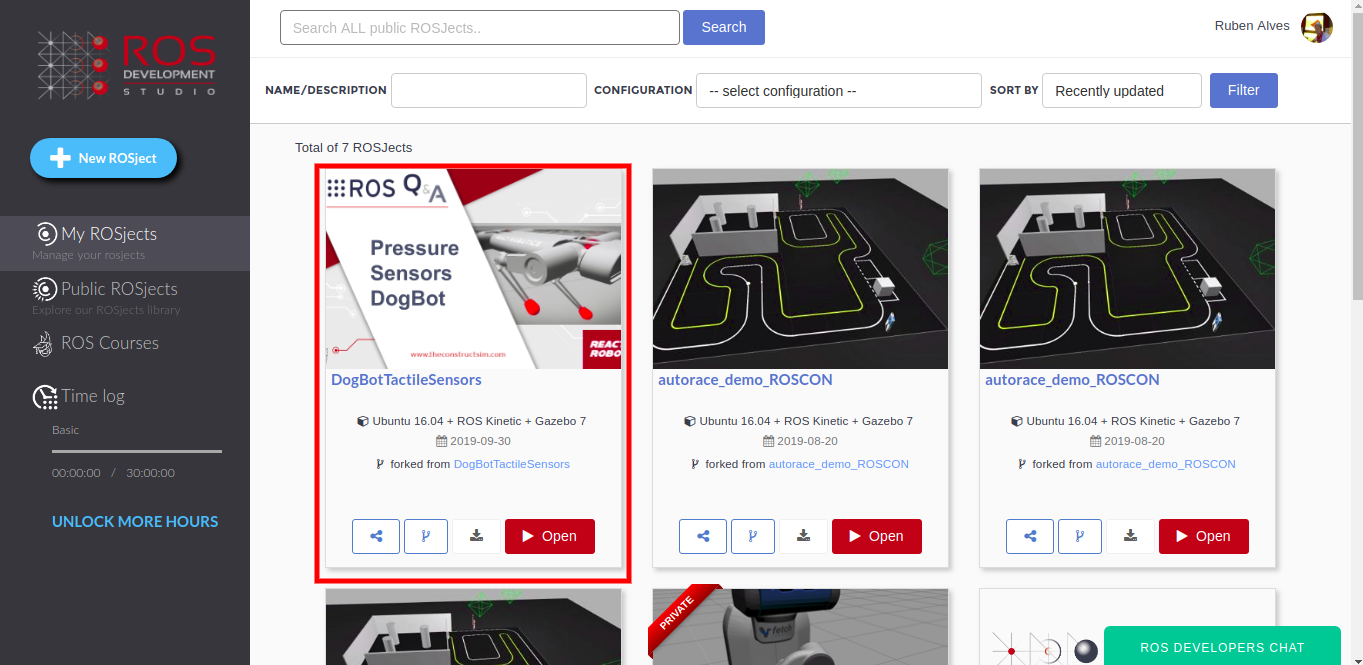
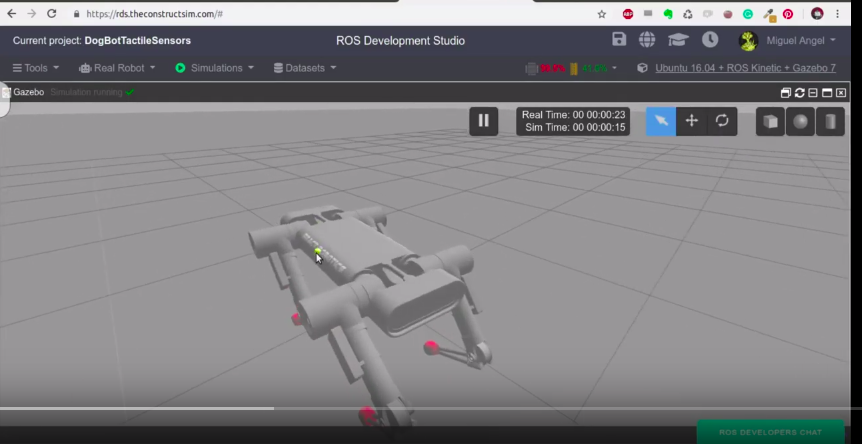
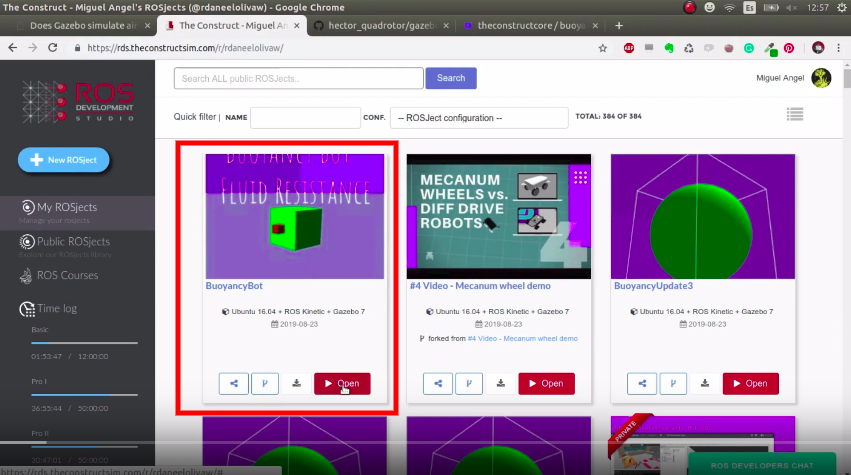
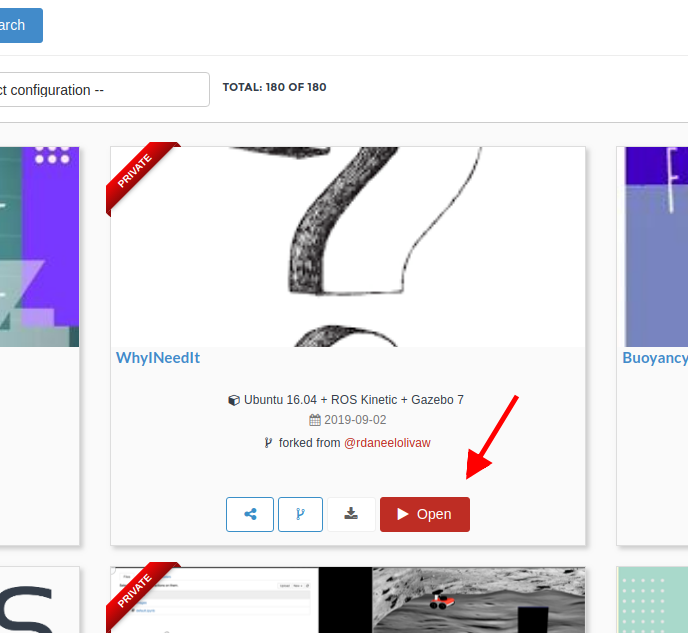
The first thing you need to do is to have a copy of the ROSject we mentioned above if you want everything ready to go. You can also clone the git repository aforementioned if you want to run everything in your local computer. If you for the ROSject option, just click on the ROSject link to get an automatic copy. You should now see a ROSject called DogBotTactileSensors on your list of ROSjects, something like the image below:

DogBot tactile sensors in ROSDS

DogBot tactile sensors in ROSDS

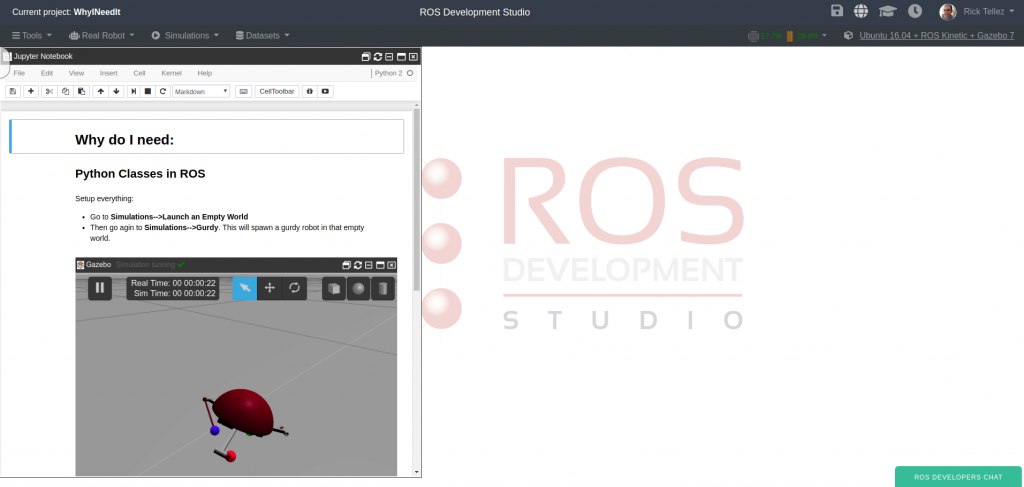
After clicking on the Open button to open the ROSject, you should have the ROSject opened in a remote computer launched on ROSDS.

Launching the simulation

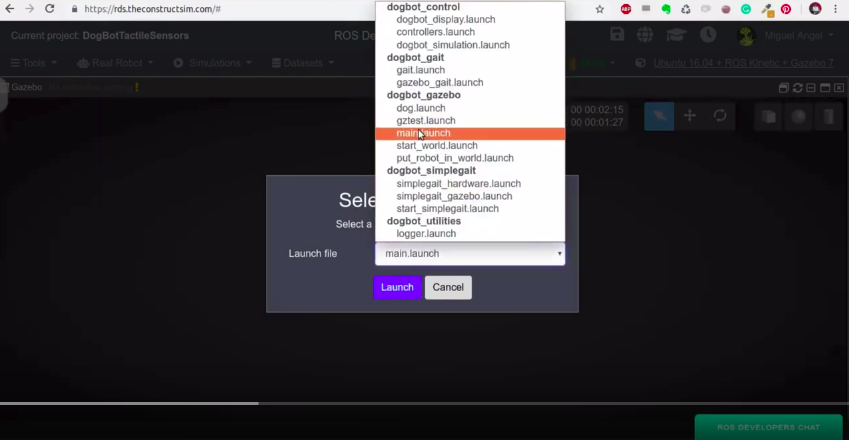
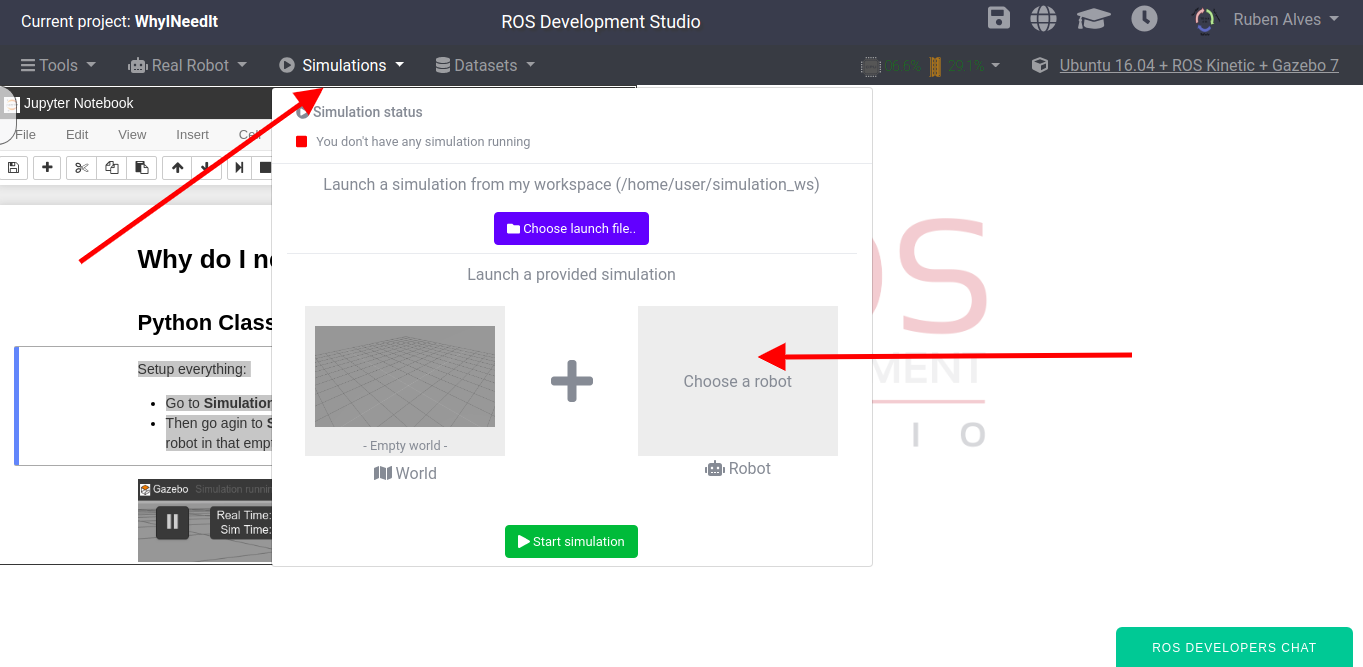
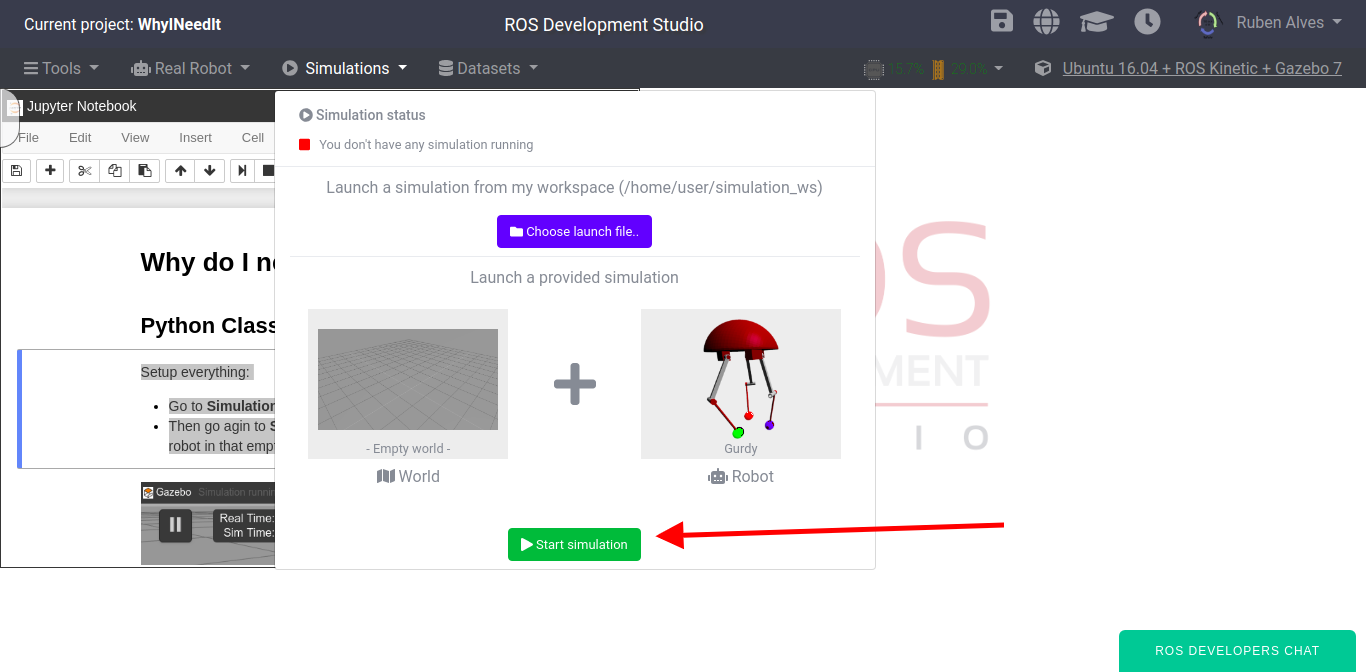
If you remember the previous post, we can launch the simulation by running roslaunch dogbot_gazebo main.launch  on the webshell. You can also use the menu by clicking on Simulations -> Choose Simulation -> Choose Launch File and selecting the main.launch file in the dogbot_gazebo package:

dogbot_gazebo main.launch in ROSDS

dogbot_gazebo main.launch in ROSDS

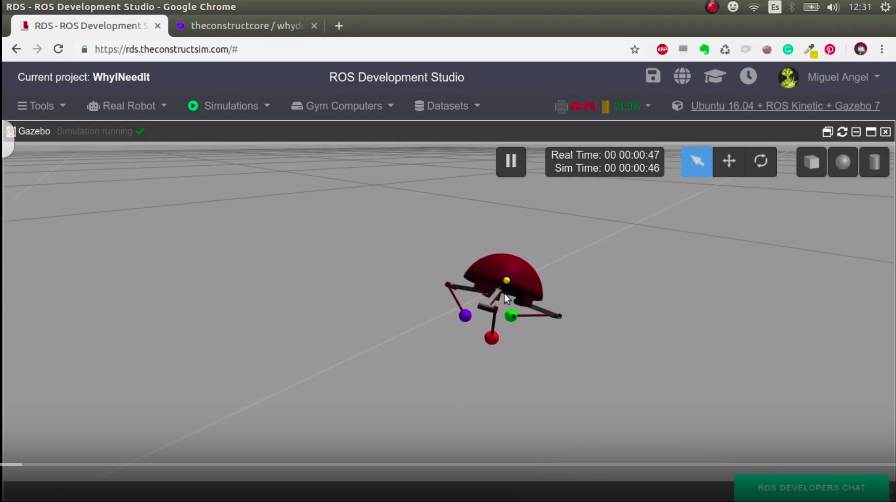
You should now have DogBot up and running in ROSDS:

dogbot robot running in ROSDS

Adding the sensors to RViz

Let’s start by stopping the robot. For that, we can just run the keyboard teleoperation with rosrun teleop_twist_keyboard teleop_twist_keyboard.py cmd_vel:=/dogbot/cmd_vel  to move DogBot and then hit K to stop it.

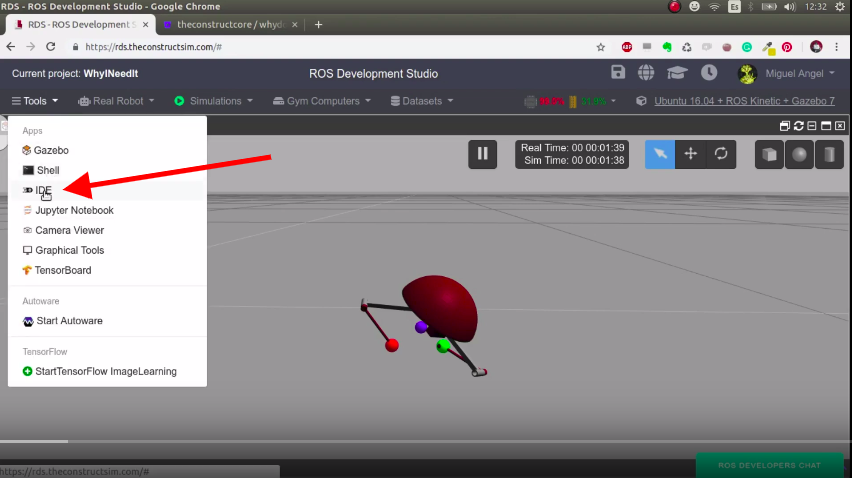
Now we open a new shell by clicking on Tools -> Shell and run:

rosrun dogbot_markers arrows_rviz.py

This command essentially get the data published by the sensors and convert then into markers that can be shown in RViz.

Now, to see RViz we have to launch by running the command below in a new shell:

rosrun rviz rviz

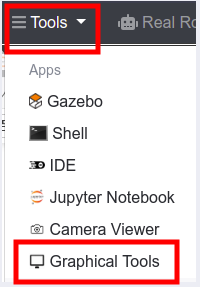
This will open RViz, but in order to see it, you have to open the Graphical Tools by clicking Tools -> Graphical Tools.

Launching Graphical Tools in ROSDS

Launching Graphical Tools in ROSDS

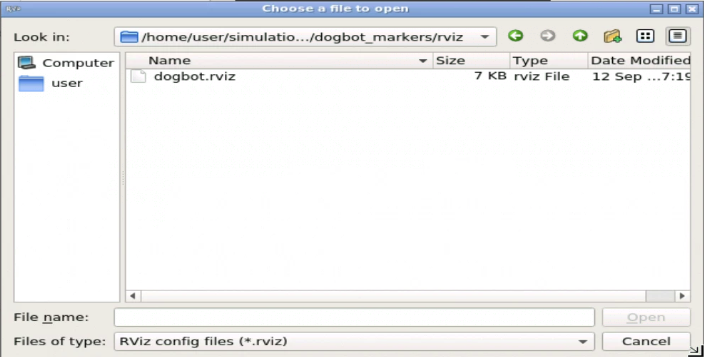
Once you are in RViz, you open a config file by clicking File -> Open Config. There you select the file dogbot.rviz file located in ~/simulation_ws/src/dogbot_tc/dogbot_markers/rviz/dogbot.rviz

Select the rviz config file for dogbot

Select the rviz config file dogbot.rviz for dogbot

The file you open has everything configured to show the contact markers in RViz.

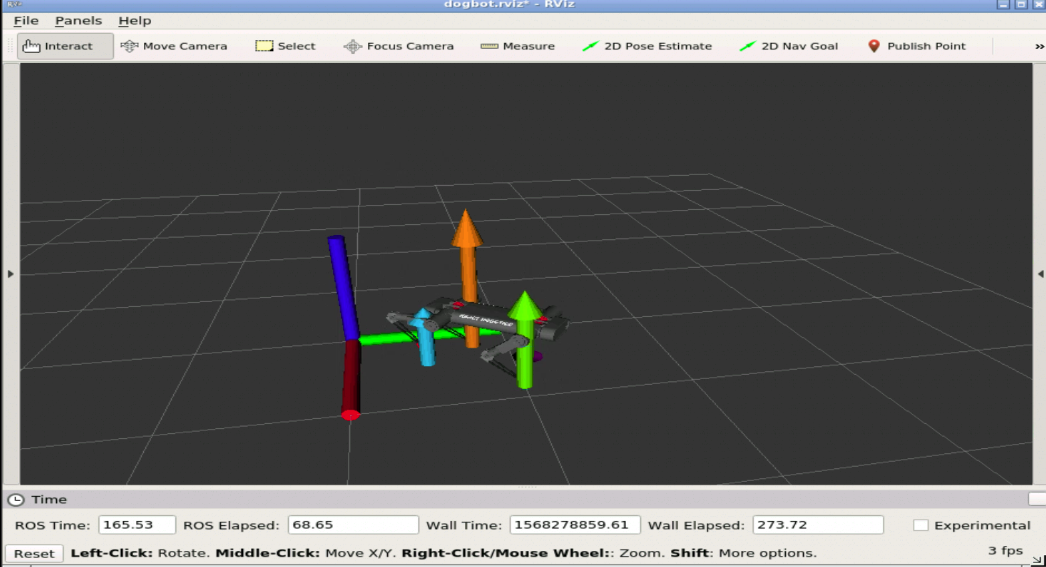
The pressure in each of the feet of Dogbit is represented by an arrow, which lengths and colors are proportional to the pressure registered. You can see the arrows changing their lengths when the robot steps.

How the markers are created

On the folder ~/simulation_ws/src/dogbot_tc/dogbot_markers/scripts we created a script called world_to_base_tf_publisher.py with the following content:

#! /usr/bin/env python
import rospy
import time
import tf
from nav_msgs.msg import Odometry
from geometry_msgs.msg import Pose


class WorldBaseTFPublisher(object):

    def __init__(self):
        rospy.loginfo("Start init WorldBaseTFPublisher Class")
        self._br = tf.TransformBroadcaster()
        rospy.loginfo("set up tf.TransformBroadcaster DONE")
        self._current_pose = Pose()
        rospy.loginfo("_current_pose DONE")
        self.get_init_position()
        rospy.loginfo("get_init_position DONE")
        self._sub = rospy.Subscriber('/dogbot/odom', Odometry, self.odom_callback)
        rospy.loginfo("self._sub DONE")

    def get_init_position(self):
        data_odom = None
        r = rospy.Rate(2)
        while data_odom is None and not rospy.is_shutdown():
            try:
                data_odom = rospy.wait_for_message("/dogbot/odom", Odometry, timeout=1)
            except:
                rospy.loginfo("Current odom not ready yet, retrying for setting up init pose")
                try:
                    r.sleep()
                except rospy.ROSInterruptException:
                    # This is to avoid error when world is rested, time when backwards.
                    pass

        self._current_pose = data_odom.pose.pose

    def odom_callback(self, msg):
        self._current_pose = msg.pose.pose

    def get_current_pose(self):
        return self._current_pose

    def handle_turtle_pose(self, pose_msg, link_name, world_name = "/world"):

        self._br.sendTransform(
                                (pose_msg.position.x,
                                 pose_msg.position.y,
                                 pose_msg.position.z),
                                (pose_msg.orientation.x,
                                 pose_msg.orientation.y,
                                 pose_msg.orientation.z,
                                 pose_msg.orientation.w),
                                rospy.Time.now(),
                                link_name,
                                world_name)

    def publisher_of_tf(self):

        frame_link_name = "base_link"
        time.sleep(1)
        rospy.loginfo("Ready..Starting to Publish TF data now...")

        rate = rospy.Rate(50)
        while not rospy.is_shutdown():
            pose_now = self.get_current_pose()
            if not pose_now:
                print "The Pose is not yet available...Please try again later"
            else:
                self.handle_turtle_pose(pose_now, frame_link_name)
            try:
                rate.sleep()
            except rospy.ROSInterruptException:
                # This is to avoid error when world is rested, time when backwards.
                pass


if __name__ == '__main__':
    rospy.init_node('publisher_of_world_base_tf_node', anonymous=True)
    rospy.loginfo("STARTING WORLS TO BASE TF PUBLISHER...")
    world_base_tf_pub = WorldBaseTFPublisher()
    world_base_tf_pub.publisher_of_tf()

In this file we get the /dogbot/odom topic, which informs where is the robot in the world, and publishes the tf from world to base_link. With the command rosrun tf view_frames, we generate the frames.pdf file. By downloading that file we can see that the world is connected to base_link, which is the base of the robot.

tf world connected to base_link frame on ROSDS

tf world connected to base_link frame on ROSDS

The connection between the two frames is important because the sensors are represented in the world frame, but are detected by the robot, which is represented by the base_link. If you want to learn more about tf, please consider taking the course TF ROS 101 in Robot Ignite Academy.

The file world_to_base_tf_publisher.py is automatically launched by put_robot_in_world.launch when we launch the main.launch file.

How the markers are published in RViz

The markers are created in the script ~/simulation_ws/src/dogbot_tc/dogbot_markers/scripts/arrows_rviz.py, which has the following content:

#!/usr/bin/env python

import rospy
from visualization_msgs.msg import Marker
from geometry_msgs.msg import Point
import tf
import numpy
from std_msgs.msg import String
from gazebo_msgs.msg import ContactsState
import math

class MarkerBasics(object):
    def __init__(self, topic_id):
        marker_topic = '/marker_basic_'+topic_id
        self.marker_objectlisher = rospy.Publisher(marker_topic, Marker, queue_size=1)
        self.rate = rospy.Rate(25)
        self.init_marker(index=0)

    def init_marker(self, index=0):
        self.marker_object = Marker()
        self.change_frame(frame="/world", ns="dogbot", index=0)
        self.marker_object.type = Marker.ARROW
        self.marker_object.action = Marker.ADD

        self.change_position(x=0.0, y=0.0, z=0.0)
        self.change_orientation(pitch=0.0, yaw=0.0)
        self.change_scale()
        self.change_colour(R=1.0, G=0.0, B=0.0)

        # If we want it for ever, 0, otherwise seconds before desapearing
        self.marker_object.lifetime = rospy.Duration(0)

    def change_orientation(self, pitch, yaw):
        """
        Roll doesnt make any sense in an arrow
        :param pitch: Up Down. We clip it to values [-1.5708,1.5708]
        :param yaw: Left Right , No clamp
        :return:
        """
        pitch = numpy.clip(pitch, -1.5708,1.5708)

        q = tf.transformations.quaternion_from_euler(0.0, pitch, yaw)

        self.marker_object.pose.orientation.x = q[0]
        self.marker_object.pose.orientation.y = q[1]
        self.marker_object.pose.orientation.z = q[2]
        self.marker_object.pose.orientation.w = q[3]

    def change_position(self, x, y, z):
        """
        Position of the starting end of the arrow
        :param x:
        :param y:
        :param z:
        :return:
        """

        my_point = Point()
        my_point.x = x
        my_point.y = y
        my_point.z = z
        self.marker_object.pose.position = my_point
        #rospy.loginfo("PositionMarker-X="+str(self.marker_object.pose.position.x))

    def change_colour(self, R, G, B):
        """
        All colours go from [0.0,1.0].
        :param R:
        :param G:
        :param B:
        :return:
        """

        self.marker_object.color.r = R
        self.marker_object.color.g = G
        self.marker_object.color.b = B
        # This has to be, otherwise it will be transparent
        self.marker_object.color.a = 1.0

    def change_scale(self, s_x=1.0, s_y=0.1, s_z=0.1):
        """

        :param s_x:
        :param s_y:
        :param s_z:
        :return:
        """

        self.marker_object.scale.x = s_x
        self.marker_object.scale.y = s_y
        self.marker_object.scale.z = s_z

    def start(self):
        pitch = -0.7
        yaw = 0.0
        s_x = 1.0

        while not rospy.is_shutdown():
            #self.change_orientation(pitch=pitch,yaw=yaw)
            self.change_scale(s_x=s_x)
            self.marker_objectlisher.publish(self.marker_object)
            self.rate.sleep()
            s_x -= 0.01

    def translate(self, value, leftMin, leftMax, rightMin, rightMax):
        # Figure out how 'wide' each range is
        leftSpan = leftMax - leftMin
        rightSpan = rightMax - rightMin

        # Convert the left range into a 0-1 range (float)
        valueScaled = float(value - leftMin) / float(leftSpan)

        # Convert the 0-1 range into a value in the right range.
        return rightMin + (valueScaled * rightSpan)

    def pressure_to_wavelength_to_rgb(self, pressure, min_pressure=-50.0, max_pressure=50.0, gamma=0.8):

        '''This converts a given wavelength of light to an
        approximate RGB color value. The wavelength must be given
        in nanometers in the range from 380 nm through 750 nm
        (789 THz through 400 THz).

        Based on code by Dan Bruton
        http://www.physics.sfasu.edu/astro/color/spectra.html
        '''

        wavelength = self.translate(value=pressure,
                                   leftMin=min_pressure, leftMax=max_pressure,
                                   rightMin=380, rightMax=750)

        wavelength = float(wavelength)

        rospy.logdebug("pressure=" + str(pressure))
        rospy.logdebug("wavelength="+str(wavelength))

        if wavelength >= 380 and wavelength <= 440:
            attenuation = 0.3 + 0.7 * (wavelength - 380) / (440 - 380)
            R = ((-(wavelength - 440) / (440 - 380)) * attenuation) ** gamma
            G = 0.0
            B = (1.0 * attenuation) ** gamma
        elif wavelength >= 440 and wavelength <= 490:
            R = 0.0
            G = ((wavelength - 440) / (490 - 440)) ** gamma
            B = 1.0
        elif wavelength >= 490 and wavelength <= 510:
            R = 0.0
            G = 1.0
            B = (-(wavelength - 510) / (510 - 490)) ** gamma
        elif wavelength >= 510 and wavelength <= 580:
            R = ((wavelength - 510) / (580 - 510)) ** gamma
            G = 1.0
            B = 0.0
        elif wavelength >= 580 and wavelength <= 645:
            R = 1.0
            G = (-(wavelength - 645) / (645 - 580)) ** gamma
            B = 0.0
        elif wavelength >= 645 and wavelength <= 750:
            attenuation = 0.3 + 0.7 * (750 - wavelength) / (750 - 645)
            R = (1.0 * attenuation) ** gamma
            G = 0.0
            B = 0.0
        else:
            R = 0.0
            G = 0.0
            B = 0.0

        return R, G, B

    def change_frame(self, frame="/world", ns="dogbot", index=0):
        """

        :param frame:
        :return:
        """

        self.marker_object.header.frame_id = frame
        self.marker_object.header.stamp = rospy.get_rostime()
        self.marker_object.ns = ns
        self.marker_object.id = index


    def update_marker(self, frame, ns, index, position, orientation, pressure, min_pressure=0.0, max_pressure=10.0):
        """

        :param position: [X,Y,Z] in the world frame
        :param pressure: Magnitude
        :param orientation: [Pitch,Yaw]
        :return:
        """
        #self.change_frame(frame=frame, ns=ns, index=index)
        self.change_position(x=position[0], y=position[1], z=position[2])
        self.change_orientation(pitch=orientation[0], yaw=orientation[1])
        self.change_scale(s_x = pressure)

        R,G,B = self.pressure_to_wavelength_to_rgb(pressure=pressure,
                                                   min_pressure=min_pressure,
                                                   max_pressure=max_pressure,
                                                   gamma=0.8)

        rospy.logdebug("R,G,B=["+str(R)+", "+str(G)+", "+str(B)+"]")

        self.change_colour(R=R, G=G, B=B)

        self.marker_objectlisher.publish(self.marker_object)


class FootPressureInfo(object):

    def __init__(self):

        self.min_pressure = 0.0
        self.max_pressure = 2.0
        self.markerbasics_object_front_left_foot = MarkerBasics(topic_id="front_left_foot")
        self.markerbasics_object_front_right_foot = MarkerBasics(topic_id="front_right_foot")
        self.markerbasics_object_back_left_foot = MarkerBasics(topic_id="back_left_foot")
        self.markerbasics_object_back_right_foot = MarkerBasics(topic_id="back_right_foot")

        rospy.Subscriber("/dogbot/back_left_contactsensor_state", ContactsState, self.contact_callback_back_left_foot)
        rospy.Subscriber("/dogbot/back_right_contactsensor_state", ContactsState, self.contact_callback_back_right_foot)
        rospy.Subscriber("/dogbot/front_left_contactsensor_state", ContactsState, self.contact_callback_front_left_foot)
        rospy.Subscriber("/dogbot/front_right_contactsensor_state", ContactsState, self.contact_callback_front_right_foot)


    def contact_callback_front_right_foot(self, data):
        """

        :param data:
        :return:
        """
        foot_name = data.header.frame_id

        if len(data.states) >= 1:
            Fx = data.states[0].total_wrench.force.x
            Fy = data.states[0].total_wrench.force.y
            Fz = data.states[0].total_wrench.force.z
            pressure = math.sqrt(pow(Fx,2)+pow(Fy,2)+pow(Fz,2))

            Px = data.states[0].contact_positions[0].x
            Py = data.states[0].contact_positions[0].y
            Pz = data.states[0].contact_positions[0].z

            pressure = pressure / 100.0
            # rospy.loginfo(str(foot_name) + "--->pressure =" + str(pressure))
            # rospy.loginfo(str(foot_name) + "Point =[" + str(pressure))

            index = 1

            self.markerbasics_object_front_right_foot.update_marker(frame=foot_name,
                                                   ns="dogbot",
                                                   index=index,
                                                   position=[Px, Py, Pz],
                                                   orientation=[-1.57, 0.0],
                                                   pressure=pressure,
                                                   min_pressure=self.min_pressure,
                                                   max_pressure=self.max_pressure)


        else:
            # No Contact
            pass


    def contact_callback_front_left_foot(self, data):
        """

        :param data:
        :return:
        """
        foot_name = data.header.frame_id

        if len(data.states) >= 1:
            Fx = data.states[0].total_wrench.force.x
            Fy = data.states[0].total_wrench.force.y
            Fz = data.states[0].total_wrench.force.z
            pressure = math.sqrt(pow(Fx,2)+pow(Fy,2)+pow(Fz,2))

            Px = data.states[0].contact_positions[0].x
            Py = data.states[0].contact_positions[0].y
            Pz = data.states[0].contact_positions[0].z

            pressure = pressure / 100.0


            index = 0

            self.markerbasics_object_front_left_foot.update_marker(frame=foot_name,
                                                   ns="dogbot",
                                                   index=index,
                                                   position=[Px, Py, Pz],
                                                   orientation=[-1.57, 0.0],
                                                   pressure=pressure,
                                                   min_pressure=self.min_pressure,
                                                   max_pressure=self.max_pressure)
        else:
            # No Contact
            pass

    def contact_callback_back_right_foot(self, data):
        """

        :param data:
        :return:
        """
        foot_name = data.header.frame_id

        if len(data.states) >= 1:
            Fx = data.states[0].total_wrench.force.x
            Fy = data.states[0].total_wrench.force.y
            Fz = data.states[0].total_wrench.force.z
            pressure = math.sqrt(pow(Fx,2)+pow(Fy,2)+pow(Fz,2))

            Px = data.states[0].contact_positions[0].x
            Py = data.states[0].contact_positions[0].y
            Pz = data.states[0].contact_positions[0].z

            pressure = pressure / 100.0
            #rospy.loginfo(str(foot_name) + "--->pressure =" + str(pressure))
            # rospy.loginfo(str(foot_name) + "Point =[" + str(pressure))

            index = 2

            self.markerbasics_object_back_right_foot.update_marker(frame=foot_name,
                                                   ns="dogbot",
                                                   index=index,
                                                   position=[Px, Py, Pz],
                                                   orientation=[-1.57, 0.0],
                                                   pressure=pressure,
                                                   min_pressure=self.min_pressure,
                                                   max_pressure=self.max_pressure)


        else:
            # No Contact
            pass


    def contact_callback_back_left_foot(self, data):
        """

        :param data:
        :return:
        """
        foot_name = data.header.frame_id

        if len(data.states) >= 1:
            Fx = data.states[0].total_wrench.force.x
            Fy = data.states[0].total_wrench.force.y
            Fz = data.states[0].total_wrench.force.z
            pressure = math.sqrt(pow(Fx,2)+pow(Fy,2)+pow(Fz,2))

            Px = data.states[0].contact_positions[0].x
            Py = data.states[0].contact_positions[0].y
            Pz = data.states[0].contact_positions[0].z

            pressure = pressure / 100.0

            index = 3

            self.markerbasics_object_back_left_foot.update_marker(frame=foot_name,
                                                   ns="dogbot",
                                                   index=index,
                                                   position=[Px, Py, Pz],
                                                   orientation=[-1.57, 0.0],
                                                   pressure=pressure,
                                                   min_pressure=self.min_pressure,
                                                   max_pressure=self.max_pressure)
        else:
            # No Contact
            pass


if __name__ == '__main__':
    rospy.init_node('footpressure_marker_node', anonymous=True)
    footpressure_object = FootPressureInfo()
    rospy.spin()

When the file is launched, 4 markers are created, each of them publishing on a specific topic. You can find the topic for each marker with rostopic list | grep marker.

We then create the subscribers for the topics, each of then calling a callback function when a topic is published. On the callback we calculate the pressure, get the positions, then publish the marker on RViz.

A video version of this post

So this is the post for today. If you prefer, we also have a video version of this post available in the link below. We hope you liked the post and the video. If so, please feel free to subscribe to our channel, share this post and comment on the video section.

We would like to thank React Robotics for this amazing robot and thank you for reading through this post.

Keep pushing your ROS Learning.

Remember, if you want to learn more about markers in RViz, we highly recommend you taking this course on ROS RViz Advanced Markers.

Interested to learn more? Try this course on URDF creation for Gazebo and ROS:

Robot Create with URDF

#dogbot #quadruped #pressuresensors #tactilesensors #rviz #Simulation #Gazebo #Robot

[ROS Q&A] 193 – How to load a pre-built octomap into MoveIt

[ROS Q&A] 193 – How to load a pre-built octomap into MoveIt

About

Learn how to load a pre-built octomap into MoveIt!.

You’ll learn:

  • Create a Python program for loading an octomap into MoveIt
  • Set Up MoveIt to detect this octomap

RELATED ROS RESOURCES&LINKS:

ROSject —▸ http://www.rosject.io/l/c52f64c/
ROS Development Studio (ROSDS) —▸ http://rosds.online
Robot Ignite Academy –▸ https://www.robotigniteacademy.com

Related Courses

ROS Industrial robots Course Cover - ROS Online Courses - Robot Ignite Academy

ROS for Industrial Robots

ROS Manipulation Course Cover - ROS Online Courses - Robot Ignite Academy

ROS Manipulation Course


Feedback

Did you like this video? Do you have questions about what is explained? Whatever the case, please leave a comment on the comments section below, so we can interact and learn from each other.

If you want to learn about other ROS topics, please let us know on the comments area and we will do a video about it 🙂

#ROS #Robot #ROStutorials #Moveit #Octomap

[ROS Q&A] 192 – Add Pressure sensors in Gazebo Simulation for DogBot

[ROS Q&A] 192 – Add Pressure sensors in Gazebo Simulation for DogBot

What will you learn in this post

  • How to add pressure sensors in gazebo simulation using the DogBot robot.
  • How to convert XACRO into SDF

List of resources used in this post

Start the provided ROSject

The first thing you need to do is to have a copy of the ROSject we mentioned above. Click on the link to get an automatic copy. You should now see a ROSject called DogBotTactileSensors on your list of ROSjects, something like the image below:

DogBot tactile sensors in ROSDS

DogBot tactile sensors in ROSDS

After clicking on the Open button to open the ROSject, you should have the ROSject opened in a remote computer launched on ROSDS.

Launching the simulation

Once the ROSject is open, you can launch a simulation. You can achieve that in two ways:

  1. Opening a web shell (clicking on Tools -> Web Shell) and typing: roslaunch dogbot_gazebo main.launch
  2. Using the menu Simulations -> Choose Simulation -> Choose Launch File. In the end, you will have a menu with a list of launch files. You can select the main.launch file in the dogbot_gazebo package as shown in the image below:
dogbot_gazebo main.launch in ROSDS

dogbot_gazebo main.launch in ROSDS

You should now have DogBot up and running in ROSDS:

dogbot robot running in ROSDS

dogbot robot running in ROSDS

In the simulation, you can see the robot has red “shoes” in its feet. There is where we put our pressure sensors.

Launching the simulation in your own local computer

The steps aforementioned are about how to launch the simulation in ROSDS (ROS Development Studio)

If you want to install in your local computer, you can just download the ROSject (or git clone) and execute requirements.sh script, which is located in the simulation_ws/src/dogbot_tc folder with the commands below:

cd simulation_ws/src/dogbot_tc

./requirements.sh

After that, you should be able to launch the simulation with:

  1. source /opt/ros/kinetic/setup.bash
  2. source simulation_ws/devel/setup.bash
  3. roslaunch dogbot_gazebo main.launch

Listing the ROS Topics

Once you have the simulation up and running, you can see the contact sensors with:

rostopic list | grep contact

We can see that the topics are working by subscribing to a contact topic, using the command below:

rostopic echo /dogbot/back_left_contactsensor_state -n1

If we look carefully at the data printed, we can see the frame_id “back_left_foot” and in the states section, you can see the objects the robot is in contact with and the forces applied.

Finding the code

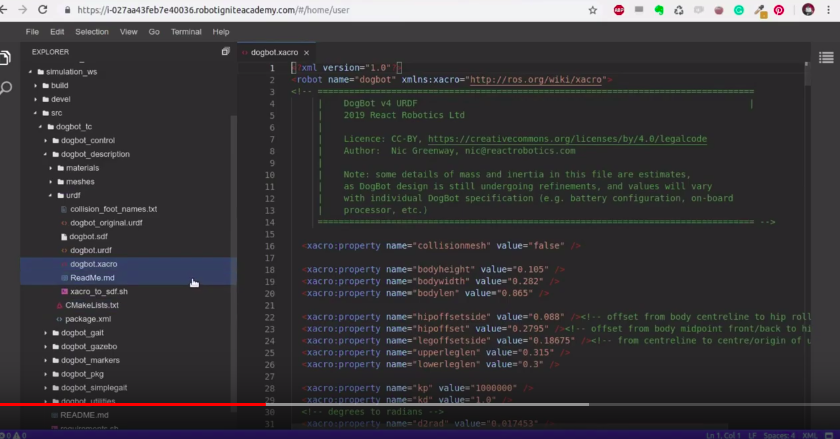
The code used to define the sensors is located in ~/simulation_ws/src/dogbot_tc/dogbot_description/urdf/dogbot.xacro

In ROSDS you can see it easily by using the Code Editor.

dogbot.xacro robot in ROSD

dogbot.xacro robot in ROSD

By looking at the code, if you find for “Contact Sensor” you will find it around line 350, inside the <gazebo> tag of the dogbot.xacro file.

Going deeper into the code

On the dogbot.xacro file, the sensor is defined in line 350 like below:

<sensor name="${prefix}_${suffix}_contactsensor_sensor" type="contact">
        <always_on>true</always_on>
        <contact>
          <collision>${prefix}_${suffix}_lowerleg_fixed_joint_lump__${prefix}_${suffix}_foot_collision_5</collision>
        </contact>
        <plugin name="${prefix}_${suffix}_foot_plugin" filename="libgazebo_ros_bumper.so">
          <bumperTopicName>${prefix}_${suffix}_contactsensor_state</bumperTopicName>
          <!--<frameName>${prefix}_${suffix}_foot</frameName>-->
          <frameName>world</frameName>
        </plugin>
      </sensor>

We can see the type=”contact”, and the gazebo plugin named libgazebo_ros_bumper.so.

One of the most important parts of the code is the contact part:

<contact>
  <collision>${prefix}_${suffix}_lowerleg_fixed_joint_lump__${prefix}_${suffix}_foot_collision_5</collision>
</contact>

Further details about the collision can be found in this video: https://youtu.be/RcrgC9o9A6A?t=269

Converting .xacro into .sdf file

Gazebo uses .sdf files to launch simulations, but the code we showed so far is a .xacro one (dogbot.xacro).

In order to convert .xacri into .sdf you can just:

cd ~/simulation_ws/src/dogbot_tc/dogbot_description/urdf

./xacro_to_sdf.sh

That script generates the dogbot.sdf file that is already in the ROSject. The content of the xacro_to_sdf.sh file is:

#!/usr/bin/env bash
echo "Cleaning sdf and urdf"
rm -rf dogbot.sdf dogbot.urdf
rosrun xacro xacro.py dogbot.xacro > dogbot.urdf
gz sdf -p dogbot.urdf > dogbot.sdf
echo "Generated SDF

Seeing the markers on RViz

You can see the contact sensors in RViz. For that you can run the following command in a webshell:

rosrun dogbot_markers arrows_rviz.py

In a different shell you run:

rosrun rviz rviz

Open the Graphical Tools and select the rviz file inside the ~/simulation_ws/src/dogbot_tc/dogbot_markers/rviz folder. For that you first need to click Tools -> Graphical Tools, then select the rviz config file.

Launching Graphical Tools in ROSDS

Launching Graphical Tools in ROSDS

Select the rviz config file for dogbot

Select the rviz config file for dogbot


dogbot rviz sensors on ROSDS

dogbot rviz sensors on ROSDS

Here the pressure in each of the feet of Dogbit is represented by an arrow, which lengths and colors are proportional to the pressure registered.

If you want a deeper understanding of how the markers are created and published in RViz, please have a look at the post on adding pressure sensors in RViz.

How to move DogBot

To move the robot you can easily use the command below:
rosrun teleop_twist_keyboard teleop_twist_keyboard.py cmd_vel:=/dogbot/cmd_vel

Hit K to make DogBot stop, and to lower the speed, hit Z on the keyboard until when hitting I ( go forwards ) has a sable step. Around 0.1 is ok.

A video version of this post

So this is the post for today. If you prefer, we also have a video version of this post available in the link below. We hope you liked the post and the video. If so, please feel free to subscribe to our channel, share this post and comment on the video section.

We would like to thank React Robotics for this amazing robot and thank you for reading through this post.

Keep pushing your ROS Learning.

Interested in learning more? Try out this course on URDF creation for Gazebo and ROS:

Robot Create with URDF

#dogbot #quadruped #pressuresensors #tactilesensors #Simulation #Gazebo #Robot

[ROS Q&A] 190 – Air Drag in Gazebo

[ROS Q&A] 190 – Air Drag in Gazebo

What will you learn in this post

  • How to create a Gazebo plugin to generate dragging when a model moves.
  • How to create a simple propulsion system plugin

List of resources used in this post

Start the provided ROSject

The first thing you need to do is to have a copy of the ROSject we mentioned above. Click on the link to get an automatic copy. You should now see a ROSject called BuoyancyBot on your list of ROSjects, something like the image below:

BuoyancyBot simulation on ROSDS

BuoyancyBot simulation on ROSDS

After clicking on the Open button to open the ROSject, you should have the environment like the one in the image below:

BuoyancyBot opened on ROSDS

BuoyancyBot opened on ROSDS

Finding the code

After opening the ROSject, you can see the code on the ~/simulation_ws/src folder. There you will find the folders buoyancy_tests_pkg and spawn_robot_tools. It is worth mentioning that the plugin we created is called fluid_resitance.cpp, which has the content below. Bear in mind that you can find that code on the ROSject:

#include "ros/callback_queue.h"
#include "ros/ros.h"
#include "ros/subscribe_options.h"
#include "std_msgs/Float32.h"
#include <functional>
#include <gazebo/common/common.hh>
#include <gazebo/gazebo.hh>
#include <gazebo/msgs/msgs.hh>
#include <gazebo/physics/physics.hh>
#include <gazebo/transport/transport.hh>
#include <ignition/math/Vector3.hh>
#include <thread>

namespace gazebo {
class FluidResitance : public ModelPlugin {
public:
  void Load(physics::ModelPtr _parent, sdf::ElementPtr _sdf) {

    if (_sdf->HasElement("fluid_resitanceTopicName")) {
      this->fluid_resitanceTopicName =
          _sdf->Get<std::string>("fluid_resitanceTopicName");
    } else {
      ROS_WARN("No Topic Given name given, setting default name %s",
               this->fluid_resitanceTopicName.c_str());
    }

    if (_sdf->HasElement("NameLinkToApplyResitance")) {
      this->NameLinkToApplyResitance =
          _sdf->Get<std::string>("NameLinkToApplyResitance");
    } else {
      ROS_WARN("No NameLinkToApplyResitance Given name given, setting default "
               "name %s",
               this->NameLinkToApplyResitance.c_str());
    }

    if (_sdf->HasElement("rate")) {
      this->rate = _sdf->Get<double>("rate");
    } else {
      ROS_WARN("No rate Given name given, setting default "
               "name %f",
               this->rate);
    }

    // Store the pointer to the model
    this->model = _parent;
    this->world = this->model->GetWorld();
    this->link_to_apply_resitance =
        this->model->GetLink(this->NameLinkToApplyResitance);

    // Listen to the update event. This event is broadcast every
    // simulation iteration.
    this->updateConnection = event::Events::ConnectWorldUpdateBegin(
        std::bind(&FluidResitance::OnUpdate, this));

    // Create a topic name
    // std::string fluid_resitance_index_topicName = "/fluid_resitance_index";

    // Initialize ros, if it has not already bee initialized.
    if (!ros::isInitialized()) {
      int argc = 0;
      char **argv = NULL;
      ros::init(argc, argv, "model_mas_controler_rosnode",
                ros::init_options::NoSigintHandler);
    }

    // Create our ROS node. This acts in a similar manner to
    // the Gazebo node
    this->rosNode.reset(new ros::NodeHandle("model_mas_controler_rosnode"));

#if (GAZEBO_MAJOR_VERSION >= 8)
    this->last_time = this->world->SimTime().Float();
#else
    this->last_time = this->world->GetSimTime().Float();
#endif

    // Freq
    ros::SubscribeOptions so = ros::SubscribeOptions::create<std_msgs::Float32>(
        this->fluid_resitanceTopicName, 1,
        boost::bind(&FluidResitance::OnRosMsg, this, _1), ros::VoidPtr(),
        &this->rosQueue);
    this->rosSub = this->rosNode->subscribe(so);

    // Spin up the queue helper thread.
    this->rosQueueThread =
        std::thread(std::bind(&FluidResitance::QueueThread, this));

    ROS_WARN("Loaded FluidResitance Plugin with parent...%s, With Fluid "
             "Resitance = %f "
             "Started ",
             this->model->GetName().c_str(), this->fluid_resitance_index);
  }

  // Called by the world update start event
public:
  void OnUpdate() {
    float period = 1.0 / this->rate;

    // Get simulator time
#if (GAZEBO_MAJOR_VERSION >= 8)
    float current_time = this->world->SimTime().Float();
#else
    float current_time = this->world->GetSimTime().Float();
#endif
    float dt = current_time - this->last_time;

    if (dt <= period){
        ROS_DEBUG(">>>>>>>>>>TimePassed = %f, TimePeriod =%f ",dt, period);
        return;
    }else{
        this->last_time = current_time;
        this->ApplyResitance();
    }


  }

public:
  void SetResitance(const double &_force) {
    this->fluid_resitance_index = _force;
    ROS_WARN("model_fluid_resitance_index changed >> %f",
             this->fluid_resitance_index);
  }

  void UpdateLinearVel() {
#if (GAZEBO_MAJOR_VERSION >= 8)
    this->now_lin_vel = this->model->RelativeLinearVel();
#else
    this->now_lin_vel = this->model->GetRelativeLinearVel();
#endif
  }

  void ApplyResitance() {

    this->UpdateLinearVel();

#if (GAZEBO_MAJOR_VERSION >= 8)
    ignition::math::Vector3d force, torque;
#else
    math::Vector3 force, torque;
#endif

    ROS_WARN("LinearSpeed = [%f,%f,%f] ",this->now_lin_vel.x, this->now_lin_vel.y, this->now_lin_vel.z);

    force.x = -1.0 * this->fluid_resitance_index * this->now_lin_vel.x;
    force.y = -1.0 * this->fluid_resitance_index * this->now_lin_vel.y;
    force.z = -1.0 * this->fluid_resitance_index * this->now_lin_vel.z;

    // Changing the mass
    this->link_to_apply_resitance->AddRelativeForce(force);
#if (GAZEBO_MAJOR_VERSION >= 8)
    this->link_to_apply_resitance->AddRelativeTorque(
        torque -
        this->link_to_apply_resitance->GetInertial()->CoG().Cross(force));
#else
    this->link_to_apply_resitance->AddRelativeTorque(
        torque -
        this->link_to_apply_resitance->GetInertial()->GetCoG().Cross(force));
#endif

    ROS_WARN("FluidResitanceApplying = [%f,%f,%f] ",force.x, force.y, force.z);
  }

public:
  void OnRosMsg(const std_msgs::Float32ConstPtr &_msg) {
    this->SetResitance(_msg->data);
  }

  /// \brief ROS helper function that processes messages
private:
  void QueueThread() {
    static const double timeout = 0.01;
    while (this->rosNode->ok()) {
      this->rosQueue.callAvailable(ros::WallDuration(timeout));
    }
  }

  // Pointer to the model
private:
  physics::ModelPtr model;

  // Pointer to the update event connection
private:
  event::ConnectionPtr updateConnection;

  // Mas of model
  double fluid_resitance_index = 1.0;

  /// \brief A node use for ROS transport
private:
  std::unique_ptr<ros::NodeHandle> rosNode;

  /// \brief A ROS subscriber
private:
  ros::Subscriber rosSub;
  /// \brief A ROS callbackqueue that helps process messages
private:
  ros::CallbackQueue rosQueue;
  /// \brief A thread the keeps running the rosQueue
private:
  std::thread rosQueueThread;

  /// \brief A ROS subscriber
private:
  physics::LinkPtr link_to_apply_resitance;

private:
  std::string fluid_resitanceTopicName = "fluid_resitance";

private:
  std::string NameLinkToApplyResitance = "base_link";

private:
#if (GAZEBO_MAJOR_VERSION >= 8)
  ignition::math::Vector3d now_lin_vel;
#else
  math::Vector3 now_lin_vel;
#endif

private:
  double rate = 1.0;

private:
  float last_time = 0.0;

private:
  /// \brief The parent World
  physics::WorldPtr world;
};

// Register this plugin with the simulator
GZ_REGISTER_MODEL_PLUGIN(FluidResitance)
} // namespace gazebo

Compile the plugin

Once you have the ROSject, be it on ROSDS or on your own computer, you can easily compile it with:

cd ~/simulation_ws/

catkin_make

Everything should have compiled without any problems. If compiling in your own computer raises errors, please remember running the command source /opt/ros/kinetic/setup.bash before calling catkin_make .

Using the plugin

The plugin we compiled previously has to be loaded by gazebo. We do that on the file

~/simulation_ws/src/buoyancy_tests_pkg/buoyancy_tests_pkg/urdf/simple_floating_sphere_buoyancy_control.urdf, by using the instructions below:

<!-- Add plugin Air Resistance -->
<gazebo>
    <plugin name="fluid_resitance_plugin" filename="libfluid_resitance_plugin.so">
        <fluid_resitanceTopicName>/fluid_resitance</fluid_resitanceTopicName>
        <NameLinkToApplyResitance>simple_sphere_base_link</NameLinkToApplyResitance>
        <rate>2.0</rate>
    </plugin>
</gazebo>

Lights, Camera Action

With everything in place, we can now run the simulation.  To launch the Simple Fluid Machine, we launch the simulation that has the mass control, the fluid resistance and the propulsion plugins enabled:

roslaunch buoyancy_tests_pkg main_sphere_buoyancy_control.launch

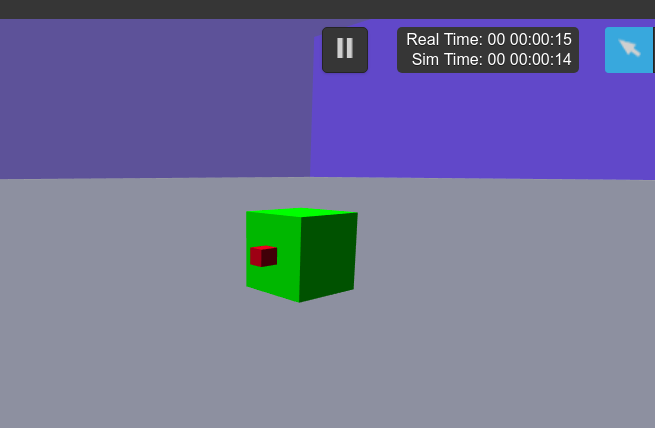
You should get something like:

buoyancy_bot

buoyancy_bot

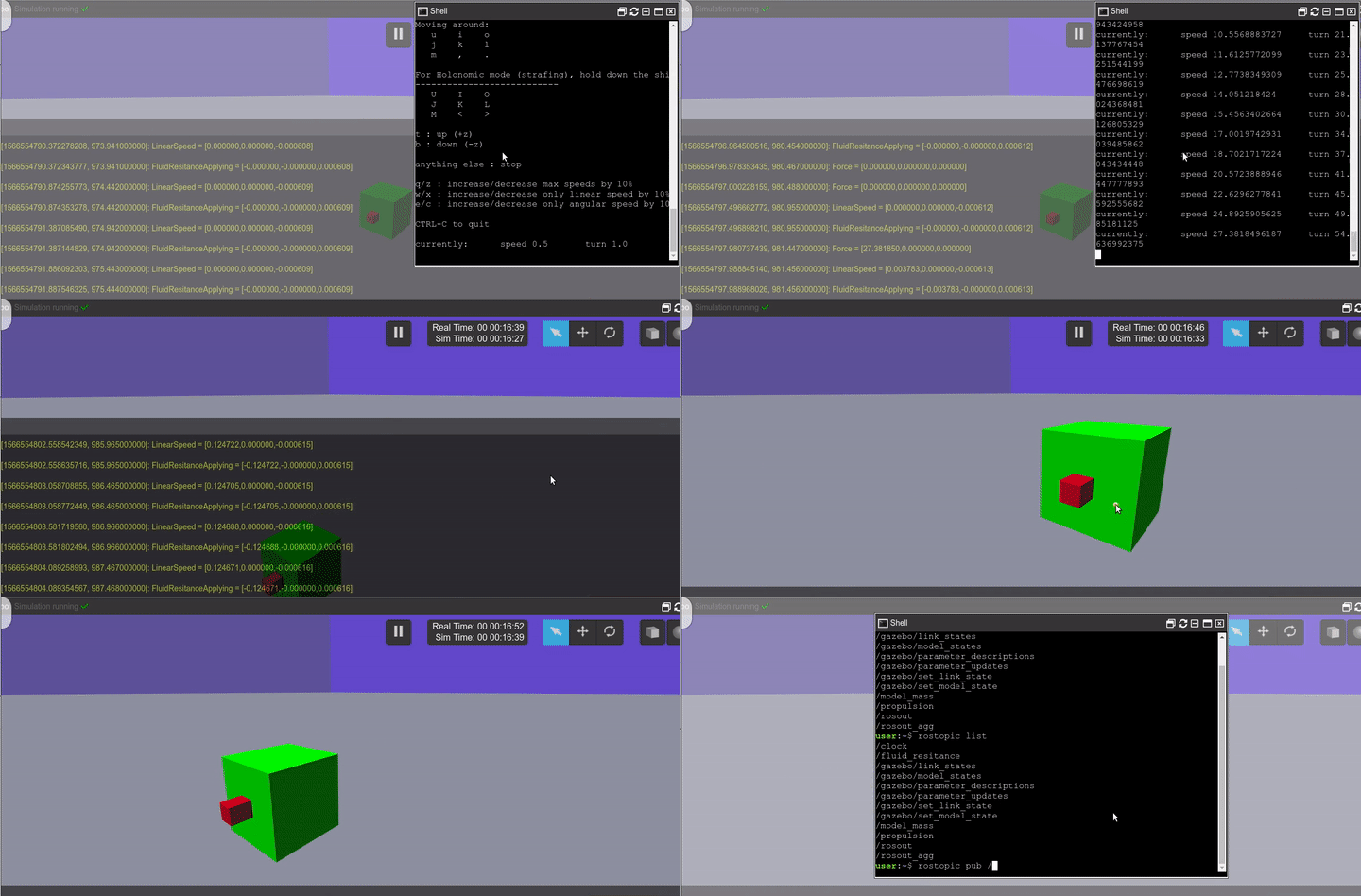
We can now start the Propulsion Control. After running the command below, you have to keep pressing the direction you want to apply force:

rosrun buoyancy_tests_pkg keyboard_propulsion.py
propulsion

propulsion


You can see all the publications of the plugins through the Gazebo Console Log.

Change the Fluid Resistance

You can change the fluid resistance anytime you want by publishing into this topic:

/fluid_resitance
For that you can do the following:
rostopic pub /fluid_resitance std_msgs/Float32 "data: 10.0"
This will apply a fluid resistance that follows this formula:
FluidResitance_X_Axis = -1* FluidResitance * LinearSpeed_X_Axis
FluidResitance_Y_Axis = -1* FluidResitance * LinearSpeed_Y_Axis
FluidResitance_Z_Axis = -1* FluidResitance * LinearSpeed_Z_Axis

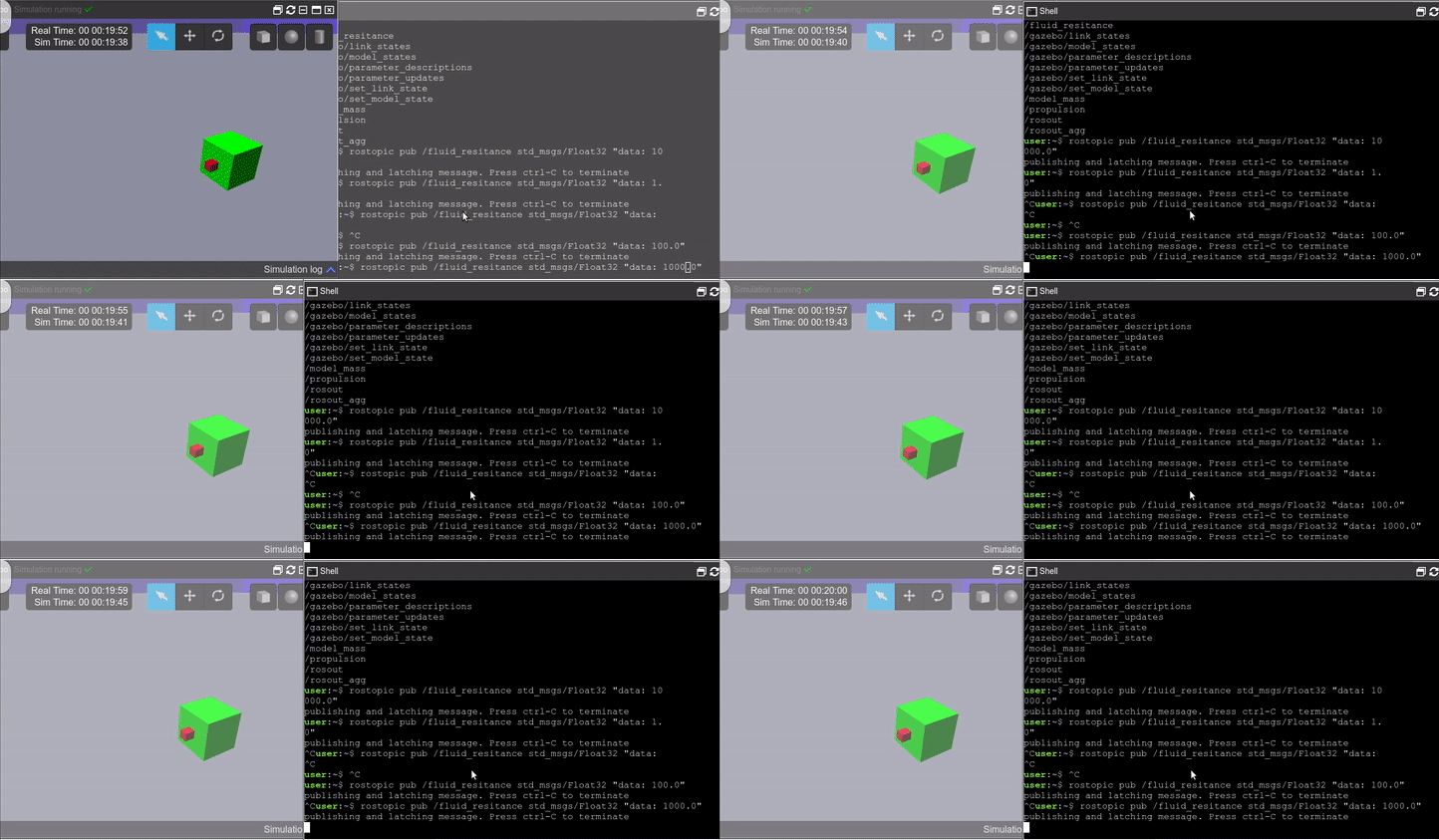
If you have applied a movement and you change the FluidResistance, you should see a variation in the time the robot takes to stop. The higher the friction, the faster it will stop its movement.

Air Dragging in Gazebo on ROSDS

Air Dragging in Gazebo on ROSDS

There is more to it but have a look at the HectorPluginsAerodinamics, in which this code is based upon.

Change the Mass or buoyancy

By changing the mass, it will change the buoyancy of the model. This is to simulate the water intake of submarines or the buoyancy system that an air flying machine like a blimp could have.

rostopic pub /model_mass std_msgs/Float32 "data: 0.0"
Mass_0 = 7.23822947387 –> Neutral buoyancy because its the mass of the object
Mass > Mass_0 –> It will sink
Mass < Mass_0 –> It will rise

This mass you can find it in the URDF of the  model: buoyancy_tests_pkg/urdf/simple_floating_sphere_buoyancy_control.urdf

<inertial>
    <origin xyz="0 0 0" rpy="0 0 0"/>
    <mass value="7.23822947387" />
    <inertia ixx="0.00576" ixy="0.0" ixz="0.0" iyy="0.00576" iyz="0.0" izz="0.00576"/>
</inertial>

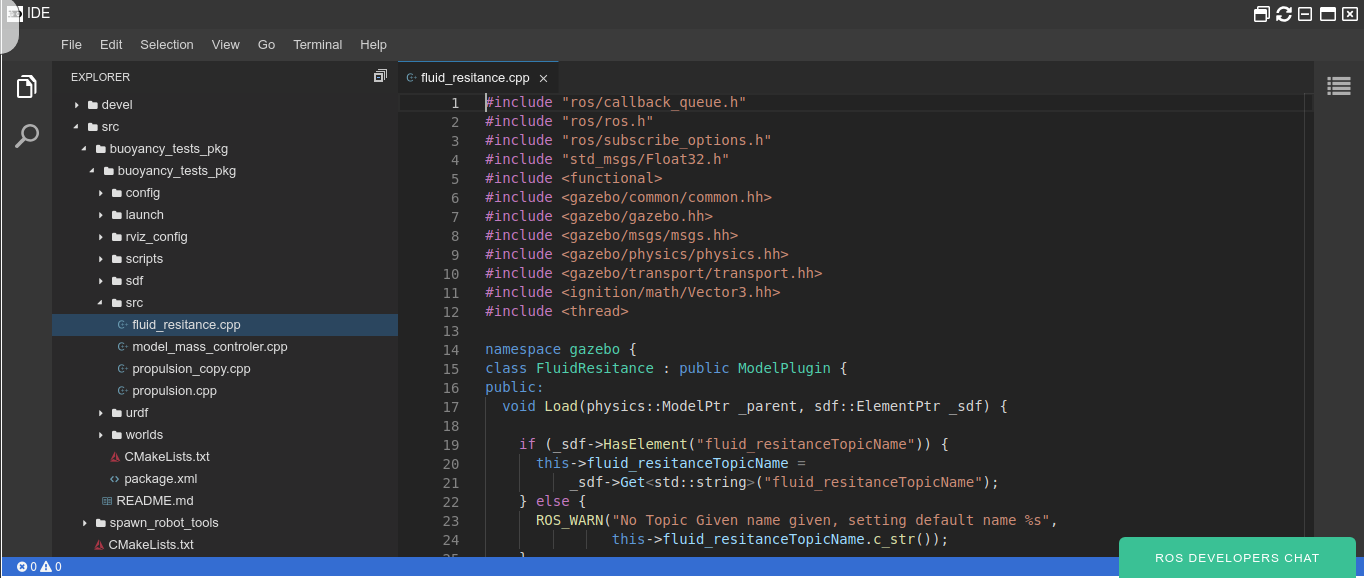
See the Full code

To see the full code, open the IDE by going to the top menu and select Tools->IDE

IDE - fluidresitance on ROSDS

IDE – fluidresitance on ROSDS

You can also have a look at it from the git: https://bitbucket.org/theconstructcore/buoyancy_tests_pkg/src/master/

Bear in mind that this code is a simplification of the Hector plugins. It’s simply made easier to use. Check out the original source: https://github.com/tu-darmstadt-ros-pkg/hector_quadrotor/blob/kinetic-devel/hector_quadrotor_gazebo_plugins/src/gazebo_quadrotor_aerodynamics.cpp

So, that is the post for today. Remember that we also have a live version of this post on our YouTube channel, as can be seen on the link below. If you liked the content of this post or video, please consider subscribing to our channel and pressing the bell for a new video every single day:

Related resources:

#airdrag #fluidresitance #Simulation #Gazebo #Robot #rostutorials #Ubuntu

Post edited by Miguel, Yuhong and Ruben.

[Robot Modeling] Comparing Mecanum Wheels with Diff Drive robots – Ep.4

[Robot Modeling] Comparing Mecanum Wheels with Diff Drive robots – Ep.4

About

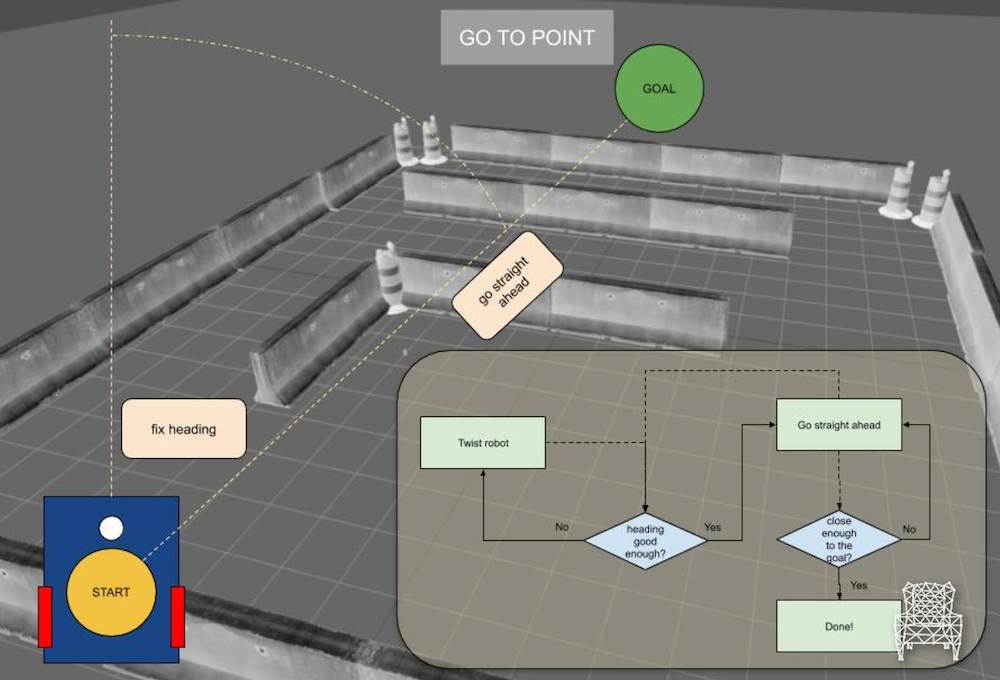
In this video, we’re going to compare our Mecanum Wheels to the simpler Diff Drive robot by using the standard “go to point” motion planning algorithm and an improved one

You will learn

  • Understand better the broad range of possibilities of mecanum wheels
  • Code a simple motion planning algorithm

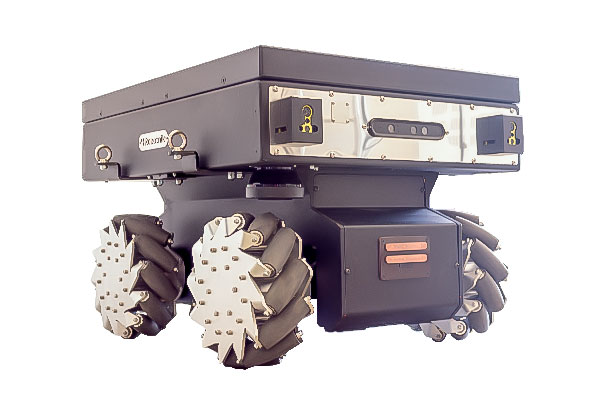
Robot Used in this video

Summit XLS wheels

Course & Tutorial related to the video

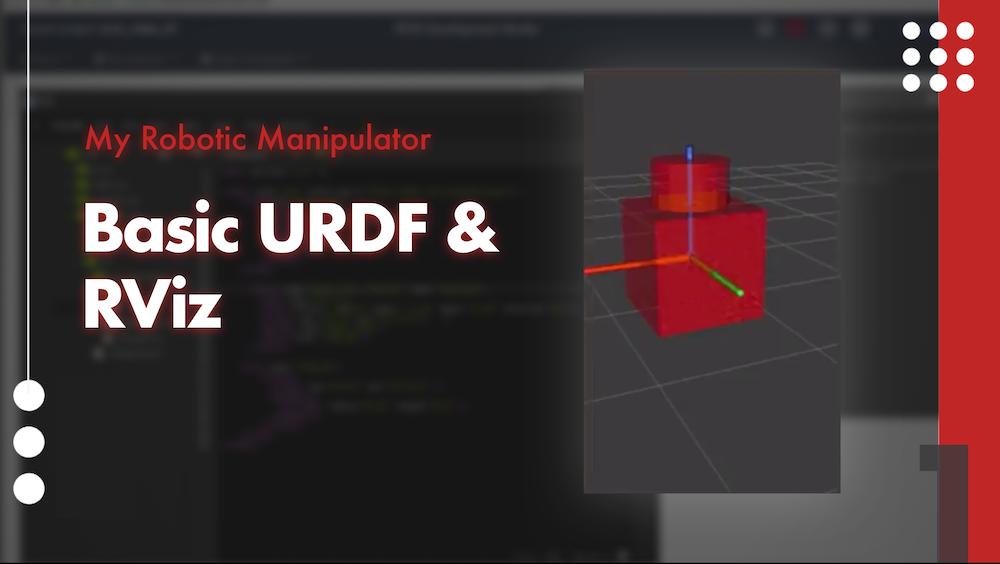
My Robotic Manipulator #1: Basic URDF & RViz

My Robotic Manipulator #1: Basic URDF & RViz

My Robotic Manipulator – Introduction

Hey ROS developers! In this post, we start working on our own robotic manipulator. Based on the YouTube video series, we’ll show in this format the steps to achieve the final result of the series!

In this post number #1, I’m gonna show how to create the basic Unified Robot Description Format – URDF (the first two links) and visualize it in RViz!

Step 1 – Creating a package

I have here a fresh new ROSJect (which will be shared at the end of the post). Let’s start creating a package that will contain our robot description.

In a shell, execute the following command:

catkin_create_pkg mrm_description urdf

Now, we create a new folder, ~/simulation_ws/src/mrm_description/urdf, where we are gonna place the file mrm.xacro

XACRO files are “XML macros”, used to simplify URDF description.

Step 2 – Describing the robot

In order to create our robot, we must divide it into links and joints. This is what we are gonna do in our file.

Structure

The mandatory structure begins like:

<?xml version="1.0" ?>

<robot name="mrm" xlmns:xacro="http://www.ros.org/wiki/xacro">

  ...
  ... here goes the robot description
  ...

</robot>

First link

Let’s describe the first link, the base of the robot, it goes like this:

<link name="base_link">
    <visual>
      <origin rpy="0 0 0" xyz="0 0 0" />
      <geometry>
        <box size="1 1 1" />
      </geometry>
    </visual>
</link>

What are we doing:

  • Creating a link tag, this represents the first part of the robot (its base)
  • We set the origin of the link (in this case it’s relative to the place we spawn the robot – further steps)
  • And the geometry of the joint – it’s a simple box with dimensions 1x1x1 (in meters)

Joint

Just before going to the next link, we need to create a joint, which will bind both:

<joint name="base_link__link_01" type="revolute">
    <axis xyz="0 0 1"/>
    <limit effort="1000.0" lower="-3.14" upper="3.14" velocity="0.5"/>
    <origin rpy="0 0 0" xyz="0 0 0.5"/>
    <parent link="base_link"/>
    <child link="link_01"/>
</joint>

Second link

And we go to the second link (which is called “link_01”, because the first one is called “base_link”)

<link name="link_01">
    <visual>
        <origin rpy="0 0 0" xyz="0 0 0.2" />
        <geometry>
        <cylinder radius="0.35" length="0.4" />
        </geometry>
    </visual>
</link>

Great! We have a visual description of our robot!

Let’s check it in RViz

Step 3 – Checking the robot model in RViz

In order to see our model in RViz, we need to create a launch file:

<launch>

  <param name="robot_description" command="$(find xacro)/xacro --inorder '$(find mrm_description)/urdf/mrm.xacro'"/>

  <!-- Combine joint values -->
  <node name="robot_state_publisher" pkg="robot_state_publisher" type="state_publisher"/>

  <!-- Show in Rviz   -->
  <node name="rviz" pkg="rviz" type="rviz" args="-d $(find mrm_description)/launch/config.rviz" />

  <!-- send joint values -->
  <node name="joint_state_publisher" pkg="joint_state_publisher" type="joint_state_publisher">
    <param name="use_gui" value="True"/>
  </node>

</launch>

The file goes here: ~/simulation_ws/src/mrm_description/launch/rviz.launch

This is what we are launching in this launch file:

    • Define the robot_description parameter
    • Publishing the state of the joints
    • Open RViz with a  pre-defined configuration file (we’ll create it in the next step!)
    • Opening a program to change the joint values (and see the robot moving!)

Let’s try it!

roslaunch mrm_description rviz.launch

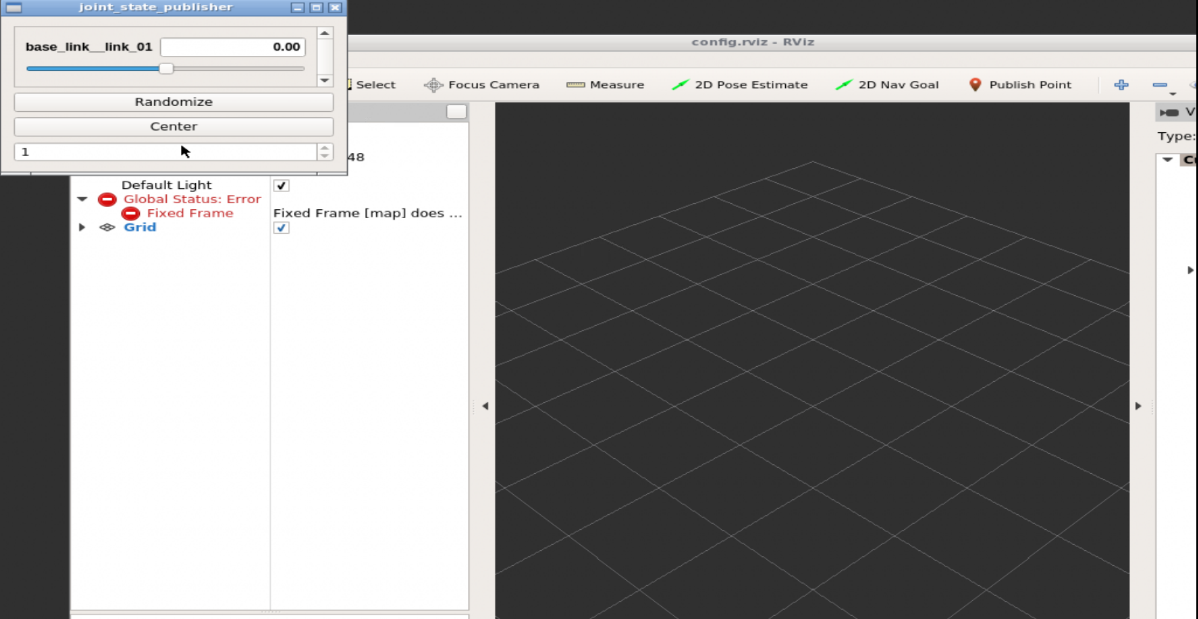
Open the app Graphical tools and you must have something like below:

My Robotic Manipulator Basic URDF & RViz image 1

Let’s configure it!

On the left bar of RViz, select the Fixed Frame to base_link

Then, click on the button Add and select RobotModel and press Ok

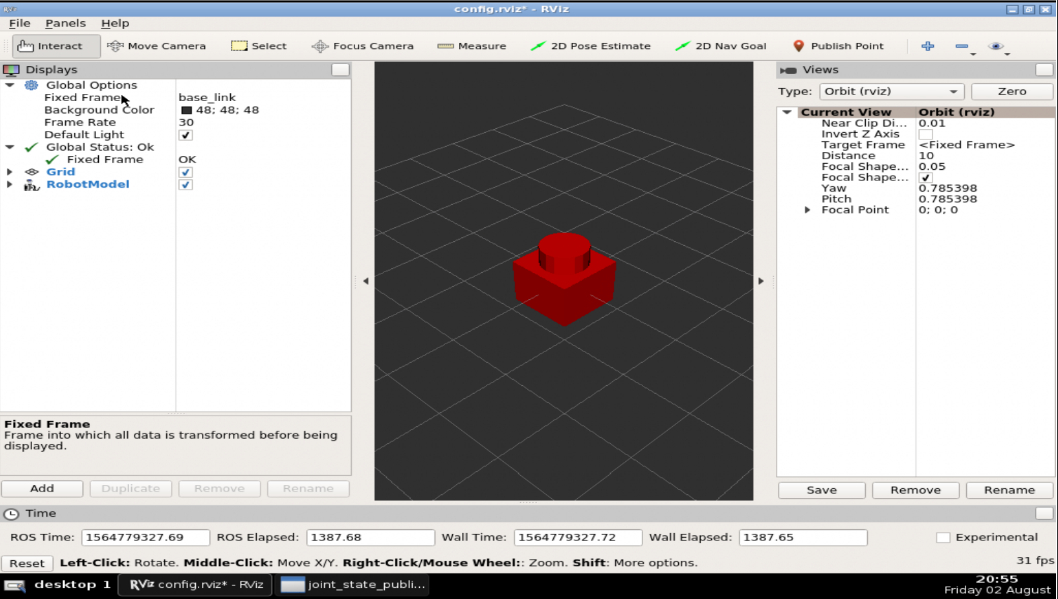
You must have the model of the robot there!

Robotic Manipulator Basic URDF & RViz image 2

Save a configuration file, on the top bar of RViz: FileSave Config As

Select ~/simulation_ws/src/mrm_description/launch/config.rviz

You can try launching it again to make sure the configurations we’ve just set will be loaded!

You can also play with the second window, the joint_state_publisher, in order to see the only movable joint changing position. Just drag the bar to left or right.

Related courses

Robot-creation-URDF Course Cover - ROS Online Courses - Robot Ignite Academy

URDF for Robot Modeling

ROS Manipulation Course Cover - ROS Online Courses - Robot Ignite Academy

ROS Manipulation

ROS Industrial robots Course Cover - ROS Online Courses - Robot Ignite Academy

ROS for Industrial Robots

Conclusion

We have created the visual part of the robot!

In the next post, we’ll finish the other parts (link and joints) using XACROs, to make it simpler!

If you lost any part of the tutorial, you can get a copy of the ROSject I’ve done clicking here!

See you!

Pin It on Pinterest