Learn how to create a Python program (broadcaster) for broadcasting a tf2 between 2 frames. This video is an answer to the following question found on ROS Answers.
Use the ROS Development Studio (ROSDS), an online platform for developing for ROS within a PC browser. Easy-peasy. I’m using this option for this post.
Once you log in, click on the New ROSject button to create a project that will host your code. Then Click on Open ROSject to launch the development/simulation environment.
To open a “terminal” on ROSDS, pick the Shellapp from the Tools menu.
You can find the IDE app on the Tools menu.
You have ROS installed on a local PC. Okay, skip to Step 2.
Next step!
Step 2: Create the TF ROS package for the tf2 broadcaster Python node
You should now see the classical turtle. In order to see the Turtle on ROSDS, go to
Tools -> Graphical Tools. (PS: In case it does not appear well, you can use the Resize opened app button to resize the screen).
Now, use the tf_echo tool to check if the turtle pose is actually getting broadcast to tf2. Open another terminal and run:
user:~$ rosrun tf tf_echo /world /turtle1
This should show you the pose of the first turtle. Drive around the turtle using the arrow keys (make sure your terminal window is active, not your simulator window), and you should see these values change.
Ok now, we are done, right? No, we are not! We need to find out what was wrong with the user’s code.
Step 5: Break the Python code so that we can help the user find out the problem with their code!
Yes, really. If you haven’t broken something you probably haven’t learned much, they say! So now let’s break the Python code so we can find out why the user’s code did not run:
Remove the very first line of the turtle_tf_broadcaster.py file that reads #!/usr/bin/env python and save it.
Now try to launch the node again: stop the current launch command using Ctrl + C and then launch it again:
# Ctrl + C to stop the current one
user:~/catkin_ws$ roslaunch learning_tf2 start_demo.launch
Now we have the following ugly error that the user had:
“`
Unable to launch [turtle1_tf2_broadcaster-4].
If it is a script, you may be missing a ‘#!’ declaration at the top.
The traceback for the exception was written to the log file
“`
The moral: Don’t tamper with that “shebang” at the top of a python script – it’s what identifies it as an executable python script.
Yep, we are done now. I hope that you were able to learn one or two things from this post.
PS: Don’t forget to restore the shebang line 🙂
Extra: Video of this post
We made a video showing how we create a package for broadcasting tf2 between two frames and how we found out the problem with the user’s code. If you prefer “sights and sounds” to “black and white”, here you go:
Feedback
Did you like this post? Do you have any questions about the explanations? Whatever the case, please leave a comment on the comments section below, so we can interact and learn from each other.
If you want to learn about other ROS or ROS2 topics, please let us know in the comments area and we will do a video or post about it.
Head to http://rosds.online and create a project with a similar configuration as the one shown below. You can change the details as you like, but please make sure you select “Ubuntu 16.04 + ROS Kinetic + Gazebo 7” under “Configuration”.
Once done with that, open your ROSject. This might take a few moments, please be patient.
Step 2: Create a ROS package with a Python program
Pick a Shell from the Tools menu and create a Python package.
user:~$ cd catkin_ws/
user:~/catkin_ws$ cd src
user:~/catkin_ws/src$ catkin_create_pkg missing_permission
Created file missing_permission/package.xml
Created file missing_permission/CMakeLists.txt
Successfully created files in /home/user/catkin_ws/src/missing_permission. Please adjust the values in package.xml.
user:~/catkin_ws/src$ cd missing_permission/
user:~/catkin_ws/src/missing_permission$ mkdir -p src/
user:~/catkin_ws/src/missing_permission$ cd src
user:~/catkin_ws/src/missing_permission/src$ touch missing_perm.py
user:~/catkin_ws/src/missing_permission/src$
Fire up the IDE from the Tools menu, find the missing_perm.py file in the missing_permission package, open the file and paste the following code into it.
#! /usr/bin/env python
import rospy

rospy.init_node("Obiwan")
rate = rospy.Rate(2)
while not rospy.is_shutdown():
    print "Help me Obi-Wan Kenobi, you're my only hope"
    rate.sleep()
Save().
Step 3: Compile and source the workspace.
cd ~/catkin_ws
catkin_make
source devel/setup.bash
Step 4: Run the package with rosrun and roslaunch.
First, we check that the package has been recognized, with rospack list. Then we run it with rosrun.
user:~/catkin_ws$ rospack list | grep missing
missing_permission /home/user/catkin_ws/src/missing_permission
user:~/catkin_ws$ rosrun missing_permission missing_perm.py
[rosrun] Couldn't find executable named missing_perm.py below /home/user/catkin_ws/src/missing_permission
[rosrun] Found the following, but they're either not files,
[rosrun] or not executable:
[rosrun]   /home/user/catkin_ws/src/missing_permission/src/missing_perm.py
user:~/catkin_ws$
The program did not run! What’s that error? Surely that not what we expected. Maybe rosrun does not like us – let’s try roslaunch!
Create a launch file and use it to launch the python program:
user:~/catkin_ws$ cd src/missing_permission/
user:~/catkin_ws/src/missing_permission$ mkdir -p launch
user:~/catkin_ws/src/missing_permission$ cd launch
user:~/catkin_ws/src/missing_permission/launch$ touch missing_perm.launch
user:~/catkin_ws/src/missing_permission$
Open the launch file in the IDE and paste in the following code:
user:~/catkin_ws/src/missing_permission$ cd ~/catkin_ws
user:~/catkin_ws$ source devel/setup.bash
user:~/catkin_ws$ roslaunch missing_permission missing_perm.launch
... logging to /home/user/.ros/log/e3188a2e-e921-11e9-8ac1-025ee6e69cec/roslaunch-rosdscomputer-11105.log
...

NODES
  /
    missing_permission_ex (missing_permission/missing_perm.py)

auto-starting new master
process[master]: started with pid [11147]
ROS_MASTER_URI=http://master:11311

setting /run_id to e3188a2e-e921-11e9-8ac1-025ee6e69cec
process[rosout-1]: started with pid [11170]
started core service [/rosout]
ERROR: cannot launch node of type [missing_permission/missing_perm.py]: can't locate node [missing_perm.py] in package [missing_permission]
Oops! It didn’t run again. Now we have another error screaming:
ERROR: cannot launch node of type [missing_permission/missing_perm.py]: can't locate node [missing_perm.py] in package [missing_permission]
What do we do now?
Step 5: Fix the missing execute permission on the Python file and be happy!
user:~/catkin_ws$ cd src/missing_permission/src/
user:~/catkin_ws/src/missing_permission/src$ chmod +x missing_perm.py
user:~/catkin_ws/src/missing_permission/src$
Now let’s try again with both roslaunch and rosrun:
user:~/catkin_ws/src/missing_permission/src$ roslaunch missing_permission missing_perm.launch
...

NODES
  /
    missing_permission_ex (missing_permission/missing_perm.py)

auto-starting new master
process[master]: started with pid [13206]
ROS_MASTER_URI=http://master:11311

setting /run_id to eec6e306-e922-11e9-b72a-025ee6e69cec
process[rosout-1]: started with pid [13229]
started core service [/rosout]
process[missing_permission_ex-2]: started with pid [13242]
Help me Obi-Wan Kenobi, you're my only hope
Help me Obi-Wan Kenobi, you're my only hope
Help me Obi-Wan Kenobi, you're my only hope
...
Running fine with roslaunch. Press Ctrl + C on the roslaunch program and try rosrun:
user:~/catkin_ws/src/missing_permission/src$ rosrun missing_permission missing_perm.py
Unable to register with master node [http://master:11311]: master may not be running yet. Will keep trying.
If you get the error above, please spin another Shell from the Tools menu, and run the following to start the ROS master:
user:~$ roscore
After this, the roscore command should resume and you’ll get:
user:~/catkin_ws/src/missing_permission/src$ rosrun missing_permission missing_perm.py
Unable to register with master node [http://master:11311]: master may not be running yet. Will keep trying.
Help me Obi-Wan Kenobi, you're my only hope
Help me Obi-Wan Kenobi, you're my only hope
Help me Obi-Wan Kenobi, you're my only hope
...
And that was it. As it turned out, roscore had no ill-feeling towards us!
Did you like this post? Do you have questions about what was explained? Whatever the case, please leave a comment on the comments section below, so we can interact and learn from each other.
If you want to learn about other ROS or ROS2 topics, please let us know in the comments area and we will do a video or post about it 🙂
In this post, you will learn how to access and output odometry data programmatically. More specifically, you will learn how to create a C++ program for subscribing to and printing different parts of the odometry message. This is useful for cases where you need to make a decision based on the robot’s current position.
The command line output above shows the parts the make up an odometry message. The hottest part is pose, which tells us the current position of the robot. twist is also important, because it tells us the current message being published to move the robot.
Now let’s see how to access and output odometry data, considering the hottest part.
Step 4: See how to access and output odometry data in code
Switch to the IDE tool and locate the catkin_ws directory. You should find a C++ file in a package odom_subscriber. The full path to the file is catkin_ws/src/odom_subscriber/src/odom_sub.cpp.
Let’s see the content of this file:
#include <nav_msgs/Odometry.h> // Needed for accessing Odometry data
#include <ros/ros.h>           // Needed for creating the node, etc

// This functions get called when a new odometry message gets to the subscriber
// It automatically gets the odometry message as a parameter
// It prints out various parts of the message
void counterCallback(const nav_msgs::Odometry::ConstPtr &msg) {
  // ROS_INFO("%s", msg->header.frame_id.c_str());
  // ROS_INFO("%f", msg->twist.twist.linear.x);
  ROS_INFO("%f", msg->pose.pose.position.x);
}

int main(int argc, char **argv) {
  // Create a node to run the code
  ros::init(argc, argv, "odom_sub_node");
  ros::NodeHandle nh;

  // create a subscriber to the "/odom" topic so we can get the odometry message
  ros::Subscriber sub = nh.subscribe("odom", 1000, counterCallback);

  // Run program until manually stopped
  ros::spin();

  return 0;
}
I have added comments to the code to explain what each line or code block does, for better clarity.
The `counterCallback` function prints out the current x position of the robot. Observe how parts of the message are accessed in hierarchical format; using the structure in Step 3 as a guide, you can access and output any part of the Odometry message.
You can uncomment the commented parts to print out parts of the header and twist messages or even write other statements that print out other parts of the message!
Step 5: Move the robot and see the odometry data printed in real-time!
Run the C++ program in the shell, to print out the current x position of the robot. We can see the robot is basically at the “origin” and is stationary. Leave this program running.
Now you should see the robot moving. You should also see that the Odometry data being output in the other shell is changing.
In the second Shell, press Ctrl + C to stop the current program. Then publish the following message to stop the robot. After this, you should see the odometry position data become static again.
Did you like this post? Do you have questions about what is explained? Whatever the case, please leave a comment on the comments section below, so we can interact and learn from each other.
If you want to learn about other ROS topics, please let us know in the comments area and we will do a video or post about it.
If you are reading this, it is because you either are or you want to become a ROS developer. Basically a ROS developer is somebody who wants to build programs for robots based on ROS.
Yeah, but what is ROS? How can I learn ROS? How can I start developing with it? What is the most optimal development environment for it? All those questions will be answered in the following pages.
But before we start with the practical things, let’s answer some basic questions about what ROS is and why it can be the door through which you can become a developer for robots.
WHY ARE THERE NOT ENOUGH DEVELOPERS FOR ROBOTICS?
In general, software developers do not like to deal with hardware.
It is very likely that you are a developer and never thought about entering the robotics realm. You probably think that by programming for robots, you would need to know about electronics and maybe even mechanics. You probably think that hardware and software are too coupled in robots, and that you cannot touch one thing without touching the other.
For example, some years ago, I had to make the navigation system for a robot. However, our navigation program was not working at all. We thought that it was something wrong with the program, but after extensive review, we found that it actually was a problem with the electronics of the laser scanner that we used to localize the robot. There were some micro-interruptions in the voltage level that made the laser reboot. In order to find that error, we had to go to the basics and find where the problem within the physical laser was. For that, you need to mess with the electronics. You have to take the laser out of the robot, put it on your table, and start experimenting. Different voltages, different interruptions to the power, all in order to try to reproduce the effect in a controlled environment. That is a lot of interaction with the hardware.
Interaction with hardware is something that many software developers don’t like. After all, they decided to become developers of software, not hardware!!
ROBOTICISTS PROGRAMMING ROBOTS
Due to that, the programming of robots has been done by roboticists, who are the people that build the robots. Maybe some of them are not directly involved in the creation of the robot, but definitely they have no problem getting into the hardware and trying to fix some hardware problems, in order to make their program work.
But let’s face it, most roboticists are better developers than programmers. That is why robotics could benefit so much from having lots of expert programmers coming to the field.
The good news is that getting developers into the field is more possible than ever. Thanks to the Robot Operating System, ROS, you can completely abstract the hardware from the software, so you can program a robot just by knowing the robot ROS API. By using the ROS API, you can forget about the hardware and just concentrate on the software that makes the robot do what you want.
WHAT IS THE ROBOT ROS API?
The ROS API is the list of ROS topics, services, action servers, and messages that a given robot is providing to give access to its hardware, that is, sensors and actuators. If you are not familiar with ROS, you may not understand what those terms mean. But simply put in the developers’ language, topics/services/messages are like the software functions you can call on a robot to get data from the sensors or make the robot take action. It also includes the parameters you can pass on to those functions.
Most modern robot builders are providing off-the-shelf ROS APIs, like for example, ROS- Components shop that provides all its hardware running with a ROS API.
If the robot you want to work with does not run ROS, you can still make the robot work with ROS by ROSifying it. To ROSify means to adapt your robot to work with ROS. To ROSify a robot usually requires knowledge to access the hardware. You need to learn how to communicate with the electronics that provide the sensor data or access the motors of the robot. In this series of ROS tutorials, we are not dealing with that subject because it gets out of scope for developers. But if you are interested in this topic, you can learn more about it in this Robot Creation Course.
So for the rest of the tutorials, we will assume that you have access (or are willing to have access) to a robot that is ROSified.
WHAT IS ROS ANYWAY?
ROS stands for Robot Operating System. Even if it says so, ROS is not a real operating system since it goes on top of Linux Ubuntu. ROS is a framework on top of the O.S. that allows it to abstract the hardware from the software. This means you can think in terms of software for all the hardware of the robot. And that’s good news for you because this implies that you can actually create programs for robots without having to deal with the hardware. Yeah!
ROS FOR SERVICE ROBOTS
ROS is becoming the standard in robotics programming, at least in the service robots sector. Initially, ROS started at universities, but quickly spread into the business world. Every day, more and more companies and startups are basing their businesses in ROS.
Before ROS, every robot had to be programmed using the manufacturer’s own API. This means that if you changed robots, you had to start the entire software again, apart from having to learn the new API. Furthermore, you had to know a lot about how to interact with the electronics of the robot in order to understand how your program was doing. The situation was similar to that of computers in the 80s, when every computer had its own operating system and you had to create the same program for every type of computer. ROS is for robots like Windows is for PCs, or Android for phones.
By having a ROSified robot, that is, a robot that runs on ROS, you can create programs that can be shared among different robots. You can build a navigation program, that is a program to make a robot move around without colliding, for a four-wheeled robot built by company A and then use the same exact code to move a two-wheeled robot built by company B… or even use it on a drone from company C.
SOME COMMONLY ASKED QUESTIONS
Which operating system should be used with ROS?
ROS works on Linux Ubuntu or Linux Debian. Experimental support already exists for OSX and Gentoo, and a version for Windows in underway, but we really don’t recommend for you to use them yet, unless you are an expert. Check this page for more information about how to use ROS on those systems.
If you don’t know how to work with Linux, I recommend you start with this free Linux for Robotics course.
HOW TO DEVELOP FOR ROBOTS WITH ROS
Now, if you are convinced you want to become a robotics developer, in this series of ROS tutorials, you are going to find the steps that you can take to become a ROS developer. We have divided the tutorial series into the following sections that should cover the whole development process:
• Setting Up• Learning• Coding• Testing
Let’s go, one by one.
[irp posts=”14751″ name=”ROS for Beginners: How to Learn ROS”]
To access the full guide, click the orange button below, or go to RobotIgniteAcademy.com.
This part is what is used in the Python script that calculates the distance moved.
Step 4: Understand the Python scripts
1. Open the IDE and browse to the src folder. You will find two packages odom_movement_detector and test_movement. Each of these projects contains a Python script, each explained with comments in the code
#!/usr/bin/env python

import rospy
import math
from nav_msgs.msg import Odometry
from geometry_msgs.msg import Point
from std_msgs.msg import Float64

class MovementDetector(object):
    def __init__(self):
        """Initialize an object of the MovementDetector class."""
        # _mved_distance is for stored distance moved
        # create and initialize it here. Initial value is 0.0
        self._mved_distance = Float64()
        self._mved_distance.data = 0.0

        # Get the inital position. This will be a reference point for calculating
        # the distance moved
        self.get_init_position()

        # Create a publisher for publishing the distance moved into the topic '/moved_distance'
        self.distance_moved_pub = rospy.Publisher('/moved_distance', Float64, queue_size=1)

        # create a subscriber for getting new Odometry messages
        rospy.Subscriber("/odom", Odometry, self.odom_callback)

    def get_init_position(self):
        """Get the initial position of the robot."""
        """
        Structure of the odom position message:
        user:~$ rostopic echo /odom -n1
        header:
        seq: 14929
        stamp:
            secs: 748
            nsecs: 215000000
        frame_id: "odom"
        child_frame_id: "base_footprint"
        pose:
        pose:
            position:
            x: 0.00668370211388
            y: 0.00010960687178
            z: -0.000246865753431
        """
        data_odom = None
        # wait for a message from the odometry topic and store it in data_odom when available
        while data_odom is None:
            try:
                data_odom = rospy.wait_for_message("/odom", Odometry, timeout=1)
            except:
                rospy.loginfo("Current odom not ready yet, retrying for setting up init pose")

        # Store the received odometry "position" variable in a Point instance
        self._current_position = Point()
        self._current_position.x = data_odom.pose.pose.position.x
        self._current_position.y = data_odom.pose.pose.position.y
        self._current_position.z = data_odom.pose.pose.position.z

    def odom_callback(self, msg):
        """Process odometry data sent by the subscriber."""
        # Get the position information from the odom message
        # See the structure of an /odom message in the `get_init_position` function
        NewPosition = msg.pose.pose.position

        # Calculate the new distance moved, and add it to _mved_distance and
        self._mved_distance.data += self.calculate_distance(NewPosition, self._current_position)

        # Update the current position of the robot so we have a new reference point
        # (The robot has moved and so we need a new reference for calculations)
        self.updatecurrent_positin(NewPosition)

        # If distance moved is big enough, publish it to the designated topic
        # Otherwise publish zero
        if self._mved_distance.data < 0.000001:
            aux = Float64()
            aux.data = 0.0
            self.distance_moved_pub.publish(aux)
        else:
            self.distance_moved_pub.publish(self._mved_distance)

    def updatecurrent_positin(self, new_position):
        """Update the current position of the robot."""
        self._current_position.x = new_position.x
        self._current_position.y = new_position.y
        self._current_position.z = new_position.z

    def calculate_distance(self, new_position, old_position):
        """Calculate the distance between two Points (positions)."""
        x2 = new_position.x
        x1 = old_position.x
        y2 = new_position.y
        y1 = old_position.y
        dist = math.hypot(x2 - x1, y2 - y1)
        return dist

    def publish_moved_distance(self):
        # spin() simply keeps python from exiting until this node is stopped
        rospy.spin()

if __name__ == '__main__':
    # create a node for running the program
    rospy.init_node('movement_detector_node', anonymous=True)

    # create an instance of the MovementDetector class and set the code
    # in motion
    movement_obj = MovementDetector()
    movement_obj.publish_moved_distance()
test_movement/src/test_movement.py
#!/usr/bin/env python

import rospy
from geometry_msgs.msg import Twist
from std_msgs.msg import Float64

def my_callback(msg):
    """Callback function that processes messages from the subscriber."""

    # get the distance moved from the message
    distance_moved = msg.data

    # If distance is less than 2, continue moving the robot
    # Otherwise, stop it (by pubishing `0`)
    if msg.data < 2:
        move.linear.x = 0.1

    if msg.data > 2:
        move.linear.x = 0

    pub.publish(move)

# create a node for running the program
rospy.init_node('test_movement')

# create a subscriber that gets the distance moved
sub = rospy.Subscriber('/moved_distance', Float64, my_callback)

# Create a publisher that moves the robot
pub = rospy.Publisher('/cmd_vel', Twist, queue_size="1")

# Create a global variable for publising a Twist ("cmd_vel") message
move = Twist()

# Keep the program running
rospy.spin()
Here below you have a “sights and sounds” version of this post, just in case you prefer it that way. Enjoy!
Feedback
Did you like this post? Do you have any questions about the explanations? Whatever the case, please leave a comment on the comments section below, so we can interact and learn from each other.
If you want to learn about other ROS or ROS2 topics, please let us know in the comments area and we will do a video or post about it.
In the previous post, we learned how to add pressure sensors in a gazebo simulation. Now we are going to learn how to see then on RViz (ROS Visualization tool). Remember that there is a question on ROS Answers about contact sensors, which is what originated this post.
Start the provided ROSject
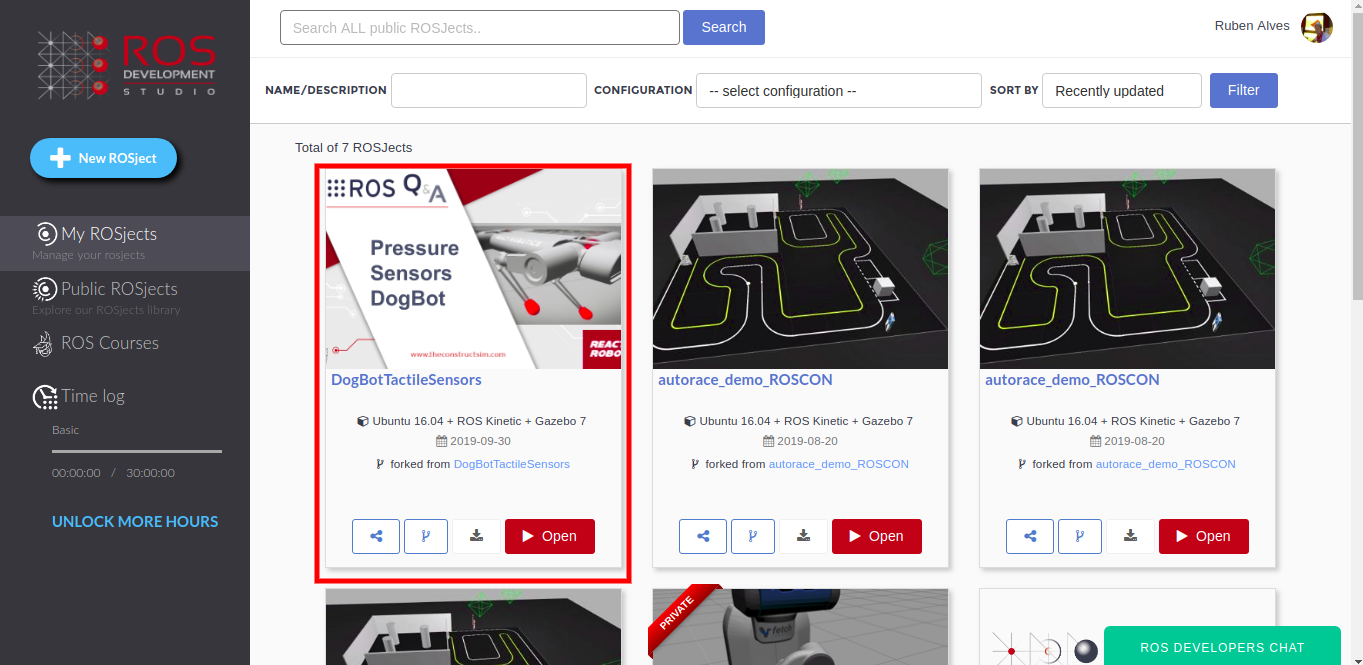
The first thing you need to do is to have a copy of the ROSject we mentioned above if you want everything ready to go. You can also clone the git repository aforementioned if you want to run everything in your local computer. If you for the ROSject option, just click on the ROSject link to get an automatic copy. You should now see a ROSject called DogBotTactileSensors on your list of ROSjects, something like the image below:
DogBot tactile sensors in ROSDS
After clicking on the Open button to open the ROSject, you should have the ROSject opened in a remote computer launched on ROSDS.
Launching the simulation
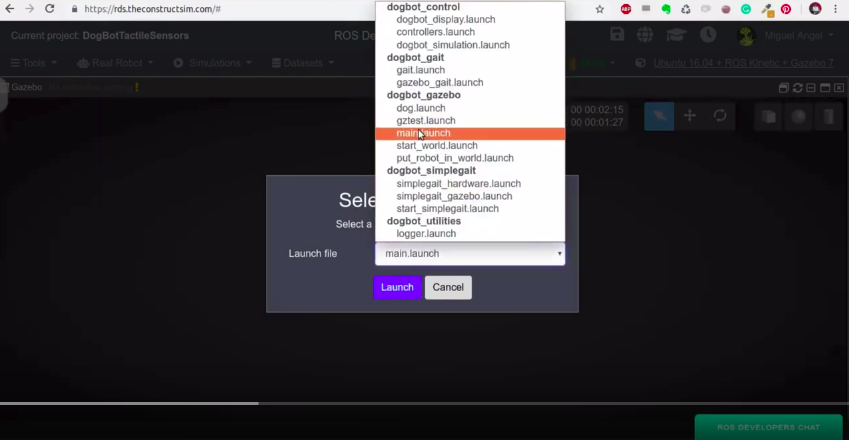
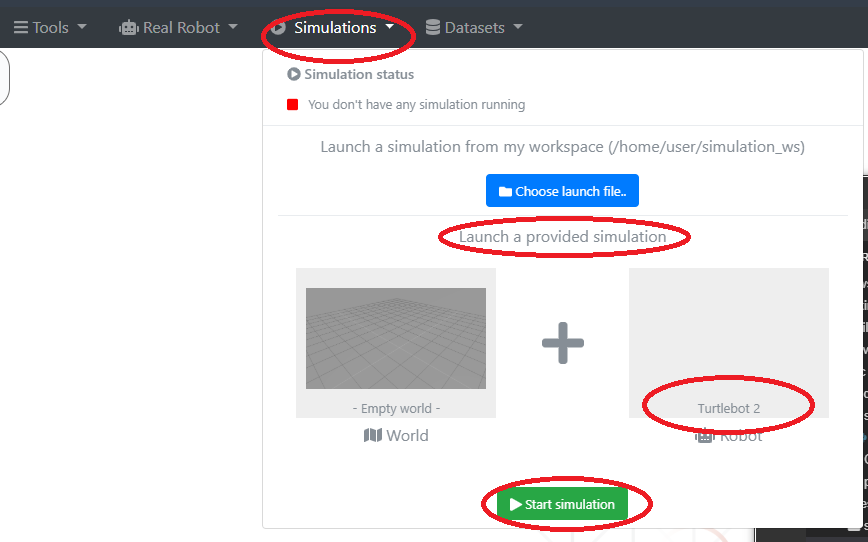
If you remember the previous post, we can launch the simulation by running roslaunch dogbot_gazebo main.launch on the webshell. You can also use the menu by clicking on Simulations -> Choose Simulation -> Choose Launch File and selecting the main.launch file in the dogbot_gazebo package:
dogbot_gazebo main.launch in ROSDS
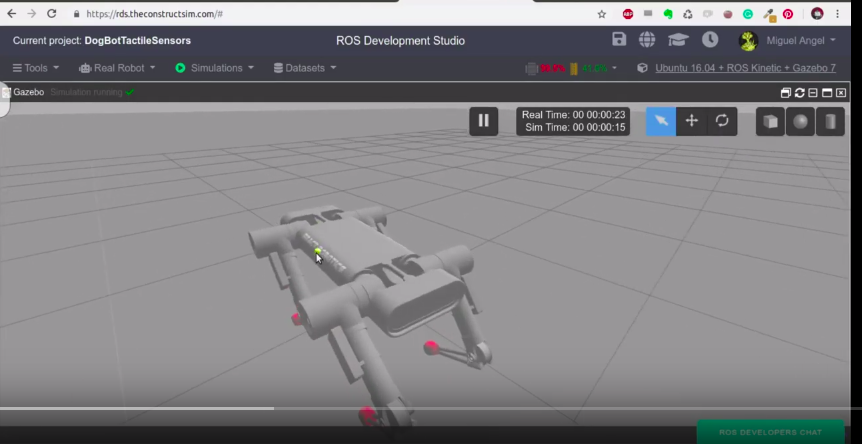
You should now have DogBot up and running in ROSDS:
Adding the sensors to RViz
Let’s start by stopping the robot. For that, we can just run the keyboard teleoperation with rosrun teleop_twist_keyboard teleop_twist_keyboard.py cmd_vel:=/dogbot/cmd_vel to move DogBot and then hit K to stop it.
Now we open a new shell by clicking on Tools -> Shell and run:
rosrun dogbot_markers arrows_rviz.py
This command essentially get the data published by the sensors and convert then into markers that can be shown in RViz.
Now, to see RViz we have to launch by running the command below in a new shell:
rosrun rviz rviz
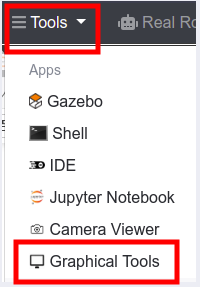
This will open RViz, but in order to see it, you have to open the Graphical Tools by clicking Tools -> Graphical Tools.
Launching Graphical Tools in ROSDS
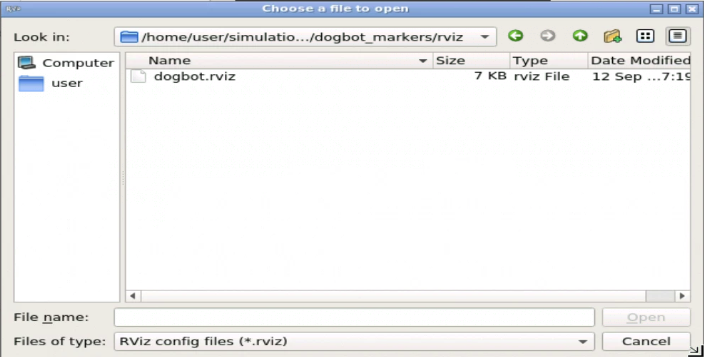
Once you are in RViz, you open a config file by clicking File -> Open Config. There you select the file dogbot.rviz file located in ~/simulation_ws/src/dogbot_tc/dogbot_markers/rviz/dogbot.rviz
Select the rviz config file dogbot.rviz for dogbot
The file you open has everything configured to show the contact markers in RViz.
The pressure in each of the feet of Dogbit is represented by an arrow, which lengths and colors are proportional to the pressure registered. You can see the arrows changing their lengths when the robot steps.
How the markers are created
On the folder ~/simulation_ws/src/dogbot_tc/dogbot_markers/scripts we created a script called world_to_base_tf_publisher.py with the following content:
#! /usr/bin/env python
import rospy
import time
import tf
from nav_msgs.msg import Odometry
from geometry_msgs.msg import Pose


class WorldBaseTFPublisher(object):

    def __init__(self):
        rospy.loginfo("Start init WorldBaseTFPublisher Class")
        self._br = tf.TransformBroadcaster()
        rospy.loginfo("set up tf.TransformBroadcaster DONE")
        self._current_pose = Pose()
        rospy.loginfo("_current_pose DONE")
        self.get_init_position()
        rospy.loginfo("get_init_position DONE")
        self._sub = rospy.Subscriber('/dogbot/odom', Odometry, self.odom_callback)
        rospy.loginfo("self._sub DONE")

    def get_init_position(self):
        data_odom = None
        r = rospy.Rate(2)
        while data_odom is None and not rospy.is_shutdown():
            try:
                data_odom = rospy.wait_for_message("/dogbot/odom", Odometry, timeout=1)
            except:
                rospy.loginfo("Current odom not ready yet, retrying for setting up init pose")
                try:
                    r.sleep()
                except rospy.ROSInterruptException:
                    # This is to avoid error when world is rested, time when backwards.
                    pass

        self._current_pose = data_odom.pose.pose

    def odom_callback(self, msg):
        self._current_pose = msg.pose.pose

    def get_current_pose(self):
        return self._current_pose

    def handle_turtle_pose(self, pose_msg, link_name, world_name = "/world"):

        self._br.sendTransform(
                                (pose_msg.position.x,
                                 pose_msg.position.y,
                                 pose_msg.position.z),
                                (pose_msg.orientation.x,
                                 pose_msg.orientation.y,
                                 pose_msg.orientation.z,
                                 pose_msg.orientation.w),
                                rospy.Time.now(),
                                link_name,
                                world_name)

    def publisher_of_tf(self):

        frame_link_name = "base_link"
        time.sleep(1)
        rospy.loginfo("Ready..Starting to Publish TF data now...")

        rate = rospy.Rate(50)
        while not rospy.is_shutdown():
            pose_now = self.get_current_pose()
            if not pose_now:
                print "The Pose is not yet available...Please try again later"
            else:
                self.handle_turtle_pose(pose_now, frame_link_name)
            try:
                rate.sleep()
            except rospy.ROSInterruptException:
                # This is to avoid error when world is rested, time when backwards.
                pass


if __name__ == '__main__':
    rospy.init_node('publisher_of_world_base_tf_node', anonymous=True)
    rospy.loginfo("STARTING WORLS TO BASE TF PUBLISHER...")
    world_base_tf_pub = WorldBaseTFPublisher()
    world_base_tf_pub.publisher_of_tf()
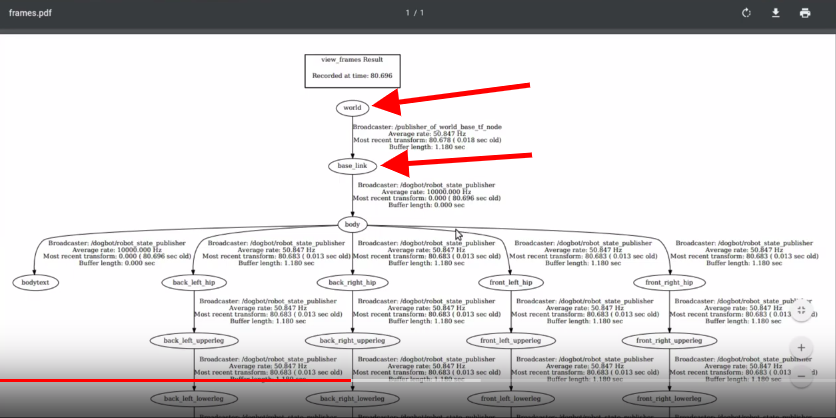
In this file we get the /dogbot/odom topic, which informs where is the robot in the world, and publishes the tf from world to base_link. With the command rosrun tf view_frames, we generate the frames.pdf file. By downloading that file we can see that the world is connected to base_link, which is the base of the robot.
tf world connected to base_link frame on ROSDS
The connection between the two frames is important because the sensors are represented in the world frame, but are detected by the robot, which is represented by the base_link. If you want to learn more about tf, please consider taking the course TF ROS 101 in Robot Ignite Academy.
The markers are created in the script ~/simulation_ws/src/dogbot_tc/dogbot_markers/scripts/arrows_rviz.py, which has the following content:
#!/usr/bin/env python

import rospy
from visualization_msgs.msg import Marker
from geometry_msgs.msg import Point
import tf
import numpy
from std_msgs.msg import String
from gazebo_msgs.msg import ContactsState
import math

class MarkerBasics(object):
    def __init__(self, topic_id):
        marker_topic = '/marker_basic_'+topic_id
        self.marker_objectlisher = rospy.Publisher(marker_topic, Marker, queue_size=1)
        self.rate = rospy.Rate(25)
        self.init_marker(index=0)

    def init_marker(self, index=0):
        self.marker_object = Marker()
        self.change_frame(frame="/world", ns="dogbot", index=0)
        self.marker_object.type = Marker.ARROW
        self.marker_object.action = Marker.ADD

        self.change_position(x=0.0, y=0.0, z=0.0)
        self.change_orientation(pitch=0.0, yaw=0.0)
        self.change_scale()
        self.change_colour(R=1.0, G=0.0, B=0.0)

        # If we want it for ever, 0, otherwise seconds before desapearing
        self.marker_object.lifetime = rospy.Duration(0)

    def change_orientation(self, pitch, yaw):
        """
        Roll doesnt make any sense in an arrow
        :param pitch: Up Down. We clip it to values [-1.5708,1.5708]
        :param yaw: Left Right , No clamp
        :return:
        """
        pitch = numpy.clip(pitch, -1.5708,1.5708)

        q = tf.transformations.quaternion_from_euler(0.0, pitch, yaw)

        self.marker_object.pose.orientation.x = q[0]
        self.marker_object.pose.orientation.y = q[1]
        self.marker_object.pose.orientation.z = q[2]
        self.marker_object.pose.orientation.w = q[3]

    def change_position(self, x, y, z):
        """
        Position of the starting end of the arrow
        :param x:
        :param y:
        :param z:
        :return:
        """

        my_point = Point()
        my_point.x = x
        my_point.y = y
        my_point.z = z
        self.marker_object.pose.position = my_point
        #rospy.loginfo("PositionMarker-X="+str(self.marker_object.pose.position.x))

    def change_colour(self, R, G, B):
        """
        All colours go from [0.0,1.0].
        :param R:
        :param G:
        :param B:
        :return:
        """

        self.marker_object.color.r = R
        self.marker_object.color.g = G
        self.marker_object.color.b = B
        # This has to be, otherwise it will be transparent
        self.marker_object.color.a = 1.0

    def change_scale(self, s_x=1.0, s_y=0.1, s_z=0.1):
        """

        :param s_x:
        :param s_y:
        :param s_z:
        :return:
        """

        self.marker_object.scale.x = s_x
        self.marker_object.scale.y = s_y
        self.marker_object.scale.z = s_z

    def start(self):
        pitch = -0.7
        yaw = 0.0
        s_x = 1.0

        while not rospy.is_shutdown():
            #self.change_orientation(pitch=pitch,yaw=yaw)
            self.change_scale(s_x=s_x)
            self.marker_objectlisher.publish(self.marker_object)
            self.rate.sleep()
            s_x -= 0.01

    def translate(self, value, leftMin, leftMax, rightMin, rightMax):
        # Figure out how 'wide' each range is
        leftSpan = leftMax - leftMin
        rightSpan = rightMax - rightMin

        # Convert the left range into a 0-1 range (float)
        valueScaled = float(value - leftMin) / float(leftSpan)

        # Convert the 0-1 range into a value in the right range.
        return rightMin + (valueScaled * rightSpan)

    def pressure_to_wavelength_to_rgb(self, pressure, min_pressure=-50.0, max_pressure=50.0, gamma=0.8):

        '''This converts a given wavelength of light to an
        approximate RGB color value. The wavelength must be given
        in nanometers in the range from 380 nm through 750 nm
        (789 THz through 400 THz).

        Based on code by Dan Bruton
        http://www.physics.sfasu.edu/astro/color/spectra.html
        '''

        wavelength = self.translate(value=pressure,
                                   leftMin=min_pressure, leftMax=max_pressure,
                                   rightMin=380, rightMax=750)

        wavelength = float(wavelength)

        rospy.logdebug("pressure=" + str(pressure))
        rospy.logdebug("wavelength="+str(wavelength))

        if wavelength >= 380 and wavelength <= 440:
            attenuation = 0.3 + 0.7 * (wavelength - 380) / (440 - 380)
            R = ((-(wavelength - 440) / (440 - 380)) * attenuation) ** gamma
            G = 0.0
            B = (1.0 * attenuation) ** gamma
        elif wavelength >= 440 and wavelength <= 490:
            R = 0.0
            G = ((wavelength - 440) / (490 - 440)) ** gamma
            B = 1.0
        elif wavelength >= 490 and wavelength <= 510:
            R = 0.0
            G = 1.0
            B = (-(wavelength - 510) / (510 - 490)) ** gamma
        elif wavelength >= 510 and wavelength <= 580:
            R = ((wavelength - 510) / (580 - 510)) ** gamma
            G = 1.0
            B = 0.0
        elif wavelength >= 580 and wavelength <= 645:
            R = 1.0
            G = (-(wavelength - 645) / (645 - 580)) ** gamma
            B = 0.0
        elif wavelength >= 645 and wavelength <= 750:
            attenuation = 0.3 + 0.7 * (750 - wavelength) / (750 - 645)
            R = (1.0 * attenuation) ** gamma
            G = 0.0
            B = 0.0
        else:
            R = 0.0
            G = 0.0
            B = 0.0

        return R, G, B

    def change_frame(self, frame="/world", ns="dogbot", index=0):
        """

        :param frame:
        :return:
        """

        self.marker_object.header.frame_id = frame
        self.marker_object.header.stamp = rospy.get_rostime()
        self.marker_object.ns = ns
        self.marker_object.id = index


    def update_marker(self, frame, ns, index, position, orientation, pressure, min_pressure=0.0, max_pressure=10.0):
        """

        :param position: [X,Y,Z] in the world frame
        :param pressure: Magnitude
        :param orientation: [Pitch,Yaw]
        :return:
        """
        #self.change_frame(frame=frame, ns=ns, index=index)
        self.change_position(x=position[0], y=position[1], z=position[2])
        self.change_orientation(pitch=orientation[0], yaw=orientation[1])
        self.change_scale(s_x = pressure)

        R,G,B = self.pressure_to_wavelength_to_rgb(pressure=pressure,
                                                   min_pressure=min_pressure,
                                                   max_pressure=max_pressure,
                                                   gamma=0.8)

        rospy.logdebug("R,G,B=["+str(R)+", "+str(G)+", "+str(B)+"]")

        self.change_colour(R=R, G=G, B=B)

        self.marker_objectlisher.publish(self.marker_object)


class FootPressureInfo(object):

    def __init__(self):

        self.min_pressure = 0.0
        self.max_pressure = 2.0
        self.markerbasics_object_front_left_foot = MarkerBasics(topic_id="front_left_foot")
        self.markerbasics_object_front_right_foot = MarkerBasics(topic_id="front_right_foot")
        self.markerbasics_object_back_left_foot = MarkerBasics(topic_id="back_left_foot")
        self.markerbasics_object_back_right_foot = MarkerBasics(topic_id="back_right_foot")

        rospy.Subscriber("/dogbot/back_left_contactsensor_state", ContactsState, self.contact_callback_back_left_foot)
        rospy.Subscriber("/dogbot/back_right_contactsensor_state", ContactsState, self.contact_callback_back_right_foot)
        rospy.Subscriber("/dogbot/front_left_contactsensor_state", ContactsState, self.contact_callback_front_left_foot)
        rospy.Subscriber("/dogbot/front_right_contactsensor_state", ContactsState, self.contact_callback_front_right_foot)


    def contact_callback_front_right_foot(self, data):
        """

        :param data:
        :return:
        """
        foot_name = data.header.frame_id

        if len(data.states) >= 1:
            Fx = data.states[0].total_wrench.force.x
            Fy = data.states[0].total_wrench.force.y
            Fz = data.states[0].total_wrench.force.z
            pressure = math.sqrt(pow(Fx,2)+pow(Fy,2)+pow(Fz,2))

            Px = data.states[0].contact_positions[0].x
            Py = data.states[0].contact_positions[0].y
            Pz = data.states[0].contact_positions[0].z

            pressure = pressure / 100.0
            # rospy.loginfo(str(foot_name) + "--->pressure =" + str(pressure))
            # rospy.loginfo(str(foot_name) + "Point =[" + str(pressure))

            index = 1

            self.markerbasics_object_front_right_foot.update_marker(frame=foot_name,
                                                   ns="dogbot",
                                                   index=index,
                                                   position=[Px, Py, Pz],
                                                   orientation=[-1.57, 0.0],
                                                   pressure=pressure,
                                                   min_pressure=self.min_pressure,
                                                   max_pressure=self.max_pressure)


        else:
            # No Contact
            pass


    def contact_callback_front_left_foot(self, data):
        """

        :param data:
        :return:
        """
        foot_name = data.header.frame_id

        if len(data.states) >= 1:
            Fx = data.states[0].total_wrench.force.x
            Fy = data.states[0].total_wrench.force.y
            Fz = data.states[0].total_wrench.force.z
            pressure = math.sqrt(pow(Fx,2)+pow(Fy,2)+pow(Fz,2))

            Px = data.states[0].contact_positions[0].x
            Py = data.states[0].contact_positions[0].y
            Pz = data.states[0].contact_positions[0].z

            pressure = pressure / 100.0


            index = 0

            self.markerbasics_object_front_left_foot.update_marker(frame=foot_name,
                                                   ns="dogbot",
                                                   index=index,
                                                   position=[Px, Py, Pz],
                                                   orientation=[-1.57, 0.0],
                                                   pressure=pressure,
                                                   min_pressure=self.min_pressure,
                                                   max_pressure=self.max_pressure)
        else:
            # No Contact
            pass

    def contact_callback_back_right_foot(self, data):
        """

        :param data:
        :return:
        """
        foot_name = data.header.frame_id

        if len(data.states) >= 1:
            Fx = data.states[0].total_wrench.force.x
            Fy = data.states[0].total_wrench.force.y
            Fz = data.states[0].total_wrench.force.z
            pressure = math.sqrt(pow(Fx,2)+pow(Fy,2)+pow(Fz,2))

            Px = data.states[0].contact_positions[0].x
            Py = data.states[0].contact_positions[0].y
            Pz = data.states[0].contact_positions[0].z

            pressure = pressure / 100.0
            #rospy.loginfo(str(foot_name) + "--->pressure =" + str(pressure))
            # rospy.loginfo(str(foot_name) + "Point =[" + str(pressure))

            index = 2

            self.markerbasics_object_back_right_foot.update_marker(frame=foot_name,
                                                   ns="dogbot",
                                                   index=index,
                                                   position=[Px, Py, Pz],
                                                   orientation=[-1.57, 0.0],
                                                   pressure=pressure,
                                                   min_pressure=self.min_pressure,
                                                   max_pressure=self.max_pressure)


        else:
            # No Contact
            pass


    def contact_callback_back_left_foot(self, data):
        """

        :param data:
        :return:
        """
        foot_name = data.header.frame_id

        if len(data.states) >= 1:
            Fx = data.states[0].total_wrench.force.x
            Fy = data.states[0].total_wrench.force.y
            Fz = data.states[0].total_wrench.force.z
            pressure = math.sqrt(pow(Fx,2)+pow(Fy,2)+pow(Fz,2))

            Px = data.states[0].contact_positions[0].x
            Py = data.states[0].contact_positions[0].y
            Pz = data.states[0].contact_positions[0].z

            pressure = pressure / 100.0

            index = 3

            self.markerbasics_object_back_left_foot.update_marker(frame=foot_name,
                                                   ns="dogbot",
                                                   index=index,
                                                   position=[Px, Py, Pz],
                                                   orientation=[-1.57, 0.0],
                                                   pressure=pressure,
                                                   min_pressure=self.min_pressure,
                                                   max_pressure=self.max_pressure)
        else:
            # No Contact
            pass


if __name__ == '__main__':
    rospy.init_node('footpressure_marker_node', anonymous=True)
    footpressure_object = FootPressureInfo()
    rospy.spin()
When the file is launched, 4 markers are created, each of them publishing on a specific topic. You can find the topic for each marker with rostopic list | grep marker.
We then create the subscribers for the topics, each of then calling a callback function when a topic is published. On the callback we calculate the pressure, get the positions, then publish the marker on RViz.
A video version of this post
So this is the post for today. If you prefer, we also have a video version of this post available in the link below. We hope you liked the post and the video. If so, please feel free to subscribe to our channel, share this post and comment on the video section.
We would like to thank React Robotics for this amazing robot and thank you for reading through this post.
Keep pushing your ROS Learning.
Remember, if you want to learn more about markers in RViz, we highly recommend you taking this course on ROS RViz Advanced Markers.
Interested to learn more? Try this course on URDF creation for Gazebo and ROS:

![[ROS Q&A] 197 – Error in Writing a tf2 broadcaster Tutorial (Python)](https://www.theconstruct.ai/wp-content/uploads/2019/10/ROS-QA-197-Error-in-Writing-a-tf2-broadcaster-Tutorial-Python.png)
![[ROS Beginner Mistakes] – 1. Missing execute permission on the Python file](https://www.theconstruct.ai/wp-content/uploads/2019/10/mistakes_missing_execute_permission_create_project.png)
![[ROS Q&A] 196 – How to Output Odometry Data](https://www.theconstruct.ai/wp-content/uploads/2019/09/How-to-Output-Odometry-Data-.png)

![[ROS Q&A] 195 – How to know if robot has moved one meter using Odometry](https://www.theconstruct.ai/wp-content/uploads/2019/09/How-to-know-if-robot-has-moved-1-meter-using-odometry-.png)
![[ROS Q&A] 194 – Add Pressure sensors in RVIZ](https://www.theconstruct.ai/wp-content/uploads/2019/09/ROS-QA-194-Add-Pressure-sensors-in-RVIZ.png)