Once you open the ROSject (http://buff.ly/2PU4ucB), you will get a copy of it. You just have to click Open. Once open, inside the catkin_ws folder, you will find all the ROS packages associated with this challenge. You can have a look at it using the IDE, for instance.
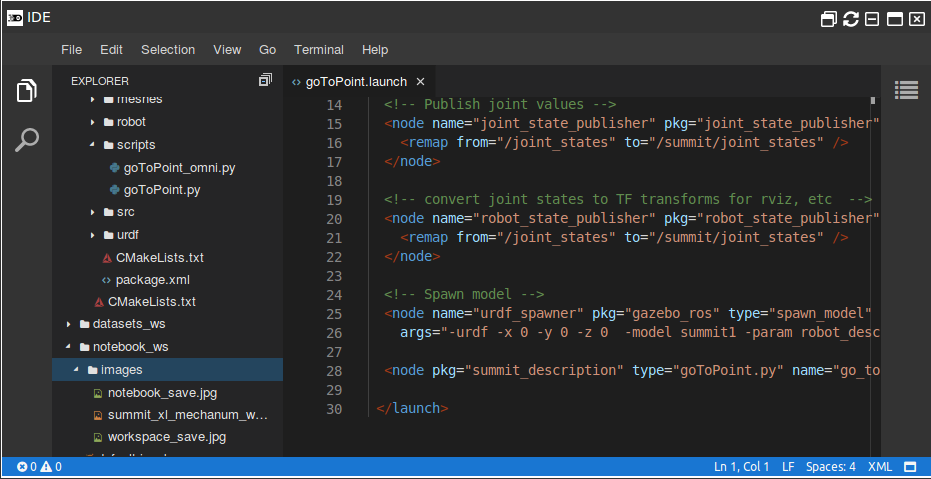
To see the full code, open the IDE by going to the top menu and select Tools->IDE
Code Editor (IDE) – ROSDS
Launching the simulation
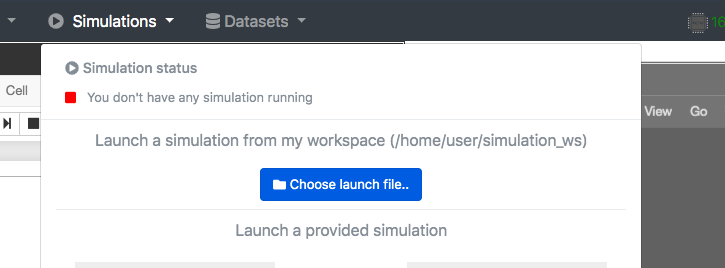
Go to the top menu and select Simulations. On the menu that appears, click on the Choose launch file… button.
Choose launch file to open simulation in ROSDS
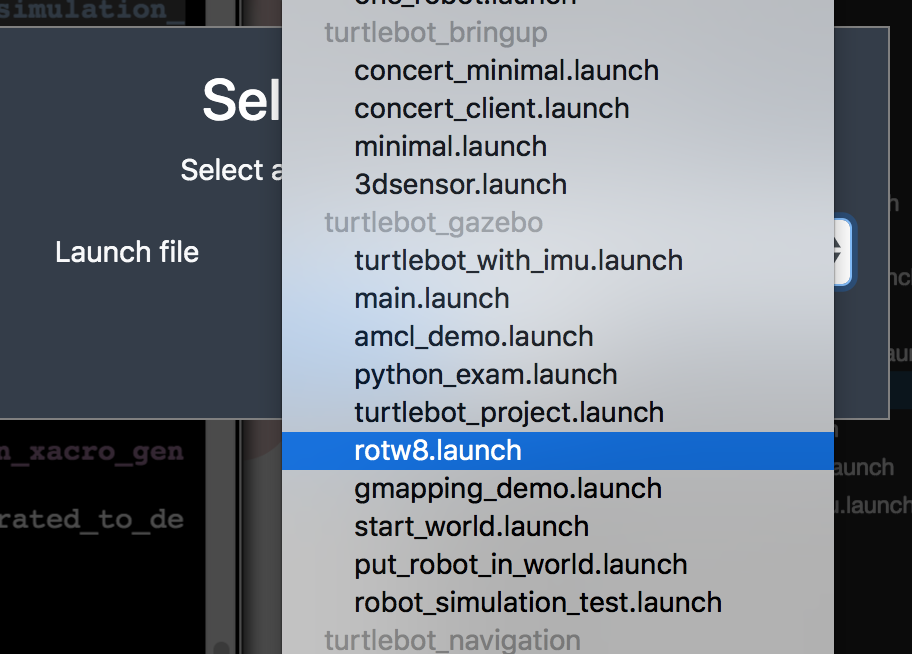
Now, from the launch files list, select the launch file named rotw5.launch from the rosbot_gazebo package.
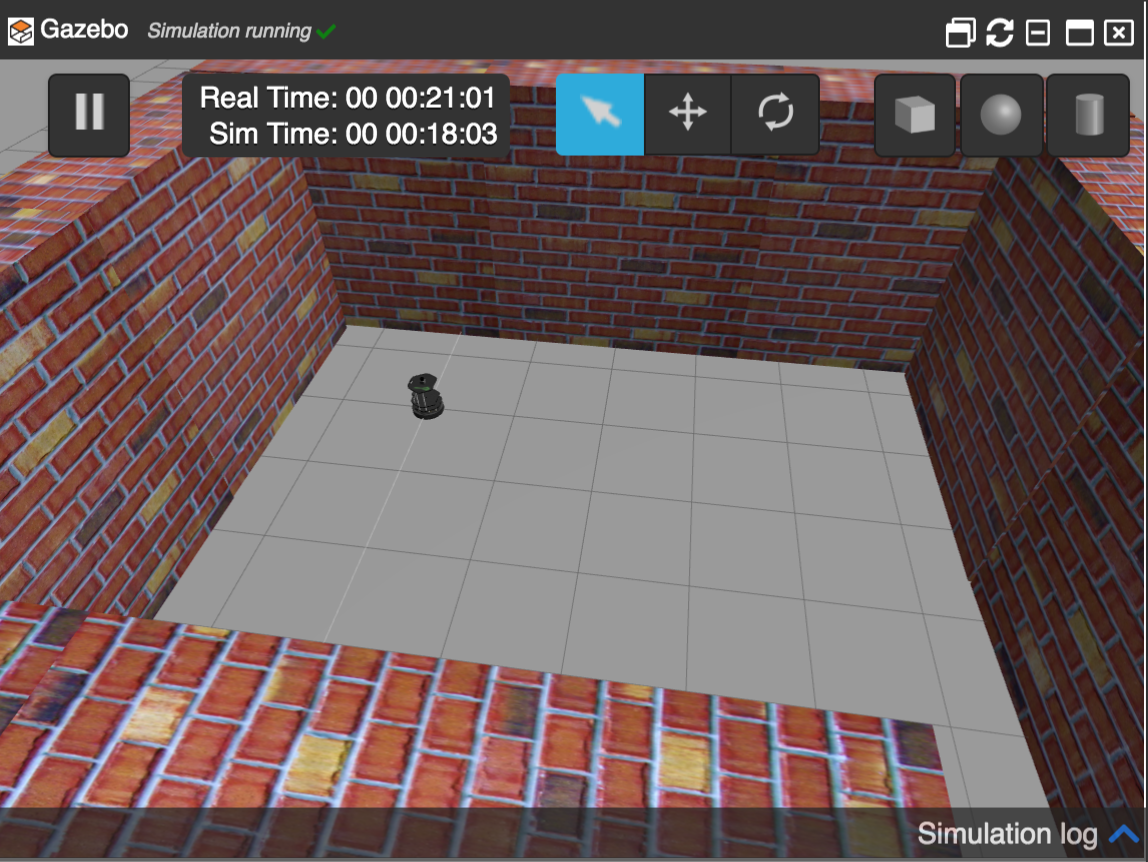
Finally, click on the Launch button to start the simulation. In the end, you should get something like this:
Turtlebot robot inside a wall in ROSDS
The problem to be solved
As you can see, this ROSject contains 1 package inside its catkin_ws workspace: rotw8_pkg. This package contains a very simple Python script, which contains a Python class named Challenge(), with some functions in it.
The main purpose of this script is to get the highest value from all the laser readings, and also the position in the array of this particular reading.
In order to test that it works as expected, all you have to do is the following:
First, make sure you source your workspace so that ROS can find your package:
source ~/catkin_ws/devel/setup.bash
Now, start the TF Broadcaster and Listener with the following command:
rosrun rotw8_pkg rotw8_code.py
If everything is correct, you will get a message like this in the Shell:
ROS Mini Challenge #8 – Expected output
NOTE: The numbers in the value of the maxim and the position in the array may vary a little bit from the ones in the image above (but not much).
Solving the ROS Mini Challenge
Ok, so… where’s the problem? If you have tried to reproduce the steps described above you have already seen that it DOES NOT WORK. When you run the programs introduced above, the values you get are not the correct ones at all. So… what’s going on?
When you launch rosrun rotw8_pkg rotw8_code.py, the output is not the expected one:
$ rosrun rotw8_pkg rotw8_code.py
Highest value is 4.50035715103 and it is in the position 0 of the array.
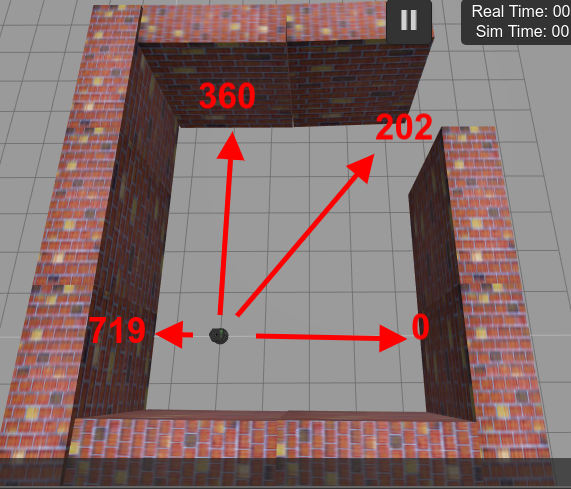
The difference is almost 2 meters, and position 0 (zero) is really different from 202, which is the more or less the expected one. The reason why we expect something like position 202 is because, on the right of the robot we have the position 0 in the scan, in the left, we have position 719, right in front we have 360, so the highest distance should be close to the exit, which is around the position 202. You may understand better by looking at the image below:
Laser range positions in the turtlebot simulation in ROSDS
If we check the ~/catkin_ws/src/rotw8_pkg/src/rotw8_code.py file, its original code is:
#! /usr/bin/env python

import rospy
import time
from sensor_msgs.msg import LaserScan

class Challenge:
    def __init__(self):
        self.sub = rospy.Subscriber("/kobuki/laser/scan", LaserScan, self.laser_callback)
        self.laser_msg = LaserScan()
    def laser_callback(self, msg):
        self.laser_msg = msg

    def get_laser_full(self):
        time.sleep(1)
        return [self.laser_msg.ranges[0], self.laser_msg.ranges[719]]

    def get_highest_lowest(self):
        l = self.get_laser_full()
        i = 0
        maxim = -1
        for value in l:
            if value >= maxim and str(value) != "inf":
                maxim = value
                max_pos = i
            i = i + 1

        print "Highest value is " + str(maxim) + " and it is in the position " + str(max_pos) + " of the array."

if __name__ == '__main__':
    rospy.init_node('rotw8_node', anonymous=True)
    challenge_object = Challenge()
    try:
        challenge_object.get_highest_lowest()

    except rospy.ROSInterruptException:
        pass
If we look carefully, we can notice that the problem is in the get_laser_full function
If you now save the file and run the “rosrun rotw8_pkg rotw8_code.py” command again, now we should get the desired output:
$ rosrun rotw8_pkg rotw8_code.py
Highest value is 7.23973226547 and it is in the position 203 ofthe array.
Hey, now the value is the correct one. The problem was really easy, wasn’t it?
If you are still struggling to understand the code, or you want to master your ROS Skills, I highly recommend you take some courses in Robot Ignite Academy: http://www.robotigniteacademy.com/en/
Youtube video
So this is the post for today. Remember that we have the live version of this post on YouTube. If you liked the content, please consider subscribing to our youtube channel. We are publishing new content ~every day.
This is the 4th of 4 posts of the series Developing web interfaces for ROS Robots.
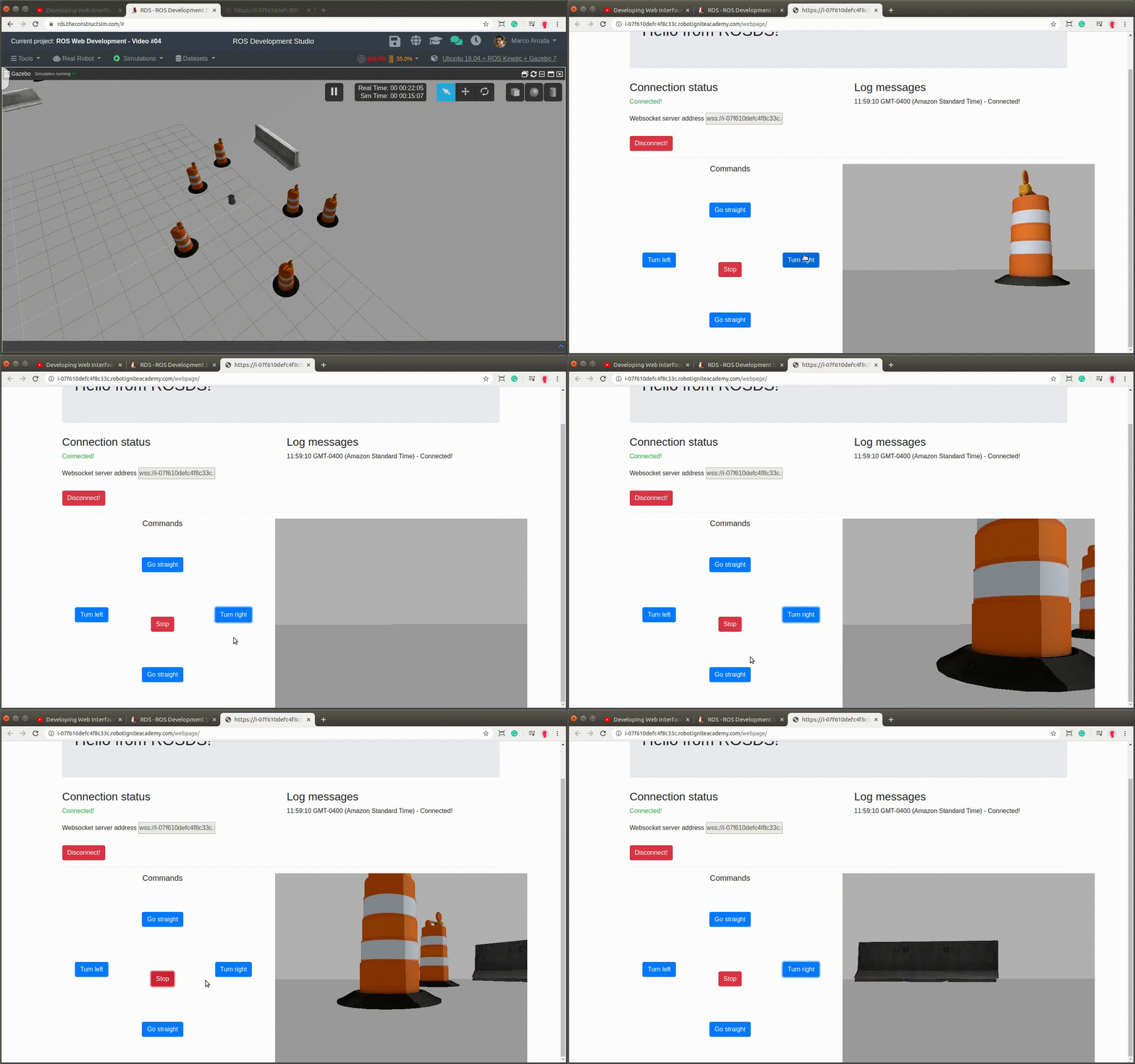
In this post, we are going to stream the images of the robot’s camera on the webpage.
1 – Loading a new JavaScript library
Before we go to the camera streaming server or the code to open its connection, we need to import the library that is in charge of making everything possible. That is the MJpeg library.
We are specifying the port at the end because of ROSDS, it provides us a specific address to this port. If you are working local, you can access it at locahost:<port>. The port number is shown in the terminal you run it.
4 – Adjusting JavaScript code
In our main.js file, let’s add the camera connector. It’s basically a way to make the pre-defined element (in our HTML) to receive the images.
Pay attention to the IP we are using in the code! You must have a different IP than the one used in this post. If you are using ROSDS, get yout public IP executing the following command:
public_ip
If you are on your local computer, it must be:
localhost
5 – Testing the webpage
At this point you must have something similar to the image below:
We have used a different world this time to have some obstacles that we can identify in the camera. You can switch between many other simulations to see different results on the camera!
In this post, we will see how to make a robot follow another robot. We’ll make the iRobot follow the big turtle all around the world when it moves, using ROS TF broadcaster and listener nodes.
PS:This ROS project is part of our ROS Mini Challenge series, which gives you an opportunity to win an amazing ROS Developers T-shirt! This challenge is already solved. For updates on future challenges, please stay tuned to our Twitter channel.
Step 1: Grab a copy of the ROS Project containing the code for the challenge
Click here to get your own copy of the project. If you don’t have an account on the ROS Development Studio, you will need to create one. Once you create an account or log in, we will copy the project to your workspace. That done, open your ROSject using the Open button. This might take a few moments, please be patient.
You should now see a notebook with detailed instructions about the challenge. This post includes a summary of these instructions as well as the solution to the challenge.
PS: Please ignore the Claim your Prize! section because…well…you are late the party 🙂
Step 2: Start the Simulation and get the robots moving
Click on the Simulations menu and then Choose launch file… . In the dialog that appears, select rotw7.launchunder turtle_tf_3d package. Then click the Launchbutton. You should see a Gazebo window popup showing the simulation.
Get the robots moving. Pick a Shell from the Tools menu and run the following commands:
At this point, you should already see the iRobot moving towards the big turtle.
Nothing happened? Heck, we gotta fix this! Let’s do that in the next section.
Step 3: Let’s find the problem
So the robots didn’t move as we expected. And we had this error message:
[INFO] [1580892397.791963, 77.216000]: Retrieveing Model indexes
[INFO] [1580892397.860043, 77.241000]: Robot Name=irobot, is NOT in model_state, trying again
The error message above says it cannot find the model name specified in the code, so let’s check that up. Fire up the IDE from the Tools menu and browse to the directory catkin_ws/src/rotw7_pkg/scripts. We have two Python scripts in there:
turtle_tf_broadcaster.py
turtle_tf_listener.py
The robot model names are specified on line 19 of turtle_tf_broadcaster.py:, in the publisher_of_tf function:
robot_name_list = ["irobot","turtle"]
Let’s check if we can find these robots in the simulation, using a Gazebo service:
But, which of the turtles is the follower, and what is the correct topic for its “cmd_vel”? We have a hint from the launch file irobot_follow_turtle.launch:
So the follower is turtle2. Now, let’s check what it’s “cmd_vel” topic is. It’s specified as /cmd_vel in the code, but is this true? Let’s check the list of topics:
user:~$ rostopic list
#...
/turtle1/cmd_vel
/turtle2/cmd_vel
Probably, it’s /turtle2/cmd_vel. How do we know? Let’s publish to both /cmd_vel and /turtle2/cmd_vel and see which works.
You should now see the iRobot moving towards the big turtle. Now you can start moving the Turtle using the keyboard. Pick another Shell from the Tools menu and run the following command:
Move the big turtle around with the keyboard, and you should see that the iRobot follows it. Done, that’s an example of how to make a robot follow another robot.
Extra: Video of this post
We made a video showing how we solved this challenge and made the iRobot follow another robot. If you prefer “sights and sounds” to “black and white”, here you go:
Did you like this post? Do you have any questions about the explanations? Whatever the case, please leave a comment on the comments section below, so we can interact and learn from each other.
If you want to learn about other ROS or ROS2 topics, please let us know in the comments area and we will do a video or post about it.
Once you clicked in the ROSject link provided (https://buff.ly/2Pd5msM) you will get a copy of the ROSject. You can then click Open to have it open.
Where to find the code
Once you open the ROsject, in the ~/catkin_ws folder, you will find all the ROS packages associated with this challenge. You can have a look at it using the IDE, for instance.
To see the full code, open the IDE by going to the top menu and select Tools->IDE
Code Editor (IDE) – ROSDS
Launching the Simulation
Go to the top menu and select Simulations. On the menu that appears, click on the Choose launch file… button.
Choose lunch file to open simulation in ROSDS
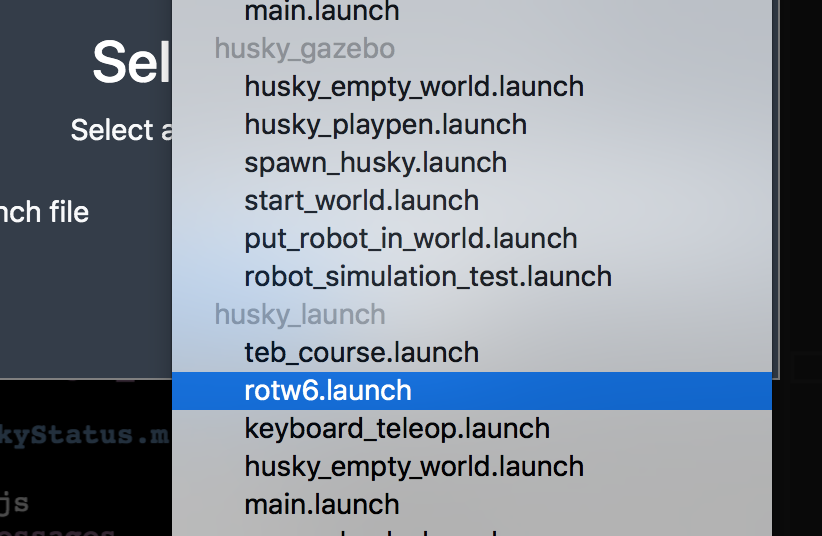
Now, from the launch files list, select the launch file named rotw5.launch from the rosbot_gazebo package.
ROS Mini Challenged #6 – launch file
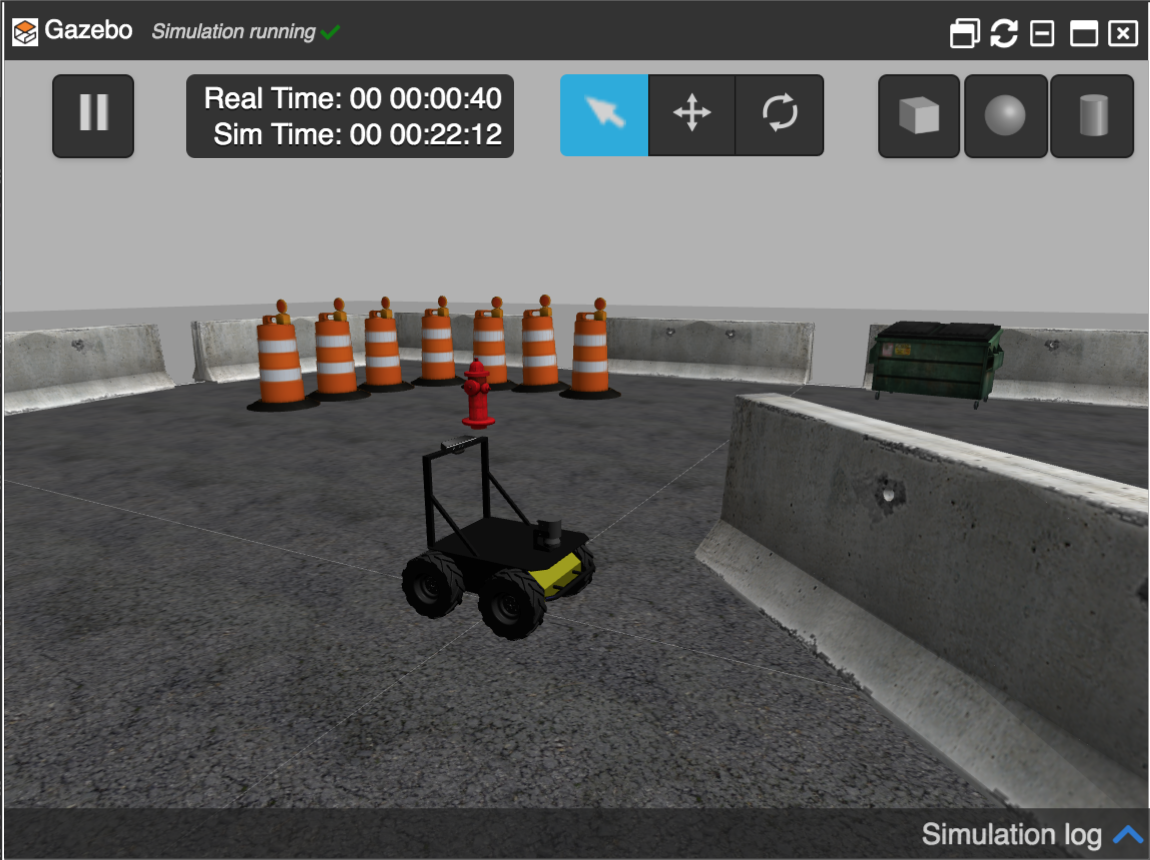
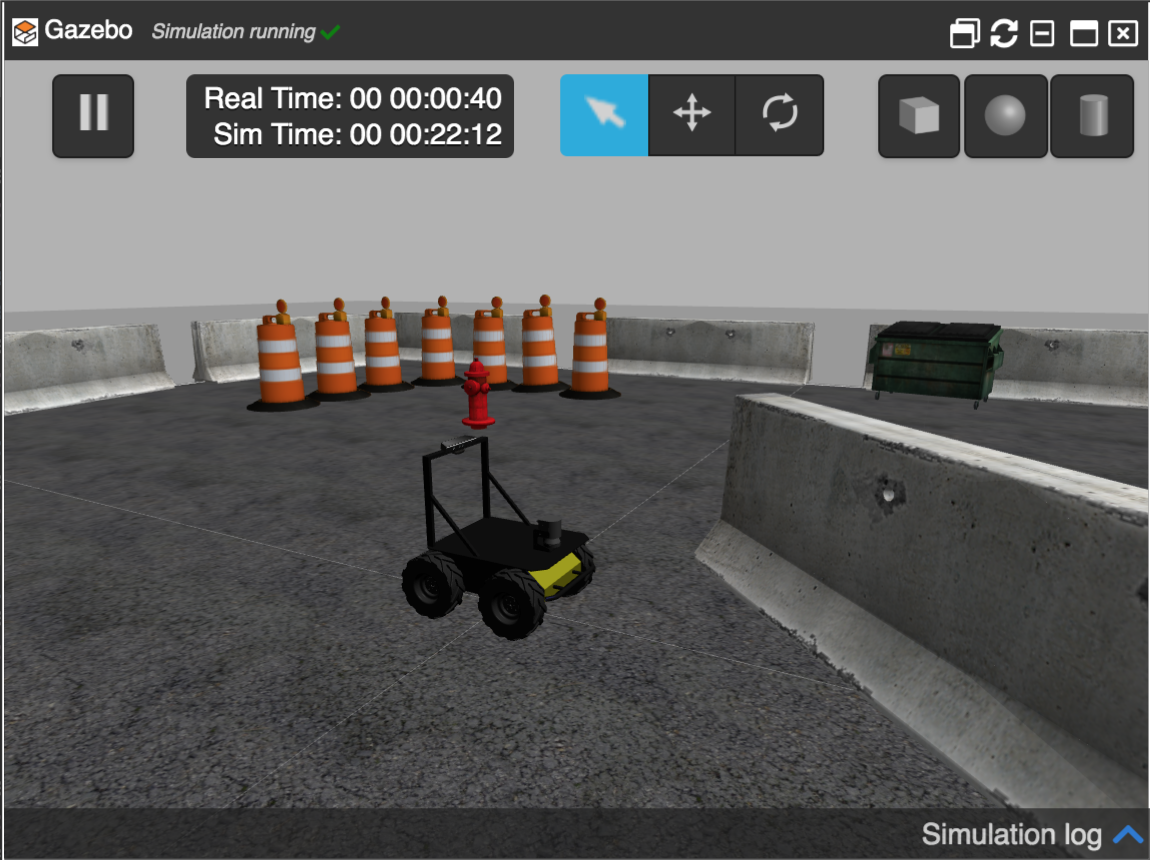
Finally, click on the Launch button to start the simulation. In the end, you should get something like this:
Husky Simulation in ROSDS
The problem to solve
As you can see, this ROSject contains 1 package inside its catkin_ws workspace: rotw6_pkg. This package contains a couple of Python scripts (get_pose_service.py and get_pose_client.py), which contains a Service Server and a Client, respectively.
So, the main purpose of this Service is to be able to get the Pose (position and orientation) of the Husky robot when called. In order to get the Pose of the robot, all you have to do is the following:
First, make sure you source your workspace so that ROS can find your package:
source ~/catkin_ws/devel/setup.bash
Now, start your Service Server with the following command:
rosrun rotw6_pkg get_pose_service.py
Finally, just launch your Service Client with the following command:
rosrun rotw6_pkg get_pose_client.py
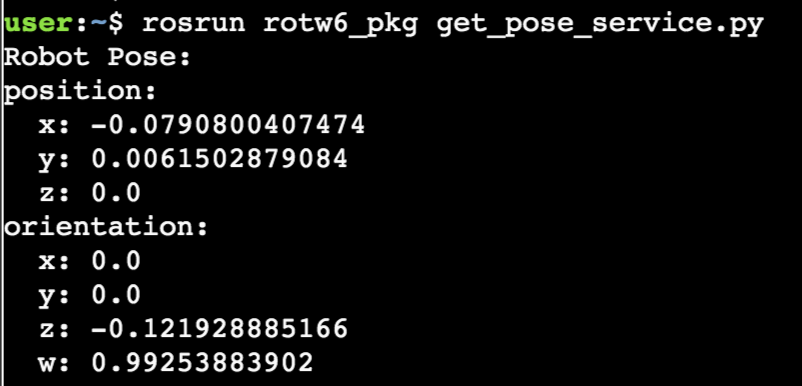
Now, in the Shell where you started the Service Server, you should see the following:
Get robot pose service in ROSDS
NOTE: Here, it’s VERY IMPORTANT to note that it’s only retrieving the position and orientation of the robot, without any additional data.
Solving the ROS Mini Challenge
Ok, so… where’s the problem? If you have tried to reproduce the steps described above you have already seen that it DOES NOT WORK. When you run the Service Client, you are getting some errors that aren’t supposed to be there. So… what’s going on?
When we launch the service client, we get something like the error below:
user:~$ rosrun rotw6_pkg get_pose_client.py
Traceback (most recent call last):
  File "/home/user/catkin_ws/src/rotw6_pkg/src/get_pose_client.py", line 11, in <module>
    result = get_pose_client(get_pose_request_object)
  File "/opt/ros/kinetic/lib/python2.7/dist-packages/rospy/impl/tcpros_service.py", line 435, in __call__
    return self.call(*args, **kwds)
  File "/opt/ros/kinetic/lib/python2.7/dist-packages/rospy/impl/tcpros_service.py", line 495, in call
    service_uri = self._get_service_uri(request)
  File "/opt/ros/kinetic/lib/python2.7/dist-packages/rospy/impl/tcpros_service.py", line 444, in _get_service_uri
    raise TypeError("request object is not a valid request message instance")
TypeError: request object is not a valid request message instanc
The original content of the get_pose_client.py in the rotw6_pkg package is:
as you can see, we have too much data in the output. We just need to show the position and orientation. The reason why we have so much data is that in the server code (get_pose_service.py) we print the message directly. The original server code is:
The message type is Odometry. With rosmsg show Odometry we can see this message type has a lot of fields:
$ rosmsg show Odometry
[nav_msgs/Odometry]:
std_msgs/Header header
  uint32 seq
  time stamp
  string frame_id
string child_frame_id
geometry_msgs/PoseWithCovariance pose
  geometry_msgs/Pose pose
    geometry_msgs/Point position
      float64 x
      float64 y
      float64 z
    geometry_msgs/Quaternion orientation
      float64 x
      float64 y
      float64 z
      float64 w
  float64[36] covariance
geometry_msgs/TwistWithCovariance twist
  geometry_msgs/Twist twist
    geometry_msgs/Vector3 linear
      float64 x
      float64 y
      float64 z
    geometry_msgs/Vector3 angular
      float64 x
      float64 y
      float64 z
  float64[36] covariance
In the message structure above, we are only interested in the position and orientation. To achieve that, in the server we can just change the sub_callback function from:
def sub_callback(msg):
    global robot_pose
    robot_pose = msg
to:
def sub_callback(msg):
    global robot_pose
    robot_pose = msg.pose.pose
as easy as that. Pretty easy, right?
If for any reason you are still struggling to understand or memorize the steps reproduced here, I highly recommend you taking our ROS courses at www.robotigniteacademy.com/en/ .
Youtube video
So this is the post for today. Remember that we have the live version of this post on YouTube. If you liked the content, please consider subscribing to our youtube channel. We are publishing new content ~every day.
Now, in our main.js file, let’s create some new methods to perform the actions we have just idealized. Inside the methods attribute we already have 2 functions. Let’s create the ones below:
Notice that we are not only defining the @click attribute, but also the “:disabled”. It means that the button will be disabled if one of the conditions are true: Loading or not connected.
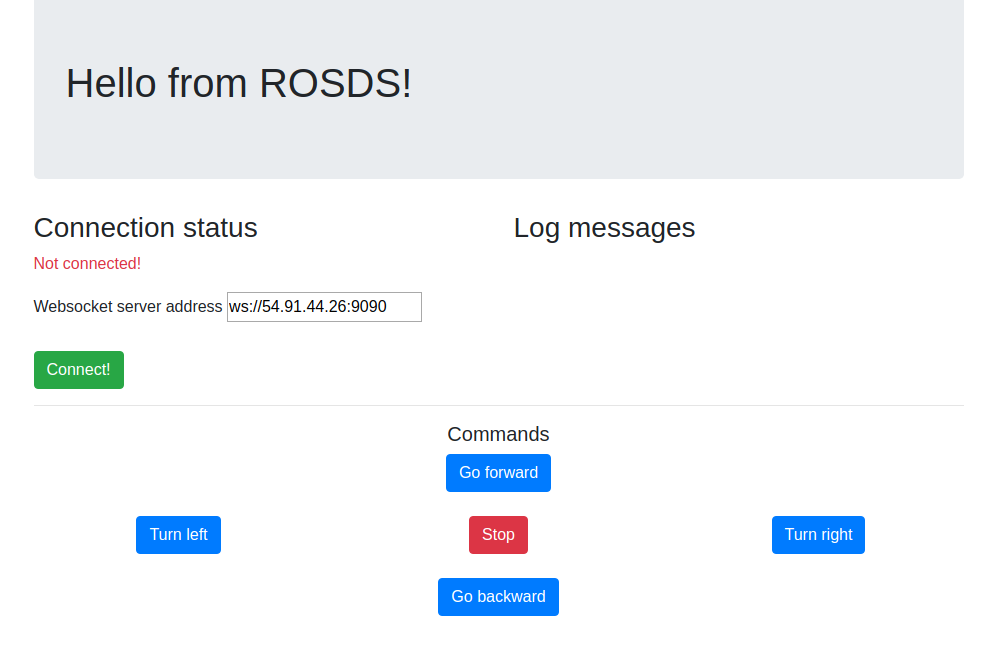
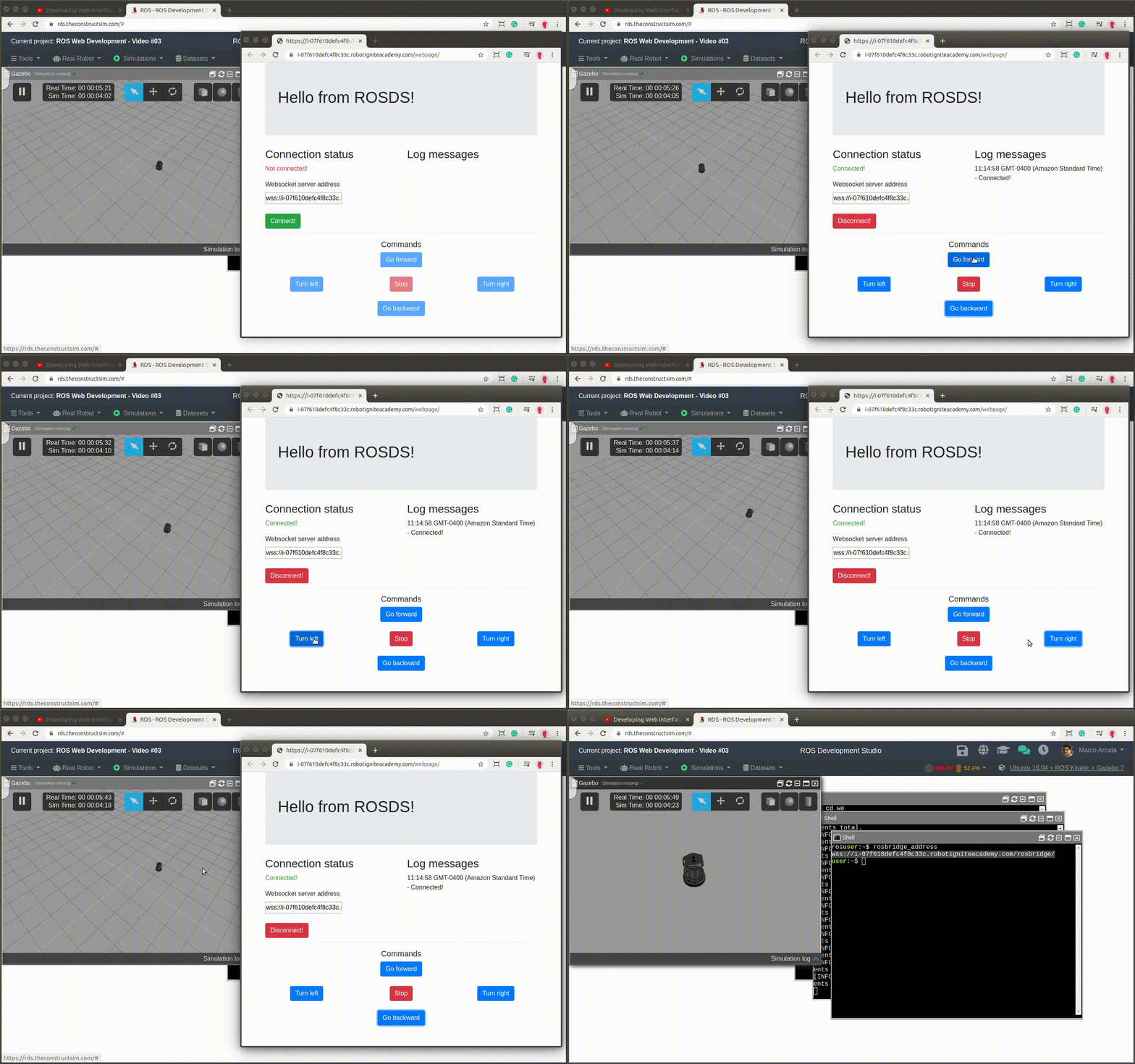
4 – Final result
At this point, you must have the following result with your webpage:
In this post, we will see how to make a robot detect and avoid an obstacle in its front. We will move the robot forward until it detects there’s an obstacle (the wall) closer than 1 meter. Then, we will stop the robot so that it does not collide with the wall.
PS:This ROS project is part of our ROS Mini Challenge series, which gives you an opportunity to win an amazing ROS Developers T-shirt! This challenge is already solved. For updates on future challenges, please stay tuned to our Twitter channel.
Step 1: Grab a copy of the ROS Project that contains the code for the challenge
Click here to get your own copy of the project. If you don’t have an account on the ROS Development Studio, you will need to create one. Once you create an account or log in, we will copy the project to your workspace. That done, open your ROSject using the Open button. This might take a few moments, please be patient.
You should now see a notebook with detailed instructions about the challenge. This post includes a summary of these instructions as well as the solution to the challenge.
PS: Please ignore the Claim your Prize! section because…well…you are late the party 🙂
Step 2: Start the Simulation and get the robot moving
Click on the Simulations menu and then Choose launch file… . In the dialog that appears, select rotw5.launchunder rosbot_gazebo package. Then click the Launchbutton. You should see a Gazebo window popup showing the simulation: a ROSbot in front of a wall.
Get the robot moving. Pick a Shell from the Tools menu and run the following commands:
Yay, the robot moved. But, wait, it didn’t detect and avoid the obstacle – it crashed into the wall!We don’t want that, solet’s fix it in the next section!
Step 3: Identify the problem, man!
So the robot didn’t stop as we expected. As the challenge hinted, something must be wrong with the code, especially the part that should detect the wall and stop the robot. Let’s see.
Fire up the IDE from the Toolsmenu and browse to catkin_ws/src/rotw5_pkg/src/detect_wall.py
#! /usr/bin/env python

import rospy
from sensor_msgs.msg import LaserScan
from geometry_msgs.msg import Twist

def callback(msg):

  #If the distance to an obstacle in front of the robot is bigger than 1 meter, the robot will move forward
  if msg.ranges[360] > 1:
      move.linear.x = 0.5
      move.angular.z = 0.0

  #If the distance to an obstacle in front of the robot is smaller than 1 meter, the robot will stop
  if msg.ranges[360] < 1:
      move.linear.x = 0.0
      move.angular.z = 0.0

  pub.publish(move)

rospy.init_node('rotw5_node')
sub = rospy.Subscriber('/scan', LaserScan, callback) #We subscribe to the laser's topic
pub = rospy.Publisher('/cmd_vel', Twist)
move = Twist()

rospy.spin()
Now, this is the part that should stop the robot. It says that if there’s an obstacle less than 1 meter away, we should set both linear and angular velocities to zero (stopping the robot)
  #If the distance to an obstacle in front of the robot is smaller than 1 meter, the robot will stop
  if msg.ranges[360] < 1:
      move.linear.x = 0.0
      move.angular.z = 0.0
This is not being executed obviously because the condition msg.ranges[360] < 1 is never True! Let’s test this assumption:
In the IDE, add the following lines to the detect_wall.py, after the comment below. Then save.
  #If the distance to an obstacle in front of the robot is smaller than 1 meter, the robot will stop
  print "Number of readings: ", print len(msg.ranges)
  print "Reading at position 360:", msg.ranges[360]
From the Shell: Press Ctrl + C to end the current program. Then stop the robot by publishing zero velocities to the /cmd_vel topic. Press Ctrl + C again and then call the Gazebo service that resets the world.
user:~$ rosrun rotw5_pkg detect_wall.py
Number of readings:  720
Reading at position 360: inf
# ...
Number of readings:  720
Reading at position 360: 11.7952680588
You should notice that several readings at 360 are printed, and none of them is less than 1. Whew!
Step 4: Now let’s solve the problem
We saw from the previous section that our problem was the condition msg.ranges[360] < 1, but how did we arrive at this condition?
We knew the laser sensor has 720 scan points stored in the ranges array, as seen in the output of our print statement in Step 3.
We assumed that the laser had a range of 180 degrees, covering the front of the robot only, so that position 360 is at the front-middle of the robot. But this is false, and we can confirm this by running the following command:
The command prints out a single message from the /scan topic. We can deduce the range from the angle_max and angle_min values: angle_max - angle_min = 2pi = 360 deg! Buff! So position 360/720 of the scan messages could be somewhere at the back of the robot. No wonder it didn’t detect the wall.
Now, we have to figure out which position is the front-middle of the robot. Depending on how the sensor was installed, this could be any position. For this robot, the sensor was installed with position “0″ at the front-center, so the readings of positions “0″ or 720 could represent the front-center. Let’s use the position “0″ and test again.
In the IDE, change the front-middle position from 360 to “0″:
#! /usr/bin/env python

import rospy
from sensor_msgs.msg import LaserScan
from geometry_msgs.msg import Twist

def callback(msg):

#If the distance to an obstacle in front of the robot is bigger than 1 meter, the robot will move forward
  if msg.ranges[0] > 1:
      move.linear.x = 0.5
      move.angular.z = 0.0

#If the distance to an obstacle in front of the robot is smaller than 1 meter, the robot will stop
  print "Number of ranges: ", len(msg.ranges)
  print "Reading at position 0:", msg.ranges[0]
  if msg.ranges[0] < 1:
      move.linear.x = 0.0
      move.angular.z = 0.0

  pub.publish(move)

rospy.init_node('rotw5_node')
sub = rospy.Subscriber('/scan', LaserScan, callback) #We subscribe to the laser's topic
pub = rospy.Publisher('/cmd_vel', Twist)
move = Twist()

rospy.spin()
From the Shell: Press Ctrl + C to end the current program. Then stop the robot by publishing zero velocities to the /cmd_vel topic. Press Ctrl + C again and then call the Gazebo service that resets the world.
Run the program again and observe the output and see if the robot detects and avoids the obstacle:
user:~$ rosrun rotw5_pkg detect_wall.py
Number of ranges:  720
Reading at position 0: 2.49150013924
Number of ranges:  720
#...
Number of ranges:  720
Reading at position 0: 1.92249274254
#...
Number of ranges:  720
Reading at position 0: 0.991922438145
Yay, finally we are able to make the robot detect and avoid the obstacle!
Extra: Video of this post
We made a video showing how this challenge was solved. If you prefer “sights and sounds” to “black and white”, here you go:
Did you like this post? Do you have questions about what was explained? Whatever the case, please leave a comment on the comments section below, so we can interact and learn from each other.
If you want to learn about other ROS or ROS2 topics, please let us know in the comments area and we will do a video or post about it.


![[ROS Mini Challenge] #7 – make a robot follow another robot](https://www.theconstruct.ai/wp-content/uploads/2020/02/rotw7-sim2.png)
![[ROS Mini Challenge] #5 – make a robot detect and avoid an obstacle](https://www.theconstruct.ai/wp-content/uploads/2020/02/rotw5-thumbnail1.png)