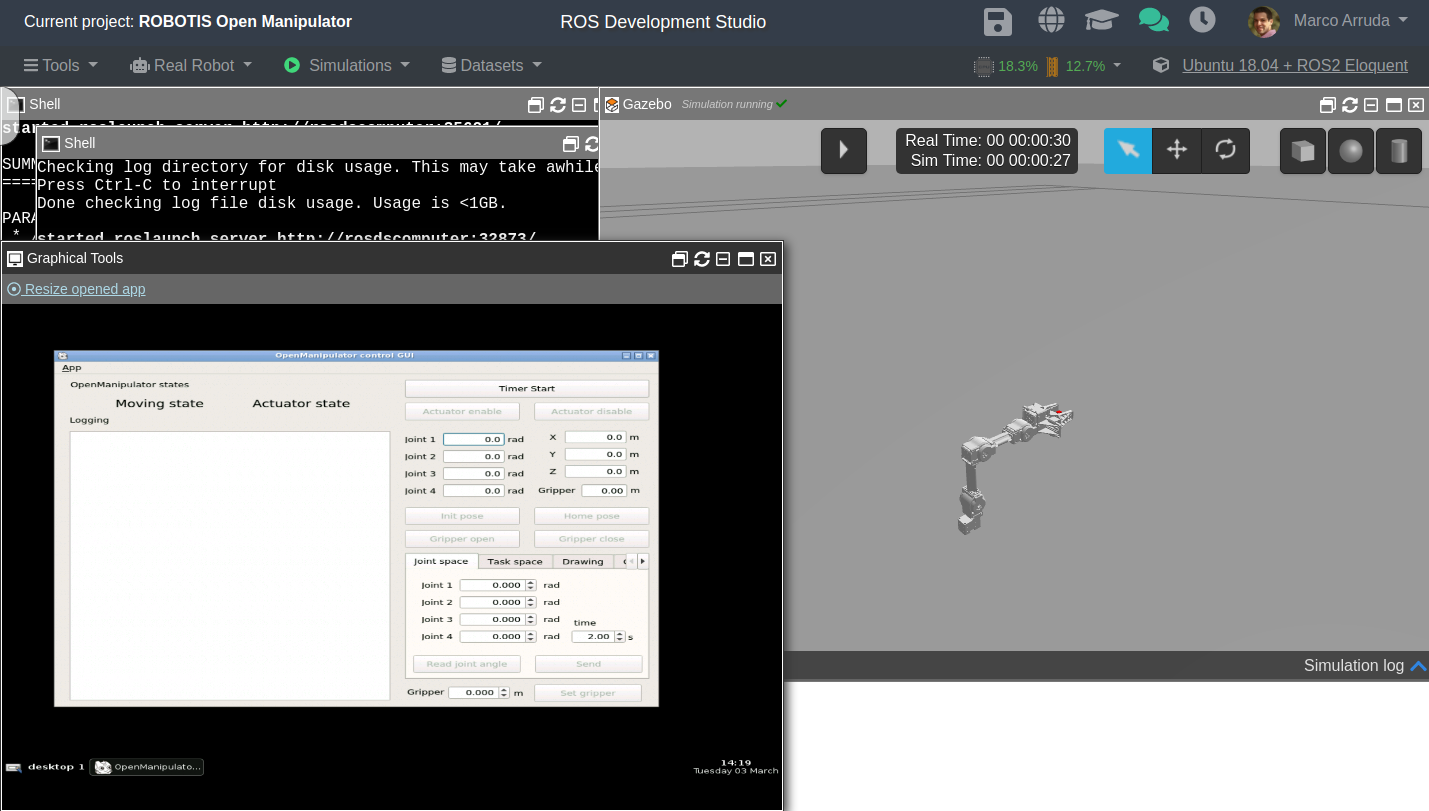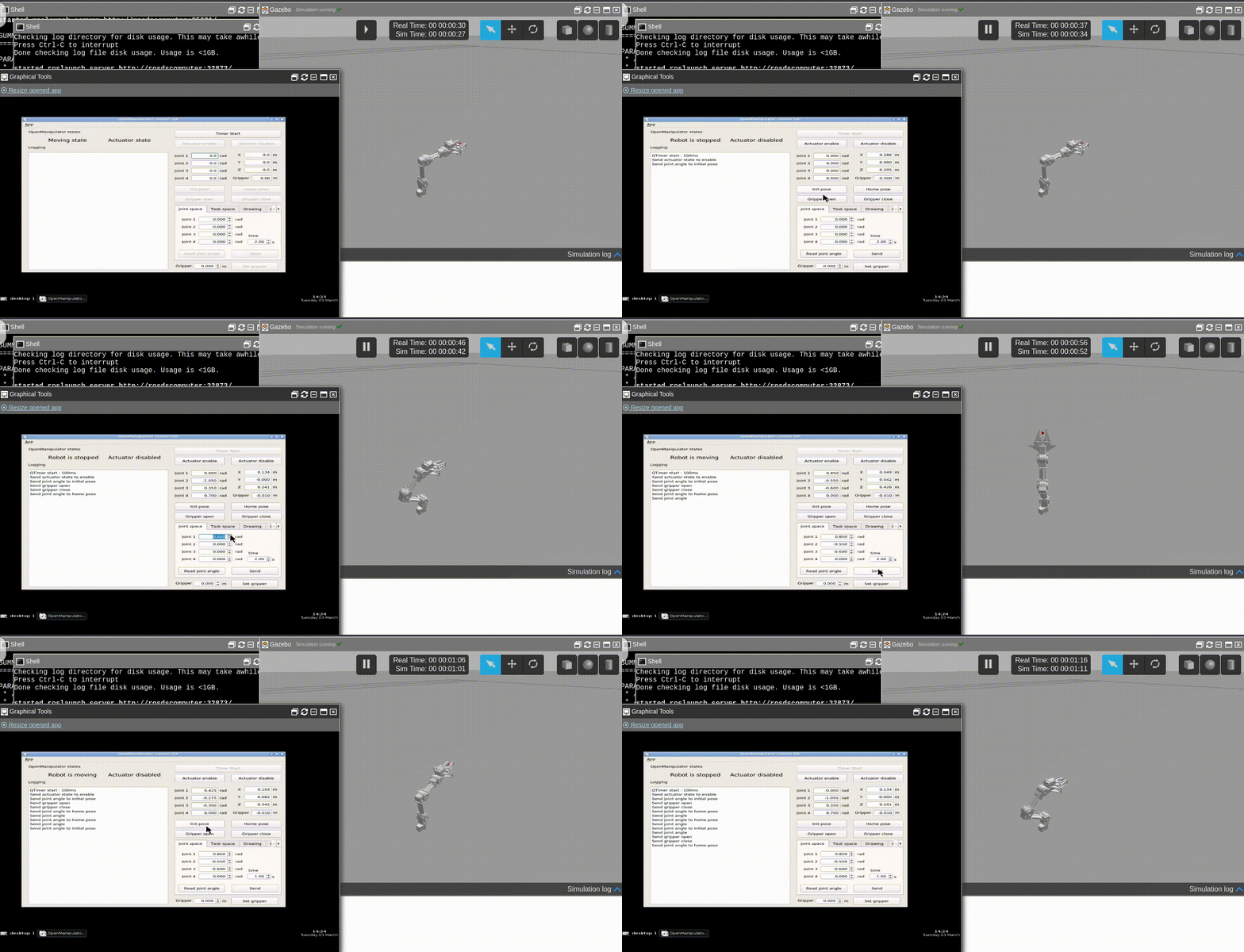
In this post, we are going to show a way of creating a custom program to send desired positions with respect to the task space of the Open Manipulatorend effector.
There are many possibilities to program this robot. For the sake of simplicity, we will use a single service available to move the arm to a specific position.
Although, the step-by-step explanation will show you how to use everything this simulation provides.
Configuring the Environment
If you haven’t configured the environment from the previous ROSJect, please open it using this link.
Though if you prefer to learn how to configure the environment and the simulation from scratch, start from this post.
How to interact with the robot – Choosing a specific service
After having the simulation running, you need to launch the controller node. This node will provide the services that send references to the real robot or the simulation (in this case, it is the simulation).
Then, in another web shell, we are able to check the services available:
user:~$ rosservice list
We have many services available, let’s check the one we will use, which is /open_manipulator/goal_task_space_path_position_only.
In order to call for the service, we need to know its structure:
user:~$ rosservice type /open_manipulator/goal_task_space_path_position_only
open_manipulator_msgs/SetKinematicsPose
We have to deal with this kind of message: open_manipulator_msgs/SetKinematicsPose
Its structure is:
user:~$ rossrv show open_manipulator_msgs/SetKinematicsPose
string planning_group
string end_effector_name
open_manipulator_msgs/KinematicsPose kinematics_pose
geometry_msgs/Pose pose
geometry_msgs/Point position
float64 x
float64 y
float64 z
geometry_msgs/Quaternion orientation
float64 x
float64 y
float64 z
float64 w
float64 max_accelerations_scaling_factor
float64 max_velocity_scaling_factor
float64 tolerance
float64 path_time
---
bool is_planned
Let’s code!
Certainly, we need a simple ROS node that will act as a service client. The basic structure goes below:
#!/usr/bin/env python
import sys
import rospy
from open_manipulator_msgs.srv import *
def set_position_client(x, y, z, time):
...
def usage():
return "%s [x y z]"%sys.argv[0]
if __name__ == "__main__":
if len(sys.argv) == 5:
x = float(sys.argv[1])
y = float(sys.argv[2])
z = float(sys.argv[3])
time = float(sys.argv[4])
else:
print usage()
sys.exit(1)
print "Requesting [%s, %s, %s]"%(x, y, z)
response = set_position_client(x, y, z, time)
print "[%s %s %s] returns [%s]"%(x, y, z, response)
For instance, this is a template took from the ROS wiki tutorial, modified in such a way we only need to implement the service client.
Let’s check it line-by-line:
def set_position_client(x, y, z, time):
service_name = '/open_manipulator/goal_task_space_path_position_only'
rospy.wait_for_service(service_name)
try:
set_position = rospy.ServiceProxy(service_name, SetKinematicsPose)
arg = SetKinematicsPoseRequest()
arg.end_effector_name = 'gripper'
arg.kinematics_pose.pose.position.x = x
arg.kinematics_pose.pose.position.y = y
arg.kinematics_pose.pose.position.z = z
arg.path_time = time
resp1 = set_position(arg)
print 'Service done!'
return resp1
except rospy.ServiceException, e:
print "Service call failed: %s"%e
return False
It is defined the service name we want to call. Then, we wait for the service to get ready.
To start the try/catch block, we create a proxy object, that represents the service server.
A new variable will contain the required parameters for the service. We need to fill it with the arguments of the function, except for the end_effector_name, which will always be the same for this robot: gripper.
We finally call for the server (set_position) and wait for its response!
Demonstration
Before pressing the play button of the simulation, run the controllers in the simulation mode:
In this post we are going to setup the simulation of the robot OpenMANIPULATOR-X from Robotis company. All the steps were based on their official documents
Let’s start creating a new ROSJect, we are going to use Ubuntu 18.04 + ROS2 Eloquent, which is also a ROS 1 Melodic environment.
Configuring environment
First we are going to configure our environment for the simulation. Let’s change the $ROS_PACKAGE_PATH in order to avoid the public simulations available in ROSDS.
Let’s recompile the simulation_ws on the folder /home/user/simulation_ws.
After that, get one folder up and re-compile the simulation_ws workspace.
user:~/simulation_ws/src$ cd ..
user:~/simulation_ws$ catkin_make
You must be ready to launch the simulation at this point!
Launching the simulation
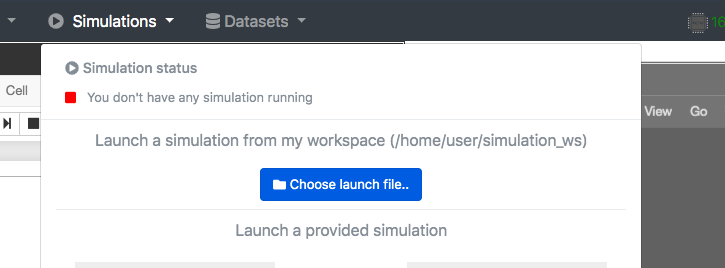
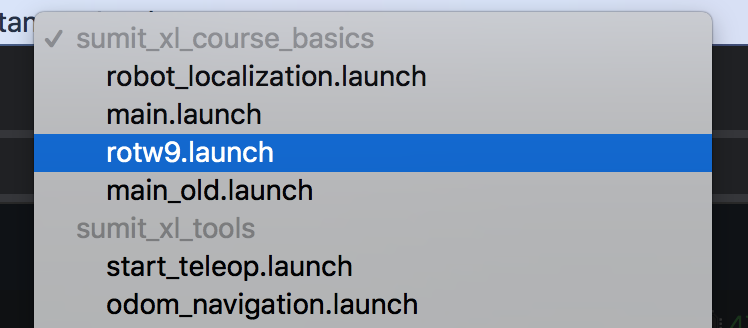
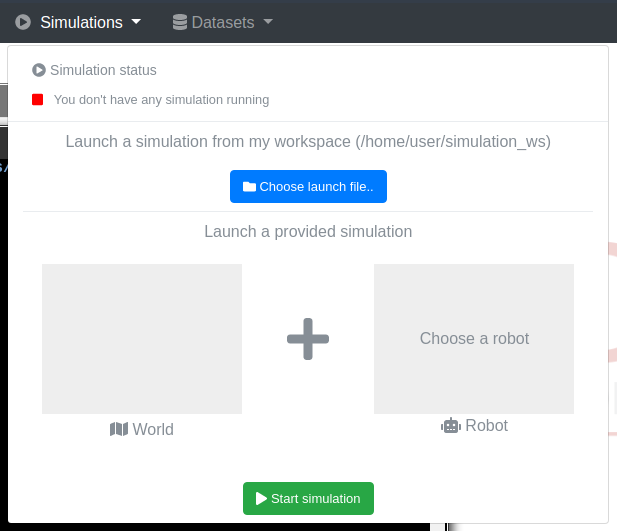
Let’s go on the ROSDS way of launching simulations. Open the simulation menu and press Choose launch file..
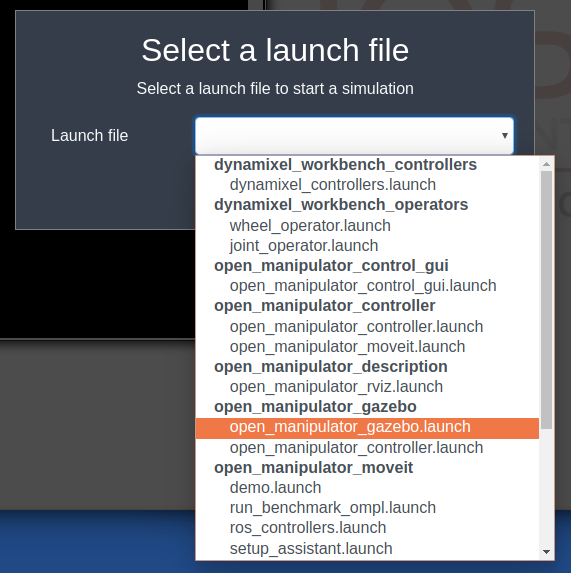
Choose the file open_manipulator_gazebo.launch from the package open_manipulator_gazebo
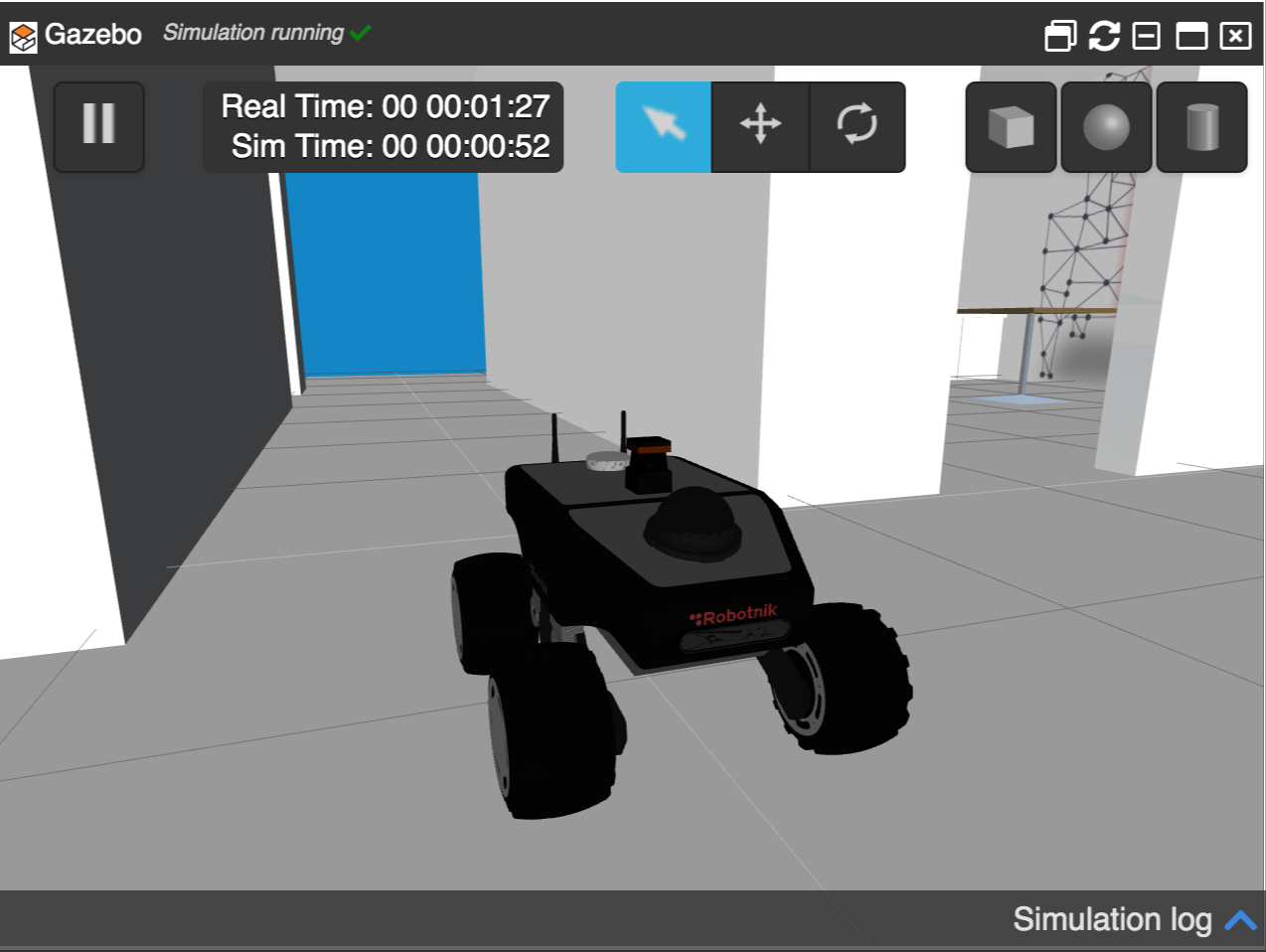
Press Start simulation and the web gazebo client must open the simulation:
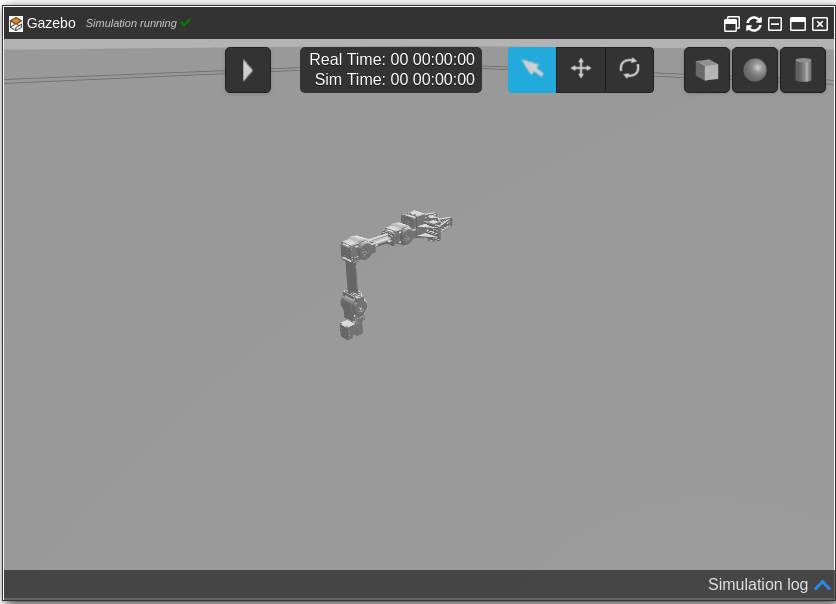
Great! Let’s play with it a little bit!
Controllers and GUI Operator
With the simulation ready, let’s start two other programs using the shell.
In a first web shell, shell 1, launch the controllers for gazebo simulator. At this moment, we are telling ROS it’s not a real robot, but a simulated one:
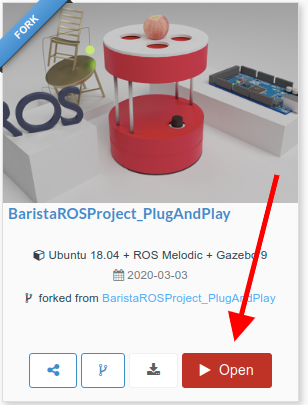
In order to see the simulation, you have to click on the ROSject link (http://www.rosject.io/l/ded2912/) to get a copy of the ROSject. You can now open the ROSject by clicking on the Open ROSject button.
Open ROSject – Barista Robot
Launching the simulation
With the ROSject open, you can launch the simulation by clicking Simulation, then Choose Launch File. Then you select the main_simple.launch file from the barista_gazebo package.
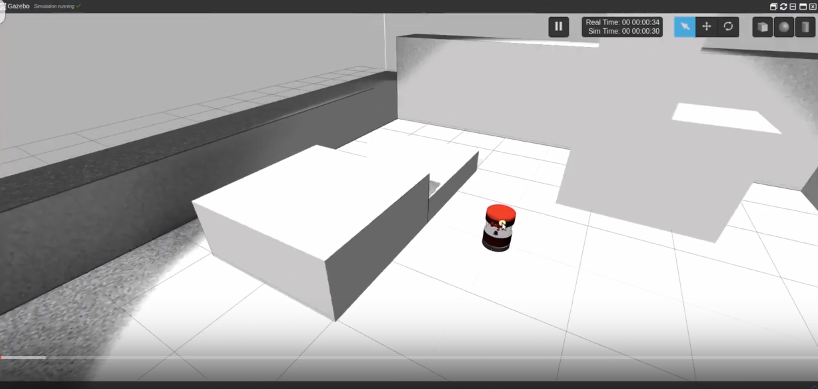
If everything went ok, you should now have the simulation like in the image below:
Barista Robot in ROSDS
The launch file we just selected can be found on ~/simulation_ws/src/barista/barista_gazebo/launch/main_simple.launch and has the following content:
As we can see in the launch file, it spawns the robot and opens RViz (Robot Visualization). You can see RViz by opening the Graphical Tools (Tools -> Graphical Tools).
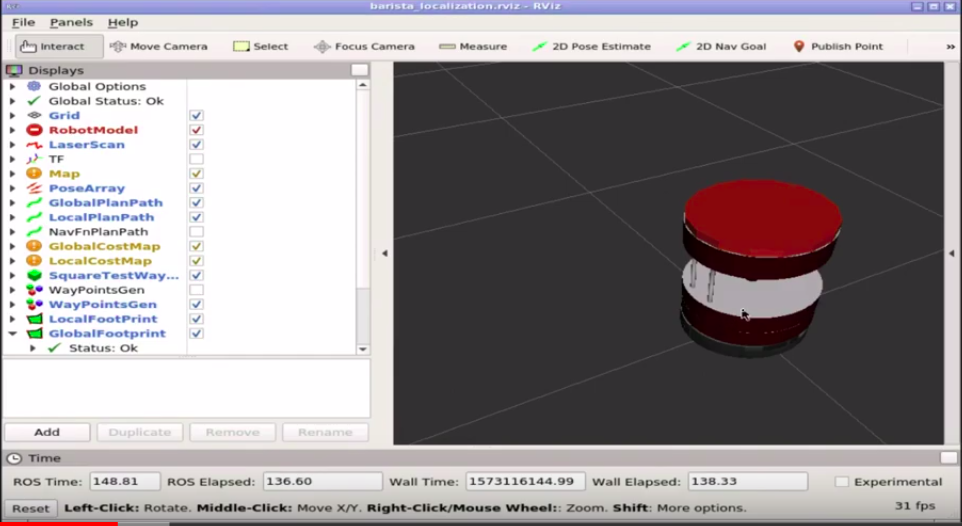
Barista robot in RViz, in ROSDS
Where is the Barista robot defined
If you look at the launch file mentioned earlier, you can see that we use the put_robot_in_world.launch file to spawn the robot. The content of the file is:
We are not going to explain this file in detail because it will take us a long time. If you need further understanding of URDF files, we highly recommend the URDF for Robot Modeling course on Robot Ignite Academy.
In this file, we essentially load the barista_hexagons_asus_xtion_pro.urdf.xacro file located on the ~/simulation_ws/src/barista/barista_description/urdf/barista/ folder.
At the end of that file we can see that we basically spawn the robot and load the sensors:
You can see that this topic alone publishes too much data.
Since we have to show data in the web app that we are going to create, we use the /diagnostics topic to simulate some elements, like the battery, for example, in the format that the real robot uses.
Showing the Battery status
In the barista_gazebo package, we created the sim_pick_go_return_demo.launch file. There you can see that we spawn the battery_charge_pub.py file, which basically subscribes to the /diagnostics topic and publishes into the /battery_charge topic just basic info about the battery status.
Let’s launch that file to launch the main systems:
If you look at the file sim_pick_go_return_demo.launch we mentioned earlier, in that file we are launching the navigation system, more specifically on the sections shown below:
<!-- Start the navigation systems -->
<include file="$(find costa_robot)/launch/localization_demo.launch">
<arg name="map_name" value="simple10x10"/>
<arg name="real_barista" value="false"/>
</include>
and
<!-- We start the waypoint generator to be able to reset tables on the fly -->
<node pkg="ros_waypoint_generator"
type="ros_waypoint_generator"
name="ros_waypoint_generator_node">
</node>
To start creating the map, please consider reloading the simulation (Simulations -> Change Simulation -> Choose Launch file -> main_simple.launch).
The files related to mapping can be found on the costa_robot package. There you can find the following files:
gmapping_demo.launch
localization_demo.launch
save_map.launch
start_mapserver.launch
To create a map, after making sure the simulation is already running, we run the following:
roslaunch costa_robot gmapping_demo.launch
Now we have the lasers so that we can create the map. To see the lasers, please check RViz using Tools -> Graphical Tools.
You can now move the robot around by running the command below in a new shell (Tools -> Shell), to generate the map:
This saves the current location of the robot as HOME. We can now move the robot around and save the new location. To move the robot around, remember that we use:
Great, so far we know how to start the map, start the localization and save the waypoints.
Youtube video
It may happen that you couldn’t reproduce some of the steps mentioned here. If this is the case, remember that we have the live version of this post on YouTube. Also, if you liked the content, please consider subscribing to our youtube channel. We are publishing new content ~every day.
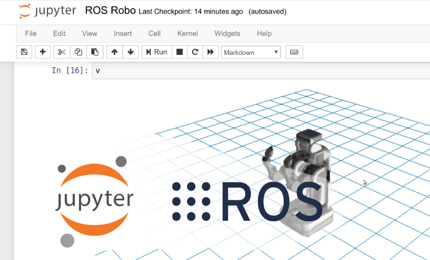
In today’s post, we are going to learn how to see ROS Data inside a Jupyter Notebook using the Jupyter ROS package. Let’s start by clicking on the ROSject link (http://www.rosject.io/l/d4b0981/). You should now have a copy of the ROSject.
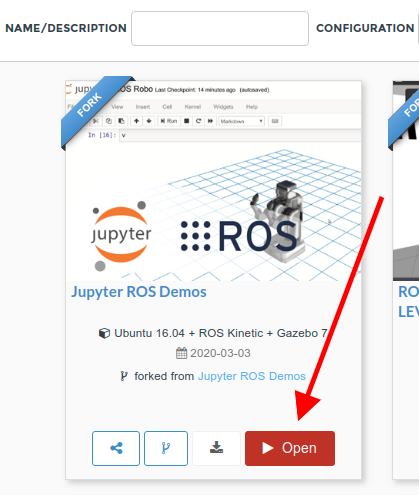
Now, let’s open the notebook by clicking the Open ROSject button.
Open ROSject – Juypter ROS Demo on ROSDS
When you open the ROSject, a default notebook will be automatically open with the instructions on how to show ROS Data in Jupyter.
What follows is the list of ROS enabled notebook demos that work off-the-shelf by using the ROSDS integrated simulations. The original notebook demos were created by Wolf. In The Construct, we only have added the explanations required to understand the code and launch the simulations, so you can have a live demo without having to install and configure your computer.
The ROSject provides everything already installed and configured. Hence, you don’t need to install Jupyter ROS, you only need to learn how to use it… and then use it! (for instructions about how to install on your own computer, please check the author’s repo)
You can freely use all the material from the ROSject to create your own notebooks with ROS.
List of demos
When you open the notebook, the list of demos you have are:
ROS 3D Grid: about how to include an interactive 3D grid inside a notebook.
ROS Robot: about how to add the robot model inside the 3D grid
ROS Laser Scan: about how to show the robot laser on the 3D grid.
ROS TEB Demo: about how to add interactive markers to the 3D viewer
Where to find the notebooks inside the rosject
All the notebook files are contained in the ROSject.
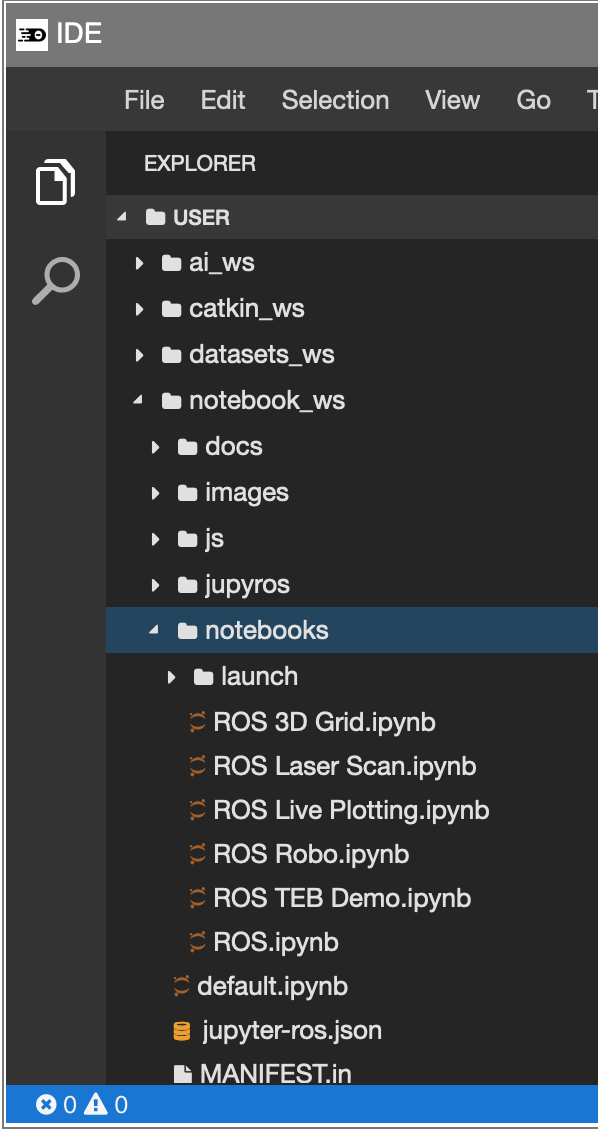
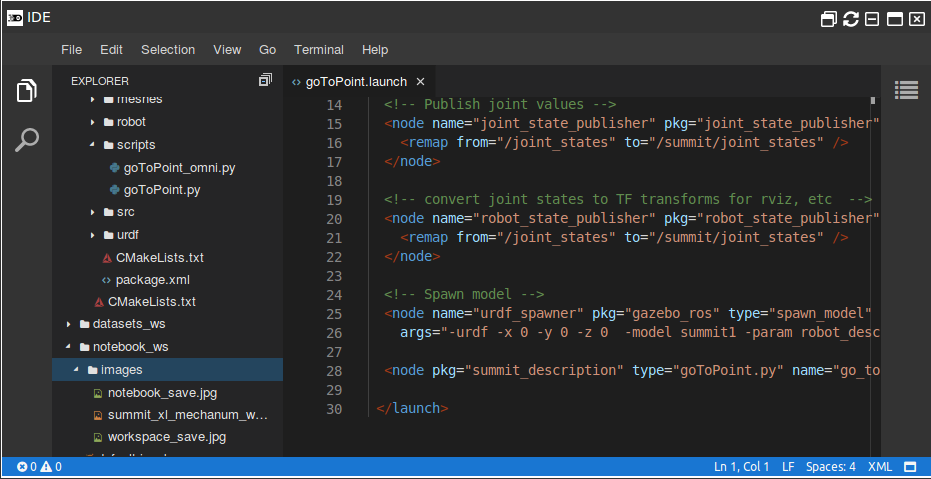
In order to see the actual files, use the IDE (top menu, Tools->IDE). Then navigate through the folders up to notebook_ws->notebooks.
Jupyter ROS – List of files in ROSDS
How to modify the provided notebooks directly in ROSDS
Use the Jupyter notebook tool to edit the notebooks included in this rosject (or to create new ones).In case you close the notebook, you can re-open it by going to the top menu and selecting Tools->Jupyter Notebook.
Once you have the notebook open, edit at your own will. Check the Jupyter documentation to understand all the possible options.
ROS Laser Scan demo
In the notebooks of the ROSject, we have four demos, but in this post, we are going to show only how to show Laser Scan in the notebook to make things simpler.
In order to get this working, we are going to use the simulation of a Turtlebot.
Remember that you have to have the ROS Bridge running in order for Jupyter ROS to work. If you haven’t started it yet, launch it now.
We’ll need someone to publish the URDF and the TF. For that, we are going to use a Gazebo simulation. Let’s start a Turtlebot2 simulation.
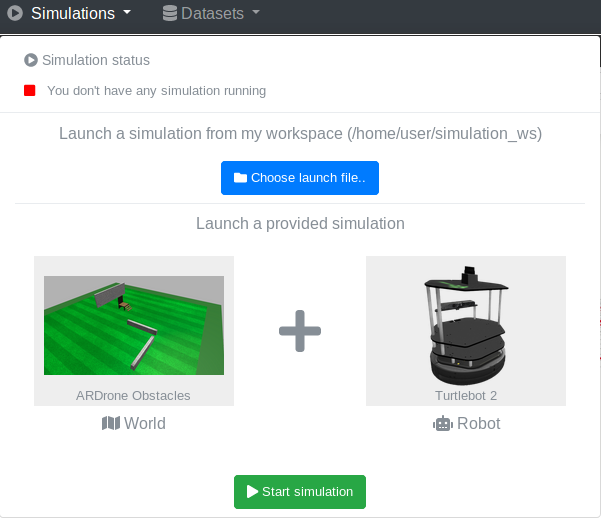
Go to the ROSDS TAB and go to its top menu.
Select Simulations.
On the panel that appears, click on the label that says Select world.
Then on the drop-down menu that appears, move down until you see the AR Drone world.
On the panel that appears, click on the label that says Select robot.
Then on the drop-down menu that appears, move down until you see the Turtlebot 2.
Click on it and then press Start simulation
Turtlebot in a green area in ROSDS
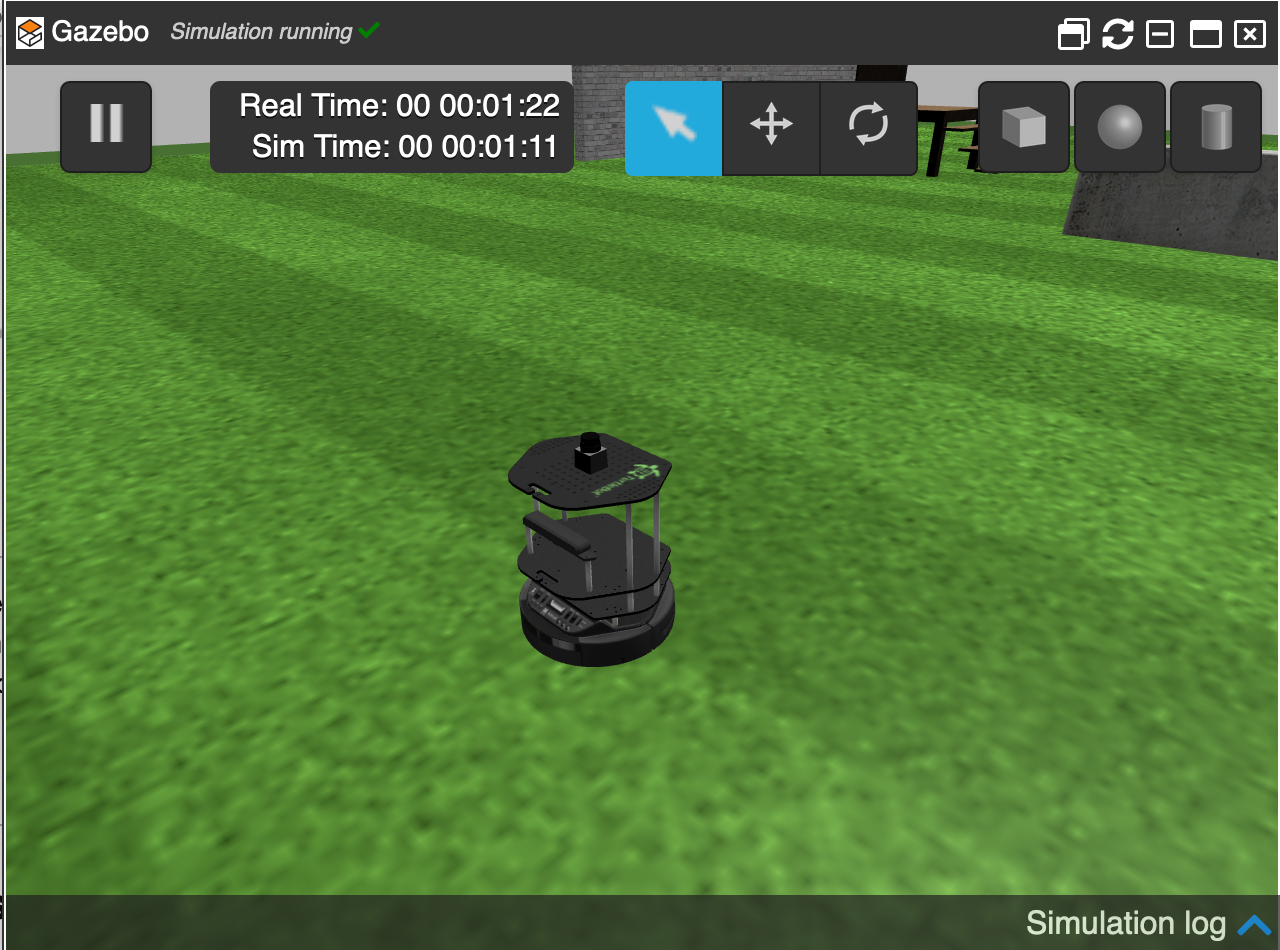
A new window should appear and load the simulation. Once loaded you should see something similar to this:
Turtlebot opened in a green area in ROSDS
First, Start the demo
First, import the required classes from Jupyter ROS.
Click on the next cell and then press Shift+Enterto activate the Python code.IMPORTANT: the import of such a class can take some time!. You will know that the code is still running because the number on the left of the cell has changed to a * character. Do not move to the next step until the * is gone.
try:
from sidecar import Sidecar
except:
pass
from jupyros import ros3d
Second, create an instance of the viewer, connect to ROS and get the TF
Click on the next cell and then press Shift+Enterto activate the Python code.
v = ros3d.Viewer()
rc = ros3d.ROSConnection()
tf_client = ros3d.TFClient(ros=rc, fixed_frame='/base_footprint')
Connect to the topic of the laser
Click on the next cell and then press Shift+Enterto activate the Python code.
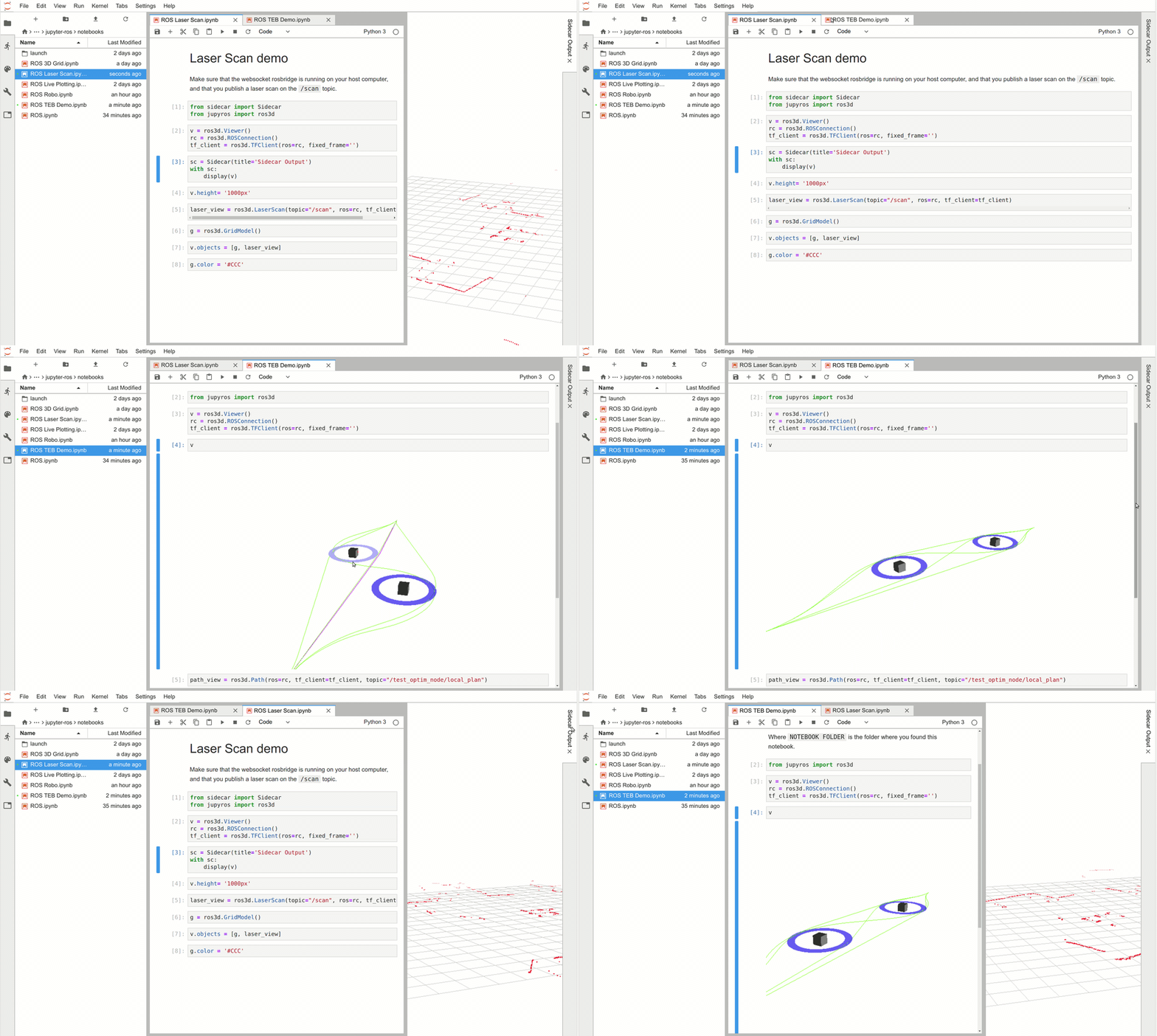
That is it. If you did everything ok, you should see the robot moving around in the jupyter notebook.
Learn more about Jupyter ROS
If you want to learn more about Jupyter ROS, here we have the interview we made to Wolf for the ROS Developers Podcast where he explains the ins and outs of Jupyter ROS.
Youtube video
So this is the post for today. Remember that we have the live version of this post on YouTube. If you liked the content, please consider subscribing to our youtube channel. We are publishing new content ~every day.
One of the critical topics of ROS, overlaying workspaces, something that can be confusing even for those who are working with ROS for some time. In this post, we are going to clarify why it happens and how to manage it.
ROSDS Initial environment
As usual, we are going to work with ROSDS, the ROS Development Studio. Creating a new ROSJect, you will have 2 workspaces in your environment, from scratch. One more designed to store ROSDS public simulations and ROS pre-installed packages. Let check this out!
The workspaces are separated by “:”, let’s check one by one, following the order (which is very important!)
/home/user/catkin_ws/src
/home/user/simulation_ws/src
/home/simulations/public_sim_ws/src
/opt/ros/kinetic/share
The order was pre-defined by TheConstruct engineers team, to make it suitable for working with public simulations and custom simulations from the user. The order means:
ROS commands are going to look for packages starting from the workspace /home/user/catkin_ws/src, then /home/user/simulation_ws/src and so on. Remember, you can NOT have packages with the same name in the same workspace. But you can have packages with the same name in different workspaces! If the same package exists in two or more workspaces, the first one will be used.
So, if you want to overwrite a simulation from /home/simulations/public_sim_ws/src, you can do just creating/cloning the package with the same name at /home/user/simulation_ws/src.
Re-defining the $ROS_PACKAGE_PATH
“What if I want to add a new workspace to $ROS_PACKAGE_PATH?”
This is an ENVIRONMENT VARIABLE, so is it just a matter of export it the way I want? WRONG!
The ENVIRONMENT VARIABLE is generated by the devel/setup.bash file from each workspace. It means this is just one of the results of sourcing a workspace!
If you need to re-define your $ROS_PACKAGE_PATH, you need to it in a safe/correct way, let’s call it. It is like described below:
Source the installation path of ROS:
Recompile the workspace you want just after the installation folder:
Even though we have many other workspaces defined, our $ROS_PACKAGE_PATH considers only one workspace! That’s because we have sourced just this workspace’s devel/setup.bash.
Overlaying workspaces
Now, let’s do some more advanced. We want to have more workspaces in our $ROS_PACKAGE_PATH. But let’s check something before:
You still have the previous $ROS_PACKAGE_PATH defined, but only for the catkin_ws. The conclusion is each workspace has its own $ROS_PACKAGE_PATH defined.
Now, we are going to add public_sim_ws to our new workspace. This is the way to make the public simulations provided by TheConstruct available for your new workspace.
This is how you can work with multiple workspaces. Bare in mind ROS creates rules to give priority, but you are the one in charge of configuring the order of your workspaces!