Have a ROS1 project that you want to migrate to ROS2
Already ported your nodes in ROS2
Want to migrate your launch file using the XML launch format in ROS
then, this post is definitely for you.
Opening the rosject
In order to learn how to migrate XML launch files format from ROS1 to ROS2, we need to have ROS installed in our system, and it is also useful to have some simulations. We already prepared a rosject with a simulation for that: https://app.theconstructsim.com/#/l/48df0c95/.
You can download the rosject on your own computer if you want to work locally, but just by copying the rosject (clicking the link), you will have a setup already prepared for you.
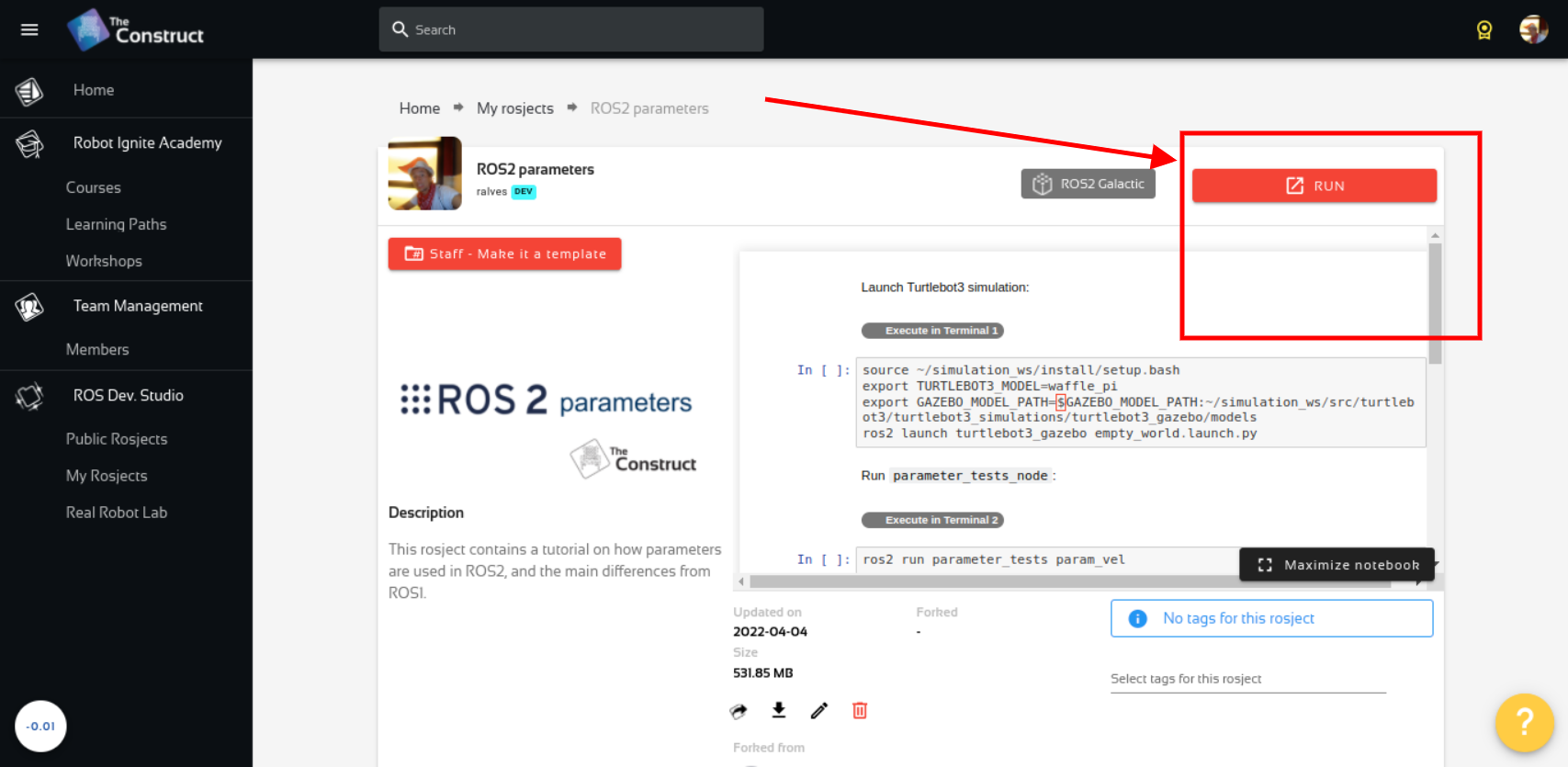
After the rosject has been successfully copied to your own area, you should see a Run button. Just click that button to launch the rosject (below you have a rosject example).
Learn ROS2 – Run rosject
After pressing the Run button, you should have the rosject loaded. Let’s now head to the next section to really get some real practice.
An example of a ROS1 Launch file
Let’s start by checking an example of an XML launch file in ROS1 format, which is NOT included in the rosject we provided above, but will be used as reference for the rosject we are going to create:
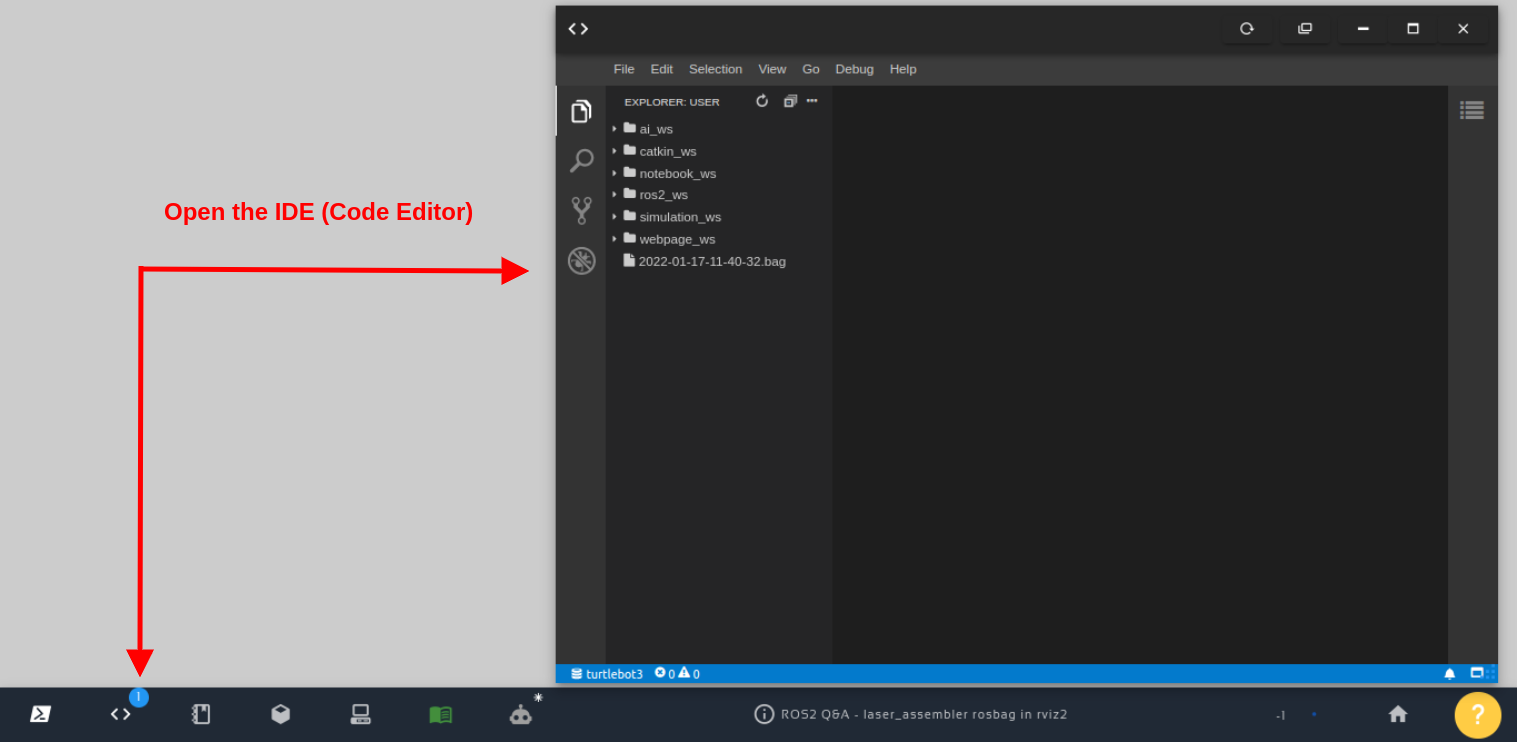
You can easily check that file using the Code Editor:
Open the IDE – Code Editor
Now, assuming you want to understand that step-by-step procedure, let’s suppose you do not have that launch_project.launch.xml file (or you create a new file for learning purposes). The new launch file can start with the following content from the original ROS1 launch file. Nothing changed in the definition of XML and <launch> tags:
Ok, so far so good. Nothing really changed. Things will start changing now. We are now going to start changing the code part used to include a simulation. The original code in ROS1 format is:
To port it to ros2, we initially have to replace find with find-pkg-share. In addition to that, we have to add the .py extension to the launch file we are including, because this is the name of our file in ROS2. In the end, the code would become:
To make it ROS2-compatible, instead of arg we use let when defining the arg named rviz_config, and when passing that value to the rviz node, instead of arg we use var. Of course, we also have to replace type with exec in the <node> definition when indicating the name of the executable file. We have to be aware also that in ROS2, rviz is named rviz2. In the end, after the changes, the code would be:
Turns out that in ROS2 we do not have a Parameter Server like in ROS1. In ROS2, the parameters are “restricted” to each node individually. The parameters above, in ROS1, were used by the Obstacle Avoidance node, which was defined as follows in ROS1:
Since the parameters are “private” to each node, the parameters in ROS2 are passed to the node inside the <node> definition. They have to be nested to the node tag. Therefore, for the Obstacle Avoidance example, the ROS2-compatible code would be as follows, after also replacing type with exec:
I’m assuming that replacing type with exec is already fresh in your mind when running nodes. What you may not know is that for namespaces in ROS2 we use a group tag, and the namespace is defined inside a push-ros-namespace tag. The namespace example in ROS2 would be:
All right. We have been checking piece by piece, but we all agree that it is time to see the complete launch file in ROS2. The path, if you do not remember is:
Assuming everything went well, you should have get logs similar to the following:
[INFO] [launch]: All log files can be found below /home/user/.ros/log/2022-04-25-21-55-21-371627-2_xterm-8807
[INFO] [launch]: Default logging verbosity is set to INFO
[INFO] [gzserver-1]: process started with pid [8817]
[INFO] [gzclient   -2]: process started with pid [8819]
[INFO] [static_transform_publisher-3]: process started with pid [8821]
[INFO] [rviz2-4]: process started with pid [8825]
[INFO] [obstacle_avoidance-5]: process started with pid [8827]
[INFO] [rviz_marker_pub-6]: process started with pid [8829]
[gzclient   -2] ++ ls /usr/bin/gzclient-11.9.0
[gzclient   -2] + gzclient_path=/usr/bin/gzclient-11.9.0
[gzclient   -2] + DISPLAY=:2
[gzclient   -2] + /usr/bin/gzclient-11.9.0
[static_transform_publisher-3] [INFO] [1650923728.301492664] [map_odom]: Spinning until killed publishing transform from 'map' to 'odom'
[rviz2-4] QStandardPaths: XDG_RUNTIME_DIR not set, defaulting to '/tmp/runtime-user'
[rviz2-4] [INFO] [1650923754.405249391] [rviz2]: Stereo is NOT SUPPORTED
[rviz2-4] [INFO] [1650923754.405480560] [rviz2]: OpenGl version: 3.1 (GLSL 1.4)
[rviz2-4] [INFO] [1650923754.478336976] [rviz2]: Stereo is NOT SUPPORTED
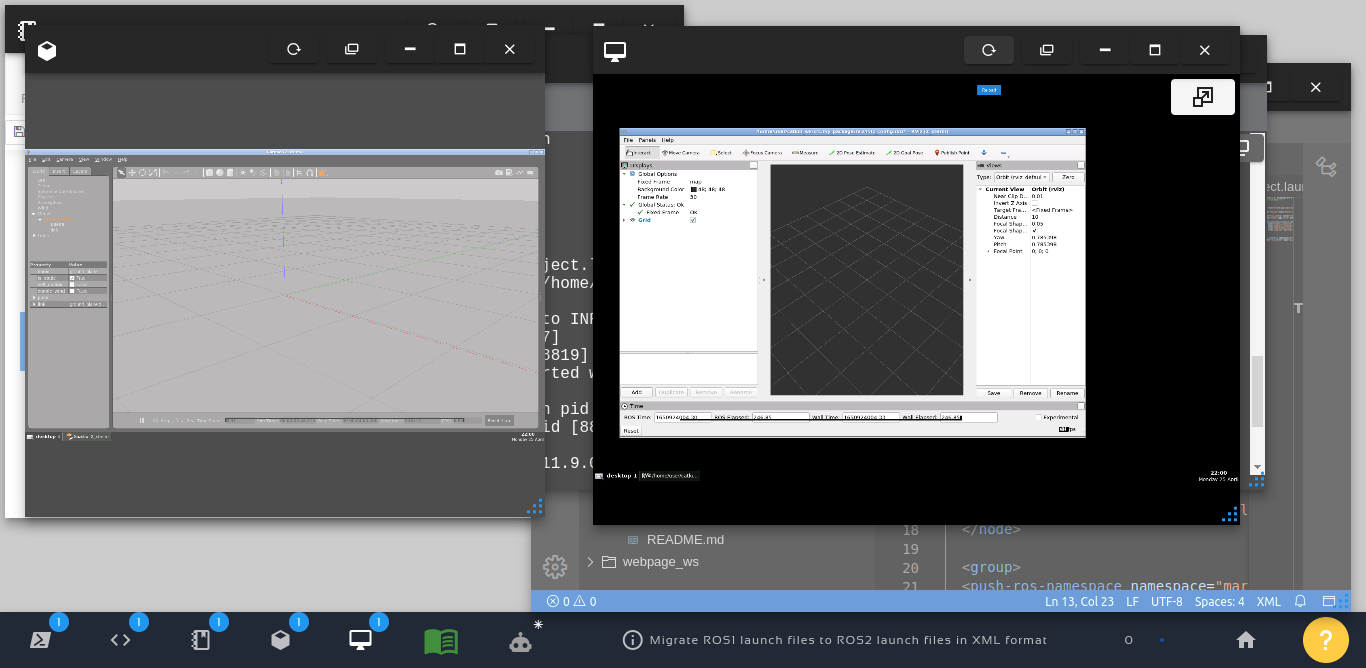
And a simulation should pop up, and you should also be able to see RViz, something like in the image below:
Migrating ROS1 XML Launch Files to ROS2
Youtube video
So this is the post for today. Remember that we have the live version of this post on YouTube. If you liked the content, please consider subscribing to our youtube channel. We are publishing new content ~every day.
Keep pushing your ROS Learning.
Related Courses & Training
If you want to learn more about ROS and ROS2, we recommend the following courses:
In order to learn how to work with turtlesim using ros2, we need to have ros2 installed.
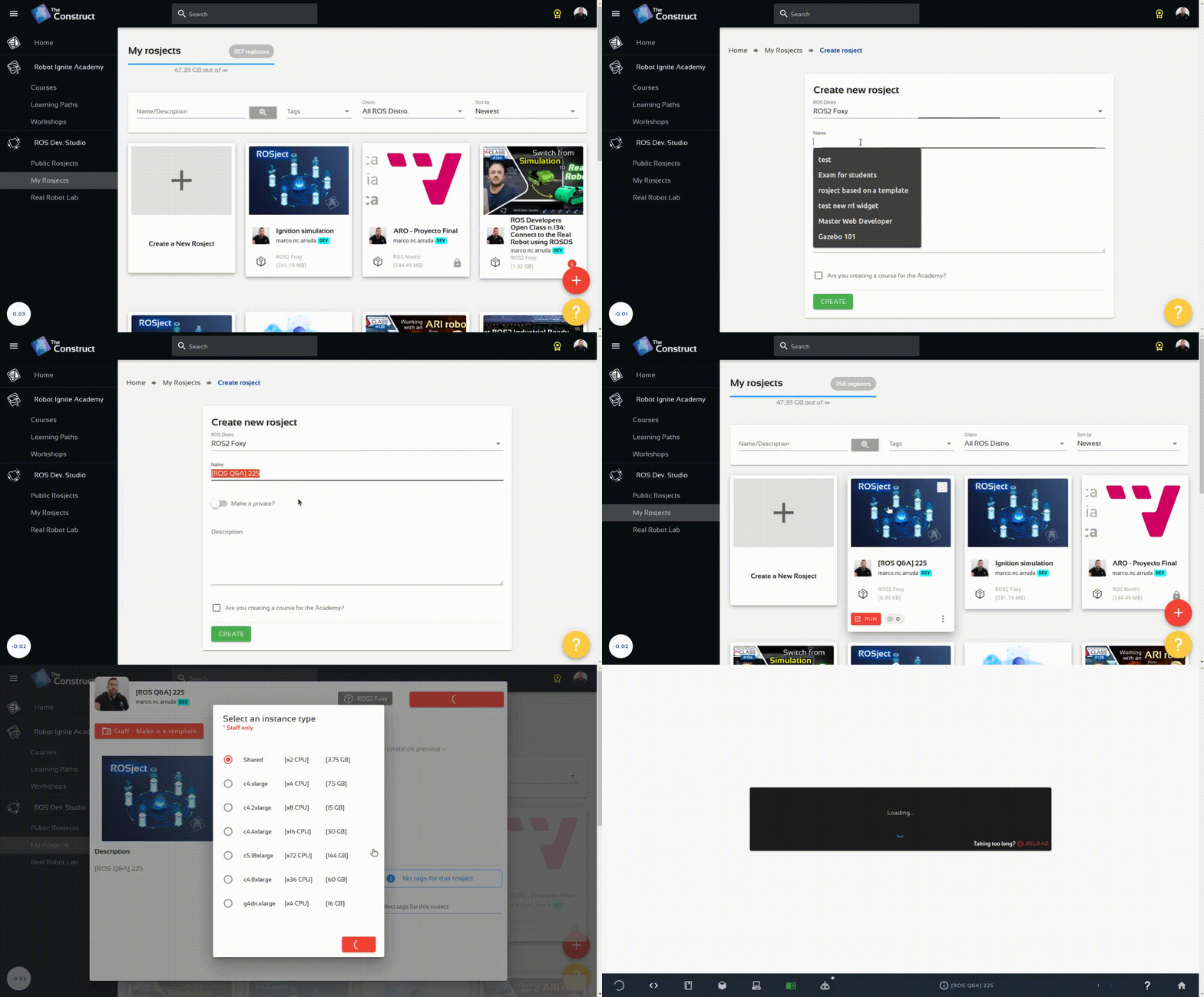
You can use rosject we provide ( https://app.theconstructsim.com/#/l/4623f16e/) or you can create your own rosject. We are going to use The Construct (https://www.theconstruct.ai/) for this tutorial, but if you have ROS2 installed on your own computer, you should be able to do ~everything on your own computer, except this creating a rosject part.
Let’s start by opening The Construct (https://www.theconstruct.ai/) and logging in. You can easily create a free account if you still don’t have one.
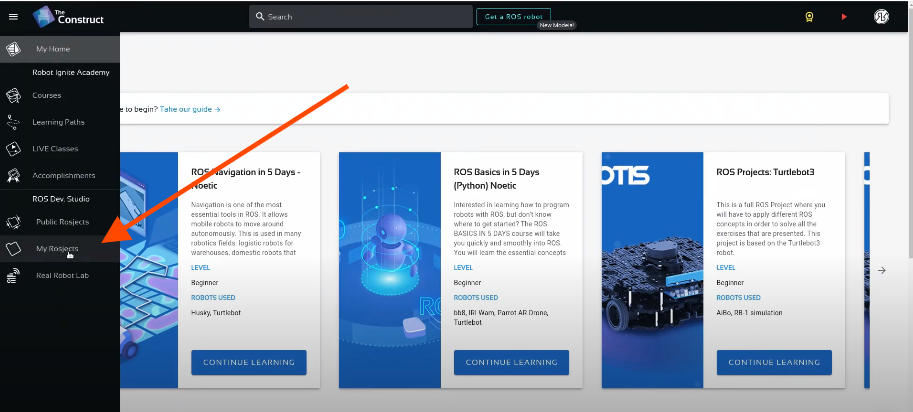
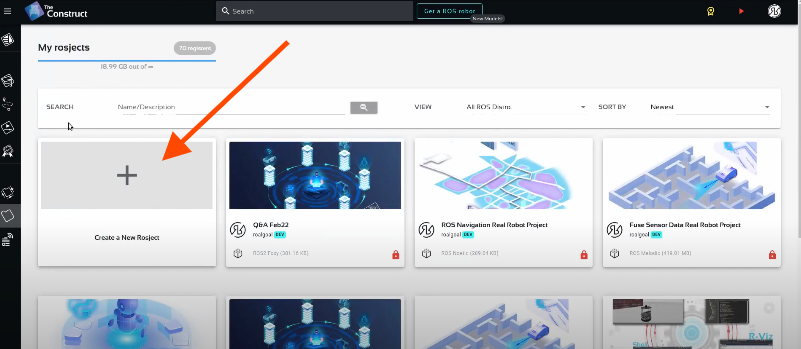
Once inside, let’s create My Rosjects and then, Create a new rosject if you decide for this step instead of using the rosject already provided (https://app.theconstructsim.com/#/l/4623f16e/) :
My Rosjects
Create a new rosject
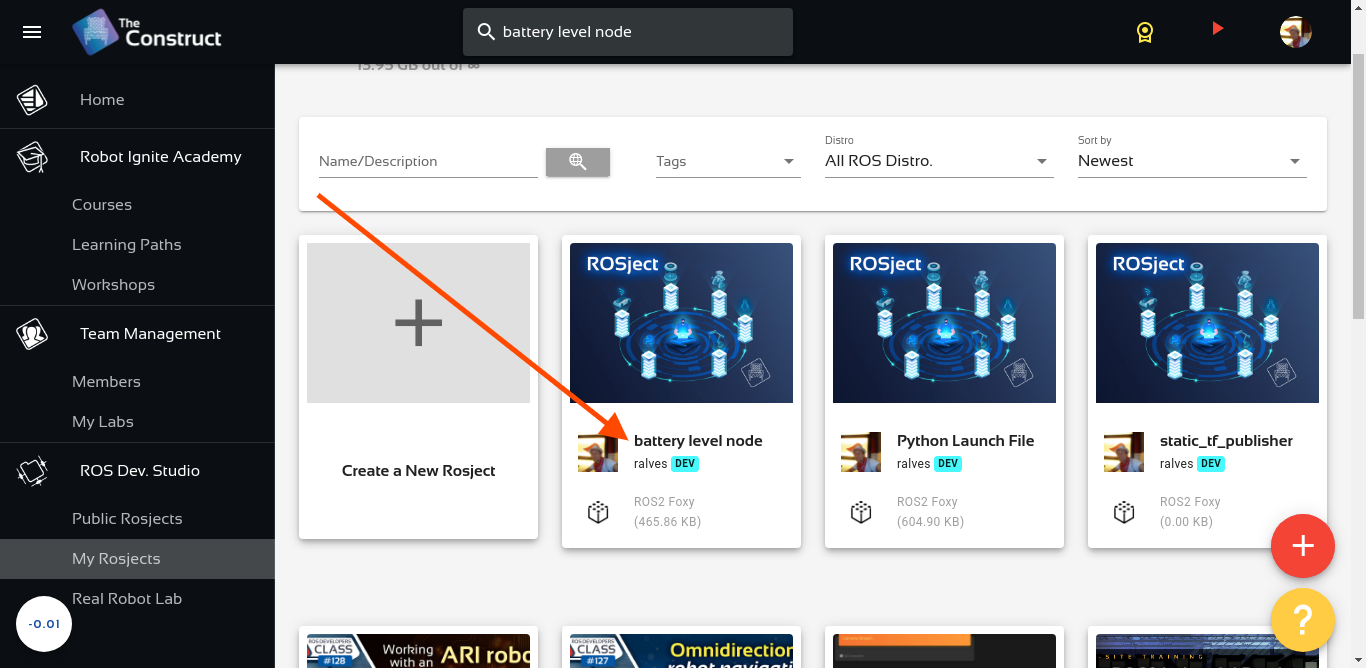
For the rosject, let’s select ROS2 Foxyfor the ROS Distro, let’s name the rosject as Turtlesim. You can leave the rosject public. You should see your rosject just as in the example below (although in the picture the name is different)
Battery Level Node – Conditional Publisher in ROS2
If you mouse over the recently created rosject, you should see a Run button. Just click that button to launch the rosject.
Launching the turtlesim node using ros2
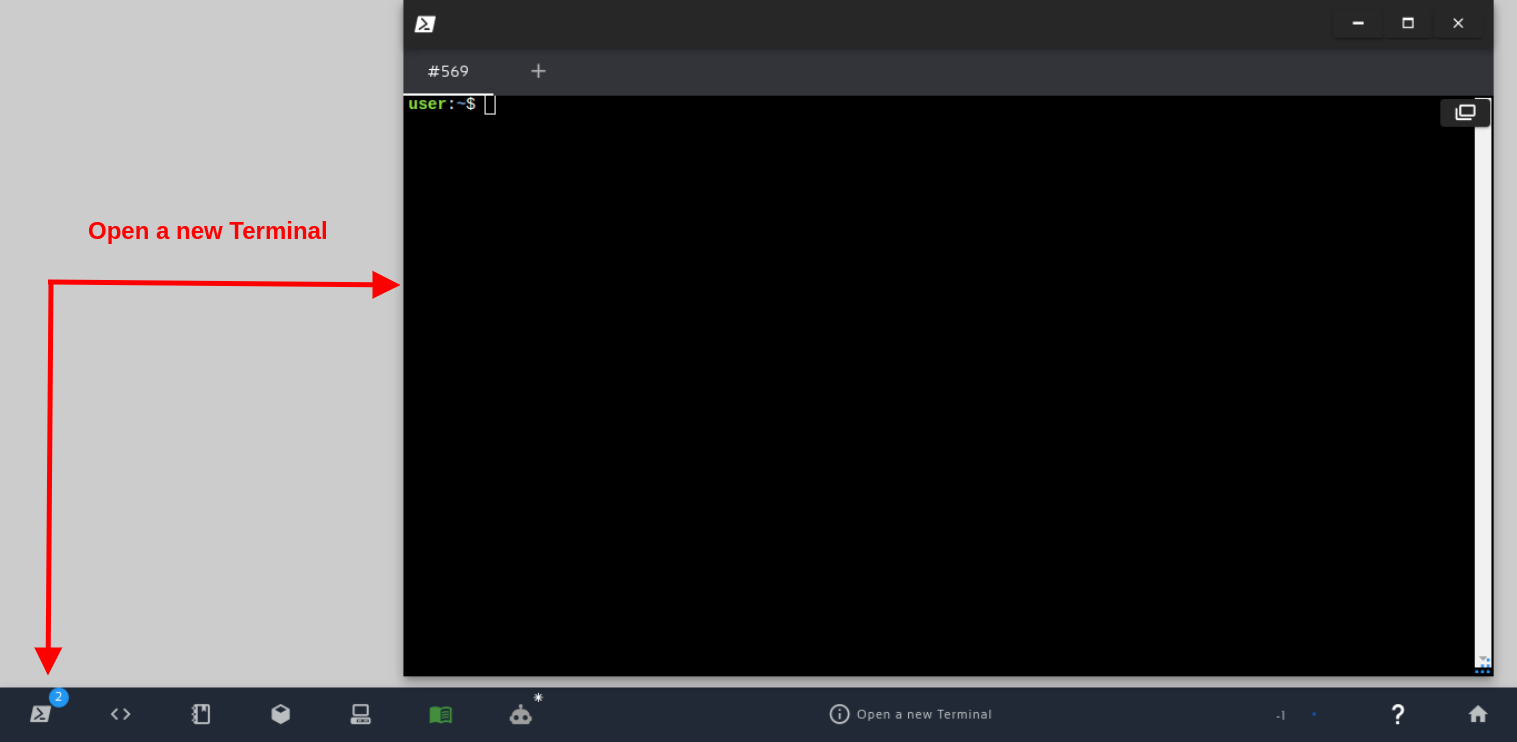
Now, assuming that you have opened the rosject by clicking the Run button that appears when you hover the mouse on the rosject, we can now open a terminal.
Open a new Terminal
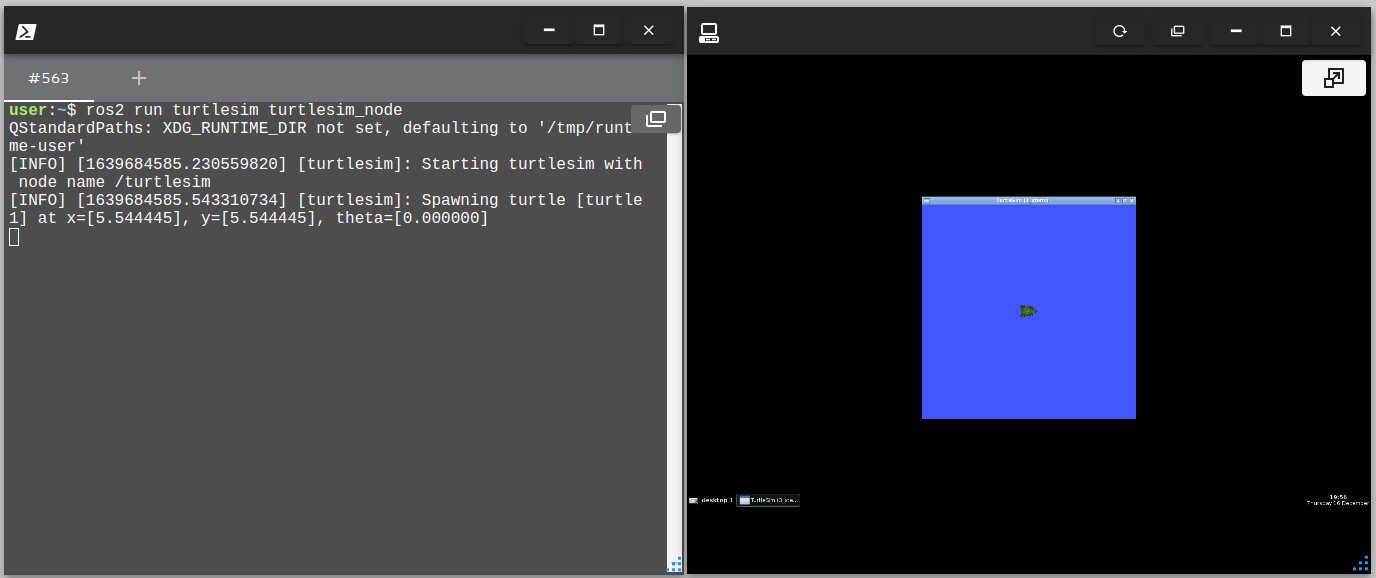
After opening the terminal, we can run the turtlesim just by running the following command:
ros2 run turtlesim turtlesim_node
.The logs you see should be similar to the following:
QStandardPaths: XDG_RUNTIME_DIR not set, defaulting to '/tmp/runtime-user'
[INFO] [1641240027.604446440] [turtlesim]: Starting turtlesim with node name /turtlesim
[INFO] [1641240027.609126169] [turtlesim]: Spawning turtle [turtle1] at x=[5.544445], y=[5.544445], theta=[0.000000]
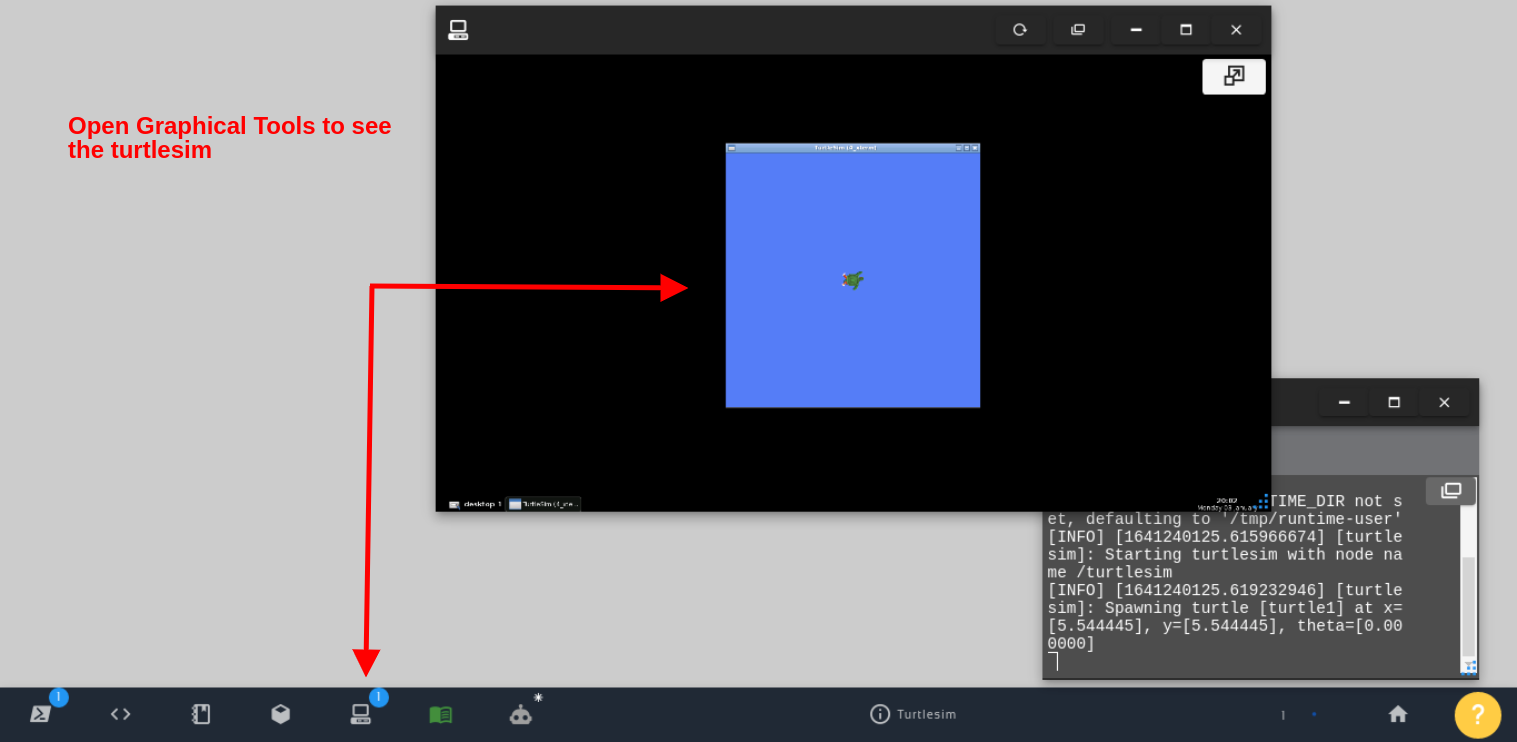
If we now open the Graphical Tools, we should be able to see the turtlesim.
Open Graphical Tools to see the turtlesim
Moving the turtlesim around with ros2
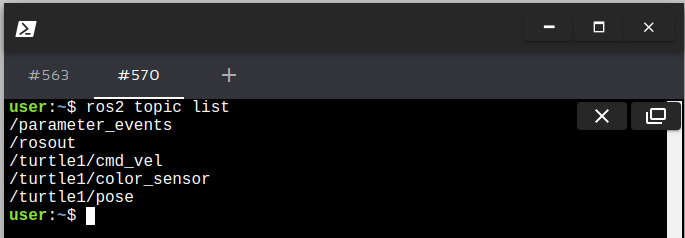
Now that the simulation is up and running, we should be able to easily move the robot. However, before doing that, we have to list the topics to identify the topic that turtlesim listens to in order to move the robot.
Let’s list the topic by running the following command in a second terminal.
The important topis here for the purpose of moving the robot is the /turtle1/cmd_vel one.
If you are used to moving robots with ROS, you may know that by default, the teleop nodes normally publish to the topic named /cmd_vel, but in this case, the robot is listening to a topic with a different name: /turtle1/cmd_vel
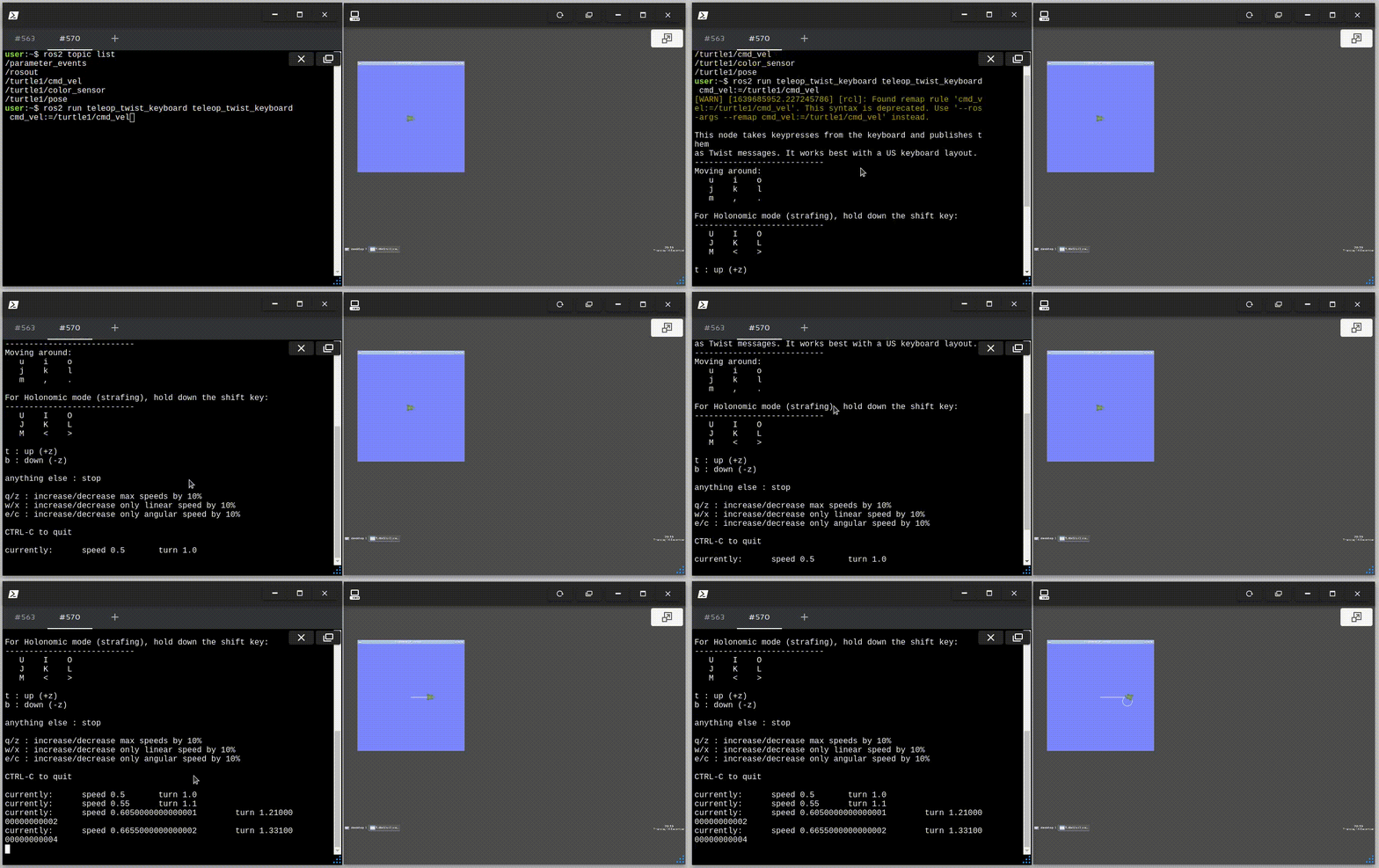
How do we solve that then? By mapping /cmd_vel to /turtle1/cmd_vel when launching the teleop node. We can achieve that with the following command, where we specify that we want to the topic:
ros2 run teleop_twist_keyboard teleop_twist_keyboard --ros-args --remap /cmd_vel:=/turtle1/cmd_vel
We should now see the instructions to move the robot around:
This node takes keypresses from the keyboard and publishes them
as Twist messages. It works best with a US keyboard layout.
---------------------------
Moving around:
   u    i    o
   j    k    l
   m    ,    .
For Holonomic mode (strafing), hold down the shift key:
---------------------------
   U    I    O
   J    K    L
   M    <    >
t : up (+z)
b : down (-z)
anything else : stop

q/z : increase/decrease max speeds by 10%
w/x : increase/decrease only linear speed by 10%
e/c : increase/decrease only angular speed by 10%

CTRL-C to quit

currently:      speed 0.5       turn 1.0
If we now press u, i or o, for example, we should be able to see the robot moving.
With turtlesim you can do a lot of testing for mobile robots, where you don’t need to worry about x and y velocities, you can also spawn more turtles to simulate more robots.
We hope this little post is helpful for your ROS Learning journey.
Youtube video
So this is the post for today. Remember that we have the live version of this post on YouTube. If you liked the content, please consider subscribing to our youtube channel. We are publishing new content ~every day.
In order to learn how to get the robot position using transforms in ROS, let’s start by creating a rosject (ROS project). We are going to use The Construct (https://www.theconstruct.ai/) for this tutorial, but if you have ROS2 installed on your own computer, you should be able to do ~everything on your own computer, except this creating a rosject part.
Let’s start by opening The Construct (https://www.theconstruct.ai/) and logging in. You can easily create a free account if you still don’t have one.
Once inside, let’s create My Rosjects and then, Create a new rosject:
My Rosjects
Create a new rosject
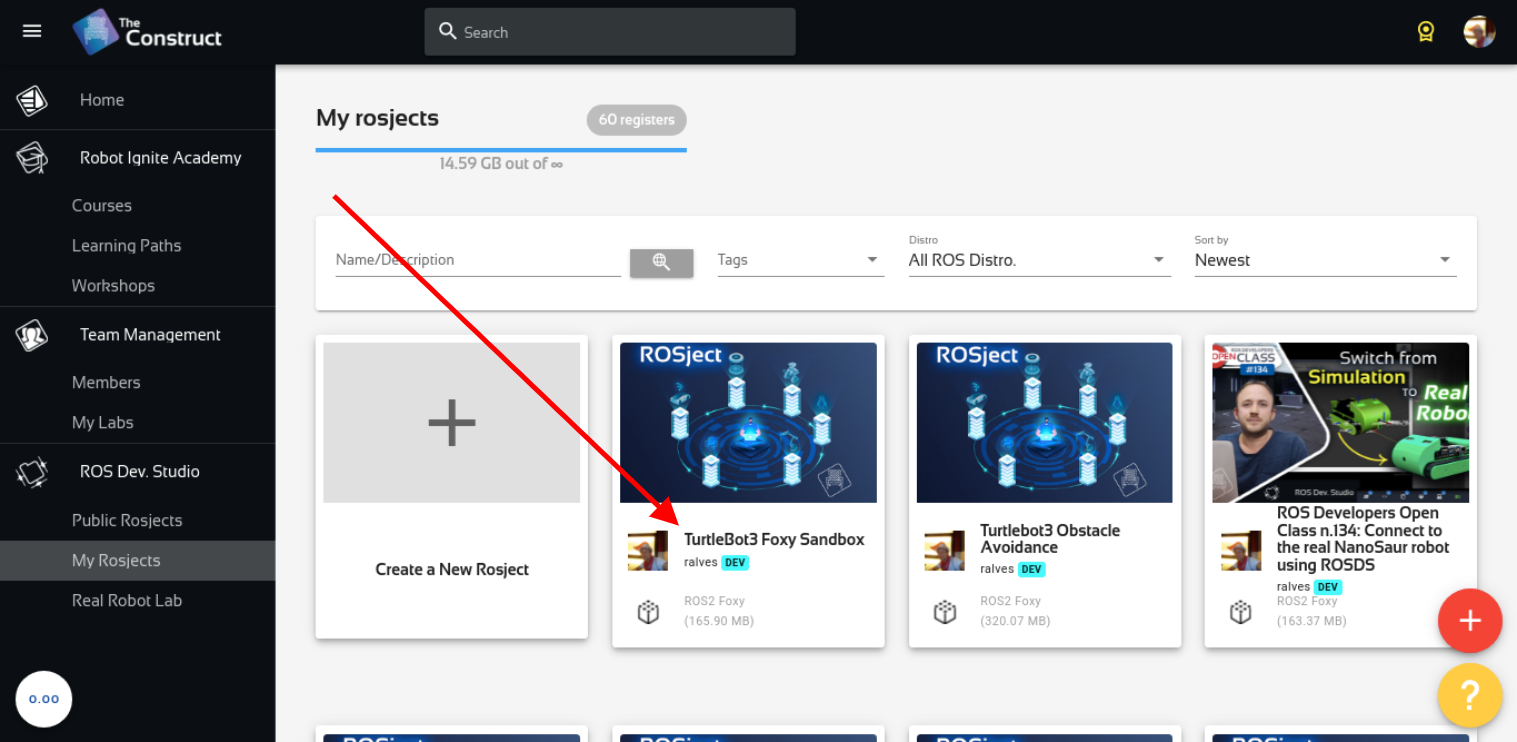
For the rosject, let’s select ROS2 Foxyfor the ROS Distro, let’s name the rosject as Turtlebot3 Foxy Sandbox. You can leave the rosject public.
Turtlebot3 Foxy Sandbox – How to get robot position using transforms in ROS2
If you mouse over the recently created rosject, you should see a Run button. Just click that button to launch the rosject.
Cloning the required repositories with the simulations
After we have created our rosject and opened it, let’s now open a terminal as we can see in the image below:
Open a new Terminal
After that, let’s enter into the ~/ros2_ws/src directory and clone three repositories there with the following commands:
When this error happens, is just because of a lack of memory or CPU. Normally, after running colcon build again the package gets compiled.
Launching the Turtlebot3 Simulation with ROS2
So far we have created a rosject, cloned the repositories that contain the turtlebot3 simulations, and we have also compiled the packages. The time has come now to finally launch our simulation.
Let’s start by sourcing the workspace that we just compiled:
source install/setup.bash
Let’s also modify the ~/.bashrc so that it exports the variable GAZEBO_MODEL_PATH so that gazebo can find turtlebot models, and also export TURTLEBOT3_MODEL variable so that the package turtlebot3_gazebo knows which turtlebot to launch:
If we now check the ~/.bashrc file, which is saved when your rosject gets saved, we can see that the variables we are interested in are set in this file. (You can check it with the tail ~/.bashrc command).
# Note from The Construct
# -----------------------------------------------------
# This file will be saved together with your rosject.
# Add your custom exports at the end of this file. E.g.:
# export MY_SETTING=value
# export GAZEBO_RESOURCE_PATH=$GAZEBO_RESOURCE_PATH:/home/user/simulation_ws/src/my_package
# -----------------------------------------------------

export GAZEBO_MODEL_PATH=$GAZEBO_MODEL_PATH:~/ros2_ws/src/turtlebot3_simulations/turtlebot3_gazebo/models
export TURTLEBOT3_MODEL=burger
Now, let’s source that file so that our variables get exported in the terminal that is already open. It is worth mentioning that when you open new terminals, the variables will be automatically exported since bash automatically sources ~/.bashrc for new terminals.
source ~/.bashrc
We should now be able to launch the simulation. Let’s use the following command for this purpose:
Assuming that everything went as expected, the expected output is similar to the following:
[INFO] [launch]: All log files can be found below /home/user/.ros/log/2022-01-03-18-04-58-484869-4_xterm-7991
[INFO] [launch]: Default logging verbosity is set to INFO
urdf_file_name : turtlebot3_burger.urdf
[INFO] [gzserver-1]: process started with pid [8011]
[INFO] [gzclient   -2]: process started with pid [8013]
[INFO] [robot_state_publisher-3]: process started with pid [8015]
[gzclient   -2] ++ ls /usr/bin/gzclient-11.5.1
[gzclient   -2] + gzclient_path=/usr/bin/gzclient-11.5.1
[gzclient   -2] + DISPLAY=:2
[gzclient   -2] + /usr/bin/gzclient-11.5.1
[robot_state_publisher-3] [WARN] [1641233102.776304734] [robot_state_publisher]: No robot_description parameter, but command-line argument available.  Assuming argument is name of URDF file.  This backwards compatibility fallback will be removed in the future.
[robot_state_publisher-3] Parsing robot urdf xml string.
[robot_state_publisher-3] Link base_link had 5 children
[robot_state_publisher-3] Link caster_back_link had 0 children
[robot_state_publisher-3] Link imu_link had 0 children
[robot_state_publisher-3] Link base_scan had 0 children
[robot_state_publisher-3] Link wheel_left_link had 0 children
[robot_state_publisher-3] Link wheel_right_link had 0 children
[robot_state_publisher-3] [INFO] [1641233102.786920419] [robot_state_publisher]: got segment base_footprint
[robot_state_publisher-3] [INFO] [1641233102.786951740] [robot_state_publisher]: got segment base_link
[robot_state_publisher-3] [INFO] [1641233102.786960417] [robot_state_publisher]: got segment base_scan
[robot_state_publisher-3] [INFO] [1641233102.786967879] [robot_state_publisher]: got segment caster_back_link
[robot_state_publisher-3] [INFO] [1641233102.786975239] [robot_state_publisher]: got segment imu_link
[robot_state_publisher-3] [INFO] [1641233102.786982406] [robot_state_publisher]: got segment wheel_left_link
[robot_state_publisher-3] [INFO] [1641233102.786989655] [robot_state_publisher]: got segment wheel_right_link
[gzserver-1] [INFO] [1641233113.680311324] [turtlebot3_imu]: <initial_orientation_as_reference> is unset, using default value of false to comply with REP 145 (world as orientation reference)
[gzserver-1] [INFO] [1641233114.186860606] [turtlebot3_diff_drive]: Wheel pair 1 separation set to [0.160000m]
[gzserver-1] [INFO] [1641233114.186930065] [turtlebot3_diff_drive]: Wheel pair 1 diameter set to [0.066000m]
[gzserver-1] [INFO] [1641233114.188655864] [turtlebot3_diff_drive]: Subscribed to [/cmd_vel]
[gzserver-1] [INFO] [1641233114.191645383] [turtlebot3_diff_drive]: Advertise odometry on [/odom]
[gzserver-1] [INFO] [1641233114.193357059] [turtlebot3_diff_drive]: Publishing odom transforms between [odom] and [base_footprint]
[gzserver-1] [INFO] [1641233114.210184212] [turtlebot3_joint_state]: Going to publish joint [wheel_left_joint]
[gzserver-1] [INFO] [1641233114.210260508] [turtlebot3_joint_state]: Going to publish joint [wheel_right_joint]
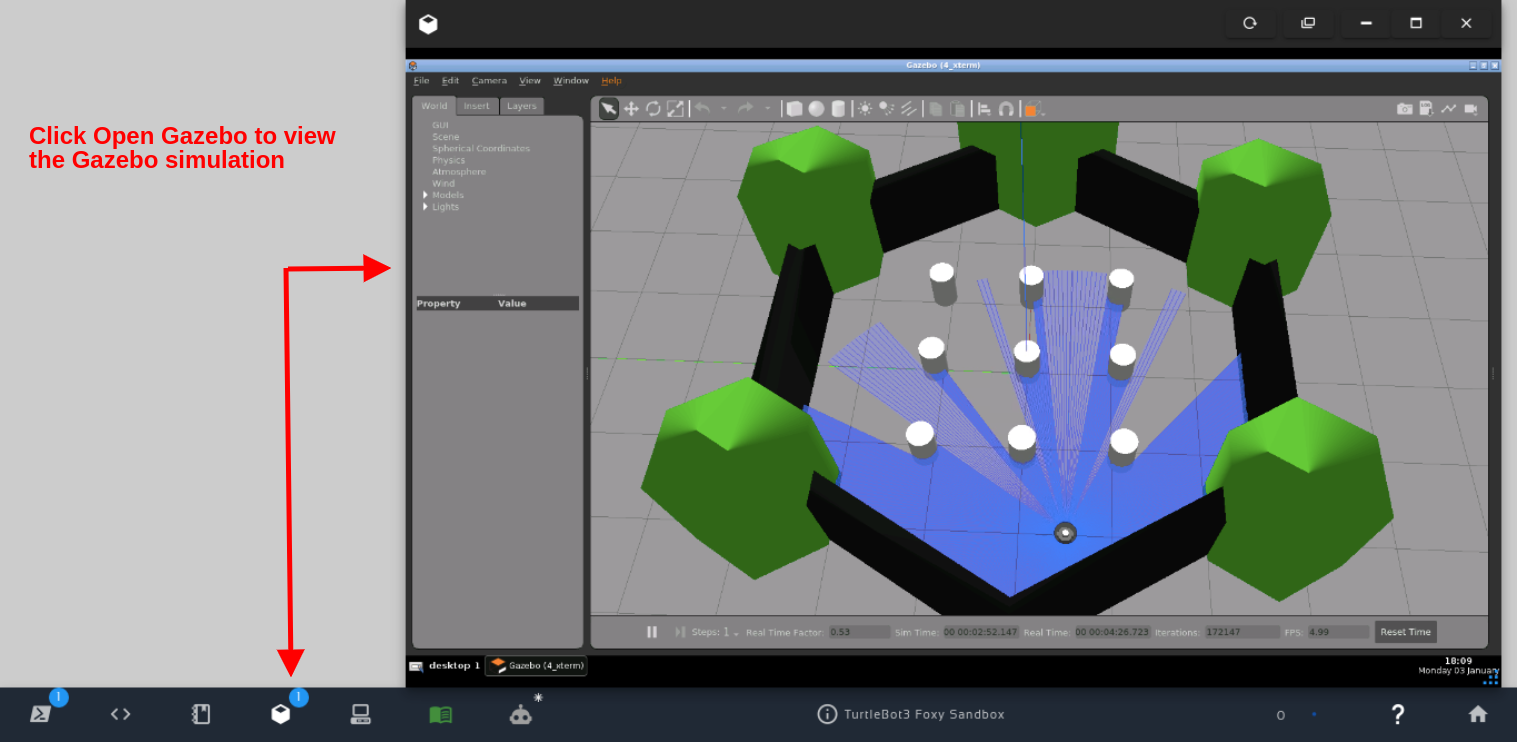
If we now open Gazebo by clicking the Open Gazebo button that appears after we hover the mouse over the Gazebo icon, we should be able to see the simulation:
Click Open Gazebo to view the Gazebo simulation
Let’s now open a second terminal and launch rviz2 with:
rviz2
The expected output is similar to the following:
QStandardPaths: XDG_RUNTIME_DIR not set, defaulting to '/tmp/runtime-user'
[INFO] [1641234625.339611435] [rviz2]: Stereo is NOT SUPPORTED
[INFO] [1641234625.339811208] [rviz2]: OpenGl version: 3.1 (GLSL 1.4)
[INFO] [1641234625.775585724] [rviz2]: Stereo is NOT SUPPORTED
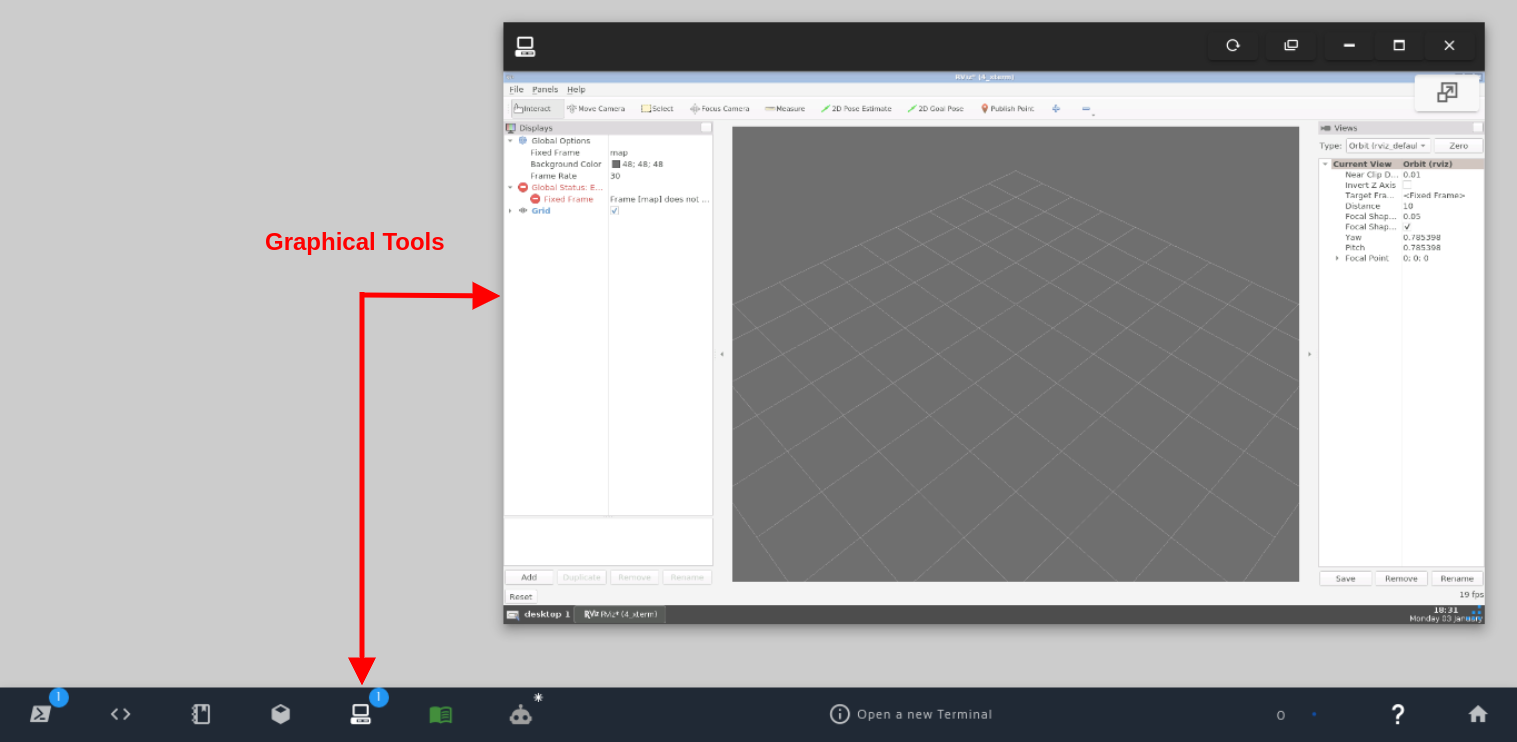
Now, in order to see the rviz window, we have to open the Graphical Tools:
Open Graphical Tools / rviz
If we now look at the left side of the rviz window, we can see a red error message saying:
Frame [map] does not exist
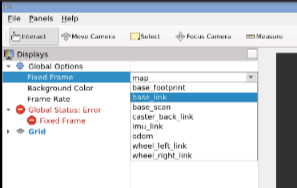
Let’s change that fixed frame from map to base_link to get rid of this error message:
Select base_link as the fixed frame
After having selected base_link for the Fixed Frame, let’s now click the Add button available on the bottom left corner of rviz, and select TF.
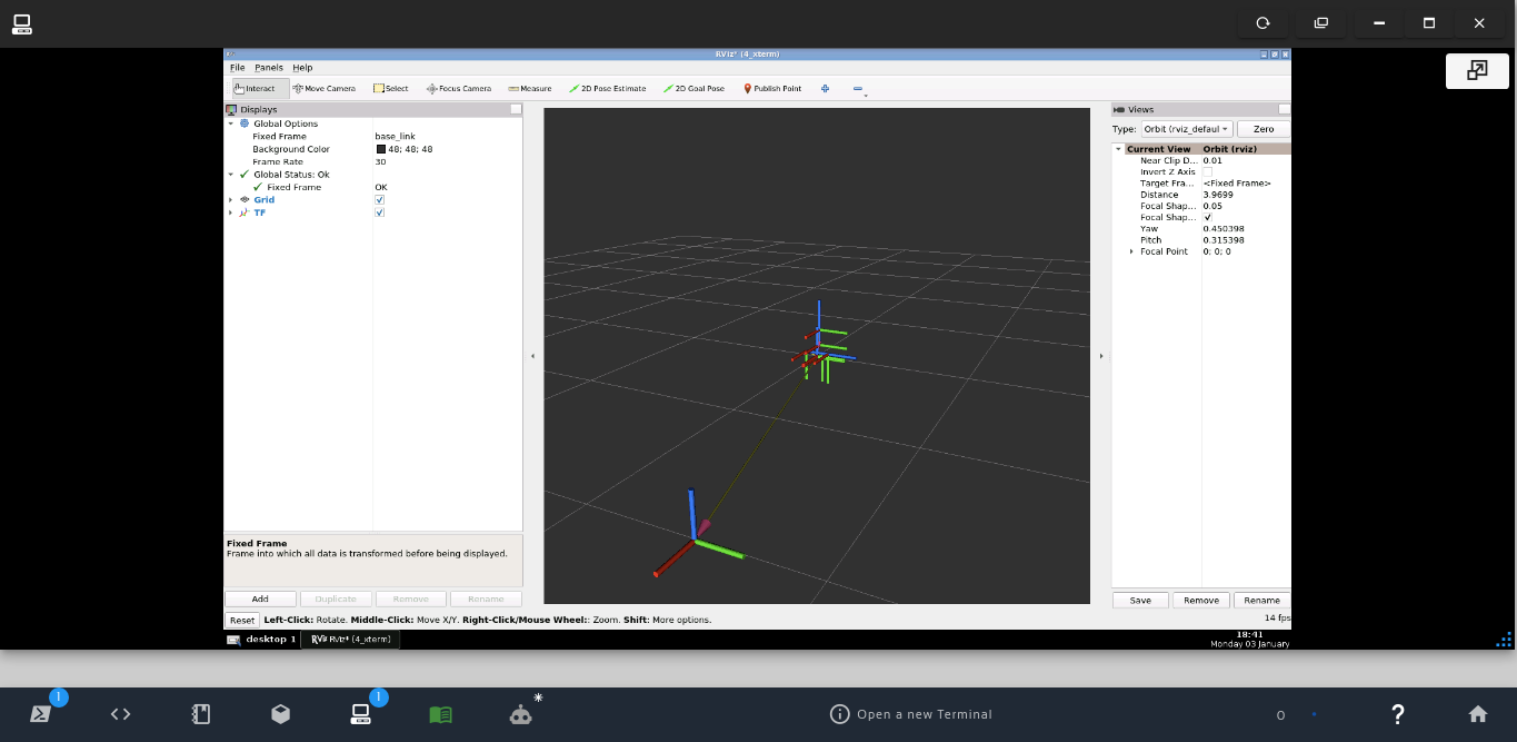
After adding TF, we should see the transforms in RViz.
RViz – TF base_link and base_footprint to odom
The group with more frames is the robot, and the one with fewer frames is the odometry.
Launching the cartographer node
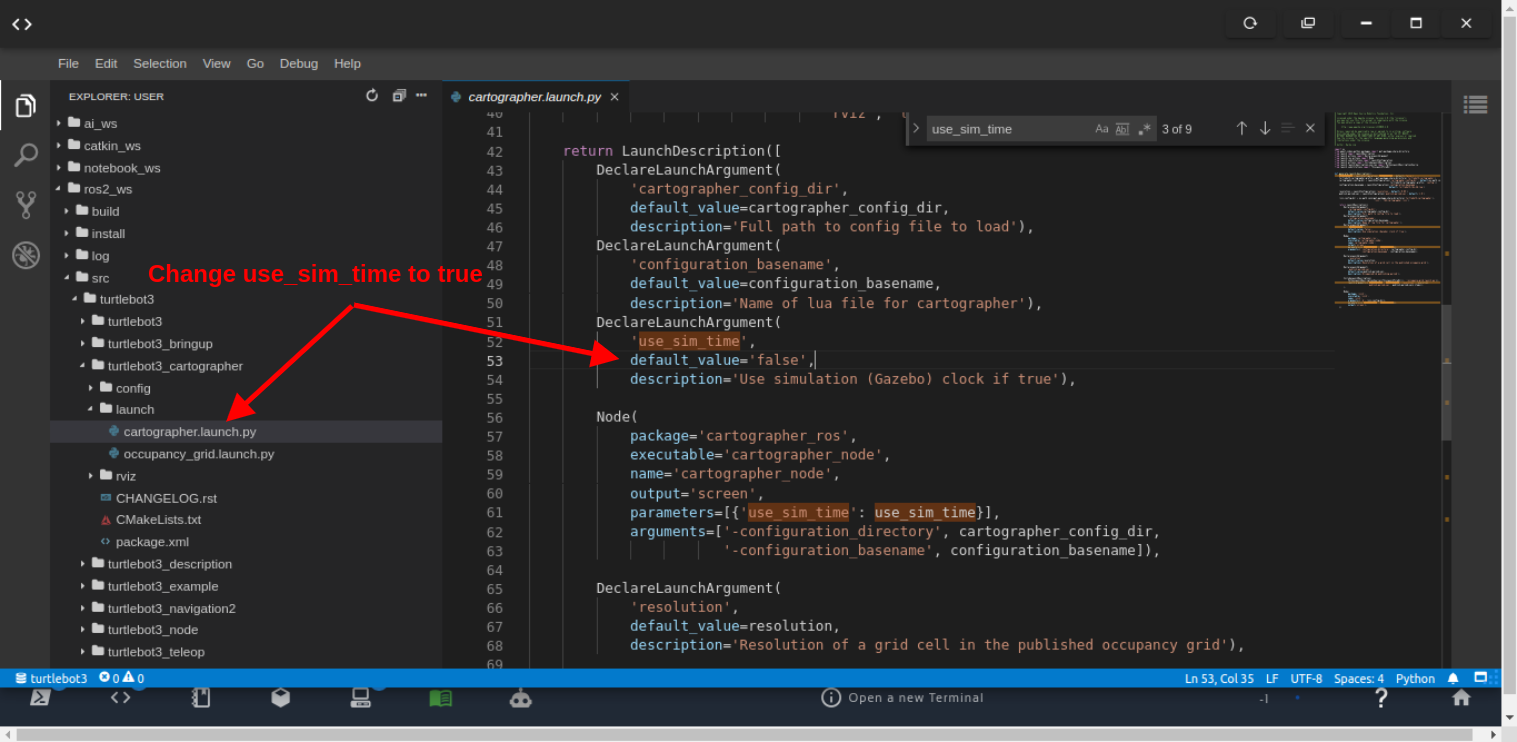
We need to launch the cartographer node to get the map frame published, but before that, let’s change the ~/ros2_ws/src/turtlebot3/turtlebot3_cartographer/launch/cartographer.launch.py (around line 53) and set use_sim_time to true. It is false by default because the code is ready for the real robot, but since we are using simulation, we have to change the variable.
Set use_sim_time to true
Let’s now kill the rviz2 process by pressing CTRL+C in the terminal where it was launched, because the launch file we are going to launch now will start rviz2 anyway.
Make sure the command you ran in the first terminal is still running (do not rerun it if it is still running):
The cartographer node is the one publishing the tf for the map.
We should now to able to move the robot using the keyboard so that the map is more accurate. For that, let’s launch the teleop_keyboard node with the following commands in a third terminal:
source ros2_ws/install/setup.bash

ros2 run turtlebot3_teleop teleop_keyboard
That command should give us the instructions how to move the robot around:
Control Your TurtleBot3!
---------------------------
Moving around:
        w
   a    s    d
        x

w/x : increase/decrease linear velocity (Burger : ~ 0.22, Waffle and Waffle Pi : ~ 0.26)
a/d : increase/decrease angular velocity (Burger : ~ 2.84, Waffle and Waffle Pi : ~ 1.82)

space key, s : force stop

CTRL-C to quit
You can now press any of the keys a w s d x to move the robot.
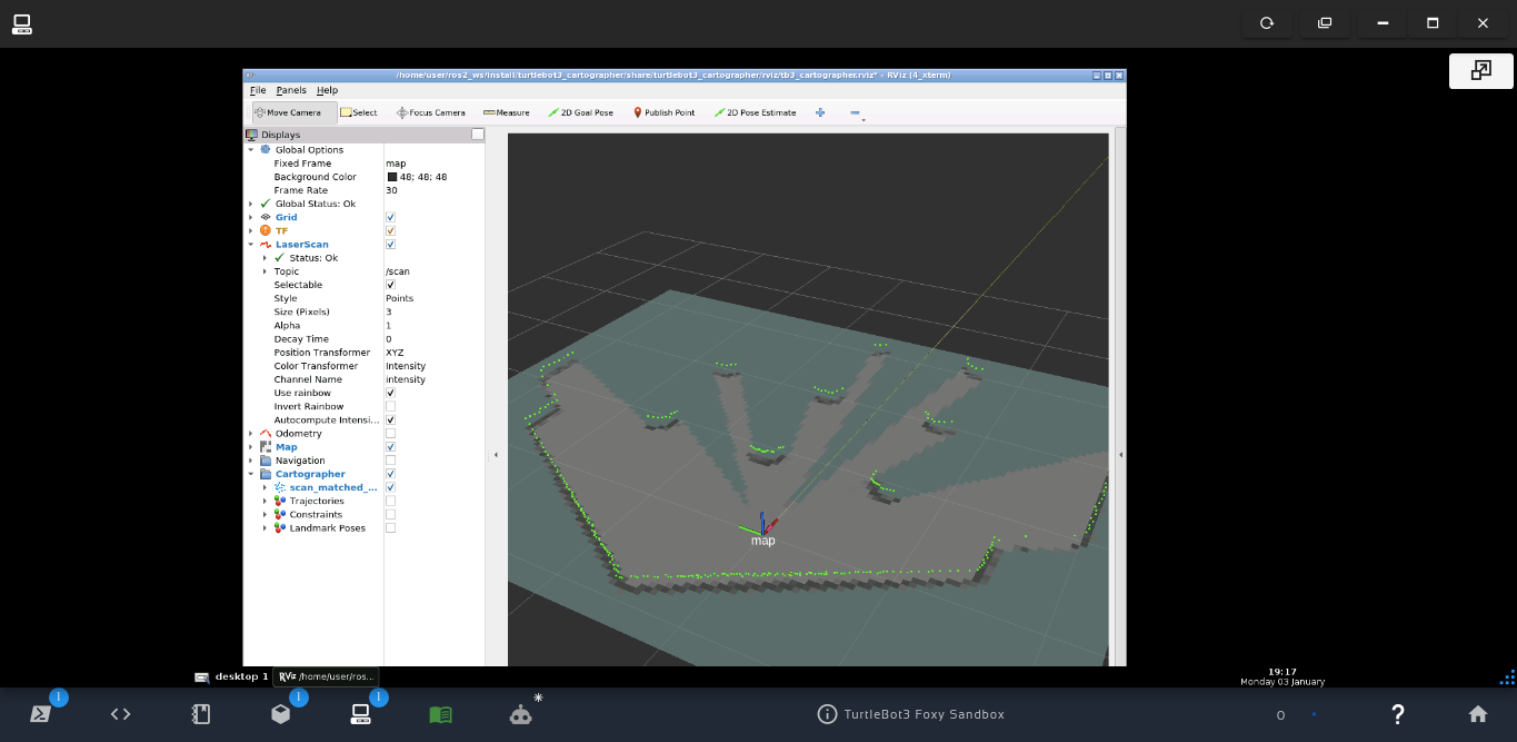
If you check the graphical tools again, you should see a more accurate map.
Getting the position of Turtlebot3 using transforms
We are almost there. We have already compiled the simulation, launched it, and launched the cartographer node.
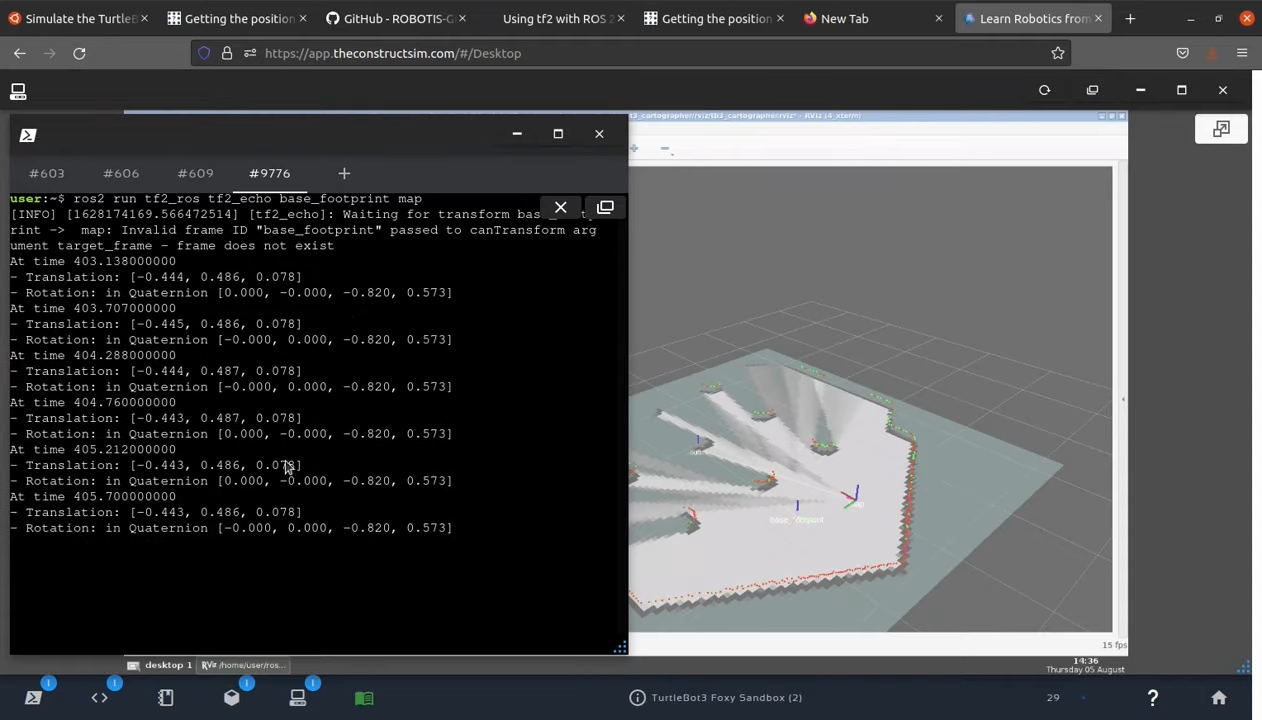
Now, in order to get the position, we just need to do an echo between the frames to figure out the position.
Let’s echo the frames with the following commands in a fourth terminal:
ros2 run tf2_ros tf2_echo base_footprint map
If everything went well, you should now see the position of the robot on the map:
Position of the robot in the map
It is worth mentioning that you could also see how the position changed since the start by checking the /odom topic:
So this is the post for today. Remember that we have the live version of this post on YouTube. If you liked the content, please consider subscribing to our youtube channel. We are publishing new content ~every day.
In this post you will see how to launch very easily a simulation in Gazebo with human crowd simulation and your most loved robot: Jetbot! This will be used as starting point for the next videos for doing people recognition, tracking, navigation and much more.
In order to follow the post, you must have the following rosject:
First thing after having the dekstop running, open a webshell and launch the simulation with the command below:
roslaunch jetdog_examples pedestrians_1.launch
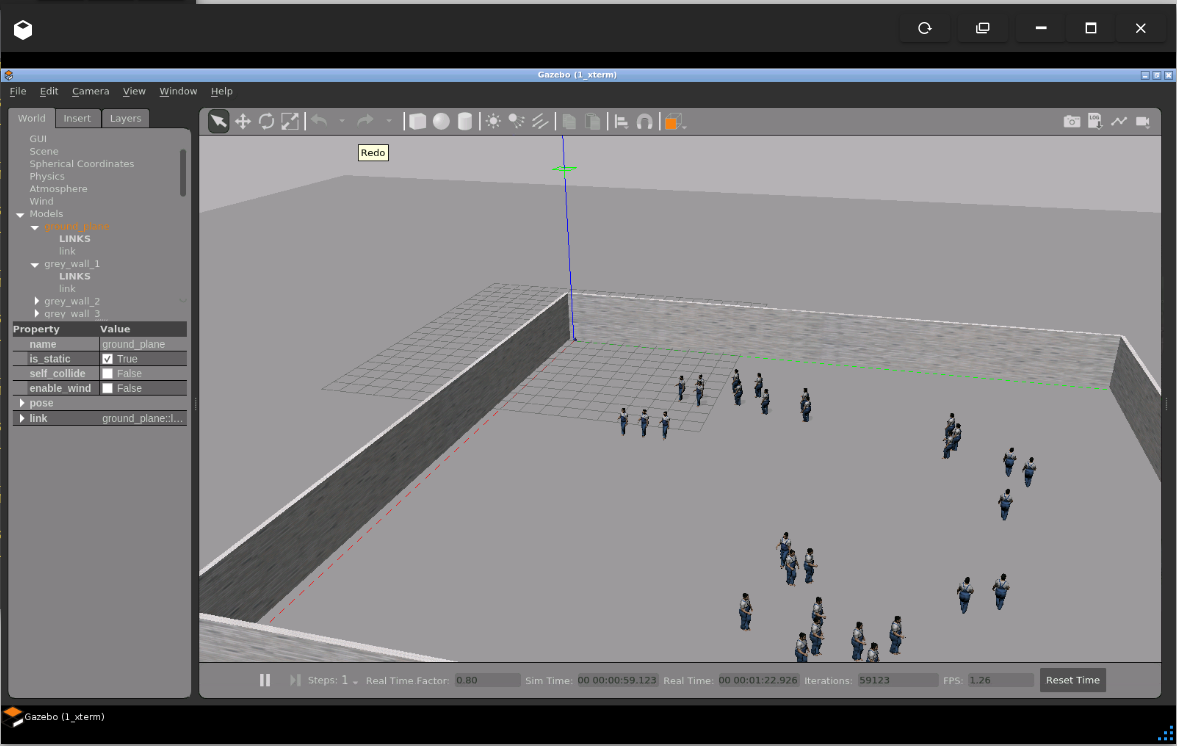
Open gazebo and you must have the simulation running. Notice the robot lies on the origin of the world, one of the wall corners.
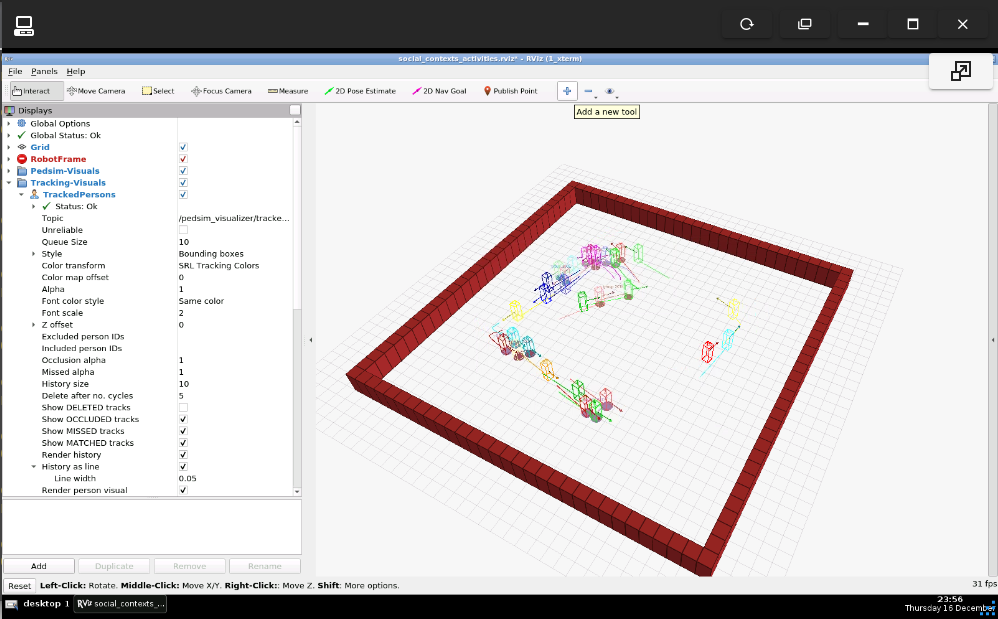
Check data available from the simulation in RViz
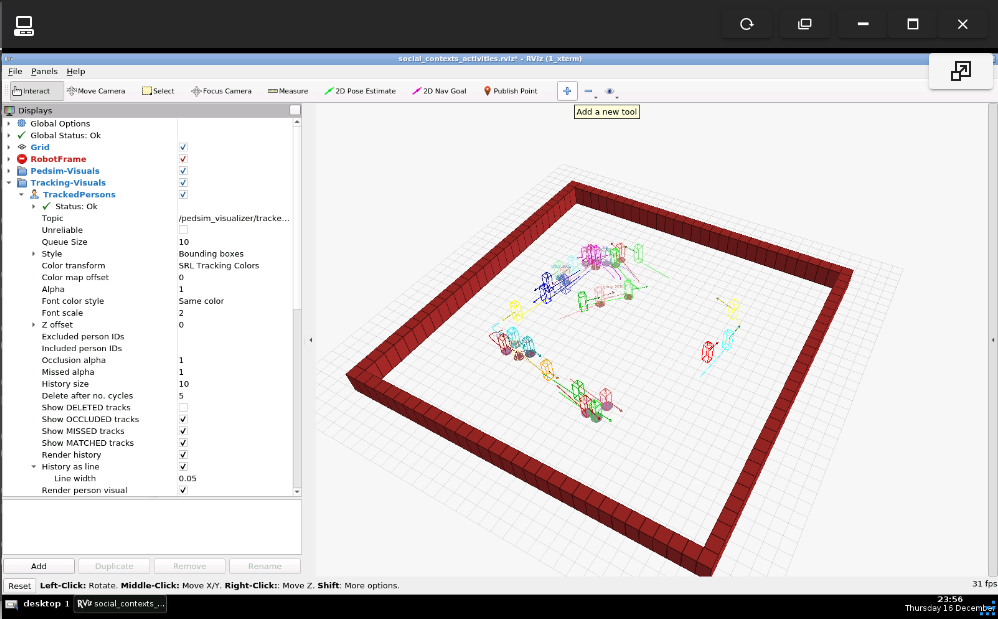
Open the graphical tools and maximize RViz. The people moving around should be visible in RViz, that’s because gazebo itself is publishing such information.
At this moment, the camera should be centralized using the topic that controls it, execute the command below:
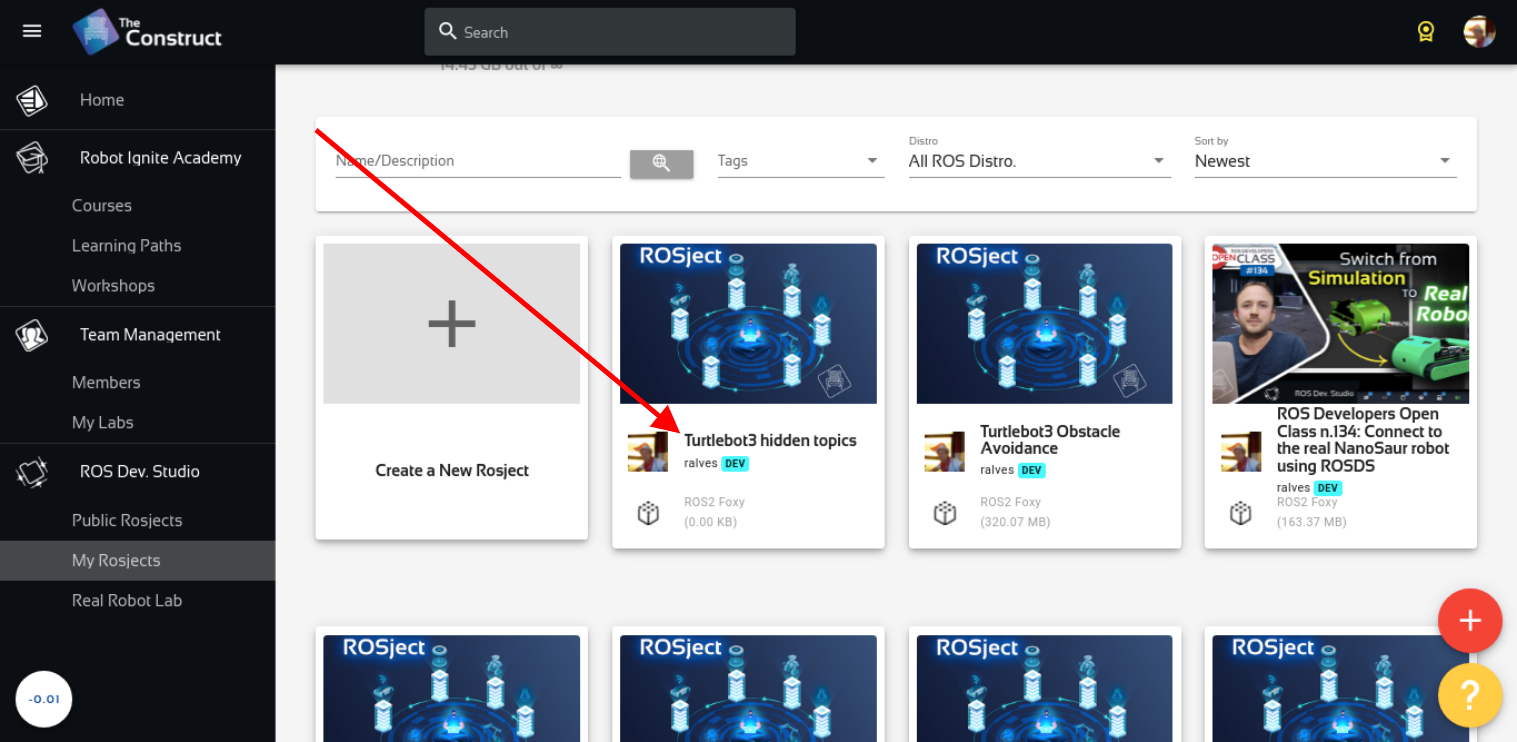
In order to learn how to use hidden topics with ros1_bridge, let’s start by creating a rosject (ROS project). We are going to use The Construct (https://www.theconstruct.ai/) for this tutorial, but if you have ROS2 installed on your own computer, you should be able to do ~everything on your own computer, except this creating a rosject part.
Let’s start by opening The Construct (https://www.theconstruct.ai/) and logging in. You can easily create a free account if you still don’t have one.
Once inside, let’s create My Rosjects and then, Create a new rosject:
My Rosjects
Create a new rosject
For the rosject, let’s select ROS2 Foxyfor the ROS Distro, let’s name the rosject as Turtlebot3 hidden topics. You can leave the rosject public.
If you mouse over the recently created rosject, you should see a Run button. Just click that button to launch the rosject.
Turtlebot3 hidden topics in ROS2
Cloning the required repositories with the simulations
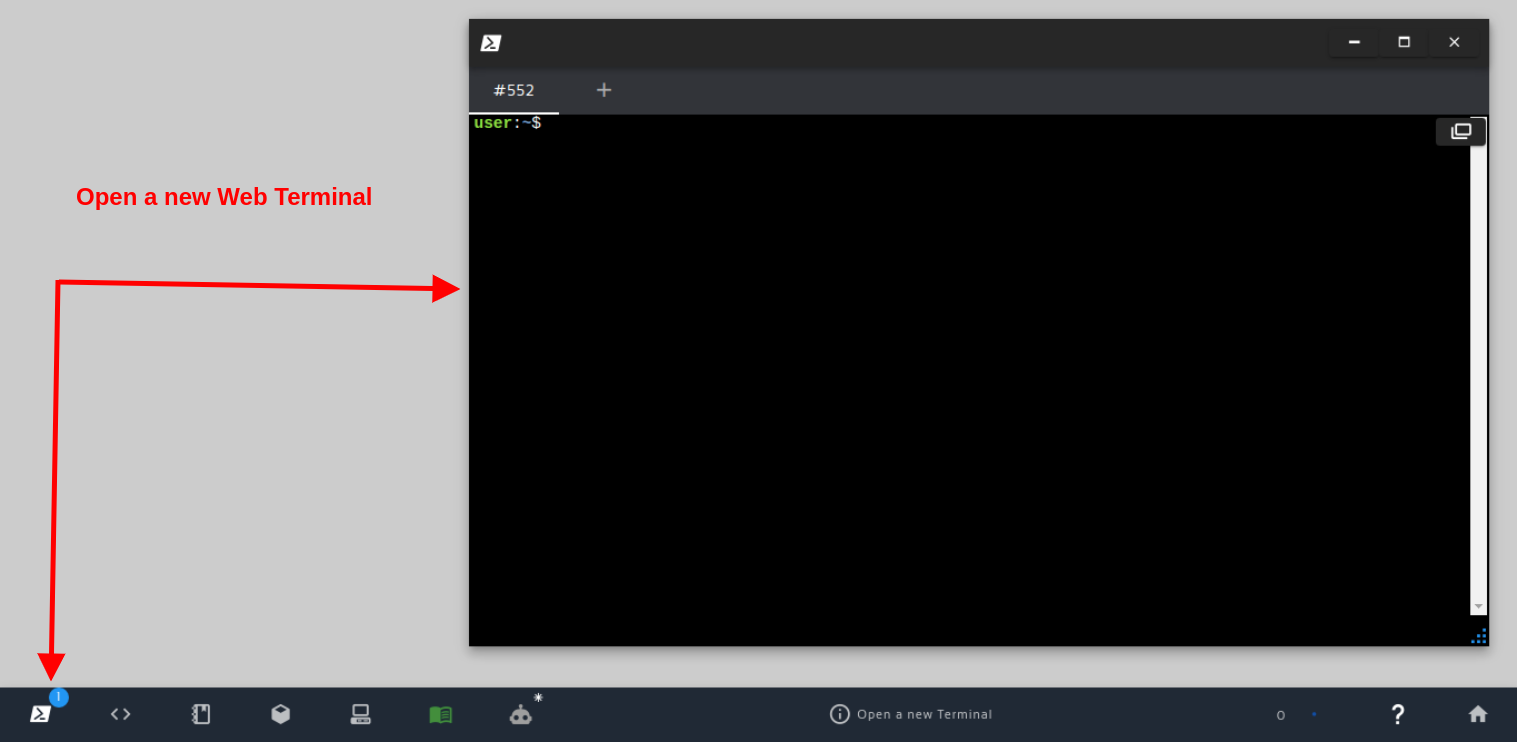
After we have created our rosject and opened it, let’s now open a web shell as we can see in the image below:
Open a new Web Shell/Terminal
After that, let’s enter into the ~/simulation_ws/src directory and clone three repositories there with the following commands:
Once we have correctly cloned the repositories that contain the simulation and ROS messages needed to simulate Turtlebot with ROS, we now need to start the simulation.
The rosject that we created comes by default with ROS2 Noetic and ROS2 Foxy installed.
In order to test the simulation in ROS2, let’s first launch it with ROS1 to make sure the simulation is working properly at least in ROS1. We will then use ROS1 Bridge to be able to see the topics in ROS2.
Let’s start by sourcing ros1 noetic with, and sourcing our simulation_ws/devel folder as follows:
cd ~/simulation_ws

source /opt/ros/noetic/setup.bash

source devel/setup.bash
After having sourced the workspace that contains the simulation, we should now be able to launch it with the following commands:
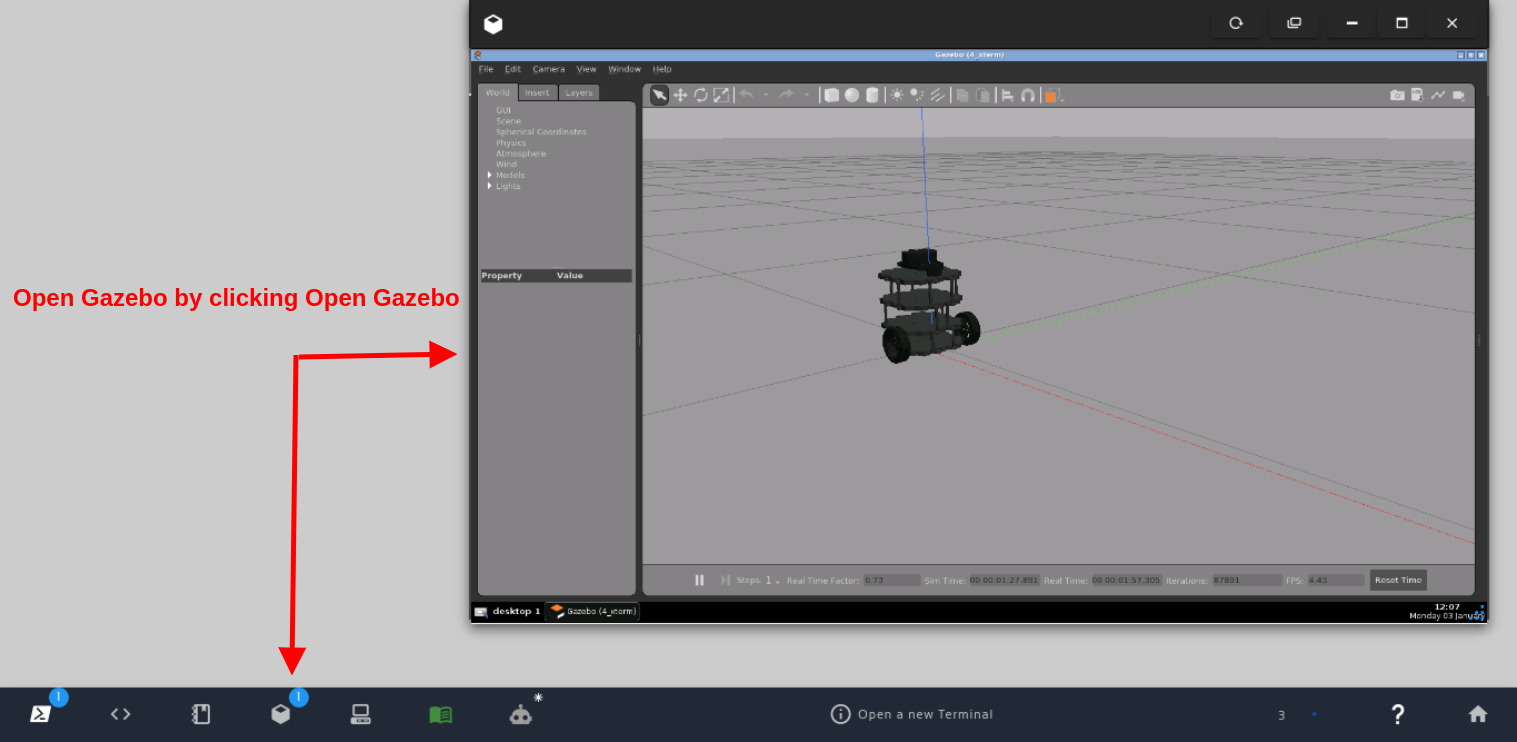
Now that the simulation has been launched, we can open gazebo in order to see it. For that, hover your mouse over the button that has the icon of gazebo and click Open Gazebo. After that, you should be able to see the turthebot3 simulation in ROS1, which means the simulation is well defined, and the meshes are correct.
Open Gazebo by clicking Open Gazebo
Launching ROS1 Bridge
Let’s start by sourcing the ros workspaces in order. Let’s start by sourcing ROS1, then ROS2, and finally, run the bridge. For that, open a second web shell and type the following:
source /opt/ros/noetic/setup.bash

source /opt/ros/foxy/setup.bash

ros2 run ros1_bridge dynamic_bridge --bridge-all-topics
If everything went well, you should have seen some logs like the following:
created 1to2 bridge for topic '/clock' with ROS 1 type 'rosgraph_msgs/Clock' and ROS 2 type 'rosgraph_msgs/msg/Clock'
created 1to2 bridge for topic '/gazebo/link_states' with ROS 1 type 'gazebo_msgs/LinkStates' and ROS 2 type 'gazebo_msgs/msg/LinkStates'
created 1to2 bridge for topic '/gazebo/model_states' with ROS 1 type 'gazebo_msgs/ModelStates' and ROS 2 type 'gazebo_msgs/msg/ModelStates'
created 1to2 bridge for topic '/imu' with ROS 1 type 'sensor_msgs/Imu' and ROS 2 type 'sensor_msgs/msg/Imu'
created 1to2 bridge for topic '/joint_states' with ROS 1 type 'sensor_msgs/JointState' and ROS 2 type 'sensor_msgs/msg/JointState'
created 1to2 bridge for topic '/odom' with ROS 1 type 'nav_msgs/Odometry' and ROS 2 type 'nav_msgs/msg/Odometry'
created 1to2 bridge for topic '/rosout' with ROS 1 type 'rosgraph_msgs/Log' and ROS 2 type 'rcl_interfaces/msg/Log'
created 1to2 bridge for topic '/rosout_agg' with ROS 1 type 'rosgraph_msgs/Log' and ROS 2 type 'rcl_interfaces/msg/Log'
created 1to2 bridge for topic '/scan' with ROS 1 type 'sensor_msgs/LaserScan' and ROS 2 type 'sensor_msgs/msg/LaserScan'
created 1to2 bridge for topic '/tf' with ROS 1 type 'tf2_msgs/TFMessage' and ROS 2 type 'tf2_msgs/msg/TFMessage'
Created 2 to 1 bridge for service /gazebo/clear_body_wrenches
Created 2 to 1 bridge for service /gazebo/clear_joint_forces
Created 2 to 1 bridge for service /gazebo/delete_light
Created 2 to 1 bridge for service /gazebo/delete_model
Created 2 to 1 bridge for service /gazebo/get_joint_properties
Created 2 to 1 bridge for service /gazebo/get_light_properties
Created 2 to 1 bridge for service /gazebo/get_link_properties
Created 2 to 1 bridge for service /gazebo/get_link_state
Created 2 to 1 bridge for service /gazebo/get_model_properties
Created 2 to 1 bridge for service /gazebo/get_model_state
Created 2 to 1 bridge for service /gazebo/get_physics_properties
Created 2 to 1 bridge for service /gazebo/get_world_properties
Created 2 to 1 bridge for service /gazebo/pause_physics
Created 2 to 1 bridge for service /gazebo/reset_simulation
Created 2 to 1 bridge for service /gazebo/reset_world
Created 2 to 1 bridge for service /gazebo/set_joint_properties
Created 2 to 1 bridge for service /gazebo/set_link_properties
Created 2 to 1 bridge for service /gazebo/set_link_state
Created 2 to 1 bridge for service /gazebo/set_model_configuration
Created 2 to 1 bridge for service /gazebo/set_model_state
Created 2 to 1 bridge for service /gazebo/set_physics_properties
Created 2 to 1 bridge for service /gazebo/spawn_sdf_model
Created 2 to 1 bridge for service /gazebo/spawn_urdf_model
Created 2 to 1 bridge for service /gazebo/unpause_physics
Created 2 to 1 bridge for service /imu_service
[INFO] [1641212256.136511189] [ros_bridge]: Passing message from ROS 1 rosgraph_msgs/Clock to ROS 2 rosgraph_msgs/msg/Clock (showing msg only once per type)
[INFO] [1641212256.138899978] [ros_bridge]: Passing message from ROS 1 gazebo_msgs/LinkStates to ROS 2 gazebo_msgs/msg/LinkStates (showing msg only once per type)
created 2to1 bridge for topic '/gazebo/link_states' with ROS 2 type 'gazebo_msgs/msg/LinkStates' and ROS 1 type 'gazebo_msgs/LinkStates'
[INFO] [1641212256.140508214] [ros_bridge]: Passing message from ROS 1 gazebo_msgs/ModelStates to ROS 2 gazebo_msgs/msg/ModelStates (showing msg only once per type)
created 2to1 bridge for topic '/rosout' with ROS 2 type 'rcl_interfaces/msg/Log' and ROS 1 type'rosgraph_msgs/Log'
[INFO] [1641212256.141466301] [ros_bridge]: Passing message from ROS 1 sensor_msgs/Imu to ROS 2sensor_msgs/msg/Imu (showing msg only once per type)
[INFO] [1641212256.142755982] [ros_bridge]: Passing message from ROS 1 sensor_msgs/JointState to ROS 2 sensor_msgs/msg/JointState (showing msg only once per type)
removed 2to1 bridge for topic '/gazebo/link_states'
[INFO] [1641212256.144608098] [ros_bridge]: Passing message from ROS 1 nav_msgs/Odometry to ROS2 nav_msgs/msg/Odometry (showing msg only once per type)
[INFO] [1641212256.146602236] [ros_bridge]: Passing message from ROS 1 tf2_msgs/TFMessage to ROS 2 tf2_msgs/msg/TFMessage (showing msg only once per type)
[INFO] [1641212256.160265245] [ros_bridge]: Passing message from ROS 2 rcl_interfaces/msg/Log to ROS 1 rosgraph_msgs/Log (showing msg only once per type)
[INFO] [1641212256.466793392] [ros_bridge]: Passing message from ROS 1 sensor_msgs/LaserScan toROS 2 sensor_msgs/msg/LaserScan (showing msg only once per type)
[INFO] [1641212256.469177152] [ros_bridge]: Passing message from ROS 1 rosgraph_msgs/Log to ROS2 rcl_interfaces/msg/Log (showing msg only once per type)
Checking the /cmd_vel topic
Now that ros1_bridge is up and running, let’s open a third terminal and list the ros2 topics with:
ros2 topic list
You should have seen at least the following topics:
If we look carefully at the list of topics above, we cannot see any /cmd_vel topic. But the topic exists in ROS1. To ensure the topic exists in ROS1, let’s open a fourth terminal and list the topics with:
source /opt/ros/noetic/setup.bash

rostopic list
The list should contain something like the output below, showing that indeed we have a topic called /cmd_vel (the second one in the list below).
And this is what confuses some users. How is that /cmd_vel is available in ros1 but it is not available on ros2? Well, we still do not have a definite answer on why this happens, but we know that if in ROS2 we start publishing in that topic, it will be received by ROS1 and the robot will move accordingly, even though we are not able to see the topic with ros2 topic list. Let’s try that.
First, if we were to publish messages in the /cmd_vel topic using ROS1, the command would be as follows (you do not need to run the command below):
For ros2, the message instead of geometry_msgs/Twist would be geometry_msgs/msg/Twist. Since ros2 does not auto-complete because it does not know the /cmd_vel topic, we can copy the auto-completed values for geometry_msgs/Twist in ROS1 and pass it to ros2.
Let’s go back to the third terminal where ROS2 Foxy is sourced by default and run the following command:
As you can see, with ROS2 we are able to move the robot that is running with ROS1, even if we cannot list the topic with ros2.
By looking at the logs of the second web shell, where ros1_bridge was launched, we can also confirm that the message is being correctly interchanged from the ROS2 to the ROS1 /cmd_vel topic:
created 2to1 bridge for topic '/cmd_vel' with ROS 2 type 'geometry_msgs/msg/Twist' and ROS 1 type ''
[INFO] [1641214498.129565691] [ros_bridge]: Passing message from ROS 2 geometry_msgs/msg/Twistto ROS 1 geometry_msgs/Twist (showing msg only once per type)
removed 2to1 bridge for topic '/cmd_vel'
created 2to1 bridge for topic '/cmd_vel' with ROS 2 type 'geometry_msgs/msg/Twist' and ROS 1 type ''
So, that is it. We just learned that even when some topics are not visible in ROS2 through ros1_bridge, we can still publish messages on them using ROS2.
Youtube video
So this is the post for today. Remember that we have the live version of this post on YouTube. If you liked the content, please consider subscribing to our youtube channel. We are publishing new content ~every day.
In this post it will be shown how to work with Turtlesim with ROS 2, one of the best ways of testing ROS2 features with a very simple simulation
Configuring environment
In order to do that in a way anyone can reproduce, let’s use the App of TheconstructSim. Start by creating a new rosject here
After creating it, just hit the Run button and wait for the desktop environment to get ready.
Launch turtlesim simulation
Start by opening a web shell and executing the following command:
ros2 run turtlesim turtlesim_node
You must have some logs in the shell and the simulation ready in the graphical tools, like the image below:
Control using the keyboard
In order to control the robot using the teleop keyboard, we must check if the topics match. In that case, turtlesim has a namespace and the teleop keyboard must be re-mapped.
Check the topics of the simulator:
ros2 topic list
In that case, we need to map the keyboard to the topic /turtle1/cmd_vel
This is quite simple by using the cli, just run the node adding an argument, like below:
ros2 run teleop_twist_keyboard teleop_twist_keyboard cmd_vel:=/turtle1/cmd_vel
This is a quick way to start working with mobile robots. You can try many different algorithms quickly without having to configure a more complex simulation.

![[ROS2 Q&A] 226 – Work with ROS2 turtlesim / How to move it around](https://www.theconstruct.ai/wp-content/uploads/2022/01/ROS2-QA-226-Work-with-ROS2-turtlesim.jpeg)
![[ROS2 Q&A] 223 – How to get robot position using transforms in ROS2](https://www.theconstruct.ai/wp-content/uploads/2022/01/223-How-to-get-robot-position-using-transforms-in-ROS2.jpeg)
![[ROS2 Q&A] 222 – How to use hidden /cmd_vel topic with ros1_bridge](https://www.theconstruct.ai/wp-content/uploads/2022/01/222-How-to-use-hidden-topics-with-ros1_bridge.jpeg)
![[ROS2 Q&A] 226 – Work with ROS2 turtlesim](https://www.theconstruct.ai/wp-content/uploads/2022/01/01-turtlesim-1.png)