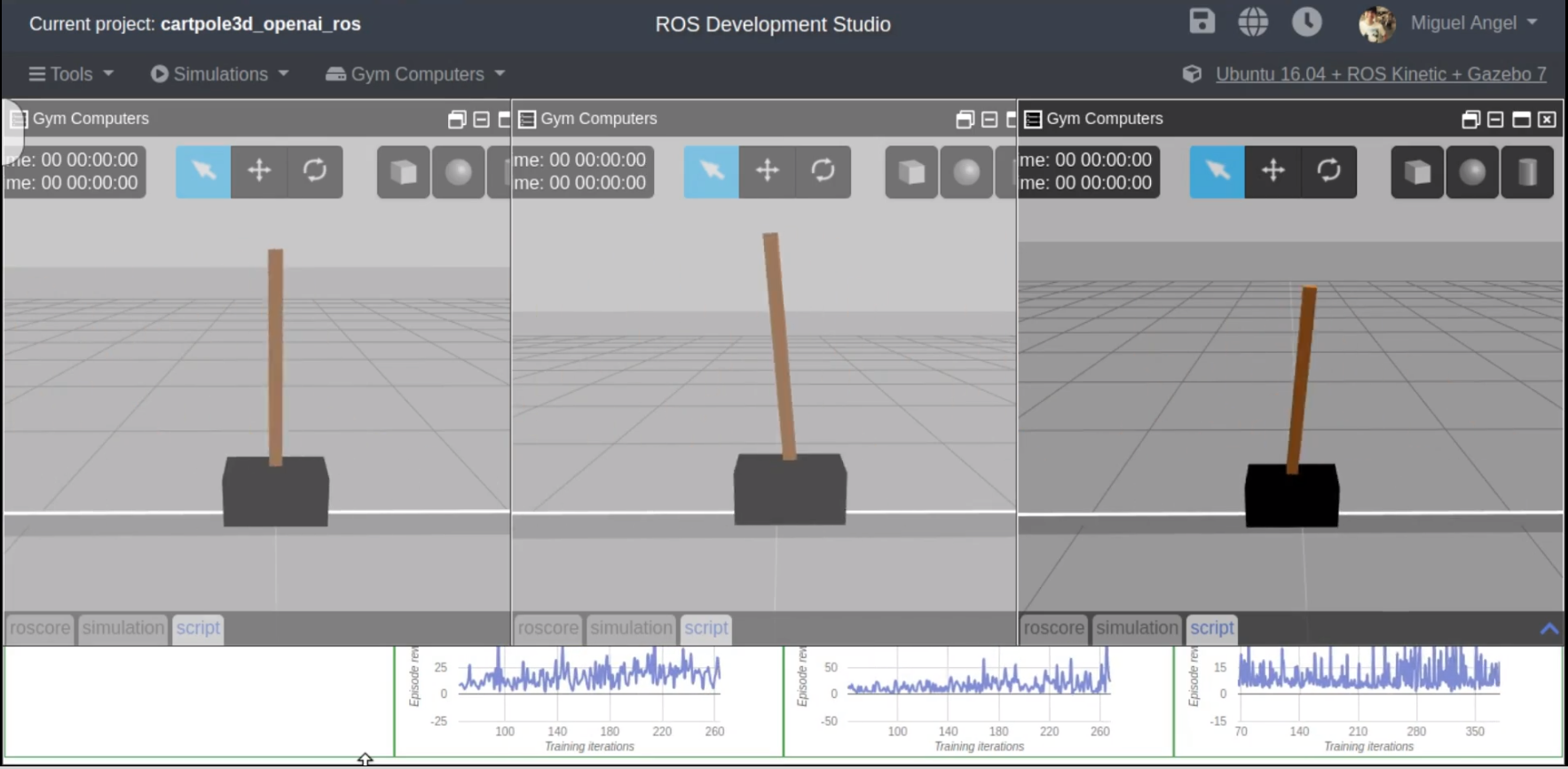
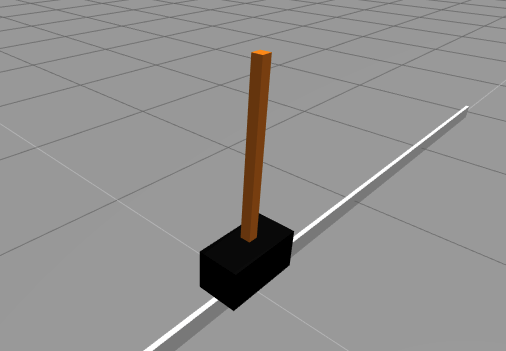
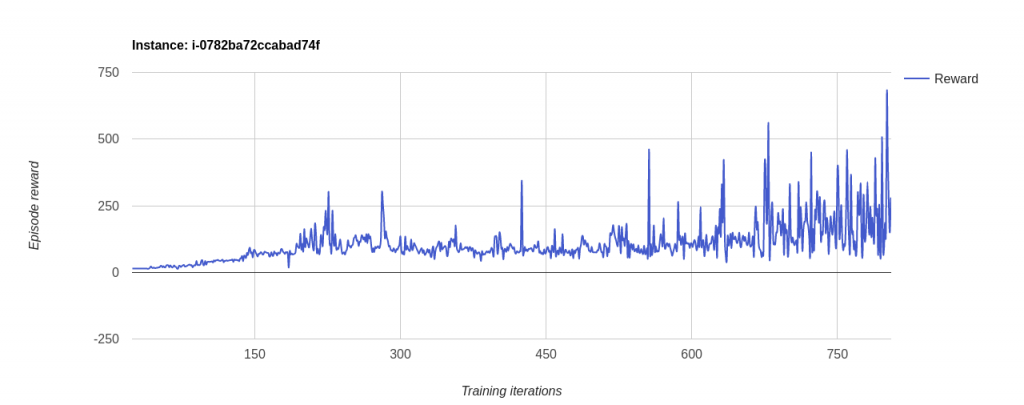
We adapted them for ROS and to use our Cartpole3D environment. For that we just had to do mainly 2 things:
- Load the learning parameters from a yaml file instead of loading them from global variables. This allows us to change the values easily and fast. So we are going to create a yaml file for each algorithm that will be loaded before the algorithm is launched.
- We have changed the OpenAI environment from the 2DCartpole provided by OpenAI (see video above) to the one provided by openai_ros package which interfaces with ROS and Gazebo.
Create the training code
First let’s create the ROS package that will contain everything
Create the ROS package for training
Let’s first create a ROS package where to put all the code we are going to develop. For that, open a shell (Tools->Shell) and type:
$ cd catkin_ws/src
$ catkin_create_pkg cartpole_tests rospy
Create the config files
Here you have an example of of the yaml file for the n1try. Its divided in two main parts:
- Parameters for Reinforcement Learning algorithm: Values to needed by your learning algorithm, in this case would be n1try, but could be any.
- Parameters for the RobotEnvironment and TaskEnvironment: These variables are used to tune the task and simulation during setup. These variables have already been set up for you to be optimum, and if you are asking where you would get them from the first place, you can just copy paste the ones in the git example for openai_ros, where you can find examples for all the supported simulations and tasks. https://bitbucket.org/theconstructcore/openai_examples_projects/src/master/
To create the file do the following:
$ roscd cartpole_tests
$ mkdir config
$ mkdir scripts
$ mkdir launch
Now open the IDE of the ROSDS (Tools->IDE), navigate to the config directory and create there the config file with name cartpole_n1try_params.yaml
Then paste the following content to it and save it:
cartpole_v0: #namespace

    #qlearn parameters

    alpha: 0.01 # Learning Rate
    alpha_decay: 0.01
    gamma: 1.0 # future rewards value 0 none 1 a lot
    epsilon: 1.0 # exploration, 0 none 1 a lot
    epsilon_decay: 0.995 # how we reduse the exploration
    epsilon_min: 0.01 # minimum value that epsilon can have
    batch_size: 64 # maximum size of the batches sampled from memory
    episodes_training: 1000
    n_win_ticks: 250 # If the mean of rewards is bigger than this and have passed min_episodes, the task is considered finished
    min_episodes: 100
    #max_env_steps: None
    monitor: True
    quiet: False


    # Cartpole3D environment variables
    control_type: "velocity"
    min_pole_angle: -0.7 #-23°
    max_pole_angle: 0.7 #23°
    max_base_velocity: 50
    max_base_pose_x: 1.0
    min_base_pose_x: -1.0

    n_observations: 4 # Number of lasers to consider in the observations
    n_actions: 2 # Number of actions used by algorithm and task

    # those parameters are very important. They are affecting the learning experience
    # They indicate how fast the control can be
    # If the running step is too large, then there will be a long time between 2 ctrl commans
    # If the pos_step is too large, then the changes in position will be very abrupt
    running_step: 0.04 # amount of time the control will be executed
    pos_step: 1.0     # increment in position/velocity/effort, depends on the control for each command
    init_pos: 0.0 # Position in which the base will start
    wait_time: 0.1 # Time to wait in the reset phases
Modify the learning algorithm for openai_ros
On the IDE create the following file on the scripts folder of your package: cartpole3D_n1try_algorithm_with_rosparams.py
#!/usr/bin/env python
import rospy

# Inspired by https://keon.io/deep-q-learning/
import random
import gym
import math
import numpy as np
from collections import deque
from keras.models import Sequential
from keras.layers import Dense
from keras.optimizers import Adam

# import our training environment
from openai_ros.task_envs.cartpole_stay_up import stay_up

class DQNRobotSolver():
    def __init__(self, environment_name, n_observations, n_actions, n_episodes=1000, n_win_ticks=195, min_episodes= 100, max_env_steps=None, gamma=1.0, epsilon=1.0, epsilon_min=0.01, epsilon_log_decay=0.995, alpha=0.01, alpha_decay=0.01, batch_size=64, monitor=False, quiet=False):
        self.memory = deque(maxlen=100000)
        self.env = gym.make(environment_name)
        if monitor: self.env = gym.wrappers.Monitor(self.env, '../data/cartpole-1', force=True)

        self.input_dim = n_observations
        self.n_actions = n_actions
        self.gamma = gamma
        self.epsilon = epsilon
        self.epsilon_min = epsilon_min
        self.epsilon_decay = epsilon_log_decay
        self.alpha = alpha
        self.alpha_decay = alpha_decay
        self.n_episodes = n_episodes
        self.n_win_ticks = n_win_ticks
        self.min_episodes = min_episodes
        self.batch_size = batch_size
        self.quiet = quiet
        if max_env_steps is not None: self.env._max_episode_steps = max_env_steps

        # Init model
        self.model = Sequential()

        self.model.add(Dense(24, input_dim=self.input_dim, activation='tanh'))
        self.model.add(Dense(48, activation='tanh'))
        self.model.add(Dense(self.n_actions, activation='linear'))
        self.model.compile(loss='mse', optimizer=Adam(lr=self.alpha, decay=self.alpha_decay))


    def remember(self, state, action, reward, next_state, done):
        self.memory.append((state, action, reward, next_state, done))

    def choose_action(self, state, epsilon):
        return self.env.action_space.sample() if (np.random.random() <= epsilon) else np.argmax(self.model.predict(state)) def get_epsilon(self, t): return max(self.epsilon_min, min(self.epsilon, 1.0 - math.log10((t + 1) * self.epsilon_decay))) def preprocess_state(self, state): return np.reshape(state, [1, self.input_dim]) def replay(self, batch_size): x_batch, y_batch = [], [] minibatch = random.sample( self.memory, min(len(self.memory), batch_size)) for state, action, reward, next_state, done in minibatch: y_target = self.model.predict(state) y_target[0][action] = reward if done else reward + self.gamma * np.max(self.model.predict(next_state)[0]) x_batch.append(state[0]) y_batch.append(y_target[0]) self.model.fit(np.array(x_batch), np.array(y_batch), batch_size=len(x_batch), verbose=0) if self.epsilon > self.epsilon_min:
            self.epsilon *= self.epsilon_decay

    def run(self):

        rate = rospy.Rate(30)

        scores = deque(maxlen=100)

        for e in range(self.n_episodes):

            init_state = self.env.reset()

            state = self.preprocess_state(init_state)
            done = False
            i = 0
            while not done:
                # openai_ros doesnt support render for the moment
                #self.env.render()
                action = self.choose_action(state, self.get_epsilon(e))
                next_state, reward, done, _ = self.env.step(action)
                next_state = self.preprocess_state(next_state)
                self.remember(state, action, reward, next_state, done)
                state = next_state
                i += 1


            scores.append(i)
            mean_score = np.mean(scores)
            if mean_score >= self.n_win_ticks and e >= min_episodes:
                if not self.quiet: print('Ran {} episodes. Solved after {} trials'.format(e, e - min_episodes))
                return e - min_episodes
            if e % 1 == 0 and not self.quiet:
                print('[Episode {}] - Mean survival time over last {} episodes was {} ticks.'.format(e, min_episodes ,mean_score))

            self.replay(self.batch_size)


        if not self.quiet: print('Did not solve after {} episodes'.format(e))
        return e

if __name__ == '__main__':
    rospy.init_node('cartpole_n1try_algorithm', anonymous=True, log_level=rospy.FATAL)

    environment_name = 'CartPoleStayUp-v0'

    n_observations = rospy.get_param('/cartpole_v0/n_observations')
    n_actions = rospy.get_param('/cartpole_v0/n_actions')

    n_episodes = rospy.get_param('/cartpole_v0/episodes_training')
    n_win_ticks = rospy.get_param('/cartpole_v0/n_win_ticks')
    min_episodes = rospy.get_param('/cartpole_v0/min_episodes')
    max_env_steps = None
    gamma =  rospy.get_param('/cartpole_v0/gamma')
    epsilon = rospy.get_param('/cartpole_v0/epsilon')
    epsilon_min = rospy.get_param('/cartpole_v0/epsilon_min')
    epsilon_log_decay = rospy.get_param('/cartpole_v0/epsilon_decay')
    alpha = rospy.get_param('/cartpole_v0/alpha')
    alpha_decay = rospy.get_param('/cartpole_v0/alpha_decay')
    batch_size = rospy.get_param('/cartpole_v0/batch_size')
    monitor = rospy.get_param('/cartpole_v0/monitor')
    quiet = rospy.get_param('/cartpole_v0/quiet')


    agent = DQNRobotSolver(     environment_name,
                                n_observations,
                                n_actions,
                                n_episodes,
                                n_win_ticks,
                                min_episodes,
                                max_env_steps,
                                gamma,
                                epsilon,
                                epsilon_min,
                                epsilon_log_decay,
                                alpha,
                                alpha_decay,
                                batch_size,
                                monitor,
                                quiet)
    agent.run()
As you can see the main differences are the rosparam gets and the rosnode init. Also one element that has to be removed is the render method. Just because in Gazebo Render makes no sense, unless is for recording purposes, that will be supported in OpenAI_ROS RobotEnvironments in the future updates.
Create a launch file
And now you have to create a launch file thats loads those paramateres from the YAML file and starts up your script. Go to the launch directory and create the file start_training_n1try.launch
<?xml version="1.0" encoding="UTF-8"?>
<launch>
    <rosparam command="load" file="$(find cartpole_tests)/config/cartpole_n1try_params.yaml" />
    <!-- Launch the training system -->
    <node pkg="cartpole_tests" name="cartpole3D_mbalunovic_algorithm" type="cartpole3D_n1try_algorithm_with_rosparams.py" output="screen"/>
</launch>
Adapt the algorithm to work with openai_ros TaskEnvironment
And this is the easiest part. You just have to change the name of the OpenAI Environment to load, and in this case import the openai_ros module. And that is, you change the 2D cartpole by the 3D gazebo realistic cartpole. That SIMPLE
This at the top in the import section:
# import our training environment
from openai_ros.task_envs.cartpole_stay_up import stay_up

![[ROS Q&A] 162 – roslaunch file contains multiple nodes named [/map_server]](https://www.theconstruct.ai/wp-content/uploads/2018/10/ROS-QA-162-roslaunch-file-contains-multiple-nodes-named-map_server.jpg)
![[ROS Q&A] 161 – Action Status in C++ in ROS](https://www.theconstruct.ai/wp-content/uploads/2018/10/ROS-QA-161-Action-Status-in-C-in-ROS.jpg)
![[ROS Q&A] 160 – My node doesn’t publish to the topic cmd_vel](https://www.theconstruct.ai/wp-content/uploads/2018/10/ROS-QA-160-My-node-doesnt-publish-to-the-topic-cmd_vel.jpg)
![[ROS Q&A] 159 – How to create a Restricted Area on a Map](https://www.theconstruct.ai/wp-content/uploads/2018/10/ROS-QA-159-How-to-create-a-Restricted-Area-on-a-Map.jpg)