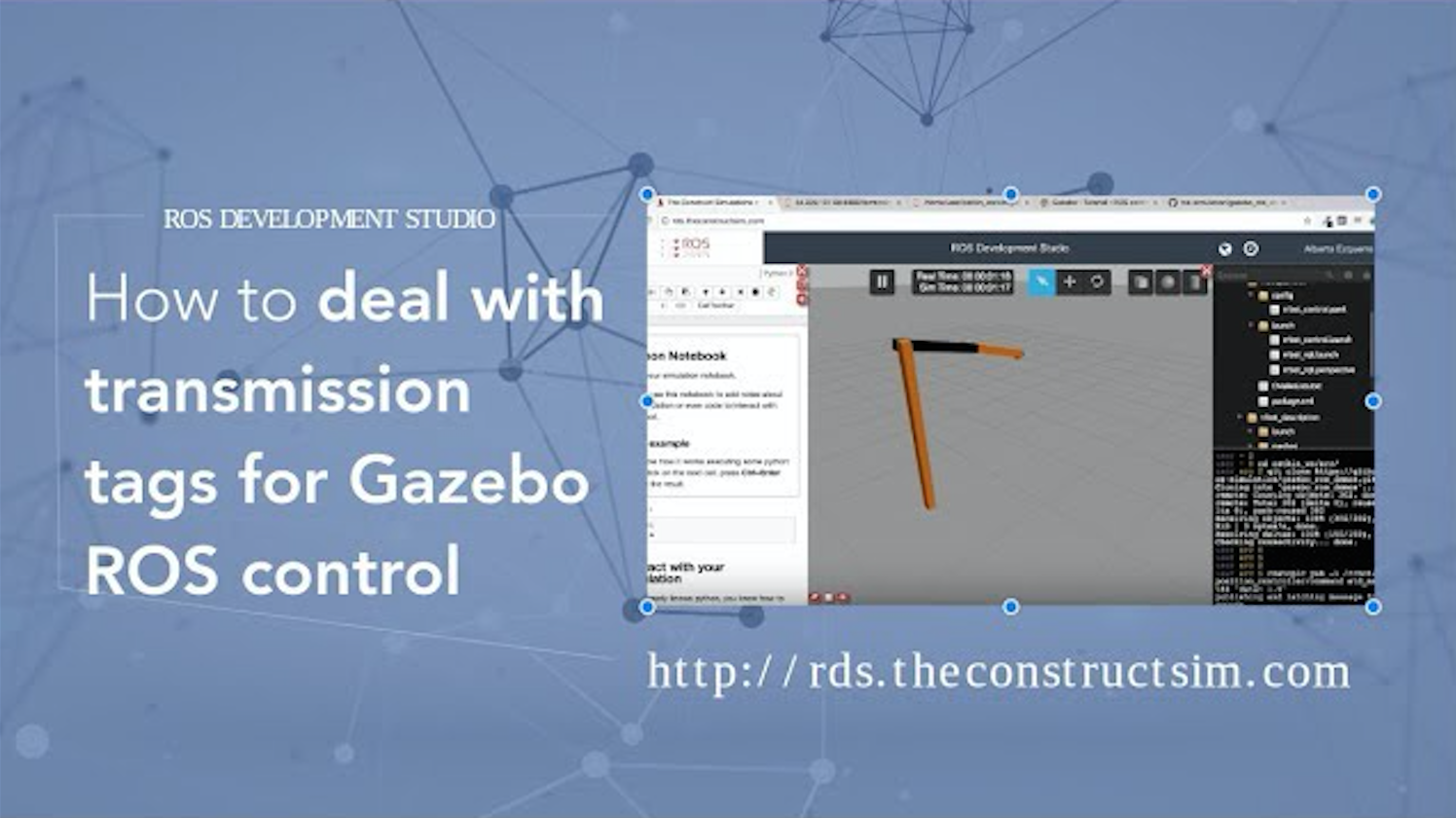
ROS Q&A | How to deal with transmission tags for gazebo ROS control
This video shows how to properly update the transmission tags in your URDF file in order to work properly with the Gazebo ROS control plugin.

This video shows how to properly update the transmission tags in your URDF file in order to work properly with the Gazebo ROS control plugin.
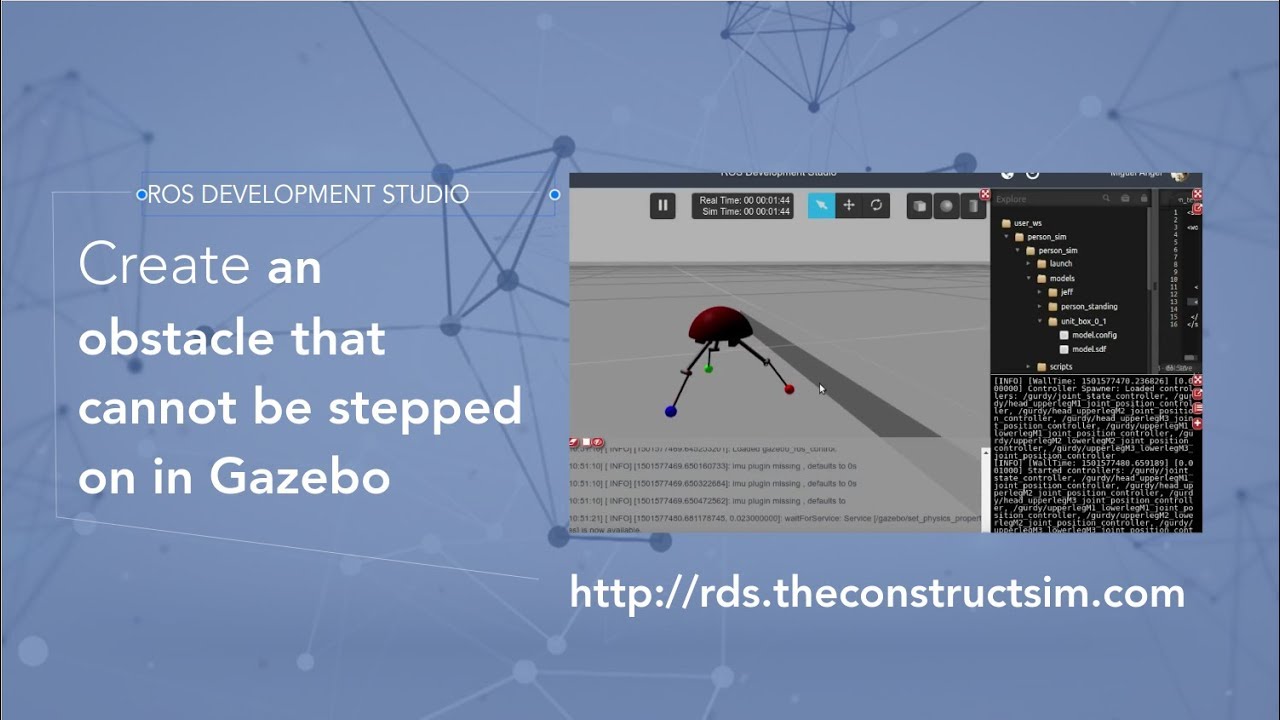
Let’s learn how to create an obstacle in Gazebo. Here you have the video response of how to do this test:
Here I leave the main things I used to test it and some system information:
Information System:
Ubuntu 14.04.5 trusty ROS Version: indigo Gazebo 7.4.0
I Created a Gazebo model with the code you posted: C:\fakepath\model.sdf And a “model.config”
Then I spawned it in a empty world: C:\fakepath\model.world
And then I used a simple spawn launch for sdfs: C:\fakepath\spawn_testobject_sdf.launchC:\fakepath\spawn_sdf.launch
I then used one robot I had to test the interaction, and it intercated perfectly, it didn’t go through.
We need more info to get to the solution but, definetly is not the box. The problem may come from some world parameters, or from the robot itself. Maybe the meshes of the feet are to simple or don’t have enough subdivisions in the mesh. Maybe its ultra heavy or maybe its something configured that avouds colisions with certain elements.
—
Answer response to the gazeboanswer question:
http://answers.gazebosim.org/question…
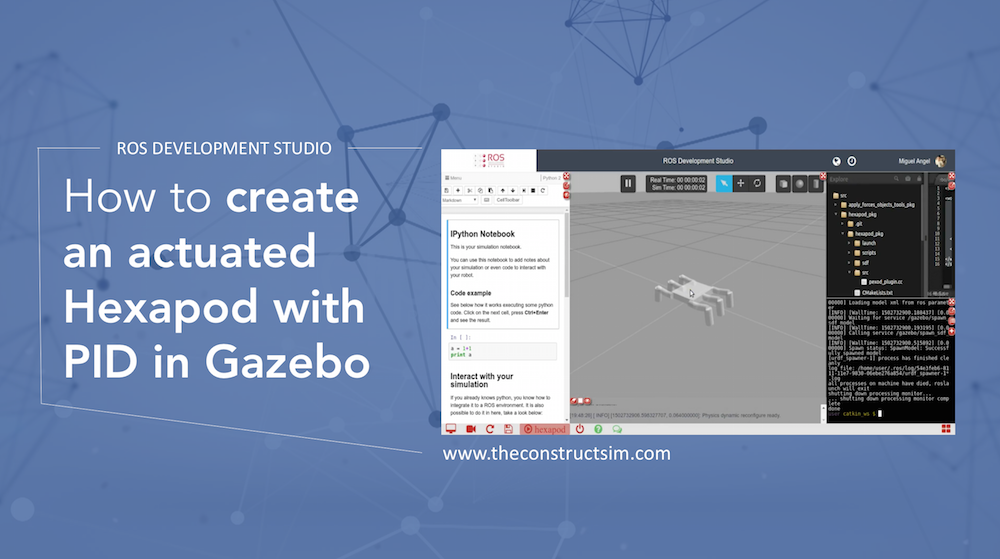
I know this is an old question but I think even now because knowing how to create an hexapod with plugin that moves the robot around and with an SDF model not a URDF might be useful to someone.
Check this video answer which explaining a bit the process and the result:
So I there wasn’t anything wrong with the model. It must have been something related to the plugin or some strange library error.
I essentially created a gazebo plugin that moves the joints using SetPosition and PIDs and it works just fine. I’m posting here the code I can.
Hope this is useful for you.
—
Answeing the question made in GAzeboAnswers:
http://answers.gazebosim.org/question/12044/hexapod-simulation-not-working/
Here you have some sources used for this micro tutorial:
http://gazebosim.org/tutorials?cat=guided_i&tut=guided_i1
http://osrf-distributions.s3.amazonaws.com/gazebo/api/dev/classgazebo_1_1physics_1_1JointController.html
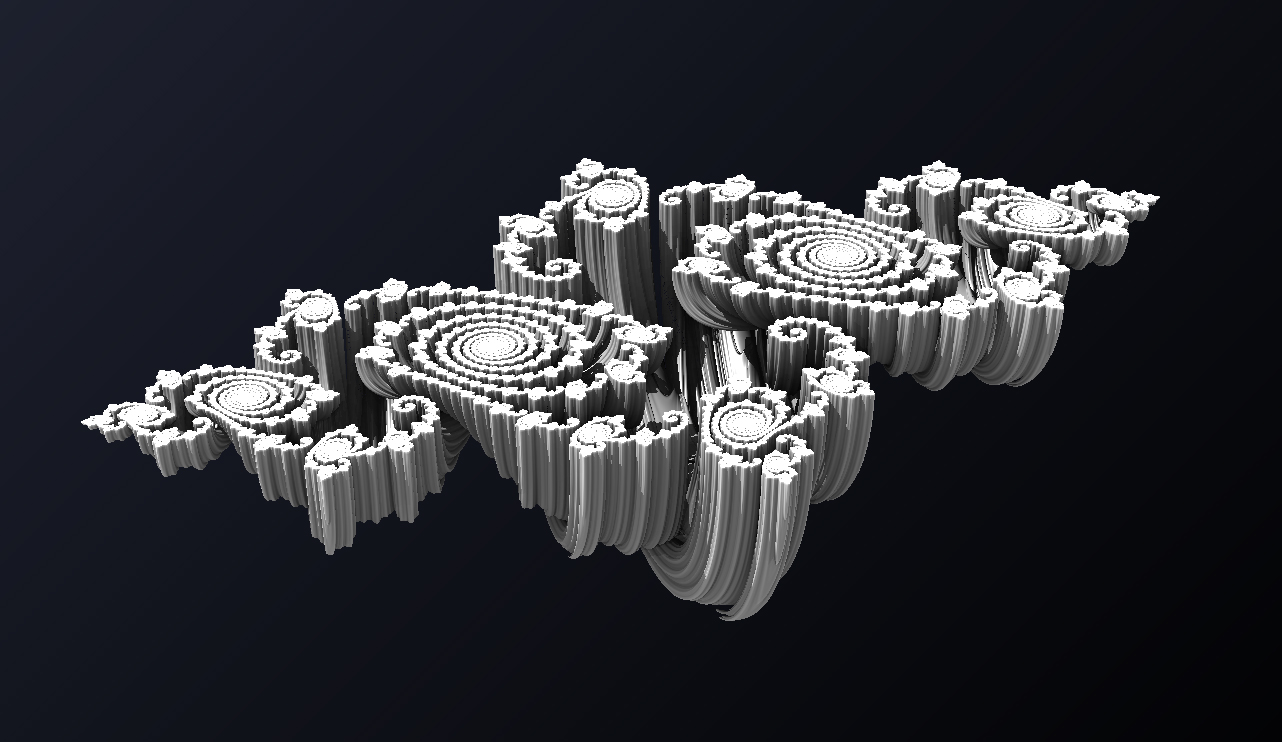
Are you having problems to make your robot navigate because of the kind of data you have to treat? It’s very common to get stuck when we have to work with quaternions, instead of RPY angles. Quaternions are used in robotics to represent the rotation, in 3 axis, of a rigid body in respect with a coordinate frame. But sometimes it’s too much for what we want to do.
In this post, we are going to see how to get only the necessary data from a quaternion for a 2D application. It is very helpful, since robotics algorithms works with quaternions, but user’s interface, RPY angles.
Let’s start with a robot, to make it clear. In this post, we are going to use the Turtlebot simulation, available in ROS Development Studio (RDS).
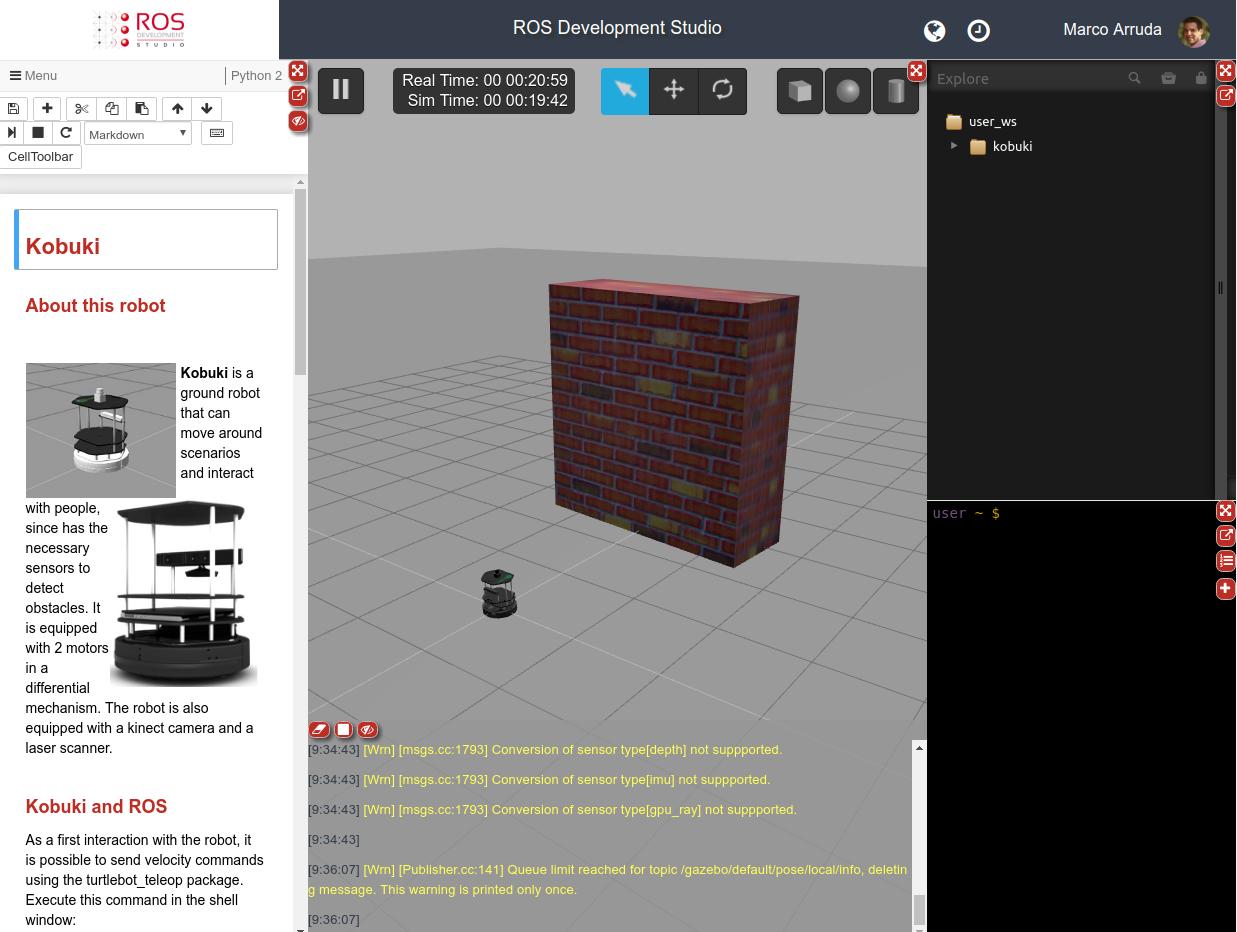
Turtlebot Simulation
We have provided by the robot sensors a /odom topic, which publishes messages of the nav_msgs/Odometry type. See below a single message example:
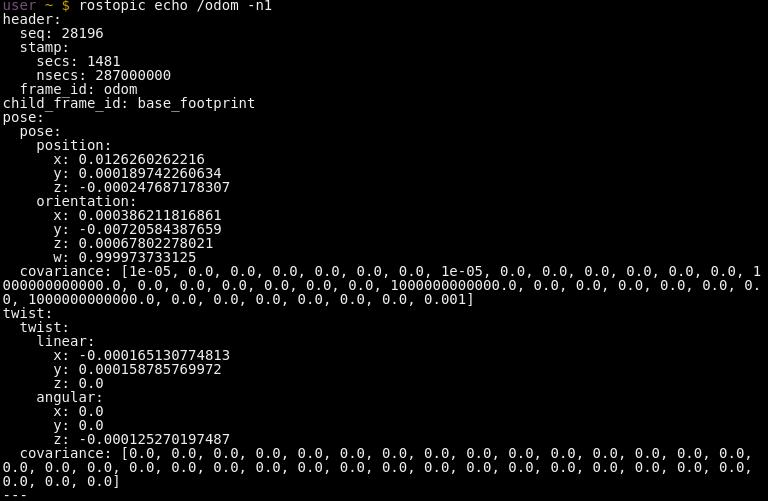
Odometry message
Now, unless you have a path described using quaternions, we need to convert this quaternion to RPY. To do the following, we will use the TF library. In the image below, you can see the program in charge of this task:
#include <tf/tf.h>

#include <nav_msgs/Odometry.h>

#include <geometry_msgs/Pose2D.h>
ros::Publisher pub_pose_;
void odometryCallback_(const nav_msgs::Odometry::ConstPtr msg) {
geometry_msgs::Pose2D pose2d;
pose2d.x = msg->pose.pose.position.x;
pose2d.y = msg->pose.pose.position.y;
tf::Quaternion q(
msg->pose.pose.orientation.x,
msg->pose.pose.orientation.y,
msg->pose.pose.orientation.z,
msg->pose.pose.orientation.w);
tf::Matrix3x3 m(q);
double roll, pitch, yaw;
m.getRPY(roll, pitch, yaw);
pose2d.theta = yaw;
pub_pose_.publish(pose2d);
}
int main(int argc, char **argv)
{
ros::init(argc, argv, “conversion_node”);
ros::NodeHandle nh_;
ros::Subscriber sub_odom_ = nh_.subscribe(“odom”, 1, odometryCallback_);
pub_pose_ = nh_.advertise<geometry_msgs::Pose2D>(“pose2d”, 1);
ros::spin();
return 0;
}
First, we are creating a node and subscribing the /odom topic. In the callback of this subscriber, we are getting the information that matters for us, which are the X, Y and Yaw data. To have the Yaw angle, we are using the quaternion data and converting to RPY (We need a Matrix3x3 object in the middle process). Since our robot has only three degrees of freedom (linear in X and Y, angular in Z), we are not considering Roll and Pitch, the Pose2D message type is enough for us. This is a simplification for a ground robot navigating in a planar scenario.
Are you interested in sharing your robot simulations with other people? Would you like to have them used by many people?
Then the best thing you can do is to have it available in RDS!
The ROS Development Studio (RDS), is a web and cloud based application where you can simulate and develop ROS programs for any kind of robot. If you have a simulation in RDS, everything people will need in order to test and work with your simulation will be a web browser! So, by having your simulation in RDS, you will be providing a 1-click access to your simulations to many people. Sounds interesting, right?
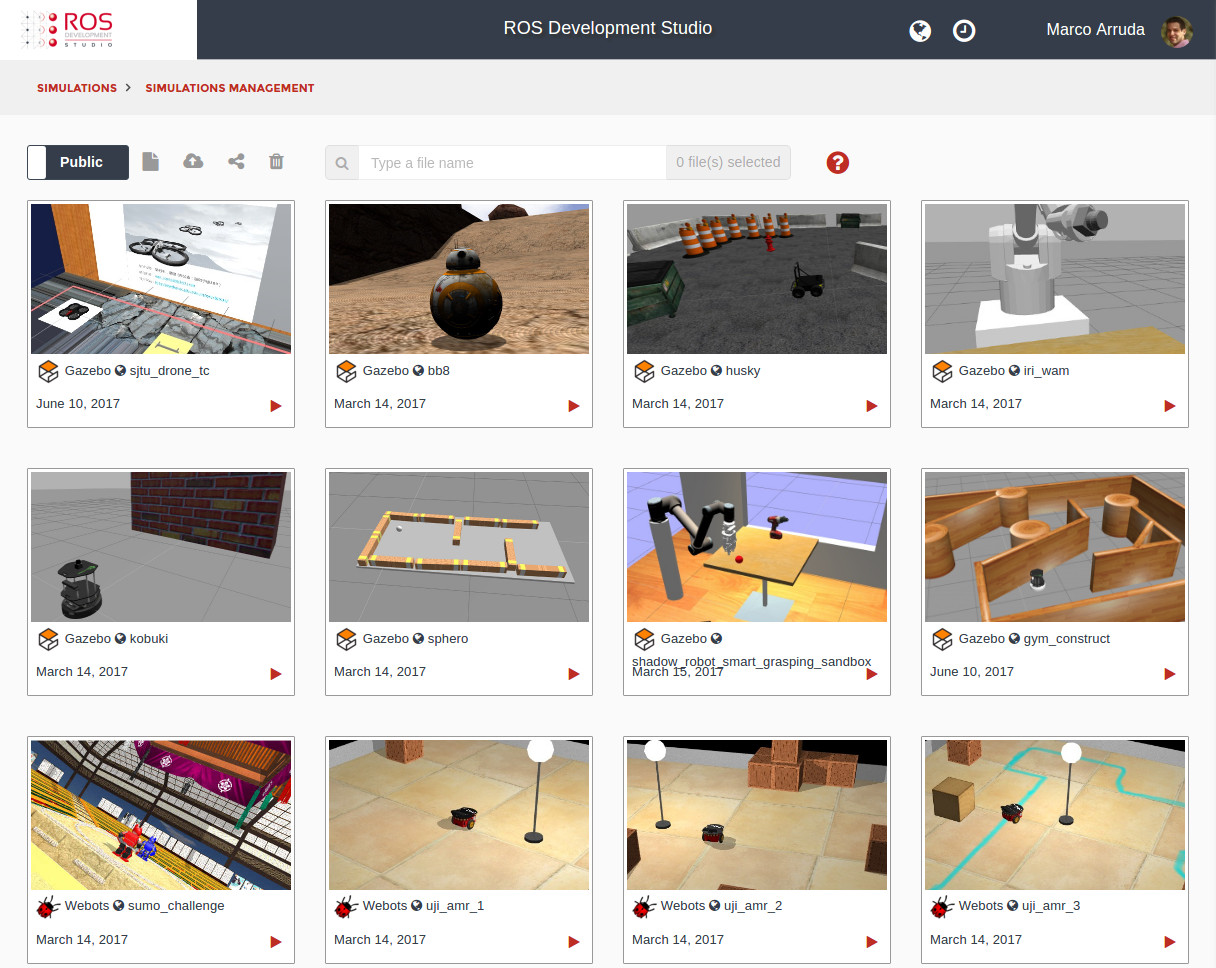
But… what do you need to do in order to have your simulation in RDS? Let’s break it down into some easy steps:
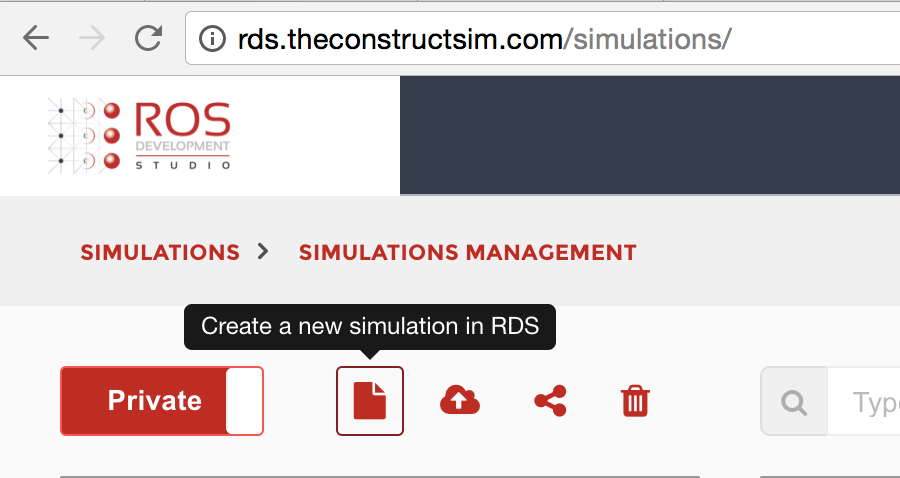
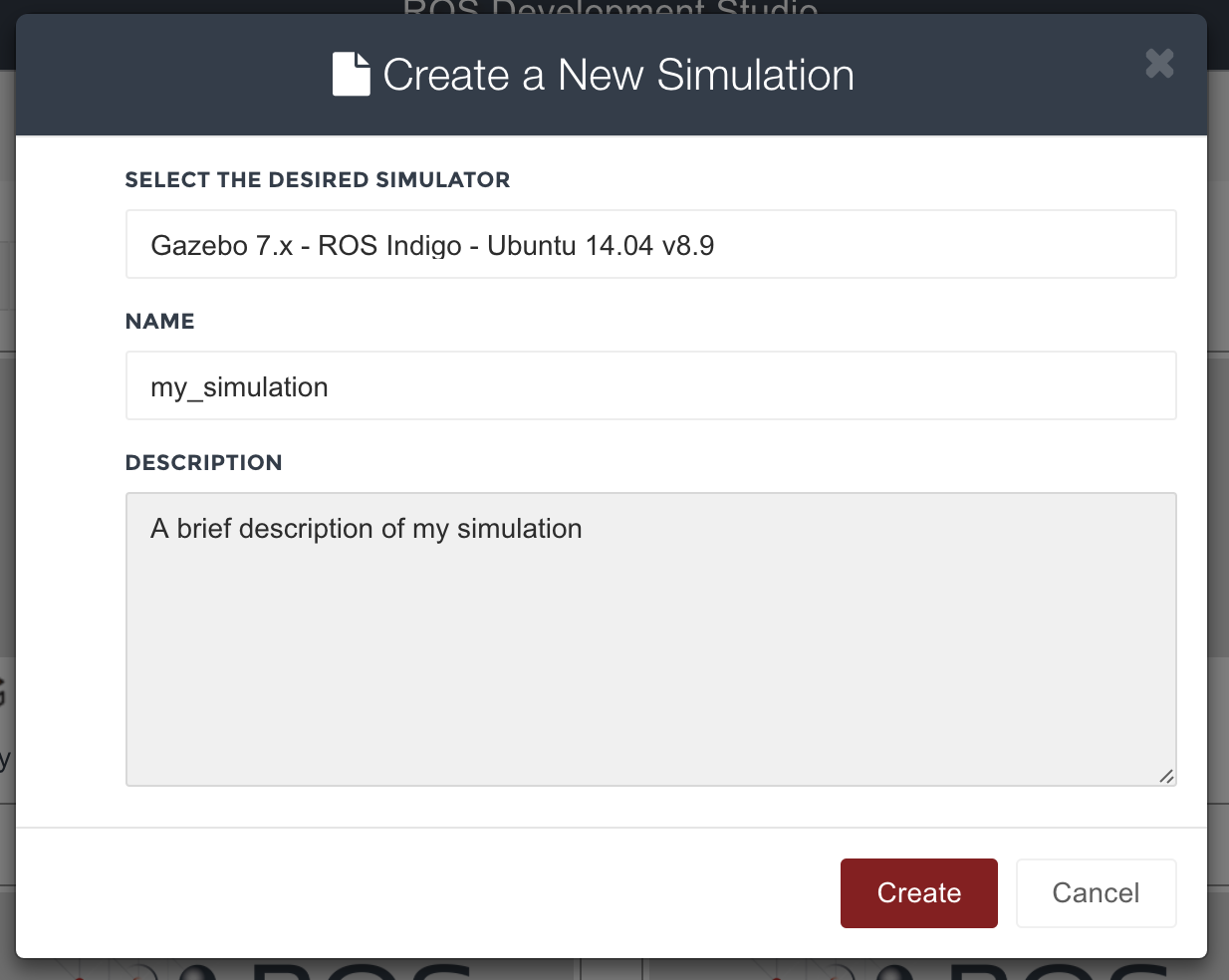
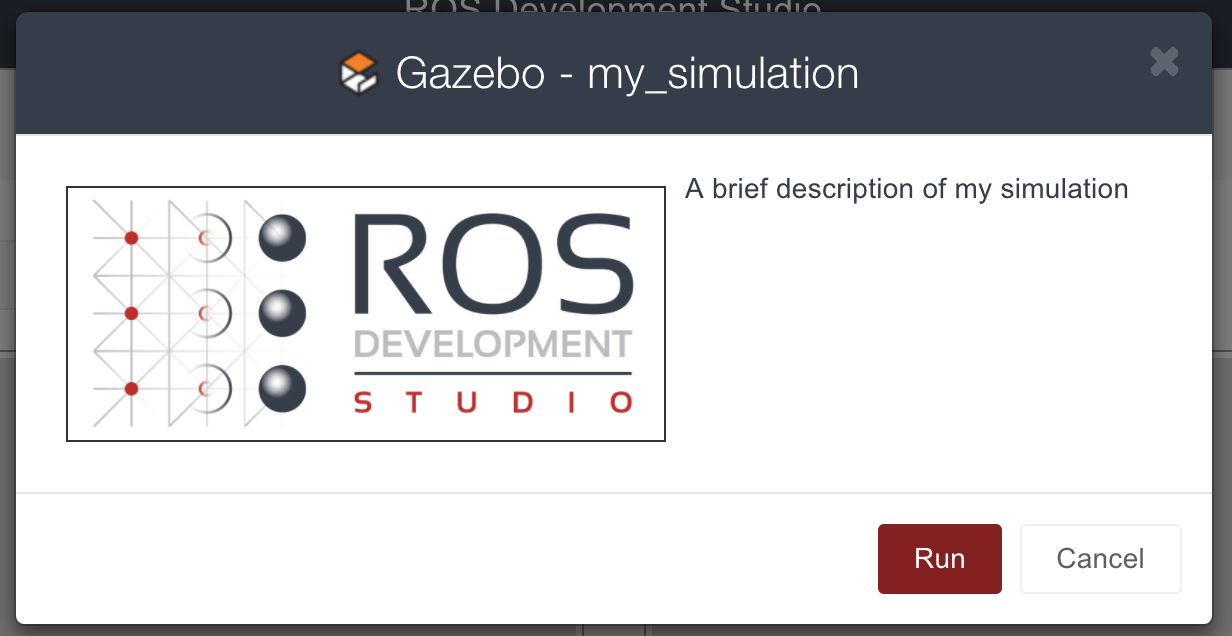
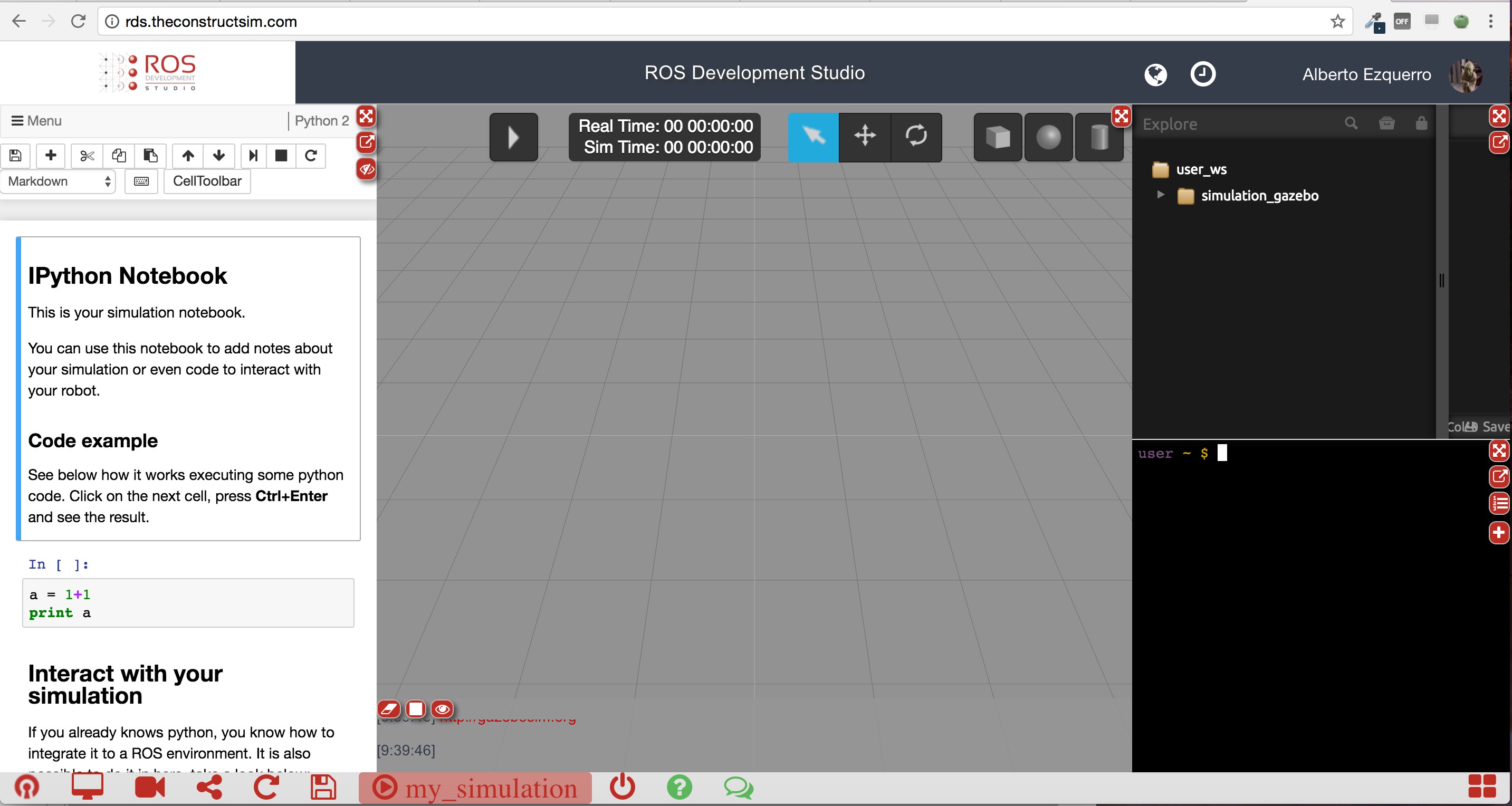
1. Create the simulation
First of all, you will need to create a new simulation in RDS, and upload your simulation packages to it. Bear in mind that RDS
supports Gazebo 7, so your simulation must be compatible with this simulator. Check that your simulation works properly, and that you can launch it using the launch files.
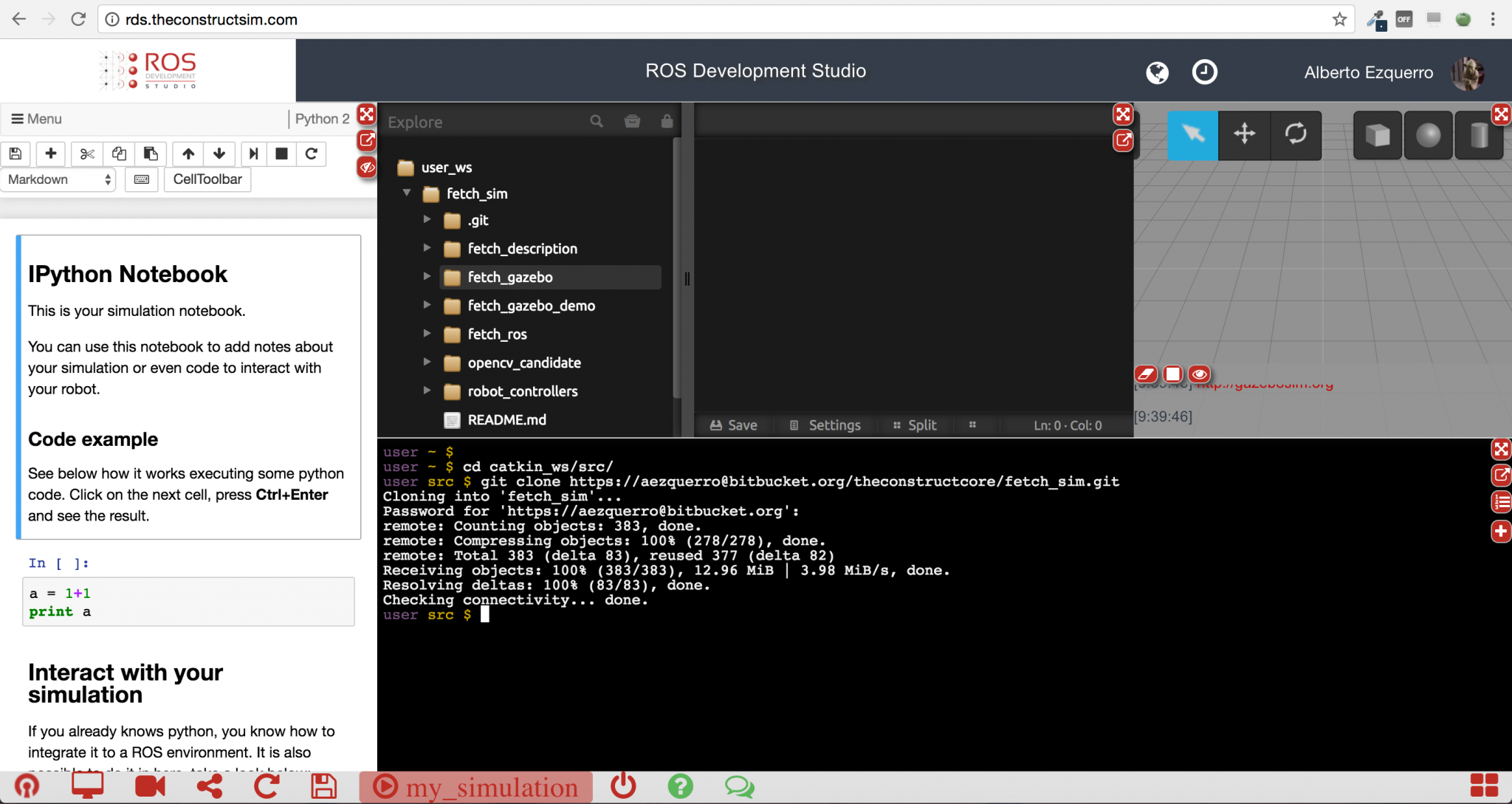
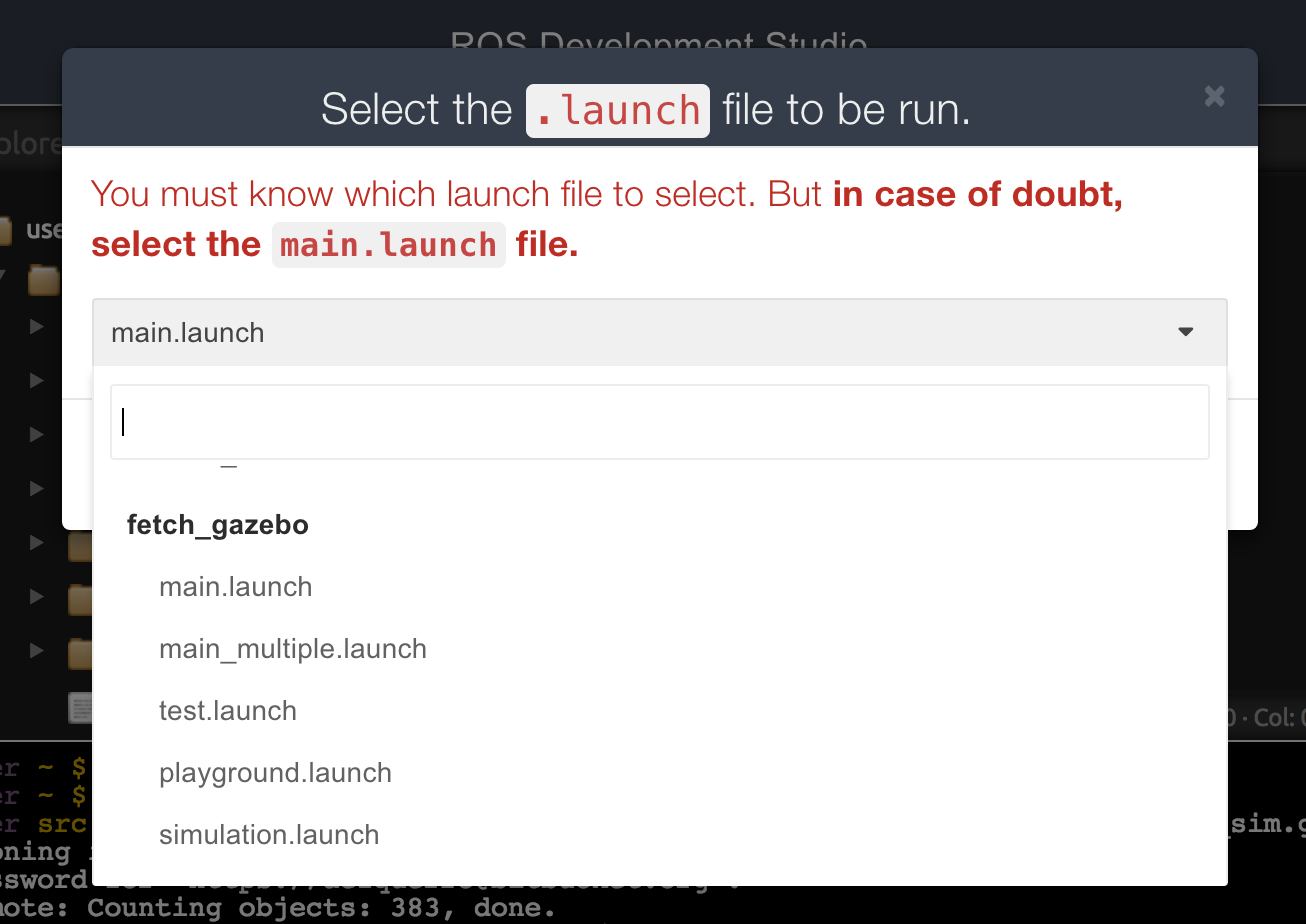
If you get stucked in this step, you can send us your simulation files, or send us the address of the repository containing the
simulation to the following address: simulations@theconstructsim.com.
We will help you with this process.
2. Create the Notebook
Once the simulation is working properly, it is time to create a Notebook for it. This notebook should consist of some basic
tips about how to use your simulation. For instance:
– What are the most important topics to look at.
– How to move/control your robot.
– Important services/actions available in your simulation.
– A basic script in order to interact with your robot.
The notebooks is the documentation for the users that want to use your simulation. This notebook is very important, since it will
guide users that want to work with your simulation.
You can have a look at the notebooks attached to any of the Public simulations that are already available in RDS in order to see
an example of how it should be.
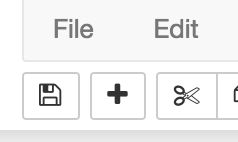
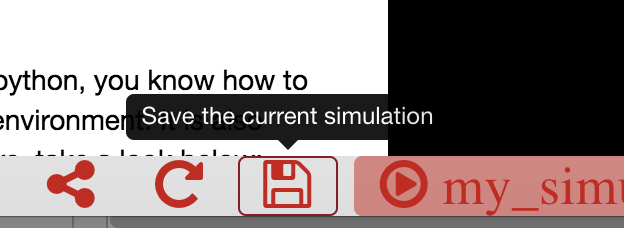
Once the notebook is created, you can then click the Save button of the Notebook, in order to Save the changes. Finally, click the Save button in the bottom menu in order to save the whole project.
3. Share your project with us
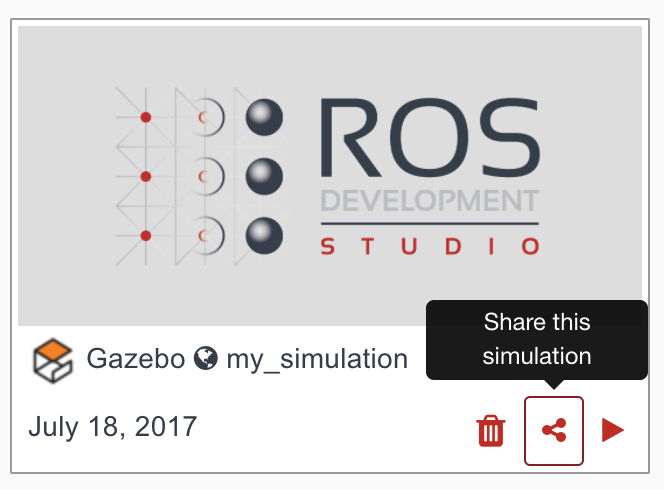
Share your project with us. For that, you just need to click on the Share button related to your project, and share with the user
simulations@theconstructsim.com.
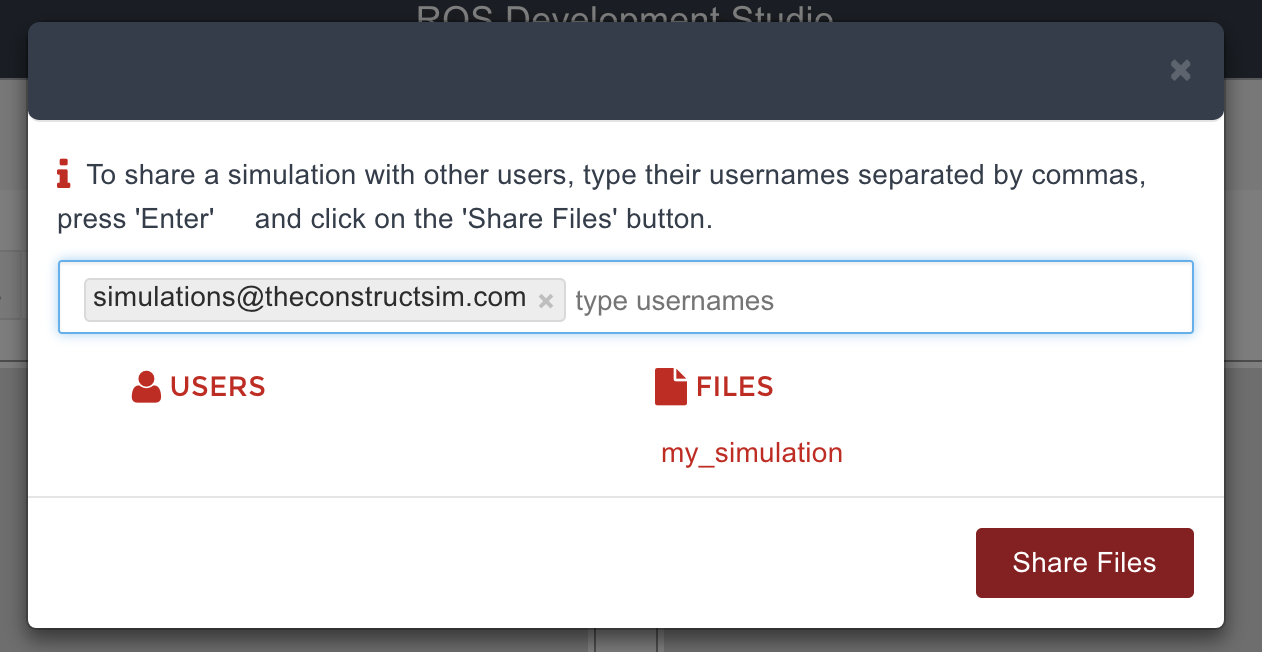
We will receive your whole project, and evaluate that everything is correct. Finally, we will publish your simulation in RDS as
Public, so anyone will be available to access to it.
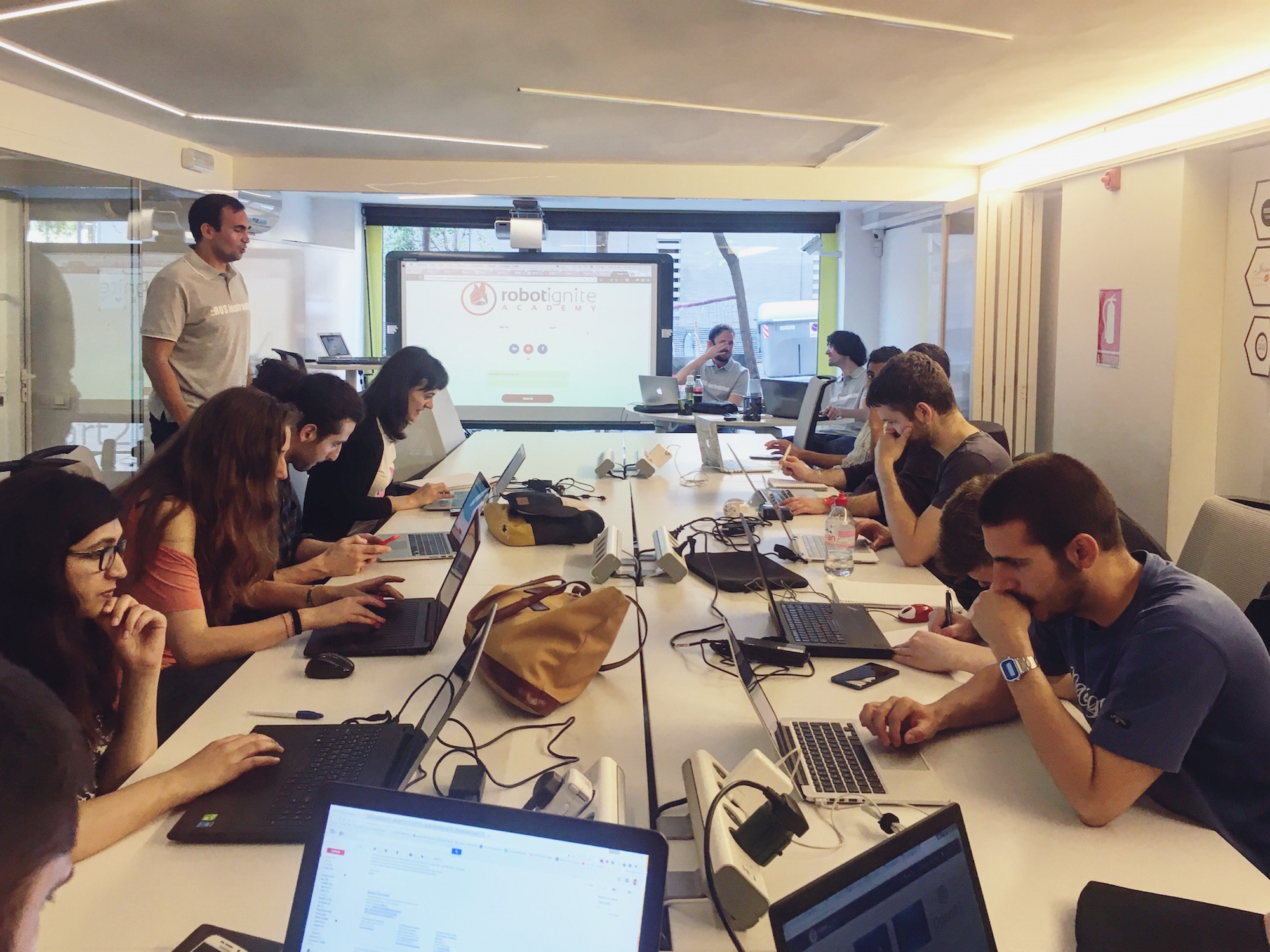
If you are a Robotics Teacher and want to teach ROS effectively, you definitely should try the Robot Ignite Academy platform.
Since you can teach many students, today we will show you how to manage multi licenses.
Once logged in, you just click on the Manage Licenses button as shown on the image below, in order to go to the Team Management page.
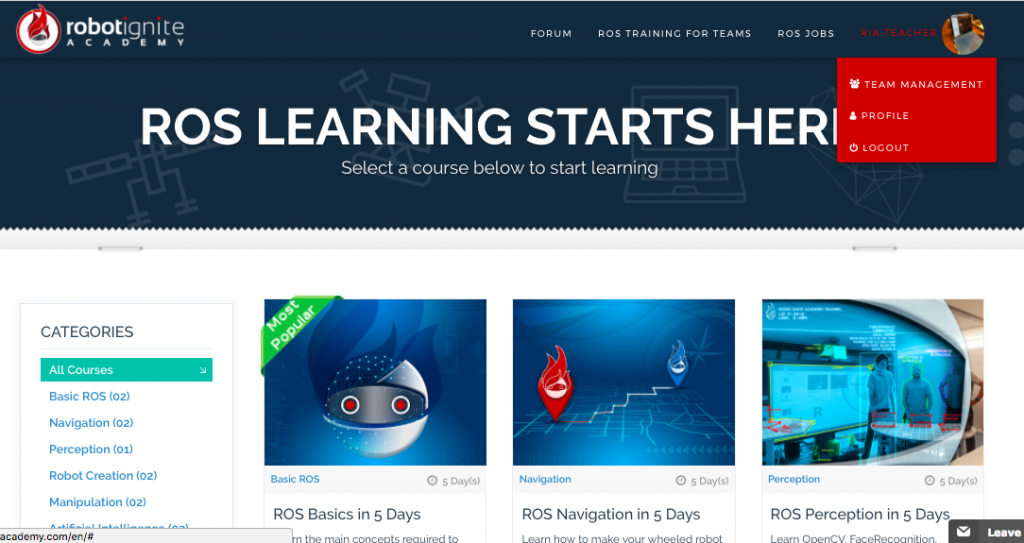
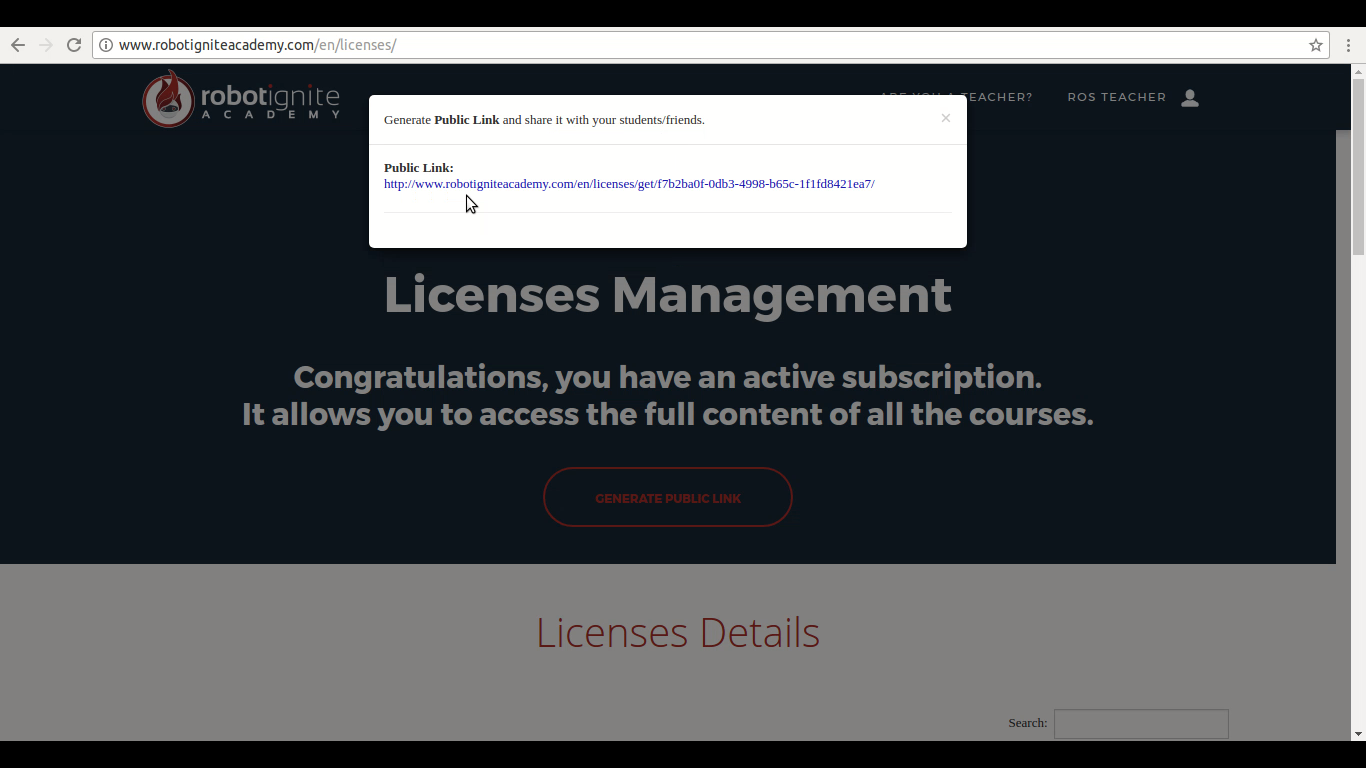
Once on the Team Management page, if you have many licenses, then a button Generate Public Link will be available for you. By clicking on that button, you will be able to generate a Public Link that can be shared with your students, so they will be able to have full access to the content of the courses using your licenses.
An example of the generated Public Link is shown below:
With that Public Link in hand, you just have to share it with your students.
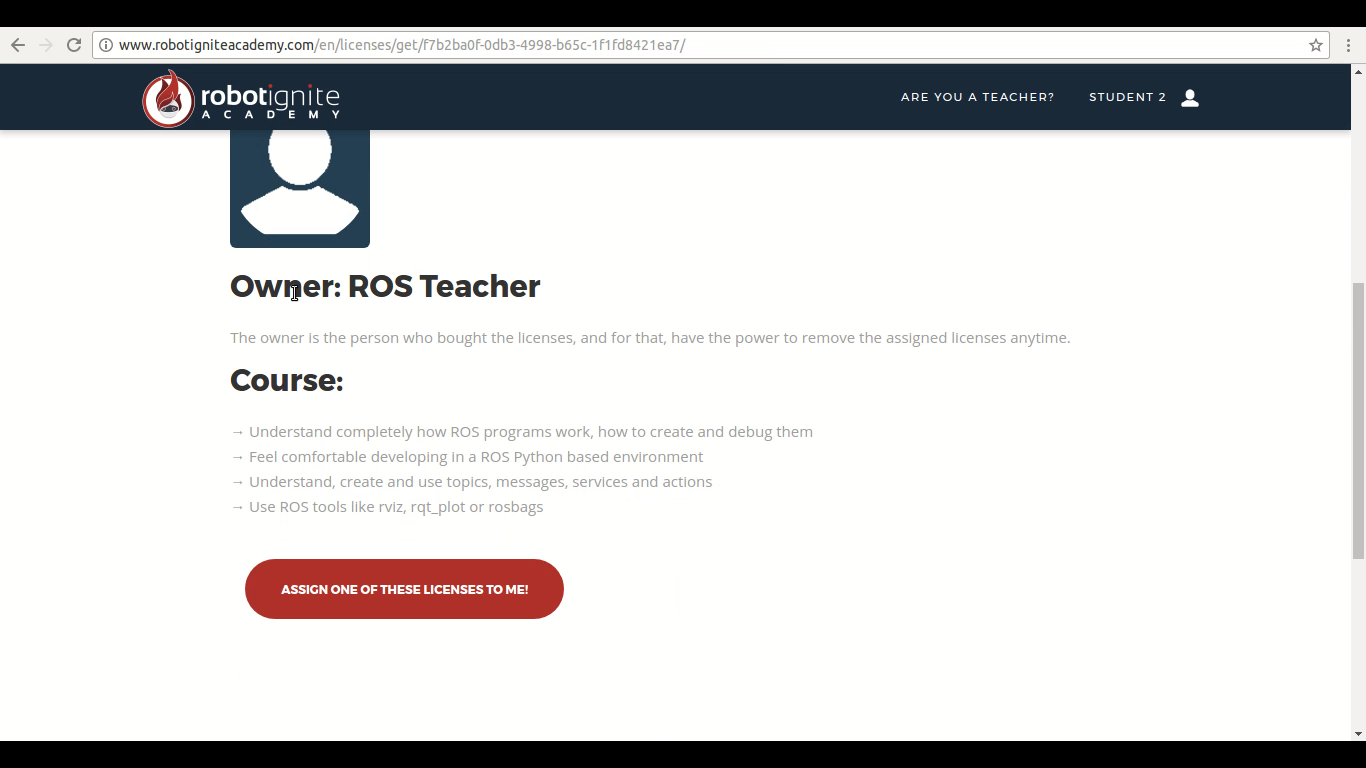
The students just have to login on the Robot Ignite Academy platform, and them go to the page represented by the Public Link by pasting the Public Link on the address bar of their Web Browser and pressing enter. Once on that page, they will see a button named ASSIGN ONE OF THESE LICENSES TO ME, as we can see on the following image.
After click on ASSIGN ONE OF THESE LICENSES TO ME, the student will start using one of your licenses and will have access to all the courses.
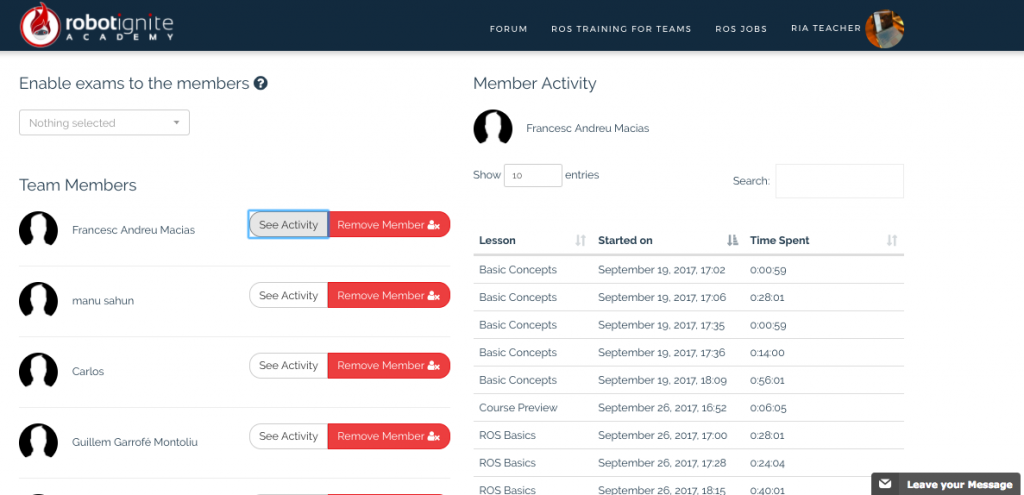
Through the Team Management page, you can see all the students using your licenses. Since you are the owner, you have the power to revoke the licenses of any students anytime.
On the image below we can see an example of the Team Management page of a teacher.
If you accidentally remove a license of a student, you just share the Public Link again with him and he can re-assign the license.
I hope I have explained well how the Multi Licenses Management page works on our platform. If I haven’t explained well and you still have any doubts or suggestions, don’t hesitate in contact us through the email: courses@robotigniteacademy.com
We will be glad to receive your email.
See you on Robot Ignite Academy.