Learn how to publish a blob detection in 2D in RVIZ through markers : https://answers.ros.org/question/273792/hi-i-wanto-to-meake-a-program-that-give-the-position-of-a-red-ball-in-2d-with-rviz/
Q:Hi, i wanto to meake a program that give the position of a red ball in 2D with rviz
A: So here you have very rudimentary solution. Of course you will need to add calibration procedures, and take extra thing into account like the blob area to get the distance value, but this I hope gives you a starting point.
So essentially you need to publish a Marker topic , with a Sphere Type of colour red. This marker will have to be referenced to your camera link or similar. I’ve done this Video as an example of how it could be done.
In today’s Q&A, the question is How to use a c++ vector container in my code and to publish and subscribe it in ROS.
Let’s see how to do it.
Step 0. Create a project in ROS Development Studio(ROSDS)
ROSDS helps you follow our tutorial in a fast pace without dealing without setting up an environment locally. If you haven’t had an account yet, you can create a free account here. Let’s create a new project and call it ros_q_a_messages.
Step 1. Create a package
Let’s create a new package and a msg folder for our code.
cd ~/catkin_make/src
catkin_create_pkg my_pkg roscpp std_msgs geometry_msgs
cd my_pkg
mkdir msg
In the msg folder, we’ll define the message in the my_msg.msg file
geometry_msgs/Point[] points
uint8 another_field
In order to compile the message, we have to change two files. The first one is the pckage.xml, add the following two line.
cd ~/catkin_ws
catkin_make
source devel/setup.bash
Now you can run the executable rosrun my_pkg my_publisher with the node is publishing something.
You also have to run a simulation or run roscore to start the rosmaster
The next step is to create a subscriber to subscribe to the topic. Let’s create a my_subscriber.cpp file under the src folder with the following content.
Q: Hi all, I am trying to send an array of vector points from one node to another node as a message. The message contains this array and other message fields as well.
My cpp file has the following array vector:
Vector Point distancePoints[11];
The above array of vector is the one I need to publish and subscribe.
For example, distancePoints[0] contains vector Point from distance 1m and so on. Point contains x and y coordinates. Point is an opencv 2D point class.
Is it possible to publish and receive such array of vector using ROS messages? Does anyone have an idea about how it can be done? What will be the structure of message header?
A: Hello,
I’ve created a new message to do that, including an array and another field, just to show how you can do that.
In this tutorial, we are going to answer a question found at ROS answers – How to convert quaternions to Euler angles?
We’ll explain this with the following example in ROS Development Studio (ROSDS), where you can easily follow the steps and understand how to use the conversion from quaternions provided by an Odometry message to Euler angles (Roll, Pitch, and Yaw).
Step1. Create a Project in RDS
If you haven’t had an account yet, register here for free.
We’ll use a simulation we built previously, you can find some information here and build it in 5 mins with RDS.
Launch the Turtlebot 3 empty world simulation with the following command
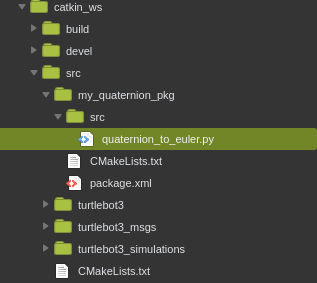
We then create another package called my_quaternion_pkg for this example under the ~/catkin_ws/src using
$ catkin_create_pkg my_quaternion_pkg rospy
Create a quaternion_to_euler.py file under my_quaternion_pkg. Now the source tree may look like the following picture
Step3. Transform Quaternion to Euler
As our first attempt, copy the following code into the quaternion_to_euler.py file
#!/usr/bin/env python
import rospy
from nav_msgs.msg import Odometry

def get_rotation (msg):
    print msg.pose.pose.orientation

rospy.init_node('my_quaternion_to_euler')

sub = rospy.Subscriber ('/odom', Odometry, get_rotation)

r = rospy.Rate(1)
while not rospy.is_shutdown():
    r.sleep()
To run the file, simply type
$ rosrun my_quaternion_pkg quaternion_to_euler.py
Now you can see the code prints the odometry message in quaternion format. Now, we’d like to transform it to Euler angles. We use the euler_from_quaternion function provided by tf.transformations, you can find more detail here
#!/usr/bin/env python
import rospy
from nav_msgs.msg import Odometry
from tf.transformations import euler_from_quaternion, quaternion_from_euler

def get_rotation (msg):
    global roll, pitch, yaw
    orientation_q = msg.pose.pose.orientation
    orientation_list = [orientation_q.x, orientation_q.y, orientation_q.z, orientation_q.w]
    (roll, pitch, yaw) = euler_from_quaternion (orientation_list)
    print yaw

rospy.init_node('my_quaternion_to_euler')

sub = rospy.Subscriber ('/odom', Odometry, get_rotation)

r = rospy.Rate(1)
while not rospy.is_shutdown():
    r.sleep()
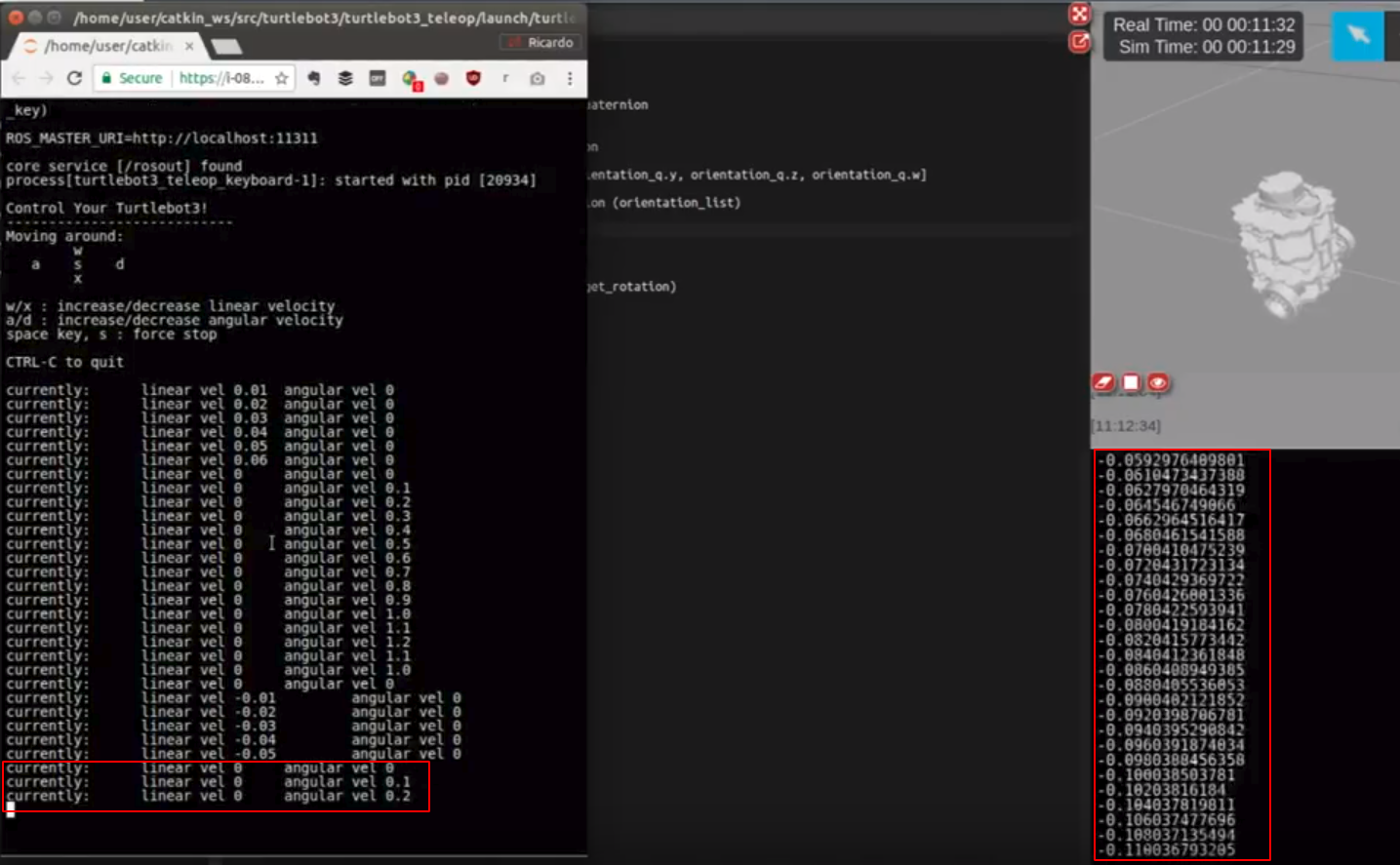
We only print yaw values here. You can check it by typing the following command to control the Turtlebot.
If you turn the robot, you’ll see the yaw angle change accordingly.
Step4. Transform Euler to Quaternion
Similarly, we can use the quaternion_from_euler function provided by tf.transformations to transform the Euler back to the quaternion with the following code.
#!/usr/bin/env python
import rospy
from nav_msgs.msg import Odometry
from tf.transformations import euler_from_quaternion, quaternion_from_euler

roll = pitch = yaw = 0.0

def get_rotation (msg):
    global roll, pitch, yaw
    orientation_q = msg.pose.pose.orientation
    orientation_list = [orientation_q.x, orientation_q.y, orientation_q.z, orientation_q.w]
    (roll, pitch, yaw) = euler_from_quaternion (orientation_list)
    print yaw

rospy.init_node('my_quaternion_to_euler')

sub = rospy.Subscriber ('/odom', Odometry, get_rotation)

r = rospy.Rate(1)
while not rospy.is_shutdown():
    quat = quaternion_from_euler (roll, pitch,yaw)
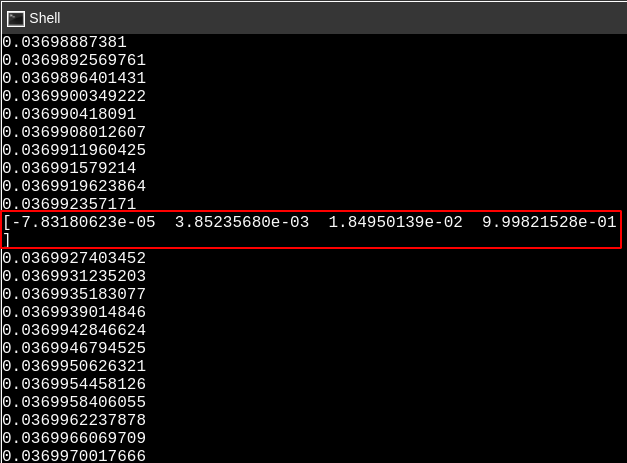
    print quat
    r.sleep()
The quaternion will print every 1 second since we specified the rate for 1 Hz and the odometry topic is published in 100 Hz.
Takeaway Today:
You can transform between Euler and quaternion using the quaternion_from_euler and euler_from_quaternion function provided by the tf.transform.
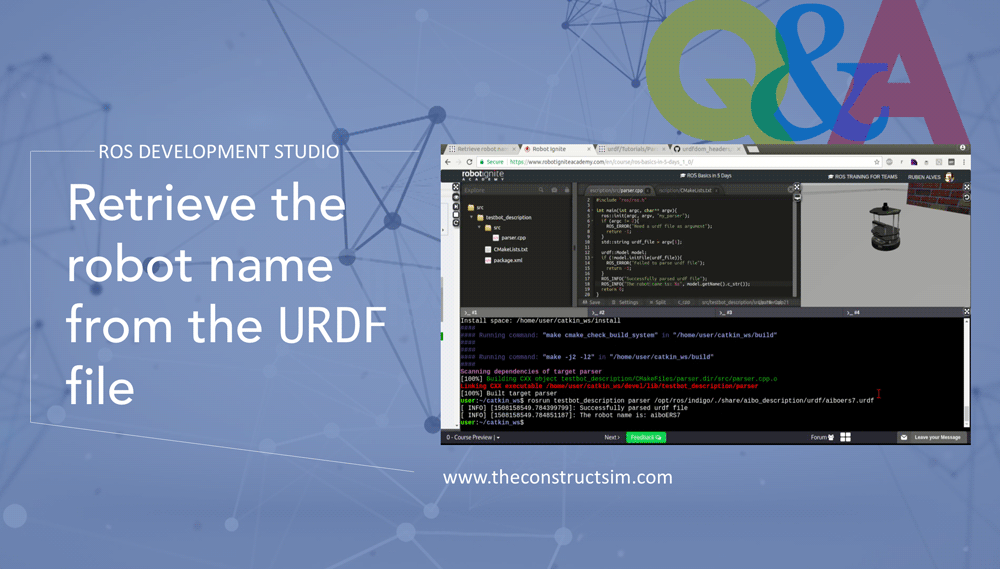
After compile the code and generate the executable called “parser” following the “Parse a urdf file” tutorial, you can call it with the path of the URDF file as argument. Something like: rosrun your_package_name parser /path/to/your/file.urdf

![[ROS Q&A] 045 – Publish and subscribe array of vector as message](https://www.theconstruct.ai/wp-content/uploads/2018/09/ROS-QA-045-Publish-and-subscribe-array-of-vector-as-message.png)
![[ROS Q&A] How to convert quaternions to Euler angles](https://www.theconstruct.ai/wp-content/uploads/2017/10/ROS-QA-How-to-convert-quaternions-to-Euler-angles.png)