In this video, we are going to see how can we launch multiple robots in a single Gazebo simulation.
We will be introduced to the concept of namespace and tf_prefix, which are essential to make sure that the robots will be able to work correctly. We will create a series of launch files that will enable us to easily add robots into our Gazebo simulation.
NOTICE: most of the code would be the same in the ROS Answer, however, we’ll make some change to make sure it is compatible with ROS kinetic. Please use the code below.
Step 1. Create a project in ROS Development Studio(ROSDS)
ROSDS helps you follow our tutorial in a fast pace without dealing without setting up an environment locally. If you haven’t had an account yet, you can create a free account here.
Step 2. Create a package
We’ll create a package to put our source code for the project with the following command
cd ~/catkin_ws/src
catkin_create_pkg multi_robot rospy gazebo_ros
Then we’ll create a folder called launch under the package directory and create 3 launch files that we need.
<launch>
    <arg name="robot_name"/>
    <arg name="init_pose"/>

    <node name="spawn_minibot_model" pkg="gazebo_ros" type="spawn_model"
     args="$(arg init_pose) -urdf -param /robot_description -model $(arg robot_name)"
     respawn="false" output="screen" />

    <node pkg="robot_state_publisher" type="state_publisher"
          name="robot_state_publisher" output="screen"/>

    <!-- The odometry estimator, throttling, fake laser etc. go here -->
    <!-- All the stuff as from usual robot launch file -->
</launch>
This launch file will launch one robot in the simulation.
<launch>
  <!-- No namespace here as we will share this description.
       Access with slash at the beginning -->
  <param name="robot_description"
    command="$(find xacro)/xacro.py $(find turtlebot_description)/robots/kobuki_hexagons_asus_xtion_pro.urdf.xacro" />

  <!-- BEGIN ROBOT 1-->
  <group ns="robot1">
    <param name="tf_prefix" value="robot1_tf" />
    <include file="$(find multi_robot)/launch/one_robot.launch" >
      <arg name="init_pose" value="-x 1 -y 1 -z 0" />
      <arg name="robot_name"  value="Robot1" />
    </include>
  </group>

  <!-- BEGIN ROBOT 2-->
  <group ns="robot2">
    <param name="tf_prefix" value="robot2_tf" />
    <include file="$(find multi_robot)/launch/one_robot.launch" >
      <arg name="init_pose" value="-x -1 -y 1 -z 0" />
      <arg name="robot_name"  value="Robot2" />
    </include>
  </group>
</launch>
Please notice that it should have a different namespace and tf_prefix for each robot.
You can launch the simulation with the following command
roslaunch multi_robot main.launch
Then you have to open the gazebo window from Tools->Gazebo
You should see 2 robots are spawned in the simulation. You can spawn more by changing the robots.launch if you want.
Step 3. Move the robot
Open another terminal, if you type rostopic list , you’ll see there are 2 cmd_vel topics for the robots. The simplest way to control them is with the teleop_twist. We can run it and remap the cmd_vel with the robot you want to control. For example
—
Feedback
—
Did you like this video? Do you have questions about what is explained? Whatever the case, please leave a comment on the comments section below, so we can interact and learn from each other.
If you want to learn about other ROS topics, please let us know on the comments area and we will do a video about it.
Step 1. Create a project in ROS Development Studio(ROSDS)
We can do any ROS development we want easily, without setting up environment locally in ROSDS and that’s the reason why we will use ROSDS for this tutorial. If you haven’t had an account yet. You can create one here for free now. After logging in, let’s begin our journey by clicking on the create new project and call it pub_example.
Step 2. Create a new package for testing
Now, let’s create a new package for testing with the following command
cd ~/catkin_ws/src/
catkin_create_pkg pub_example rospy
Then we create a new file called pub_ex.py under /pub_example/src with copying and pasting the following code.
#!/usr/bin/env python
# license removed for brevity
import rospy
from std_msgs.msg import String

def talker():
    rospy.init_node('talker')
    pub = rospy.Publisher('chatter', String, queue_size=10)
    hello_str = "hello world %s" % rospy.get_time()
    pub.publish(hello_str)
    rospy.loginfo(hello_str)

if __name__ == '__main__':
    talker()
NOTICE: We no longer run ROS master for you in the backend, please launch it with the command roscorein a new terminal.
Now you can run it with the command rosrun pub_example pub_ex.py
You will get the output hello world, however, if you check with rostopic list , there is no chatter topic.
It turns out the talker function only publish once and was killed. If we want to access it, we have to keep publishing it. Let’s change our code.
def talker():
    rospy.init_node('talker')
    rate = rospy.Rate(1) # this defines the publish rate
    pub = rospy.Publisher('chatter', String, queue_size=10)
    hello_str = "hello world %s" % rospy.get_time()
    while not rospy.is_shutdown():
        # put everything in a while loop to keep publishiing topic
        pub.publish(hello_str)
        rospy.loginfo(hello_str)
        rate.sleep() # this make sure that the topic is publishing at 1 Hz
When you run it again, you can see that the topic is publishing every 1 second and you can access it from other node.
Hello ROS Developers! In this ROS in 5 min tutorial, we’re going to see what catkin_make is, how it works, and what its advantages are.
For that, we are going to use Robot Ignite Academy.
But before we start, if you are new to ROS and want to Learn ROS fast, I recommend that you take any of the following courses in Robot Ignite Academy:
Whether you like the video or not, or if you want to learn about specific ROS subjects, please leave a comment in the comments section below, so we can interact and learn from each other.
ROS Basics for Beginners (Python)
ROS Basics for Beginners (C++)
Question: What is catkin_make
Step1. Create a project in Robot Ignite Academy(RIA)
We have the best online ROS course available in RIA. It helps you learn ROS in the easiest way without setting up ROS environment locally. The only thing you need is a browser! Create an account here and start to browse the trial course for free now!
Step2. Create a package
Almost all the package you will need is already installed in RIA. We’ll create the package in the ROS Autonomous Vehicles 101 course as an example in this video, but you can choose any course you want to do this.
Please type the following command in shell to create a new package
cd ~/catkin_ws/src
catkin_create_pkg test roscpp
Step3. Compile the package with catkin_make
Now you can type catkin_make to compile the package.
cd ..
catkin_make
It shows a lot of outputs, but what did it really do?
The catkin_make is actually a macro which creates directories and runs cmake command for you. If you want to do it yourself, just delete the build and devel directories first.
rm -rf build/ devel/
Now you can create a build directory and run the cmake command by yourself to get the exact same result as catkin_make did.
In this ROS LIVE-Class we’re going to learn how to create our own Qlearning training for a cart pole in Gazebo using both OpenAI and ROS.
We will see:
How to create a Python training program that uses OpenAI infrastructure
How to create the environment that allows to get the observations and take the actions on a Gazebo simulation
How to interface everything with ROS
Every Tuesday at 18:00 CET/CEST.
This is a LIVE Class on how to develop with ROS. In Live Classes you practice with me at the same time that I explain, with the provided free ROS material.
IMPORTANT: Remember to be on time for the class because at the beginning of the class we will share the code with the attendants.
IMPORTANT 2: in order to start practicing quickly, we are using the ROS Development Studio for doing the practice. You will need a free account to attend the class. Go to ROS Development Stdio and create an account prior to the class.
[irp posts=”9720″ name=”ROS Developers LIVE-Class #22: How to create an OpenAI environment for your robotic problem”]
In this video we are going to see why a ROS developer can’t launch a PR2 Gazebo simulation, mainly because the ROS controllers are not found.
We will see which are the ROS packages which provide all the required controllers for the PR2. We will also see how you can apply this check to your own robot simulation, in case it complains about the controllers not being loaded.
The above command should output various controllers and thier status.
Now the above case is for the working environment where all the required packages are installed. If some packages are missing then we should systematically look for packages and dependencies. The packages mostly fall into two categories: gazebo-ros controllers and robot specific controllers (pr2-controllers specifically for our case)
ros-control : To list the available ros-control packages use the following command
$ dpkg -l | grep ros-control
There are two important packages in this category ros-kinetic-gazebo-ros-control and ros-kinetic-ros-controllers
gazebo-ros : To list the available gazebo-ros related packages use the following command
$ dpkg -l | grep gazebo-ros
The output of the command should contain the following two names ros-kinetic-gezebo-ros and ros-kinetic-gezebo-ros-control (this one was seen in previous commands output also)
controller interfaces : To list the installed controller interface packages use the command
$ dpkg -l | grep controller-interface
The output of this command should show the following names ros-kinetic-controller-interface, ros-kinetic-controller-manager, ros-kinetic-controller-manager-msgs
controllers : In gazebo we use various controllers to actuate different types of joints. We need to check for the following ones
joint state controllers : The output of the following command should contain ros-kinetic-joint-state-controller
$ dpkg -l | grep joint-state
joint trajectory controllers : The output of the following command should contain ros-kinetic-joint-trajectory-controller
$ dpkg -l | grep joint-trajectory
effort controllers : The output of the following command should contain ros-kinetic-effort-controllers
$ dpkg -l | grep effort-controllers
velocity controllers : The output of the following command should contain ros-kinetic-velocity-controllers
$ dpkg -l | grep velocity-controllers
Finally we need to check for PR2 robot related controllers to be able to launch the simulation. Use the following commands
We expect to see the following names in the output of those commands
ros-kinetic-pr2-controller-manager,
ros-kinetic-pr2-controller-interface,
ros-kinetic-pr2-controller-configuration-gazebo,
ros-kinetic-pr2-controllers-msgs,
ros-kinetic-pr2-mechanism-controllers,
ros-kinetic-pr2-mechanism-diagnostics,
ros-kinetic-pr2-mechanism-models,
ros-kinetic-pr2-mechanism-msgs
If we have all of these packages installed in our computer, we will be able to launch the pr2 robot. That’s all for this post. Thanks for watching the video, please leave your comments and subscribe the channel if you want to see more such videos.
Did you like this video? Do you have questions about what is explained? Whatever the case, please leave a comment on the comments section below, so we can interact and learn from each other.
If you want to learn about other ROS topics, please let us know on the comments area and we will do a video about it.
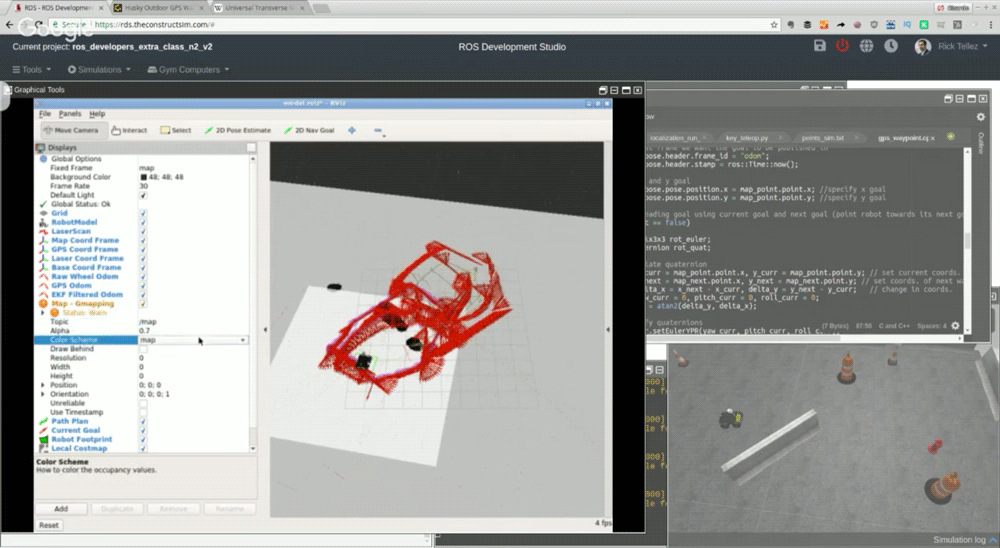
Basically what we are going to teach in this extra Live-Class is: 1- How to record a trajectory that you would like the robot to do 2- How to make the robot reproduce that trajectory
Everything using the GPS as localization system.
This time we are going to use the ROS Development Studio to do the practice. Please you need to have an account at RDS (free account is ok, and fully working). Please it is very important that attendants have the account created prior to the class so we do not waste time with that process.
All the attendants will receive a full notebook and code that does the two points. The notebook will explain step by step how the code works and where to change for another robot different than the one used in the simulation.
This is an Extra Live Class requested by the ROS Agriculture community (http://rosagriculture.org/), that is why we are doing this Live Class on Saturday (instead of Wednesday). This is an extra class. Wednesday Live Class are still on the schedule (check it out Wednesday schedule here: ROS LIVE-Classes).

![[ROS Q&A] 128 – Can’t access messages of the ROS topic Publisher](https://www.theconstruct.ai/wp-content/uploads/2018/06/ROS-QA-128-Cant-access-messages-of-the-ROS-topic-Publisher.png)
![[ROS IN 5 MIN] 011 – What is catkin_make & how do you use it?](https://www.theconstruct.ai/wp-content/uploads/2018/06/What-is-catkin_make.jpg)