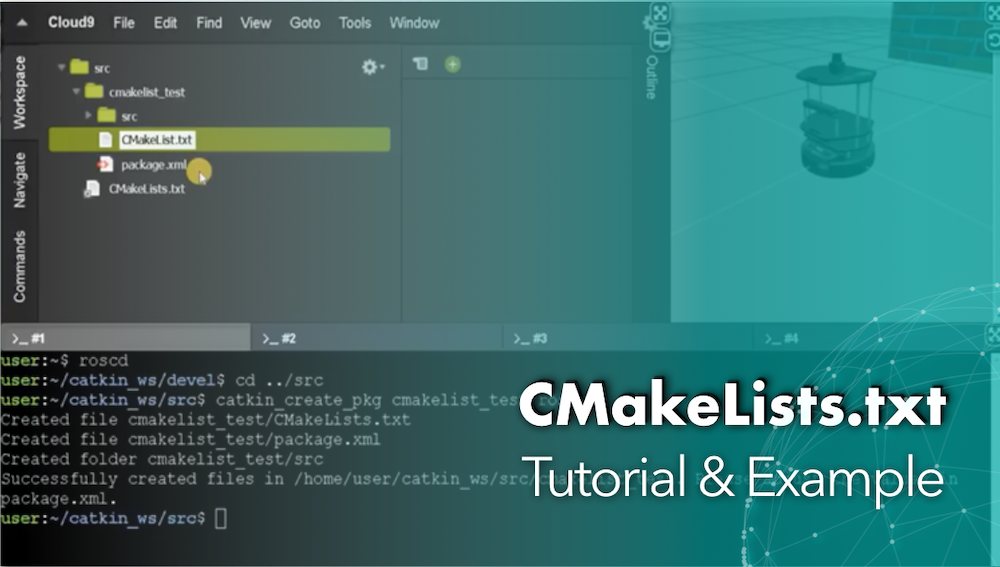
Hello ROS developers! In this post, we will see what CMakeLists.txt is and it’s importance in ROS in just 5 minutes! We’ll see what happens when it’s absent and when it’s improperly modified.
Let’s go!
Step 1: Setup your development environment
I love coding, and I hope you do too. Because of this, we’re going to solve the problem in this section using a pseudo-Python code. Here you go:
def setup_ros_environ(you, ros, docker):
  if you.prefer_not_to_embrace_the_cloud_revolution() or not you.want_something_that_works_for_sure():
    if ros.is_installed() and ros.version <= 'kinetic' and ros.version < 'crystal':
      return "You are good to go; just be ready to spin up a terminal at short notice."
    elif docker.is_installed():
      return "run docker run -it osrf/ros:kinetic-desktop in your terminal to pull a ROS docker image. "
             "Please note: "
             "- Docker will “pull” this image if you don’t have it locally already."
             "- You need to run this command on every terminal you use in this post, before typing any other command!"
  else:
    return "Launch a ready-to-go development environment on ROS Development Studio (http://rosds.online) within your browser!"
           "Click this link to get your copy of a ready-made ROS project: http://www.rosject.io/l/92ac9a3/"
           "To 'open a terminal', pick the Shell app from the Tools menu. "
“Run” the program above, act on the output and proceed to the next section!
Step 2: See what CMakeLists.txt is by getting your hands dirty – on the Shell and/or IDE
Create a package in your catkin workspace (we won’t add any code here since it’s not needed for the demo). If you are using the ROS Development Studio and copied the ROS project, the package is already there!
user:~/catkin_ws/src$ catkin_create_pkg cmakelists_test rospy
Created file cmakelists_test/CMakeLists.txt
Created file cmakelists_test/package.xml
Created folder cmakelists_test/src
Successfully created files in /home/user/catkin_ws/src/cmakelists_test. Please adjust the values in package.xml.
After creating a package, we ought to compile it. But before that, we’ll tamper with the CMakeLists.txt file and see what happens.
Rename CMakeLists.txt to CMakeList.txt. Similar enough and should work, right? Let’s see.
user:~/catkin_ws/src$ cd cmakelists_test/
user:~/catkin_ws/src/cmakelists_test$ mv CMakeLists.txt CMakeList.txt
user:~/catkin_ws/src/cmakelists_test$ cd ../..
user:~/catkin_ws$ catkin_make
...(output truncated)
-- ~~  traversing 1 packages in topological order:
-- ~~  - cmakelists_test
-- ~~~~~~~~~~~~~~~~~~~~~~~~~~~~~~~~~~~~~~~~~~~~~~~~~
-- +++ processing catkin package: 'cmakelists_test'
-- ==> add_subdirectory(cmakelists_test)
CMake Error at /opt/ros/kinetic/share/catkin/cmake/catkin_workspace.cmake:116 (add_subdirectory):
  The source directory

    /home/user/catkin_ws/src/cmakelists_test

  does not contain a CMakeLists.txt file.
Call Stack (most recent call first):
  CMakeLists.txt:63 (catkin_workspace)


-- Configuring incomplete, errors occurred!
See also "/home/user/catkin_ws/build/CMakeFiles/CMakeOutput.log".
See also "/home/user/catkin_ws/build/CMakeFiles/CMakeError.log".
Invoking "cmake" failed
Didn’t work for sure. Let’s perform another dastardly act:
2. Restore the original name but comment out the ‘project’ directive of the CMakeLists.txt file shown below:
cmake_minimum_required(VERSION 2.8.3)
# project(cmakelists_test)                    --> comment out this line

## Compile as C++11, supported in ROS Kinetic and newer
# add_compile_options(-std=c++11)
user:~/catkin_ws$ cd src/
user:~/catkin_ws/src$ cd cmakelists_test/
user:~/catkin_ws/src/cmakelists_test$ mv CMakeList.txt CMakeLists.txt
user:~/catkin_ws/src/cmakelists_test$ cd ../..
user:~/catkin_ws$ catkin_make
... (output truncated)
-- ~~~~~~~~~~~~~~~~~~~~~~~~~~~~~~~~~~~~~~~~~~~~~~~~~
-- ~~  traversing 1 packages in topological order:
-- ~~  - cmakelists_test
-- ~~~~~~~~~~~~~~~~~~~~~~~~~~~~~~~~~~~~~~~~~~~~~~~~~
-- +++ processing catkin package: 'cmakelists_test'
-- ==> add_subdirectory(cmakelists_test)
CMake Error at /opt/ros/kinetic/share/catkin/cmake/catkin_package.cmake:91 (message):
  catkin_package() PROJECT_NAME is set to 'Project', which is not a valid
  project name.  You must call project() before calling catkin_package().
Call Stack (most recent call first):
  cmakelists_test/CMakeLists.txt:103 (catkin_package)


-- Configuring incomplete, errors occurred!
See also "/home/user/catkin_ws/build/CMakeFiles/CMakeOutput.log".
See also "/home/user/catkin_ws/build/CMakeFiles/CMakeError.log".
Makefile:318: recipe for target 'cmake_check_build_system' failed
make: *** [cmake_check_build_system] Error 1
Invoking "make cmake_check_build_system" failed
We aren’t getting away with tampering with CMakeLists.txt, are we? Now, let’s repent and restore the file: remove the comment from the ‘project’ directive, save and run catkin_make again.
cmake_minimum_required(VERSION 2.8.3)
project(cmakelists_test)                    --> uncomment this line

## Compile as C++11, supported in ROS Kinetic and newer
# add_compile_options(-std=c++11)
user:~/catkin_ws$ catkin_make
... (output truncated)
-- ~~~~~~~~~~~~~~~~~~~~~~~~~~~~~~~~~~~~~~~~~~~~~~~~~
-- ~~  traversing 1 packages in topological order:
-- ~~  - cmakelists_test
-- ~~~~~~~~~~~~~~~~~~~~~~~~~~~~~~~~~~~~~~~~~~~~~~~~~
-- +++ processing catkin package: 'cmakelists_test'
-- ==> add_subdirectory(cmakelists_test)
-- Configuring done
-- Generating done
-- Build files have been written to: /home/user/catkin_ws/build
####
#### Running command: "make -j2 -l2" in "/home/user/catkin_ws/build"
####
Moral lesson:CMakeLists.txt can make or mar a project, if not properly modified. Let’s talk more about that in the next section.
Step 3: Master the concept – what is CMakeLists.txt?
According to ROS Wiki (http://wiki.ros.org/catkin/CMakeLists.txt),
The file CMakeLists.txt is the input to the CMake build system for building software packages. Any CMake-compliant package contains one or more CMakeLists.txt file that describe how to build the code and where to install it to.
Well, now you can see why renaming the file isn’t a good idea. But what about commenting out parts of the file? Also according to ROS Wiki:
Your CMakeLists.txt file MUST follow this format otherwise your packages will not build correctly. The order in the configuration DOES count.
The configuration directives in CMakeLists.txt must follow a particular order; this is why commenting out the ‘project’ directive didn’t work, as the error message also hinted.
Visit http://wiki.ros.org/catkin/CMakeLists.txt to learn more.
We’re done here.
Extra: Video
Prefer “sights and sounds” to “black and white”? We have a video covering this same post, just for you!
Followup and Feedback
If you are a ROS beginner and want to learn ROS basics fast, we recommend you take any of the following courses on Robot Ignite Academy:
Step 1. Create a project in ROS Development Studio(ROSDS)
ROSDS helps you follow our tutorial in a fast pace without dealing without setting up an environment locally. If you haven’t had an account yet, you can create a free account here. Let’s create a new project and call it abc_qa.
Step 2. Create a package
Let’s create a new package called abc_qa with dependency for the code.
cd catkin_ws/src
catkin_create_pkg abc_qa roscpp
Then we create a source file called abc_code.cpp under the abc_qa/src directory with the following content
int main()
{
     //Initialize and start the node
     ros::Publisher pub;
     //Define and create some messages
     abc;
     while(ros : ok)
     {
           ros_time = ros::time::now();
           pub.publish(abc);
           ros::spinOnce();
     }

 }
In order to compile the code, we have to change the following BUILD part in the CMakeLists.txt.
...
## Declare a C++ executable
## With catkin_make all packages are built within a single CMake context
## The recommended prefix ensures that target names across packages don't collide
add_executable(abc_node src/abc_code.cpp)

## Rename C++ executable without prefix
## The above recommended prefix causes long target names, the following renames the
## target back to the shorter version for ease of user use
## e.g. "rosrun someones_pkg node" instead of "rosrun someones_pkg someones_pkg_node"
# set_target_properties(${PROJECT_NAME}_node PROPERTIES OUTPUT_NAME node PREFIX "")

## Add cmake target dependencies of the executable
## same as for the library above
add_dependencies(abc_node ${abc_node_EXPORTED_TARGETS} ${catkin_EXPORTED_TARGETS})

## Specify libraries to link a library or executable target against
target_link_libraries(abc_node
  ${catkin_LIBRARIES}
)

...
Then we can try to compile it with the following command
cd ~/catkin_ws
catkin_make
You should get several compilation errors. Let’s fix the code. It should look like this after changing.
#include <ros/ros.h>
#include <std_msgs/Int32.h>

int main(int argc, char ** argv)
{
     //Initialize and start the node
     ros::init(argc, argv, "abc");
     ros::NodeHandle nh;

     ros::Publisher pub = nh.advertise<std_msgs::Int32>("abc_topic", 1000);
     //Define and create some messages
     std_msgs::Int32 abc;
     abc.data = 0;

     ros::Rate(200);

     while(ros::ok)
     {
           pub.publish(abc);
           ros::spinOnce();
     }

 }
It should work now. Try to compile and run it again with the following command
cd ~/catkin_ws
catkin_make
source devel/setup.bash
rosrun abc_qa abc_node
Now we got error said that it’s missing master now. You can either run whatever simulation from Simulations or run roscore in a new shell to solve this problem. After launching the master, execute the code again. Although it shows nothing, it is actually starting to publish to topic /abc_topic you can see it with the command rostopic echo /abc_topic. You can also try to increment the counter in the while loop.
Related Course
ROS Basics for Beginners (C++)
Feedback
Did you like this video? Do you have questions about what is explained? Whatever the case, please leave a comment on the comments section below, so we can interact and learn from each other. If you want to learn about other ROS topics, please let us know in the comments area and we will do a video about it.
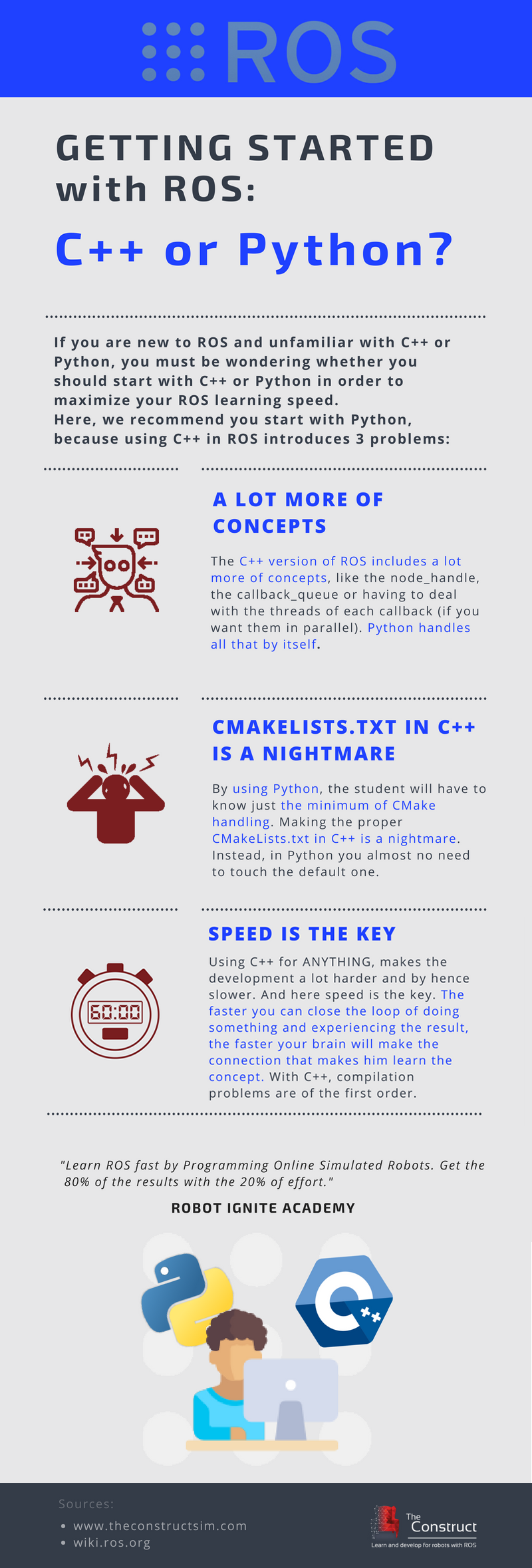
If you are new to ROS and unfamiliar with C++ or Python, you must be wondering whether you should start with ROS Python or ROS C++ in order to maximize your ROS learning speed.
In this infographic we recommend you start with ROS Python and show you 3 reasons for not using C++ in ROS:
In this video we are going to see how can we subscribe to topics so that we can get the position and acceleration of a Sphero robot.
This video is especially good for beginners who have already understood the basics, and want to start writing their own code. We will try to properly structure our Python code, as well as follow some programming good practices.
Step 1. Create a project in ROS Development Studio(ROSDS)
ROSDS helps you follow our tutorial in a fast pace without dealing without setting up an environment locally. If you haven’t had an account yet, you can create a free account here. Let’s create a new project and call it Print_Position_QA.
Step 2. Create a package
To reproduce the question, we’ll use the original code from the forum. Let’s create a package for the code first with the following command.
cd ~/catkin_ws/src
catkin_create package print_pos rospy
Then we create a script file called main.py and put it in the scripts folder under the print_pos package with the following content from the forum.
! /usr/bin/env python
import rospy

from geometry_msgs.msg import Twist

from nav_msgs.msg import Odometry

from sensor_msgs.msg import Imu

rospy.init_node('sphero')

pub = rospy.Publisher('/cmd_vel', Twist, queue_size=1) #topic publisher that allows you to move the sphero

rate = rospy.Rate(0.5)

def odom (msg):

go = Odometry()

print "pose x = " + str(go.pose.pose.position.x)

print "pose y = " + str(go.pose.pose.position.y)

print "orientacion x = " + str(go.pose.pose.orientation.x)

print "orientacion y = " + str(go.pose.pose.orientation.y)

rate.sleep()

sub = rospy.Subscriber('odom', Odometry, odom)

def imu (msg):

allez = Imu()

print "veloc angular z = " + str(allez.angular_velocity.z)

print "veloc angular y = " + str(allez.angular_velocity.y)

print "aceleracion linear x = " + str(allez.linear_acceleration.x)

print "aceleracion linear y = " + str(allez.linear_acceleration.y)

rate.sleep()

sub = rospy.Subscriber('sphero/imu/data3', Imu, imu)

def twist (msg):

move = Twist()

print "velocidad linear x = " + str(move.linear.x)

print "velocidad angular z = " + str (move.angular.z)

rate.sleep()

sub=rospy.Subscriber('cmd_vel', Twist, twist)

while not rospy.is_shutdown():

move = Twist()

move.linear.x = 2

move.angular.z= 0.5

pub.publish(move)

rospy.spin()
Some part of the code is not correct(e.g. the subscriber is not subscribing correctly so there is no reading), let’s correct it as follows.
#! /usr/bin/env python
import rospy
from geometry_msgs.msg import Twist
from nav_msgs.msg import Odometry
from sensor_msgs.msg import Imu

def odom_callback(msg):
    # go = Odometry() is not needed
    print "------------------------------------------------"
    print "pose x = " + str(msg.pose.pose.position.x)
    print "pose y = " + str(msg.pose.pose.position.y)
    print "orientacion x = " + str(msg.pose.pose.orientation.x)
    print "orientacion y = " + str(msg.pose.pose.orientation.y)
    rate.sleep()

def imu_callback(msg):
    # allez = Imu()
    print "------------------------------------------------"
    print "veloc angular z = " + str(msg.angular_velocity.z)
    print "veloc angular y = " + str(msg.angular_velocity.y)
    print "aceleracion linear x = " + str(msg.linear_acceleration.x)
    print "aceleracion linear y = " + str(msg.linear_acceleration.y)
    rate.sleep()

def twist (msg):
    # move = Twist()
    print "velocidad linear x = " + str(move.linear.x)
    print "velocidad angular z = " + str (move.angular.z)
    rate.sleep()
    #sub=rospy.Subscriber('cmd_vel', Twist, twist)

rospy.init_node('sphero_monitor') # the original name sphero might be the same as other node.
pub = rospy.Publisher('/cmd_vel', Twist, queue_size=1) #topic publisher that allows you to move the sphero
sub_odom = rospy.Subscriber('/odom', Odometry, odom_callback) # the original name odom might be the same as other function.
sub_imu = rospy.Subscriber('/sphero/imu/data3', Imu, imu_callback)
rate = rospy.Rate(0.5)

while not rospy.is_shutdown():
    move = Twist()
    move.linear.x = 0.1 # m/s. The original value 2 is too large
    move.angular.z= 0.5 # rad/s
    pub.publish(move)
    rate.sleep() # Instead of using rospy.spin(), we should use rate.sleep because we are in a loop
Before executing the code, we have to give it permission first with chmod +x main.py and we also need the simulation(start it from Simulations->Sphero).
Then we can run the code with rosrun print_pos main.py
You should see the readings from sensors and the robot also starts to move around.
If you are interested in this topic, please check our ROS Basics in 5 Days course. You’ll learn how to control the Sphero robot to exit the maze in this course.
Edit by: Tony Huang
Feedback
Did you like this video? Do you have questions about what is explained? Whatever the case, please leave a comment on the comments section below, so we can interact and learn from each other.
If you want to learn about other ROS topics, please let us know on the comments area and we will do a video about it.
Step 1. Create a project in ROS Development Studio(ROSDS)
ROSDS helps you follow our tutorial in a fast pace without dealing without setting up an environment locally. If you haven’t had an account yet, you can create a free account here. Let’s create a new project and call it testing_action.
Step 2. Create package
At first, let’s create the package with dependencies
cd ~/catkin_ws/src
catkin_create_pkg test_action roscpp actionlib actionlib_msgs robot_calibration_msgs
Then we create a file called action_code.cpp under test_action/src folder with the following content from the question
In this ROS LIVE-Class we’re going to learn how to create a marker to be displayed in ROS Rviz. Markers are special graphics that we can use in Rviz to display data generated by the robot. For example, we can create a marker that shows a person figure at the proper distance of the robot when the robot detects a person. By using markers, we can debug and understand better what the robot program is doing. Markers are basic tools for robot program debug!
We will see:
How to get the information we want to display from a ROS program
How to create a custom marker that contains that information
How to display the marker on the Rviz
How to build a mesh marker and show it on Rviz
Every Tuesday at 18:00 CET/CEST.
This is a LIVE Class on how to develop with ROS. In Live Classes you practice with me at the same time that I explain, with the provided free ROS material.
IMPORTANT: Remember to be on time for the class because at the beginning of the class we will share the code with the attendants.
IMPORTANT 2: in order to start practicing quickly, we are using the ROS Development Studio for doing the practice. You will need a free account to attend the class. Go to http://rds.theconstructsim.com and create an account prior to the class.

![[Infographic] ROS Python vs C++](https://www.theconstruct.ai/wp-content/uploads/2018/06/getting-started-on-ros-with-c-or-python-1.png)
![[ROS Q&A] 131 – Compilation error in ROS Action Server](https://www.theconstruct.ai/wp-content/uploads/2018/06/Compilation-error-in-ROS-Action-Server.png)