In this video we are going to show how to solve the problem of a pioneer 3dx gazebo robot that still moves even after releasing the keyboard, using keyboard twist teleop.
Step 1. Create a project in ROS Development Studio(ROSDS)
ROSDS helps you follow our tutorial in a fast pace without dealing without setting up an environment locally. If you haven’t had an account yet, you can create a free account here. Let’s create a new project and call it pioneer3dx_do_not_stop.
Step 2. Clone the repository
To reproduce the problem, we have to clone it from the original repository. Create a folder called p3dx under the simulation_ws/src and run the following commands to clone the repository.
cd simulation_ws/src/
mkdir p3dx && cd p3dx
git clone https://github.com/RafBerkvens/ua_ros_p3dx.git
Then you can run the simulation from Simulations->select launch file->gazebo.launch
You can try to control the robot by sending the command to the /p3dx/cmd_vel topic. Then you’ll see the problem. The robot won’t stop even when we stop sending command.
To fix this, we comment out these lines in the /p3dx/p3dx_description/urdf/pioneer3dx.gazebo file
We want to change the controller which support timeout control and we also have to specify transmission property. Several parts have been changed in the repository. You can find the changes in detail here. We also need a parameter file for the controller. Create a file called control.yaml under the /p3dx/p3dx_control/ directory with the following content.
We also have to modify the gazeno.launch file like this to launch the controller.
<launch>

	<!-- these are the arguments you can pass this launch file, for example
		paused:=true -->
	<arg name="paused" default="false" />
	<arg name="use_sim_time" default="true" />
	<arg name="gui" default="true" />
	<arg name="headless" default="false" />
	<arg name="debug" default="false" />

	<!-- We resume the logic in empty_world.launch, changing only the name of
		the world to be launched -->
	<include file="$(find gazebo_ros)/launch/empty_world.launch">
		<!--<arg name="world_name" value="$(find p3dx_gazebo)/worlds/p3dx.world" />-->
		<arg name="debug" value="$(arg debug)" />
		<arg name="gui" value="$(arg gui)" />
		<arg name="paused" value="$(arg paused)" />
		<arg name="use_sim_time" value="$(arg use_sim_time)" />
		<arg name="headless" value="$(arg headless)" />
	</include>

	<group ns="/p3dx">

		<!-- Load the URDF into the ROS Parameter Server -->

		<param name="robot_description"
			command="$(find xacro)/xacro.py --inorder '$(find p3dx_description)/urdf/pioneer3dx.xacro'" />

		<!-- Run a python script to the send a service call to gazebo_ros to spawn
			a URDF robot -->
		<node name="urdf_spawner" pkg="gazebo_ros" type="spawn_model"
			respawn="false" output="screen" args="-urdf -param robot_description -model p3dx" />

		<rosparam command="load" file="$(find p3dx_control)/config/control.yaml" />

		<node name="base_controller_spawner" pkg="controller_manager" type="spawner"
	        args="--namespace=/p3dx
	        p3dx_joint_publisher
	        p3dx_velocity_controller
	        --shutdown-timeout 3"
	        output="screen"/>

		<!-- ros_control p3rd launch file -->
		<!-- <include file="$(find p3dx_control)/launch/control.launch" /> -->
	</group>

</launch>
Now you launch the simulation again and execute the following command rosrun teleop_twist_keyboard teleop_twist_keyboard.py cmd_vel:=/p3dx/p3dx_velocity_controller/cmd_vel . You’ll see that the robot stops when you release the key. You can also change the time for timeout in the control.yaml file.
If you are interested in this topic, please check our ROS control 101 course, which explains the ros controller much into detail.
Edit by: Tony Huang
—–
Did you like the video? If you did please give us a thumbs up and remember to subscribe to our channel and press the bell for a new video every day. Either you like it or not, please share your thoughts and questions in the comments area.
Step 1. Create a project in ROS Development Studio(ROSDS)
ROSDS helps you follow our tutorial in a fast pace without dealing without setting up an environment locally. If you haven’t had an account yet, you can create a free account here. Let’s create a new project and call it moveit_qa.
Step 2. Use the moveit package
In this tutorial, we have already preconfigured the fetch robot and moveit package for it. If you want to know how to configure the moveit package, please check our ROS Manipulation in 5 days course. Then we create a file called execute_trajectories.py inside the fetch_moveit_config folder with the following content.
Then we run the script again. The robot should do several movements as we planned.
Want to learn more?
If you want to learn more about the motion planning with moveit package, please check our ROS Manipulation in 5 Days course.
Edit by: Tony Huang
Feedback
Did you like this video? Do you have questions about what is explained? Whatever the case, please leave a comment on the comments section below, so we can interact and learn from each other.
If you want to learn about other ROS topics, please let us know on the comments area and we will do a video about it.
Step 1. Create a project in ROS Development Studio(ROSDS)
ROSDS helps you follow our tutorial in a fast pace without dealing without setting up an environment locally. If you haven’t had an account yet, you can create a free account here. Let’s create a new project and call it edit_map_qa.
Step 2. Map generation
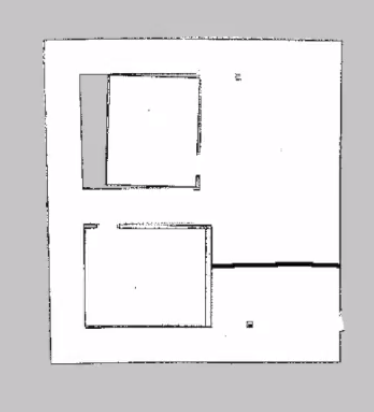
In ROS, you can generate a map with SLAM algorithm like gmapping. The map file normally has the .pgm and .yaml foramt where the .pgm is basically an image and .yaml file contains some information like origin, resolution and etc. In this tutorial, I a map is generated using the summit xl robot.
Step 3. Edit map
There are many edit tools available. As a demonstration, we use GIMP on mac to edit the .pgm image. For example, Add a wall in the map.
Step 4. Publish the new map to the map server
Now, you can launch the navigation package again, you’ll see that a new ‘wall’ appears on the map. If you do the path planning again, you should notice that the path is changed due to the wall is blocking the way now.
Want to learn more?
If you are interested in this topic and want to learn more about the navigation stack in ROS and how to use map sever, please check our ROS Navigation in 5 Days Online Course for more information.
Edit by: Tony Huang
Feedback
Did you like this video? Do you have questions about what is explained? Whatever the case, please leave a comment on the comments section below, so we can interact and learn from each other.
If you want to learn about other ROS topics, please let us know on the comments area and we will do a video about it.
In this video we are going to see how to tune and tweak the parameters required for navigation, using a graphical tool. This tool will enable us to modify parameters on-the-run, allowing us to quickly and painlessly test various parameter settings.
Step1. Create a project in Robot Ignite Academy(RIA)
We have the best online ROS course available in RIA. It helps you learn ROS in the easiest way without setting up ROS environment locally. The only thing you need is a browser! Create an account here and start to browse the trial course for free now! We’ll use the ROS Navigation in 5 days course as an example today. Please go to Unit 0: Guide for ROS Navigation in 5 Days.
Step2. Check the parameter
We use turtlebot 2 as an example. You can use the following command to navigate to the parameter file.
roscd turtlebot_navigation_gazebo
cd param
cat dwa_local_planner_params.yaml
Let’s launch the navigation stack with the following command
If you checked the parameters, you’ll see there are lots of different parameters. How can we tune them? Let’s use a built-in graphical tool called rqt_reconfigure with the following command.
rosrun rqt_reconfigure rqt_reconfigure
Step3. Tune the parameter
For example, the question is about the inflation_radius. You can find it under move_base->global_costmap->inflation_layer.
The best part of this graphical tool is that the change will apply to the simulation immediately, so you can run and tune your navigation stack at the same time. You can also save the parameter to a .yaml file if you click the button on the top left corner.
Want to learn more?
If you want to learn more about the navigation stack and what is the meaning of each parameter, please check our ROS navigation in 5 days course.
Edit by: Tony Huang
Feedback
Did you like this video? Do you have questions about what is explained? Whatever the case, please leave a comment on the comments section below, so we can interact and learn from each other.
If you want to learn about other ROS topics, please let us know on the comments area and we will do a video about it.
In this video we are going to see how to rotate our robot based on data from odometry. We will subscribe to /odom topic to get the heading of our robot, process it, and then send a command over the /cmd_vel topic.
[irp posts=”7999″ name=”ROS Q&A – How to convert quaternions to Euler angles”]
Step 1. Create a project in ROS Development Studio(ROSDS)
We can do any ROS development we want easily, without setting up environment locally in ROSDS and that’s the reason why we will use ROSDS for this tutorial. If you haven’t had an account yet. You can create one here for free now. After logging in, let’s begin our journey by clicking on the create new project and call it rotate_robot.
Step 2. Create package
At first, we launch the simulation from Simulations->Turtlebot 2
We’ll create a package for the rotating robot task with the following command
cd ~/catkin_ws/src
catkin_create_pkg rotate_robot rospy
Then we’ll create a script folder and a main.py script inside it with the following content
#!/usr/bin/env python
import rospy
from nav_msgs.msg import Odometry
from tf.transformations import euler_from_quaternion, quaternion_from_euler

roll = pitch = yaw = 0.0

def get_rotation (msg):
    global roll, pitch, yaw
    orientation_q = msg.pose.pose.orientation
    orientation_list = [orientation_q.x, orientation_q.y, orientation_q.z, orientation_q.w]
    (roll, pitch, yaw) = euler_from_quaternion (orientation_list)
    print yaw

rospy.init_node('my_quaternion_to_euler')

sub = rospy.Subscriber ('/odom', Odometry, get_rotation)

r = rospy.Rate(1)
while not rospy.is_shutdown():
    quat = quaternion_from_euler (roll, pitch,yaw)
    print quat
    r.sleep()
Then we can run the script with the following command to see the topic publishing in quaternion and Euler angle.
cd rotate_robot/script
chmod +x main.py
rosrun rotate_robot main.py
You can also run the teleop script to move the robot and see the value changing with this command
We’ll use the easiest way to do it by applying the controller. Please save the script with a new name rotate.py and change it as the following content.
#!/usr/bin/env python
import rospy
from nav_msgs.msg import Odometry
from tf.transformations import euler_from_quaternion, quaternion_from_euler
from geometry_msgs.msg import Twist
import math

roll = pitch = yaw = 0.0
target = 90
kp=0.5

def get_rotation (msg):
    global roll, pitch, yaw
    orientation_q = msg.pose.pose.orientation
    orientation_list = [orientation_q.x, orientation_q.y, orientation_q.z, orientation_q.w]
    (roll, pitch, yaw) = euler_from_quaternion (orientation_list)
    print yaw

rospy.init_node('rotate_robot')

sub = rospy.Subscriber ('/odom', Odometry, get_rotation)
pub = rospy.Publisher('cmd_vel', Twist, queue_size=1)
r = rospy.Rate(10)
command =Twist()

while not rospy.is_shutdown():
    #quat = quaternion_from_euler (roll, pitch,yaw)
    #print quat
    target_rad = target*math.pi/180
    command.angular.z = kp * (target_rad-yaw)
    pub.publish(command)
    print("taeget={} current:{}", target,yaw)
    r.sleep()
After executing it, you should see the robot turn to the desired orientation.
Want to learn more?
Applying the controller is not the only way to do it. There are more advanced and better ways to do it. If you are interested, please check our ROS Basic and TF ROS 101 courses in Robot Ignite Academy for more information.
Edit by: Tony Huang
Feedback
Did you like this video? Do you have questions about what is explained? Whatever the case, please leave a comment on the comments section below, so we can interact and learn from each other.
If you want to learn about other ROS topics, please let us know on the comments area and we will do a video about it.