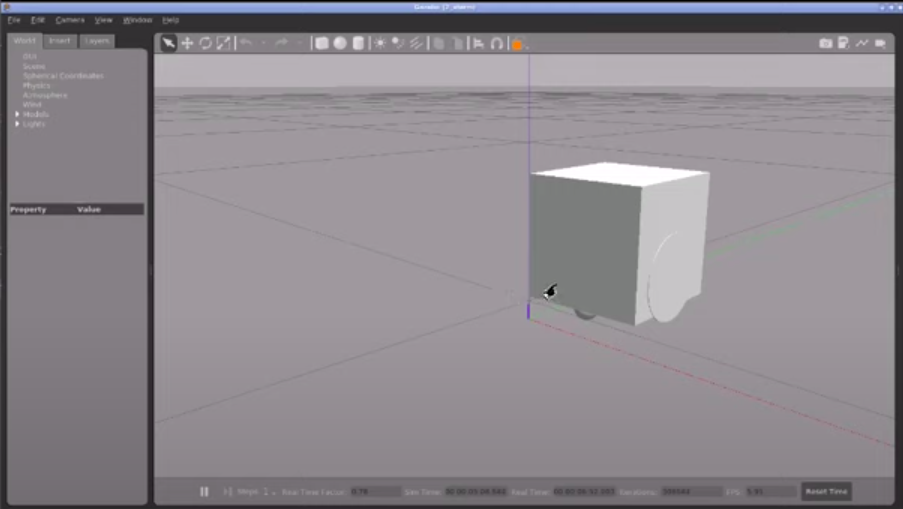
In this post you’ll learn how to program a robot to avoid obstacles using ROS2 and C++.
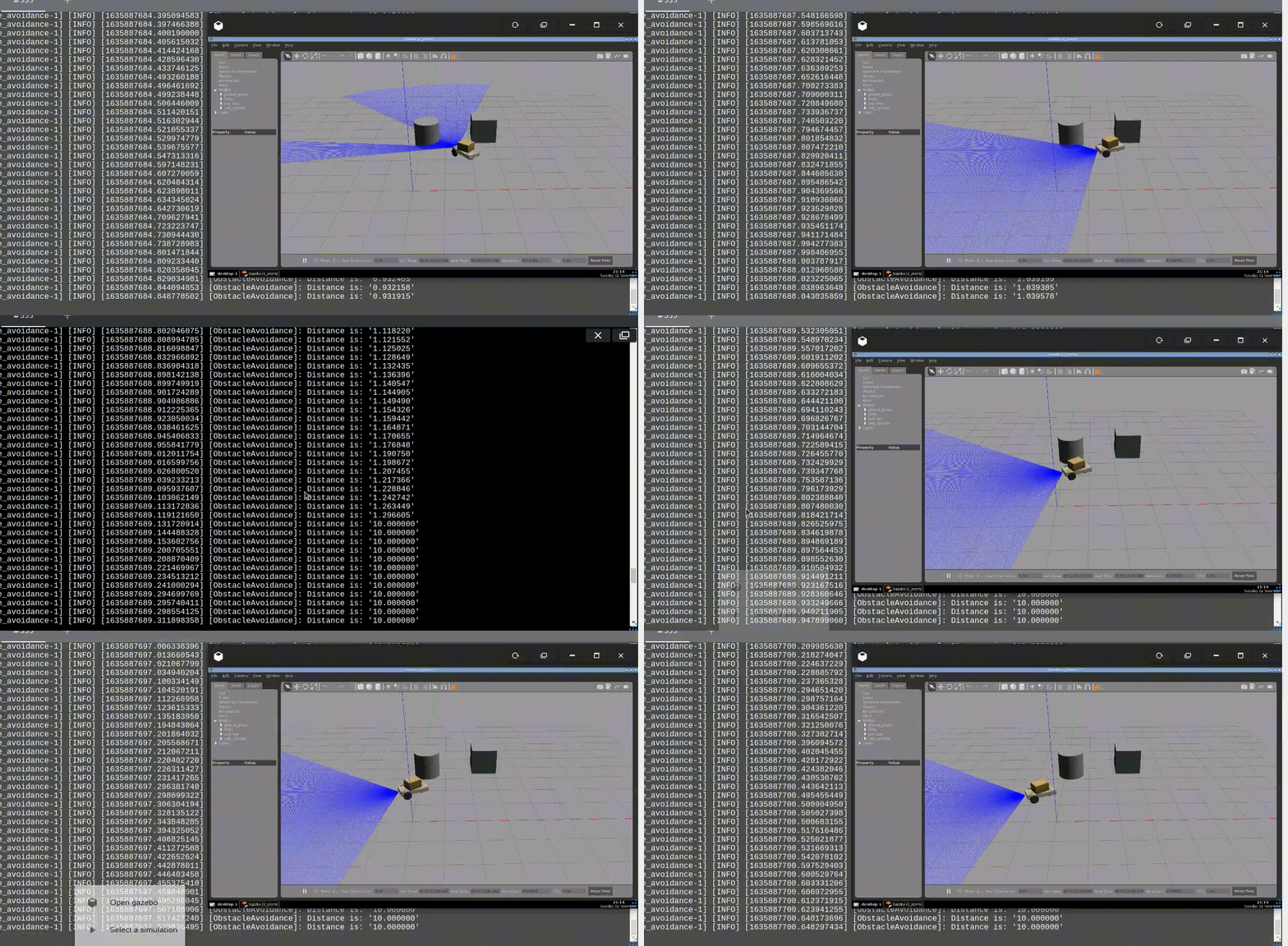
Up to the end of the post, the Dolly robot moves autonomously in a scene with many obstacles, simulated using Gazebo 11.
You’ll learn:
How to publish AND subscribe topics in the same ROS2 Node
How to avoid obstacles
How to implement your own algorithm in ROS2 and C++
1 – Setup environment – Launch simulation
Before anything else, make sure you have the rosject from the previous post, you can copy it from here.
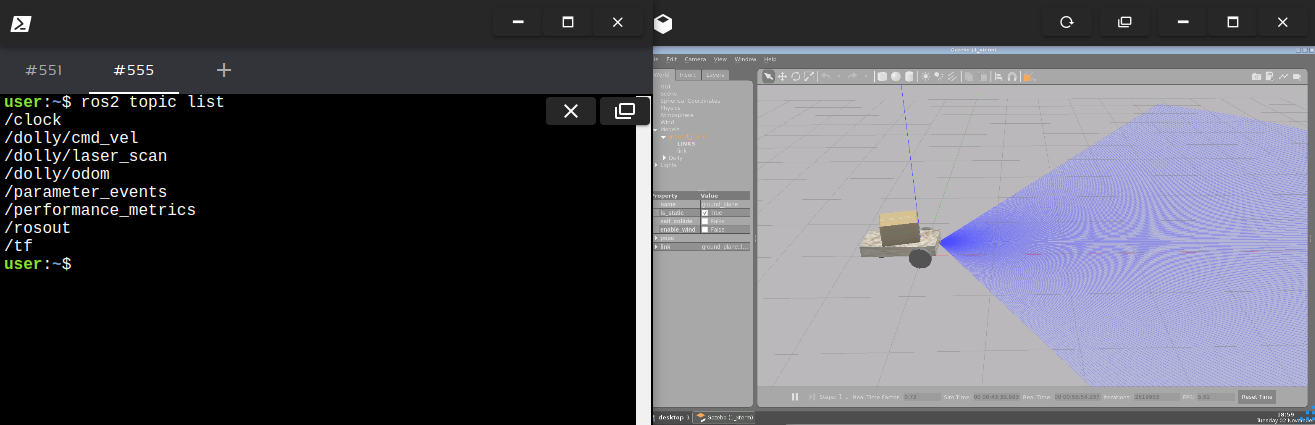
Launch the simulation in one webshell and in a different tab, checkout the topics we have available. You must get something similar to the image below:
2 – Create the node
In order to have our obstacle avoidance algorithm, let’s create a new executable in the file ~/ros2_ws/src/my_package/obstacle_avoidance.cpp:
#include "geometry_msgs/msg/twist.hpp"    // Twist
#include "rclcpp/rclcpp.hpp"              // ROS Core Libraries
#include "sensor_msgs/msg/laser_scan.hpp" // Laser Scan

using std::placeholders::_1;

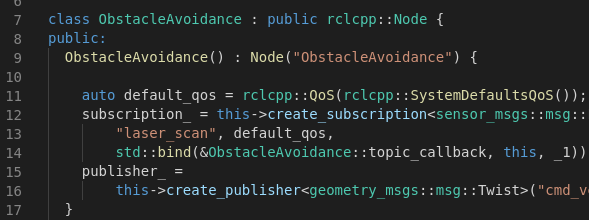
class ObstacleAvoidance : public rclcpp::Node {
public:
  ObstacleAvoidance() : Node("ObstacleAvoidance") {

    auto default_qos = rclcpp::QoS(rclcpp::SystemDefaultsQoS());
    subscription_ = this->create_subscription(
        "laser_scan", default_qos,
        std::bind(&ObstacleAvoidance::topic_callback, this, _1));
    publisher_ =
        this->create_publisher("cmd_vel", 10);
  }

private:
  void topic_callback(const sensor_msgs::msg::LaserScan::SharedPtr _msg) {
    // 200 readings, from right to left, from -57 to 57 degress
    // calculate new velocity cmd
    float min = 10;
    for (int i = 0; i < 200; i++) { float current = _msg->ranges[i];
      if (current < min) { min = current; } } auto message = this->calculateVelMsg(min);
    publisher_->publish(message);
  }
  geometry_msgs::msg::Twist calculateVelMsg(float distance) {
    auto msg = geometry_msgs::msg::Twist();
    // logic
    RCLCPP_INFO(this->get_logger(), "Distance is: '%f'", distance);
    if (distance < 1) {
      // turn around
      msg.linear.x = 0;
      msg.angular.z = 0.3;
    } else {
      // go straight ahead
      msg.linear.x = 0.3;
      msg.angular.z = 0;
    }
    return msg;
  }
  rclcpp::Publisher::SharedPtr publisher_;
  rclcpp::Subscription::SharedPtr subscription_;
};

int main(int argc, char *argv[]) {
  rclcpp::init(argc, argv);
  rclcpp::spin(std::make_shared());
  rclcpp::shutdown();
  return 0;
}
In the main function we have:
Initialize node rclcpp::init
Keep it running rclcpp::spin
Inside the class constructor:
Subcribe to the laser scan messages: subscription_
Publish to the robot diff driver: publisher_
The obstacle avoidance intelligence goes inside the method calculateVelMsg. This is where decisions are made based on the laser readings. Notice that is depends purely on the minimum distance read from the message.
If you want to customize it, for example, consider only the readings in front of the robot, or even check if it is better to turn left or right, this is the place you need to work on! Remember to adjust the parameters, because the way it is, only the minimum value comes to this method.
3 – Compile the node
This executable depends on both geometry_msgs and sensor_msgs, that we have added in the two previous posts of this series. Make sure you have them at the beginning of the ~/ros2_ws/src/my_package/CMakeLists.txt file:
In order to learn how to use a static transform, we need a ROS2 Python package. We are going to use The Construct (https://www.theconstruct.ai/) for this tutorial, but if you have ROS2 installed on your own computer, you should be able to do ~everything on your own computer, except this creating a rosject part.
Let’s start by opening The Construct (https://www.theconstruct.ai/) and logging in. You can easily create a free account if you still don’t have one.
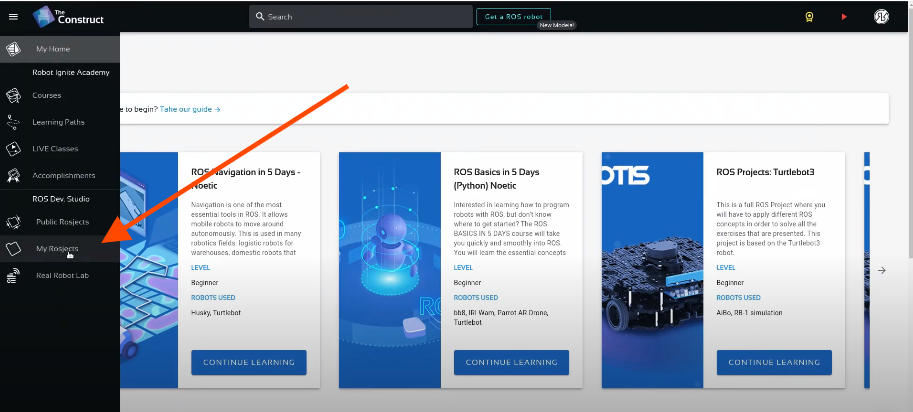
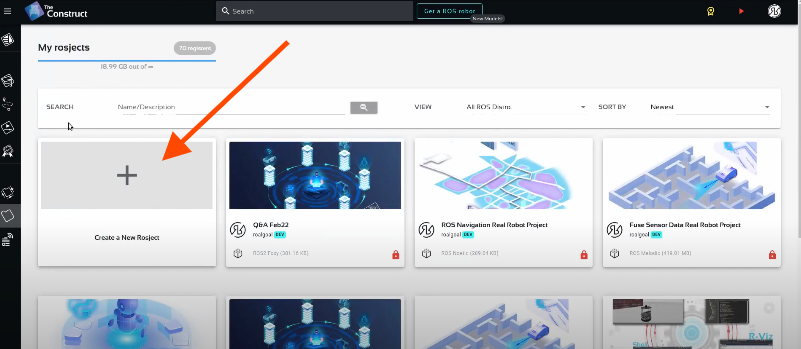
Once inside, let’s create My Rosjects and then, Create a new rosject:
My Rosjects
Create a new rosject
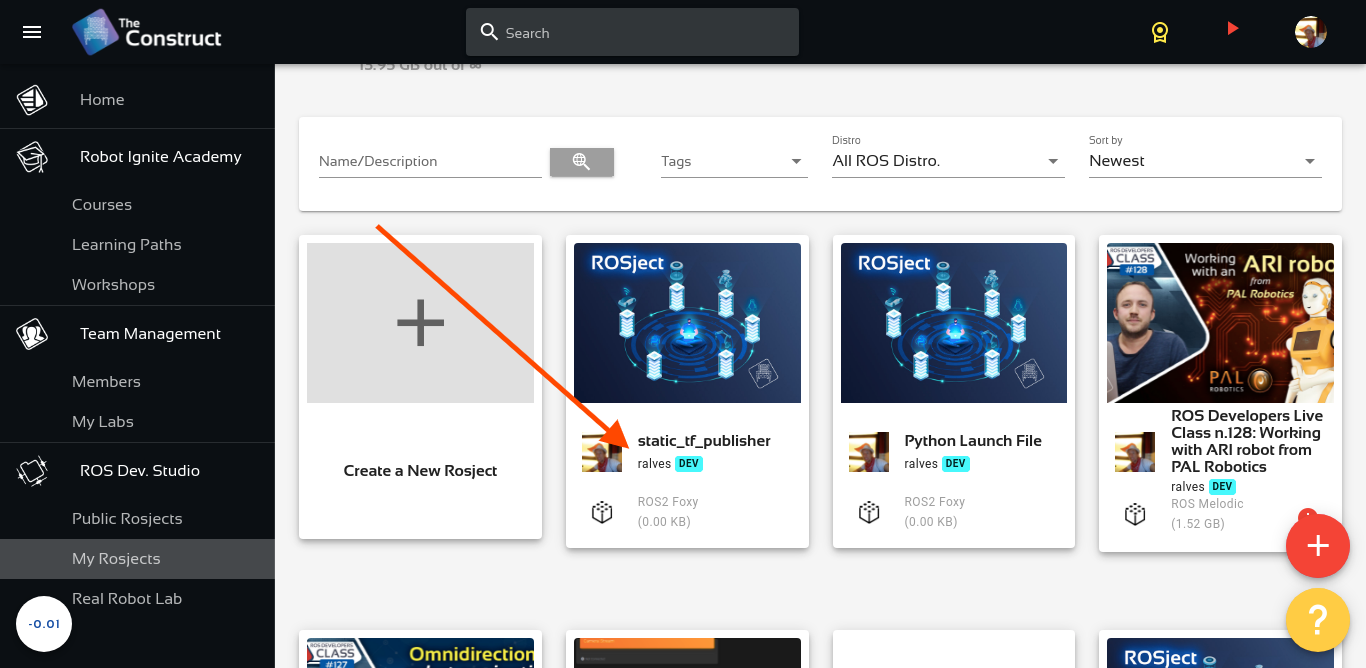
For the rosject, let’s select ROS2 Foxyfor the ROS Distro, let’s name the rosject as static_tf_publisher. You can leave the rosject public.
Static TF Publisher
If you mouse over the recently created rosject, you should see a Run button. Just click that button to launch the rosject.
Creating a ROS2 package named static_tf_transform
Once the rosject is open, we can now create a package that will be used to publish the static transform.
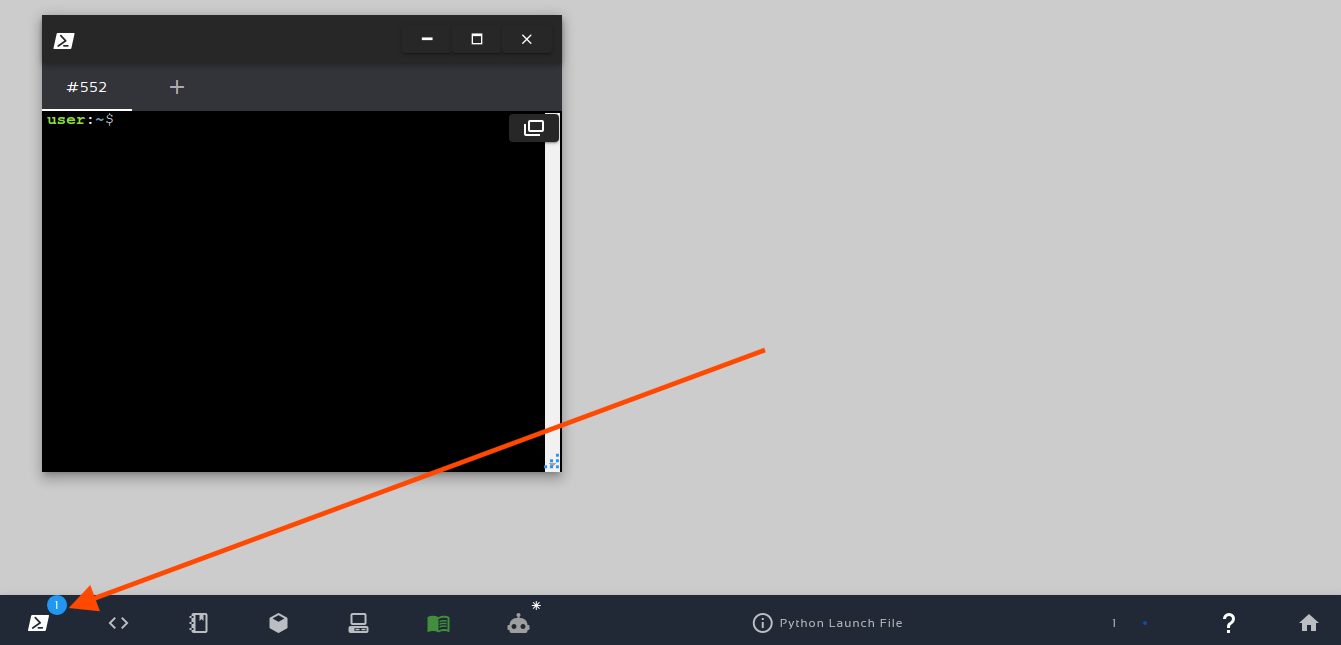
Let’s open a new terminal by clicking on the Open a new shell window button:
Open a new shell
Once the terminal is open, we can list the files with the ls command:
user:~$ ls
ai_ws  catkin_ws  notebook_ws  ros2_ws  simulation_ws  webpage_ws
We can see a workspace named ros2_ws. Let’s enter that workspace using cd ros2_ws/:
If you now list your src folder using ls, you should be able to see our package:
user:~/ros2_ws/src$ ls
static_tf
We can now enter into this static_tf package using cd static_tf/ and create a launch folder there, and a file named static_tf_launch.py on that folder:
cd ~/ros2_ws/src/static_tf/
mkdir launch
touch launch/static_tf_launch.py
We can now open that static_tf_launch.py file using the Code Editor, and add the following content to it:
Once the static_tf_launch.py file is ok, let’s now open again our setup.py file (~/ros2_ws/src/static_tf/setup.py), and add our static_tf_launch.py file to data_files, so that our launch file will be included in the install folder when we compile our workspace. By doing this we will be able to execute it:
The bit we have to add to data_files is (os.path.join(‘share’, package_name, ‘launch’), glob(‘launch/*.py’)), so that data_files looks like:
After launching the static_tf_launch.py file, the output should be similar to the following:
[INFO] [launch]: All log files can be found below /home/user/.ros/log/2021-11-08-23-10-55-010925-2_xterm-6136
[INFO] [launch]: Default logging verbosity is set to INFO
[INFO] [static_transform_publisher-1]: process started with pid [6138]
[static_transform_publisher-1] [INFO] [1636413056.712927342] [static_transform_publisher_uKqntZ5iDxRToFQR]: Spinning until killed publishing transform from 'odom' to 'laser'
As we can see in the logs, we have the static_transform_publisher publishing a static transform from the odom to the laser frame.
We can now go to a second terminal and check the transforms between the frames with:
ros2 run tf2_ros tf2_echo odom laser
Assuming everything went as expected, the output you should get should be similar to the following:
[INFO] [1636413489.330173729] [tf2_echo]: Waiting for transform odom -> laser: Invalid frame ID "odom" passed to canTransform argument target_frame - frame does not exist
At time 0.0
- Translation: [0.000, 0.000, 0.000]
- Rotation: in Quaternion [0.000, 0.000, 0.000, 1.000]
At time 0.0
- Translation: [0.000, 0.000, 0.000]
- Rotation: in Quaternion [0.000, 0.000, 0.000, 1.000]
At time 0.0
- Translation: [0.000, 0.000, 0.000]
- Rotation: in Quaternion [0.000, 0.000, 0.000, 1.000]
Congratulations. You now know how to publish a static transform between two frames in ROS2 using Python. In addition to that, you have also learned how to create a python package as well as a launch file along the way. Feel free to terminate the scripts you have executed by pressing CTRL+C in the terminals. You can also for sure spend more time using this great online platform, The Construct.
Youtube video
So this is the post for today. Remember that we have the live version of this post on YouTube. If you liked the content, please consider subscribing to our youtube channel. We are publishing new content ~every day.
In this post, we will see how to implement Gazebo joints control in ROS2. The way this is done has changed a bit from ROS1.
Step 1: Grab a copy of the ROS Project containing the code
Click here to get your own copy of the project (PS: If you don’t have an account on the ROS Development Studio, you would need to create one. Once you create an account or log in, we will copy the project to your workspace).
That done, open the project using the Run button. This might take a few moments, please be patient.
You should now see a notebook with detailed instructions. This post includes a summary of these instructions and some other tips.
Step 2: Start the Simulation and get the robot moving
Start a web shell from the bottom bar of the screen as shown above and run the following command:
ros2 launch box_car_gazebo box_bot_launch.py
Start another tab in the web shell, run the following command:
ros2 run teleop_twist_keyboard teleop_twist_keyboard --ros-args --remap cmd_vel:=/box_bot/cmd_vel
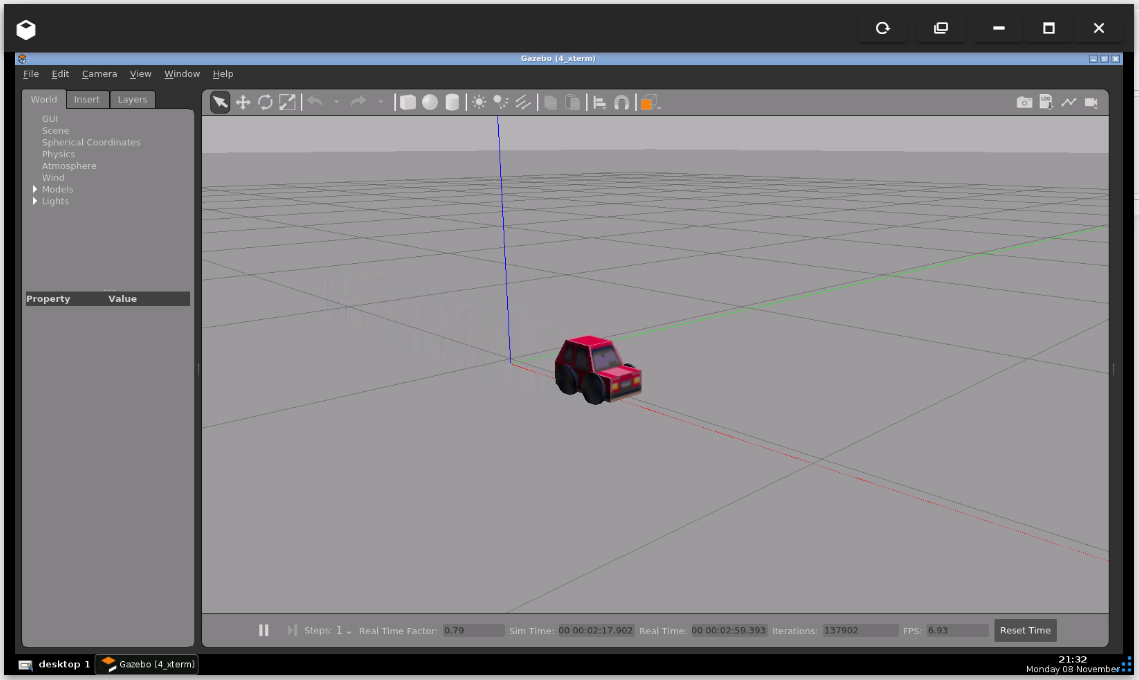
See the robot by clicking on the Gazebo icon on the bottom bar:
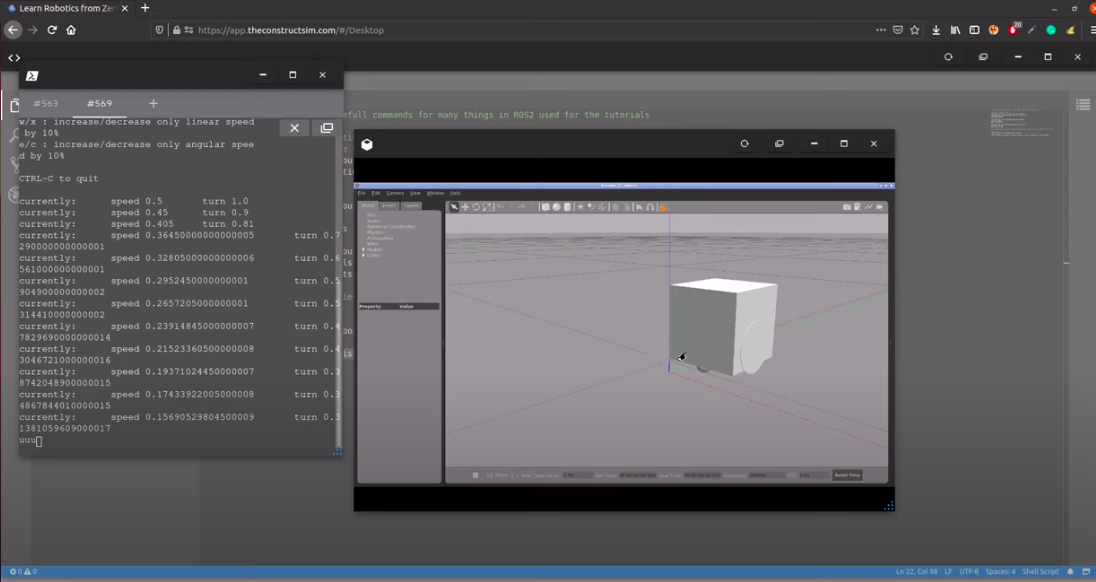
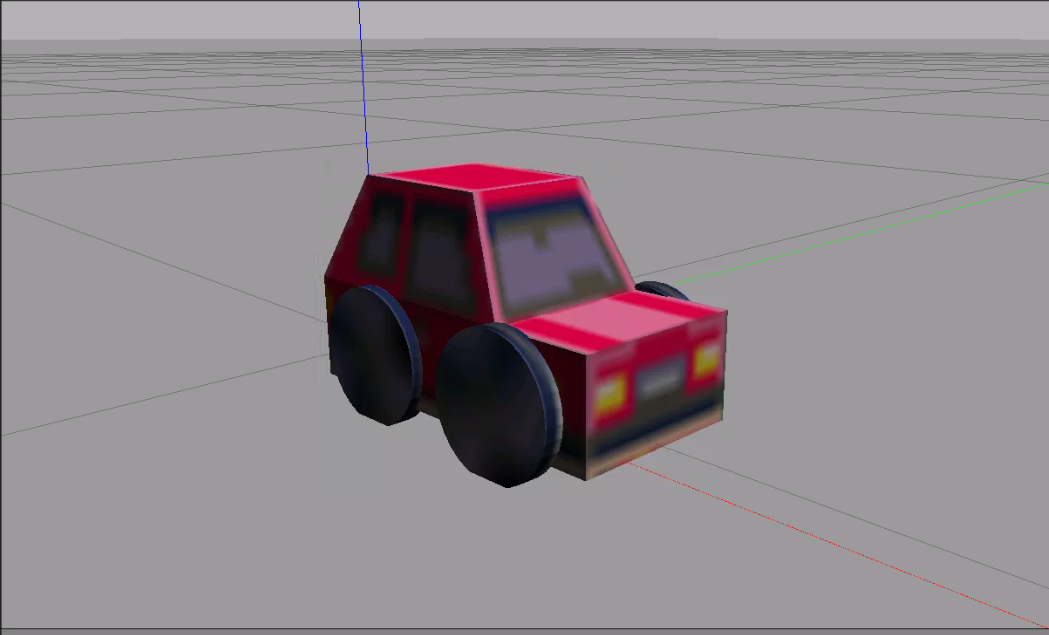
You should now see something like this (if you cannot see it, please ensure the ros2 launch command is still running and restart it if necessary):
Put the Gazebo window and the shell window with the teleop command side by side, focus on the shell and move the robot with the keyboard. You should see the robot run off. PS: use the z key to reduce the speed before moving the robot forward or backward, otherwise it runs off too quickly!
Step 3: Explore the source code using the IDE
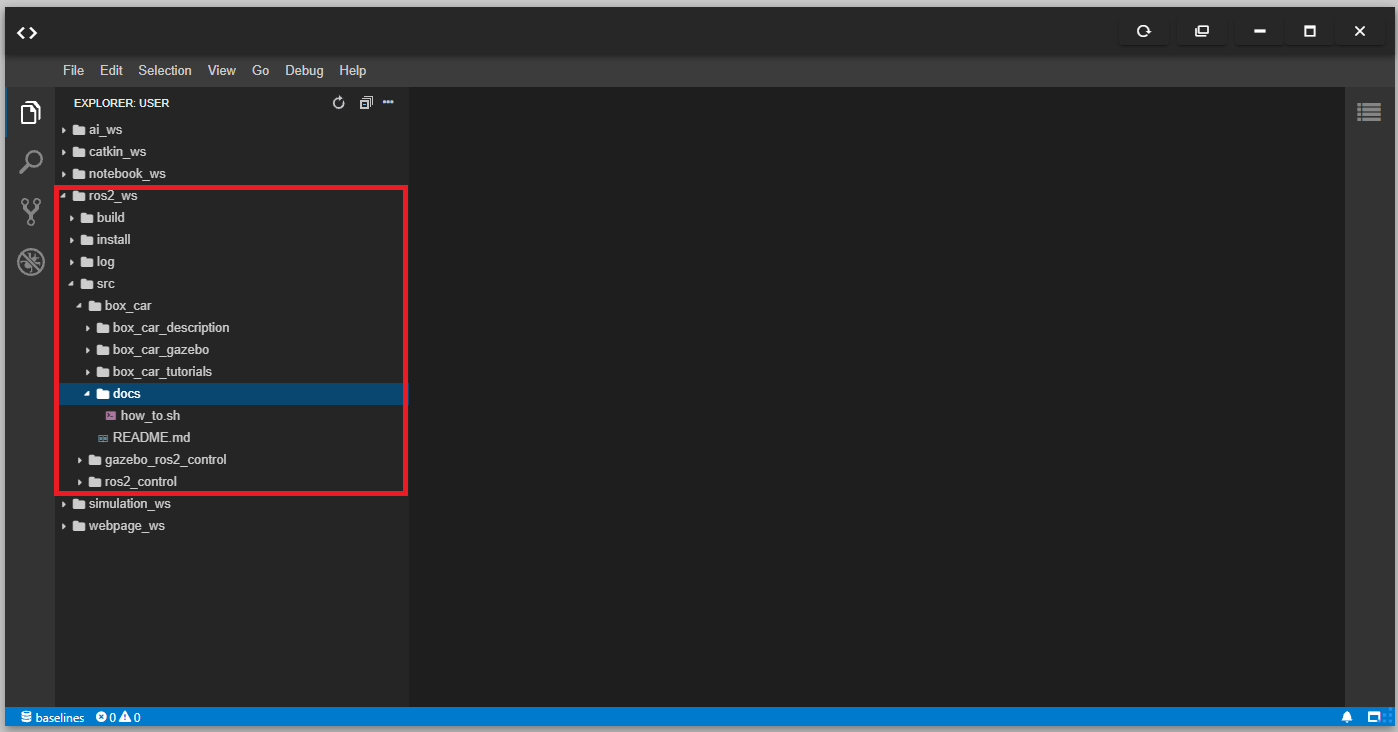
Open the IDE by clicking on the icon as shown above. You should now see something similar to the image below:
All the files used in the simulation are in the ros2_ws/src directory. Explore the files. Double-click to open a file in the editor. You will refer back to some of the files later on.
Step 4: Watch the video to understand how we implemented gazebo joints control in ROS2
Here you go:
Step 5: Consolidate your learning
Do you understand how to implement gazebo joints control in ROS2 after watching the video? If not, have you gone over the video again?
If you are familiar with ROS1 control, can you see how it’s different from ROS control?
Did you like this post? Do you have any questions about the explanations? Whatever the case, please leave a comment on the comments section below, so we can interact and learn from each other.
If you want to learn about other ROS2 topics, please let us know in the comments area and we will do a video or post about it.
In this post you’ll learn how to publish to a ROS2 topic using ROS2 C++.
Up to the end of the video, we are moving the robot Dolly robot, simulated using Gazebo 11.
You’ll learn:
How to create a node with ROS2 and C++
How to public to a topic with ROS2 and C++
1 – Setup environment – Launch simulation
Before anything else, make sure you have the rosject from the previous post, you can copy it from here.
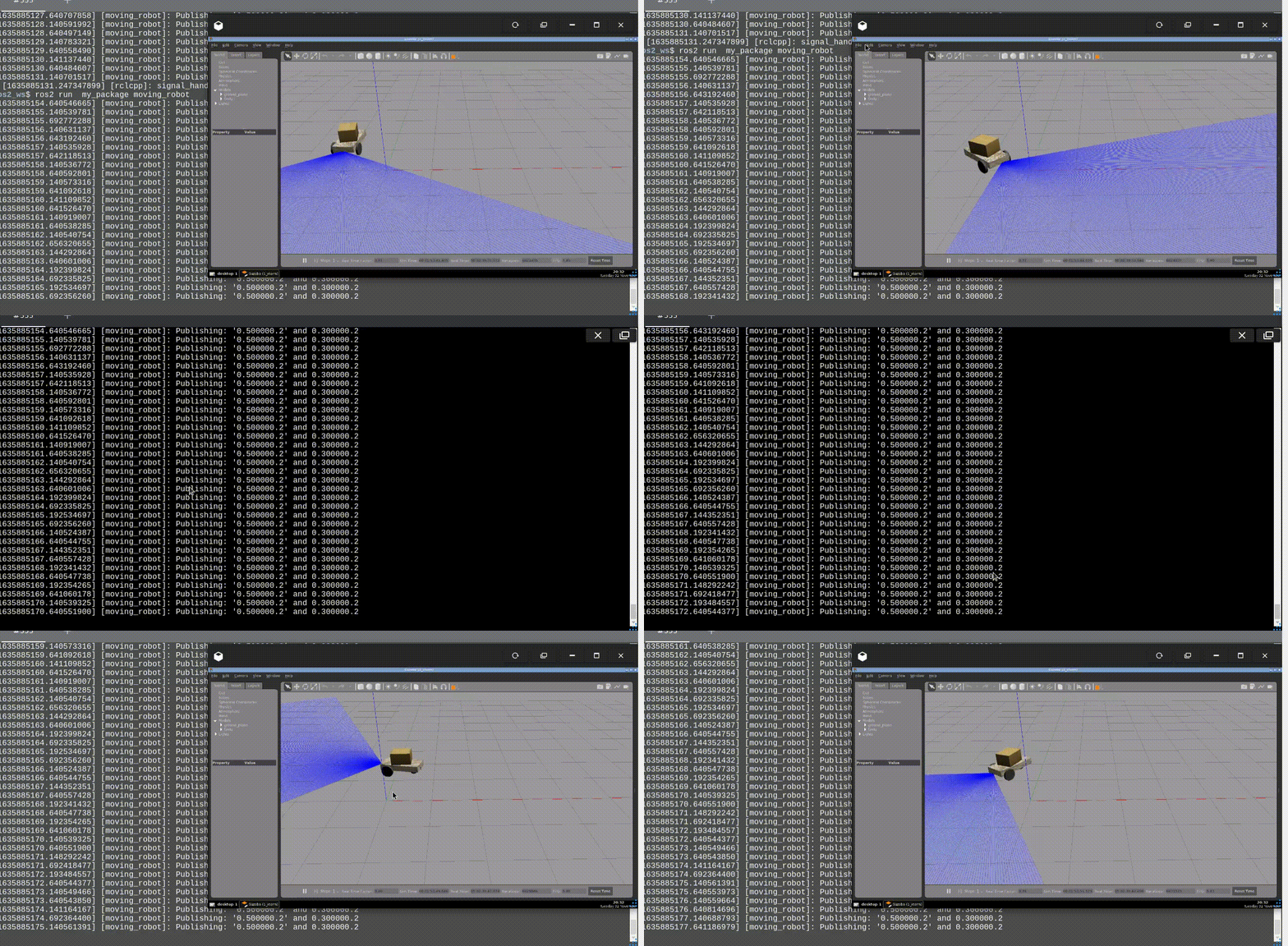
Launch the simulation in one webshell and in a different tab, checkout the topics we have available. You must get something similar to the image below:
2 – Create a topic publisher
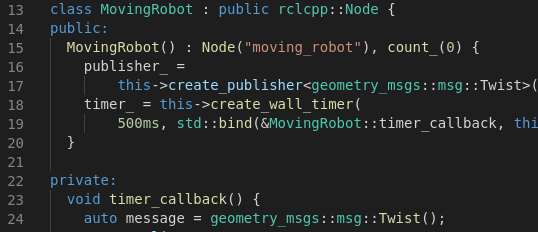
Create a new file to container the publisher node: moving_robot.cpp and paste the following content:
#include <chrono>
#include <functional>
#include <memory>
#include "rclcpp/rclcpp.hpp"
#include "geometry_msgs/msg/twist.hpp"
using namespace std::chrono_literals;
/* This example creates a subclass of Node and uses std::bind() to register a
* member function as a callback from the timer. */
class MovingRobot : public rclcpp::Node {
public:
MovingRobot() : Node("moving_robot"), count_(0) {
publisher_ =
this->create_publisher("/dolly/cmd_vel", 10);
timer_ = this->create_wall_timer(
500ms, std::bind(&MovingRobot::timer_callback, this));
}
private:
void timer_callback() {
auto message = geometry_msgs::msg::Twist();
message.linear.x = 0.5;
message.angular.z = 0.3;
RCLCPP_INFO(this->get_logger(), "Publishing: '%f.2' and %f.2",
message.linear.x, message.angular.z);
publisher_->publish(message);
}
rclcpp::TimerBase::SharedPtr timer_;
rclcpp::Publisher::SharedPtr publisher_;
size_t count_;
};
int main(int argc, char *argv[]) {
rclcpp::init(argc, argv);
rclcpp::spin(std::make_shared());
rclcpp::shutdown();
return 0;
}
Similar to the subscriber it is created a class that inherits Node. A publisher_ is setup and also a callback, although this time is not a callback that receives messages, but a timer_callback called in a frequency defined by the timer_ variable. This callback is used to publish messages to the robot.
The create_publisher method needs two arguments:
topic name
QoS (Quality of Service) – This is the policy of data saved in the queue. You can make use of different middlewares or even use some provided by default. We are just setting up a queue of 10. By default, it keeps the last 10 messages sent to the topic.
The message published must be created using the class imported:
message = geometry_msgs::msg::Twist();
We ensure the callback methods on the subscribers side will always recognize the message. This is the way it has to be published by using the publisher method publish.
3 – Compile and run the node
In order to compile we need to adjust some things in the ~/ros2_ws/src/my_package/CMakeLists.txt. So add the following to the file:
In order to learn how to create launch files, let’s start by creating a publisher and a subscriber in Python. We are going to use The Construct (https://www.theconstruct.ai/) for this tutorial, but if you have ROS2 installed on your own computer, you should be able to do ~everything on your own computer, except this creating a rosject part.
Let’s start by opening The Construct (https://www.theconstruct.ai/) and logging in. You can easily create a free account if you still don’t have one.
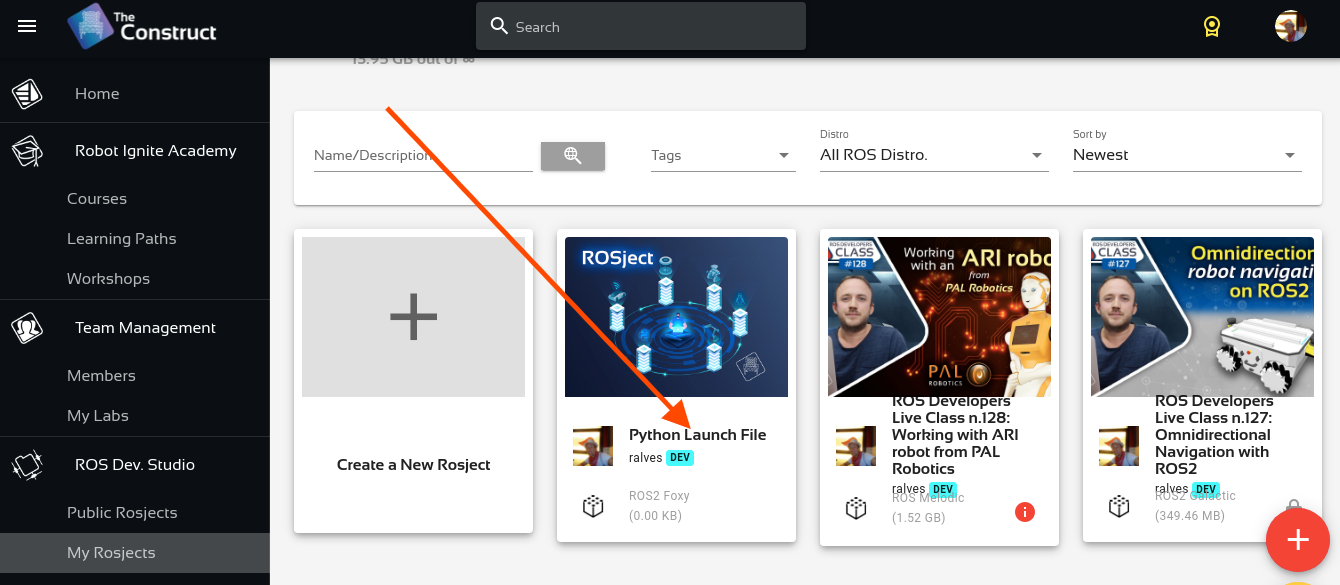
Once inside, let’s create My Rosjects and then, Create a new rosject:
My Rosjects
Create a new rosject
For the rosject, let’s select ROS2 Foxyfor the ROS Distro, let’s name the rosject as Python Launch File. You can leave the rosject public.
Python Launch File
If you mouse over the recently created rosject, you should see a Run button. Just click that button to launch the rosject.
Writing a simple publisher and subscriber (Python)
Once the rosject is open, we can now create our publisher and subscriber. For that, we are going to use ROS Docs as a reference.
Let’s open a new terminal by clicking on the Open a new shell window button:
Open a new shell
Once the terminal is open, we can list the files with the ls command:
user:~$ ls
ai_ws catkin_ws notebook_ws ros2_ws simulation_ws webpage_ws
We can see a workspace named ros2_ws. Let’s enter that workspace using cd ros2_ws/:
user:~$ cd ros2_ws/
user:~/ros2_ws$
Let’s now source our workspace with:
source ~/ros2_ws/install/setup.bash
Let’s now enter our src folder:
cd ~/ros2_ws/src/
And create a package named py_pubsub (python publisher and subscriber):
Be aware that in order to create this package, we basically used ROS Docs for reference.
If you now list your src folder using ls, you should be able to see our package:
user:~/ros2_ws/src$ ls
py_pubsub
We can now enter into this py_pubsub package using cd py_pubsub/. We will find a new folder named py_pubsub inside it. Let’s just enter into it. The full command would be as easy as cd ~/ros2_ws/src/py_pubsub/py_pubsub/ . But if you want to go step by step:
user:~/ros2_ws/src$ cd py_pubsub/
user:~/ros2_ws/src/py_pubsub$ ls
package.xml  py_pubsub  resource  setup.cfg  setup.py  test
user:~/ros2_ws/src/py_pubsub$ cd py_pubsub/
user:~/ros2_ws/src/py_pubsub/py_pubsub$ ls
__init__.py
user:~/ros2_ws/src/py_pubsub/py_pubsub$
Now inside that last py_pubsub folder, let’ create a new file and name it publisher_member_function.py, and paste the following content on it, taken from the docs aforementioned:
importrclpyfromrclpy.nodeimportNodefromstd_msgs.msgimportStringclassMinimalPublisher(Node):def__init__(self):super().__init__('minimal_publisher')self.publisher_=self.create_publisher(String,'topic',10)timer_period=0.5# secondsself.timer=self.create_timer(timer_period,self.timer_callback)self.i=0deftimer_callback(self):msg=String()msg.data='Hello World: %d'%self.iself.publisher_.publish(msg)self.get_logger().info('Publishing: "%s"'%msg.data)self.i+=1defmain(args=None):rclpy.init(args=args)minimal_publisher=MinimalPublisher()rclpy.spin(minimal_publisher)# Destroy the node explicitly# (optional - otherwise it will be done automatically# when the garbage collector destroys the node object)minimal_publisher.destroy_node()rclpy.shutdown()if__name__=='__main__':main()
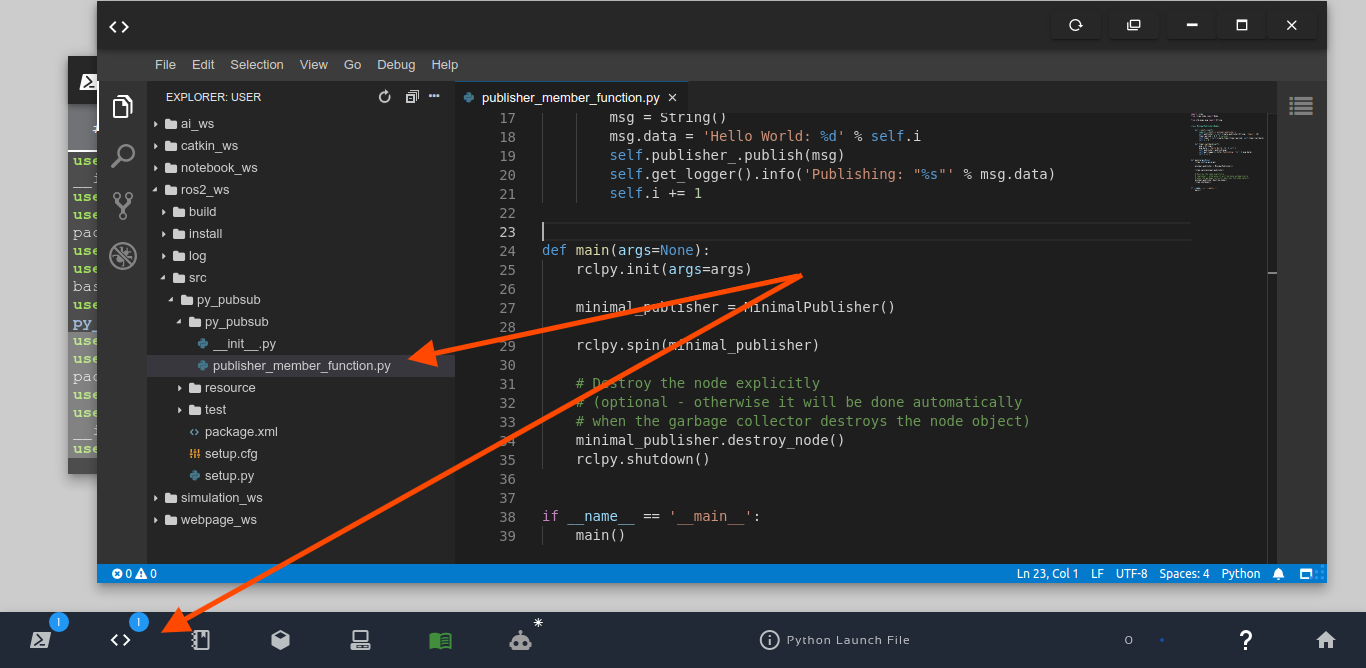
Remember that you can click the file just by typing touch publisher_member_function.py, and If you don’t know how to open the file in the code editor, you can check the image below:
ROS2 Publisher
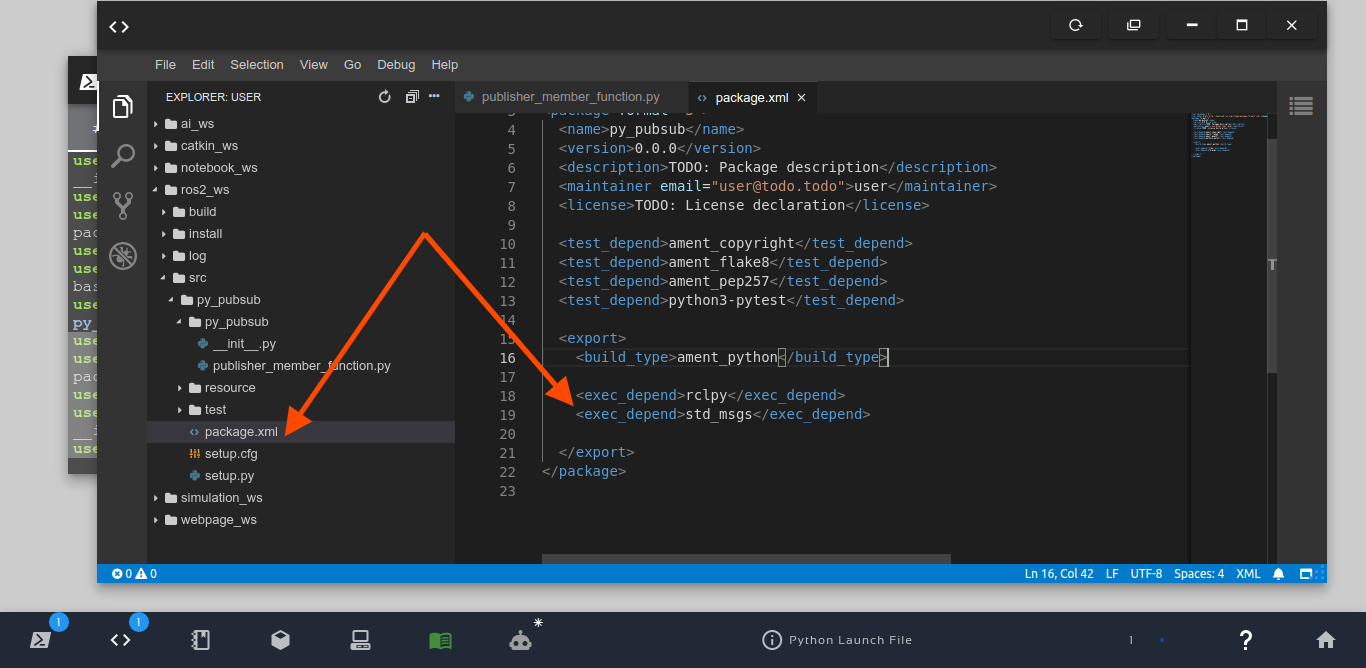
Let’s now open our package.xml file and add rclpy and std_msgs as dependencies, by adding the two lines below afterament_python:
The final result should be similar to the image below:
exec_depend rcl_py and std_msgs
Let’s now open the setup.py file and add our publisher_member_function.py script to the entry_points list. Since we want out publisher to be started in the main function on the publisher_member_function file inside the py_pubsub package, and we want our publisher to be called talker, what we have to have in our entry_points is:
Congratulations. We have our publisher ready to go. Let’s now create the subscriber.
The process is similar to what we have done for the publisher. Let’s create a file named subscriber_member_function.py:
cd ~/ros2_ws/src/py_pubsub/py_pubsub

touch subscriber_member_function.py
Let’s now paste the following content on it, also taken from the docs.
importrclpyfromrclpy.nodeimportNodefromstd_msgs.msgimportStringclassMinimalSubscriber(Node):def__init__(self):super().__init__('minimal_subscriber')self.subscription=self.create_subscription(String,'topic',self.listener_callback,10)self.subscription# prevent unused variable warningdeflistener_callback(self,msg):self.get_logger().info('I heard: "%s"'%msg.data)defmain(args=None):rclpy.init(args=args)minimal_subscriber=MinimalSubscriber()rclpy.spin(minimal_subscriber)# Destroy the node explicitly# (optional - otherwise it will be done automatically# when the garbage collector destroys the node object)minimal_subscriber.destroy_node()rclpy.shutdown()if__name__=='__main__':main()
Let’s now open the setup.py file again and add our subscriber (let’s call it listener) to the entry_points. Our final entry_points should look like:
Running the publisher and subscriber (without launch file)
Now that our ros2_ws (ROS2 Workspace) is built, let’s run our publisher and subscriber to make sure it is working. Let’s start by running our publisher, that we named talker.
source ~/ros2_ws/install/setup.bash

ros2 run py_pubsub talker
If everything went ok, you should see something similar to this:
But, if you got an error message like this one “No executable found“, then it means you need to make your publisher and subscriber executables. You can make them executable with:
chmod +x ~/ros2_ws/src/py_pubsub/py_pubsub/*
You can now open a different web shell and run the subscriber named listener with:
source ~/ros2_ws/install/setup.bash

ros2 run py_pubsub listener
If everything went ok, you should have the following output:
[INFO] [1636407722.850810657] [minimal_subscriber]: I heard: "Hello World: 0"
[INFO] [1636407723.327879150] [minimal_subscriber]: I heard: "Hello World: 1"
[INFO] [1636407723.828118018] [minimal_subscriber]: I heard: "Hello World: 2"
[INFO] [1636407724.327668937] [minimal_subscriber]: I heard: "Hello World: 3"
[INFO] [1636407724.827548416] [minimal_subscriber]: I heard: "Hello World: 4"
[INFO] [1636407725.327873989] [minimal_subscriber]: I heard: "Hello World: 5"
If that is not the output you have got, please make sure you have the talker (publisher) running when running the listener (subscriber).
Launching nodes with ROS2 Python Launch Files
Awesome. We now know that our publisher and subscriber work if we run them manually. Time has now come to finally learn how to use ROS2 Python Launch Files.
Let’s stop the publisher and subscriber by pressing CTRL+C in the web shells used to launch them.
After having stopped the talker and listener, let’s create a launch.py file inside the first py_pubsub folder:
cd ~/ros2_ws/src/py_pubsub/

mkdir launch

touch launch/launch.py
Let’s now open that file in the Code Editor, and paste the following content on it:
Please take a few minutes to check the code we pasted into the launch.py file. You should be able to easily identify where we are launching the talker and the listener.
Once the launch.py file is ok, let’s now open again our setup.py file again, and add our launch.py file to data_files, so that our launch file will be included in the install folder when we compile our workspace. By doing this we will be able to execute it:
The bit we have to add to data_files is (os.path.join(‘share’, package_name, ‘launch’), glob(‘launch/*.py’)), so that data_files looks like:
After launching the launch.py file, the output should be similar to the following:
[INFO] [launch]: All log files can be found below /home/user/.ros/log/2021-11-08-22-19-06-017780-2_xterm-22230
[INFO] [launch]: Default logging verbosity is set to INFO
[INFO] [talker-1]: process started with pid [22232]
[INFO] [listener-2]: process started with pid [22234]
[talker-1] [INFO] [1636409946.863335476] [minimal_publisher]: Publishing: "Hello World: 0"
[listener-2] [INFO] [1636409946.864070340] [minimal_subscriber]: I heard: "Hello World: 0"
[talker-1] [INFO] [1636409947.348533783] [minimal_publisher]: Publishing: "Hello World: 1"
[listener-2] [INFO] [1636409947.348911906] [minimal_subscriber]: I heard: "Hello World: 1"
[talker-1] [INFO] [1636409947.848726734] [minimal_publisher]: Publishing: "Hello World: 2"
[listener-2] [INFO] [1636409947.849143700] [minimal_subscriber]: I heard: "Hello World: 2"
[talker-1] [INFO] [1636409948.348686904] [minimal_publisher]: Publishing: "Hello World: 3"
[listener-2] [INFO] [1636409948.349055815] [minimal_subscriber]: I heard: "Hello World: 3"
[talker-1] [INFO] [1636409948.848715554] [minimal_publisher]: Publishing: "Hello World: 4"
[listener-2] [INFO] [1636409948.849116889] [minimal_subscriber]: I heard: "Hello World: 4"
As we can see in the logs, we have the publisher (talker-1) and the subscriber (listener-2) running.
Congratulations. You made it. You now know not only how to create launch files, but you also learned how to create packages, publishers, and subscribers in ROS2 Python.
Youtube video
So this is the post for today. Remember that we have the live version of this post on YouTube. If you liked the content, please consider subscribing to our youtube channel. We are publishing new content ~every day.
In this post we are going to show how to launch robots in a Gazebo simulation in ROS2 by using XACRO files.
This is very important, due to the fact that XACRO files are generally used to generate a URDF file, and finally spawned. But sometimes importing the XACRO files directly save us some steps every time we want to re-spawn the robot in a given world. Let’s start!
1. Setup the environment
In this post, we are using TheConstruct app and you can start using it for free and without installing anything just by creating your account. Copy the rosject we are working with by clicking here and you are ready to go!
If you prefer to work on your own ROS environment, you need to
install XACRO library in order to import it inside the python launch file. You don’t need to do this if you are using The Construct app.
sudo apt install ros-foxy-xacro
download and compile the source code. Get the code here. If you are using The Construct app, this has already been done for you when you copied the rosject.
Basically, we are going to spawn the robot defined in this file ros2_ws/src/box_car/box_car_description/robot/box_bot.xacro
2. Understanding the use of the XACRO file in the Simulation launch file
Now we go for the launch file. In our example package, it is located at ros2_ws/src/box_car/box_car_description/launch/spawn_robot_launch_v3.launch.py
There we have two ways of launching. The first one, which is commented, relies on a previously generated URDF file
But in this case, we want to use the original xacro file, so we can keep using the development version of the robot description:
xacro_file = os.path.join(get_package_share_directory('box_car_description'), 'robot/', 'box_bot.xacro')
assert os.path.exists(xacro_file), "The box_bot.xacro doesnt exist in " + str(xacro_file)
3. Understanding the spawn script that uses the converted XACRO file
The executable python file called by the launch one is located right here ros2_ws/src/box_car/box_car_description/launch/spawn_box_bot.py
And it’s important to understand that we need this way to handle the arguments passed. In the case of the XACRO file, it should be taken by using the index 1 of sys.argv, in order to get the content properly.
At any moment, you must be able to launch the given simulation and have a similar result as below:
4. Watch the full Video that explains How to use XACRO files with Gazebo in ROS2
Please watch the video of this post here, to better understand the launch file and the spawn script.
5. Conclusion
Great, that’s the result you should have. You can keep developing your robot and re-spawning it without having to re-generate the URDF file again and again.
If this content helped you, don’t forget to share and leave a comment to let us know you like this kind of post!

![[ROS2 Q&A] 216 – How to Use Static Transform Publisher in ROS2](https://www.theconstruct.ai/wp-content/uploads/2021/11/216-How-to-Use-Static-Transform-Publisher-in-ROS2.jpeg)




![[ROS2 Q&A] 215 – How to Use ROS2 Python Launch Files](https://www.theconstruct.ai/wp-content/uploads/2021/11/215-How-to-Use-ROS2-Python-Launch-Files.jpg)