I would like to dedicate this episode to the people that use other robotics frameworks different from ROS… and succeed. You know, ROS already provides you with a fully working robotics framework as well as many software for main robotics tasks. If you go outside ROS, the robotics world is cold, difficult, and hostile. If a company is able to succeed in such conditions, then that indicates strength and mastery. Good for you! If your company is in such a situation, then this episode is dedicated to you.
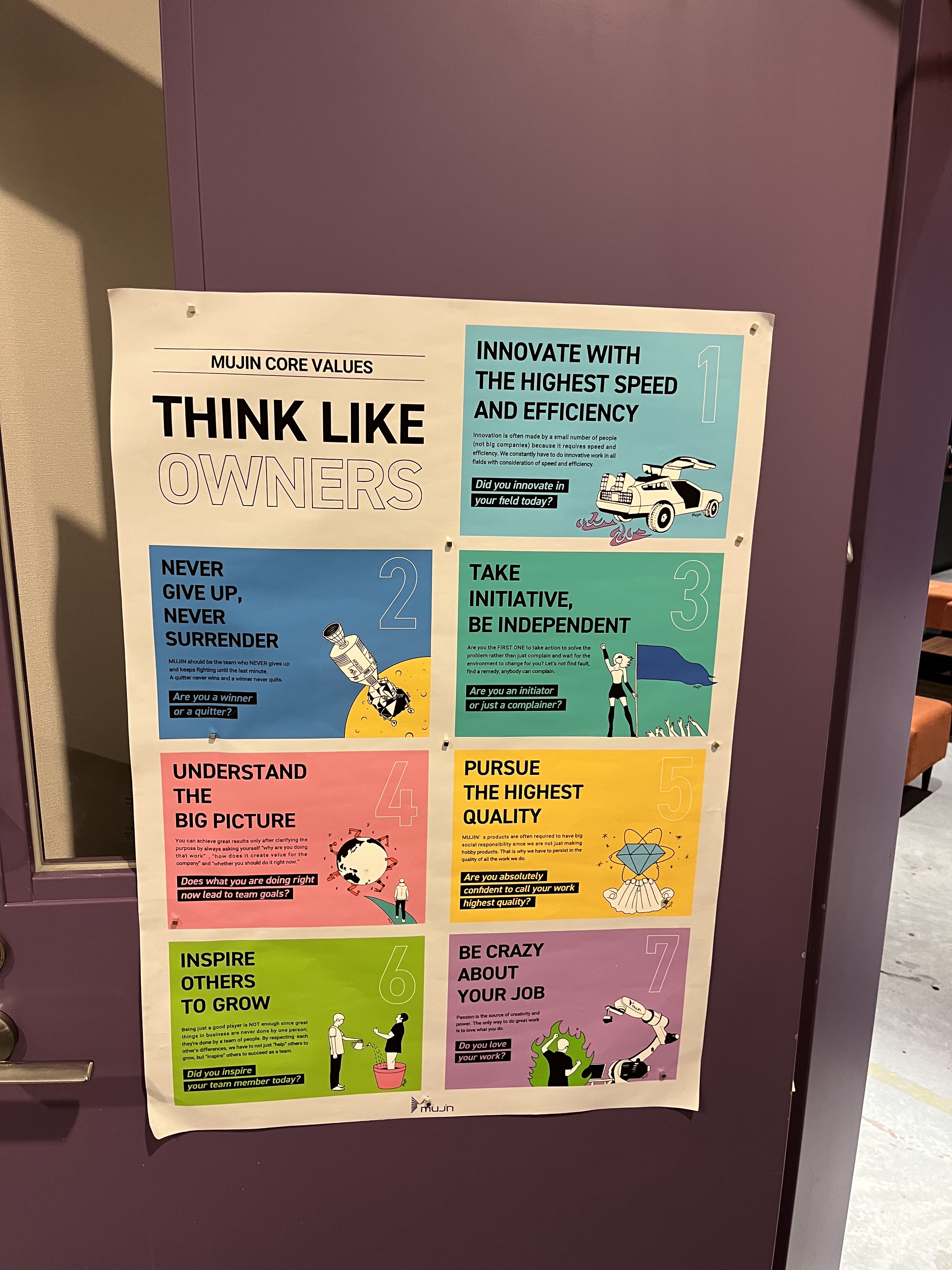
Today we are going to learn about such an amazing company that has succeeded worldwide without using ROS. We will learn how they did it, why they don’t use ROS and what do they use instead. We will also learn about their process to get robotics engineers in their team, so this episode can be very interesting for you if you are looking for a job!
But before going into the meat, let me tell you that in case you still believe ROS is a good path for you, you can learn ROS2 with The Construct. We provide self-led training based on robot simulations and remote real robots. You follow our lessons using your web browser and practice from minute one with the simulated robots. Also, as you advance the lesson, you will practice with real robots located in Barcelona. They are available 24/7 for you to remotely connect to them and do your practice.
Have a look at our webpage about the different subjects you can learn on ROS1 and ROS2 and start practicing with robots from minute one with The Construct.
Now let’s go to the meat of the episode. Let me introduce you Denys Kanunikov and Sam Thornton. Denys and Sam work at Mujin, a robotics company that…. well you are going to learn in a minute. For the moment, let me tell you that Denys is the lead robotics system engineer of Mujin and Sam is the Manager of Talent acquisition.
In this post, you will learn how to create ros2 XML launch files. You’ll discover how ros2 XML launch files are similar to and different from their ros1 counterparts.
Step 1: Get a Copy of the ROS package containing the code used in the post
Click here to copy the project. It would be copied to your cloud account at The Construct. That done, open the project using the Run button. This might take a few moments, please be patient.
PS: If you don’t have an account on the The Construct, you would need to create one. Once you create an account or log in, you will be able to follow the steps to read and write parameters in ros1 and ros2.
You might also want to try this on a local PC if you have ROS installed. In that case you need to read on and duplicate the source code of the package in your own local workspace. However, please note that we cannot support local PCs and you will have to fix any errors you run into on your own.
Step 2: Explore the source code using the IDE
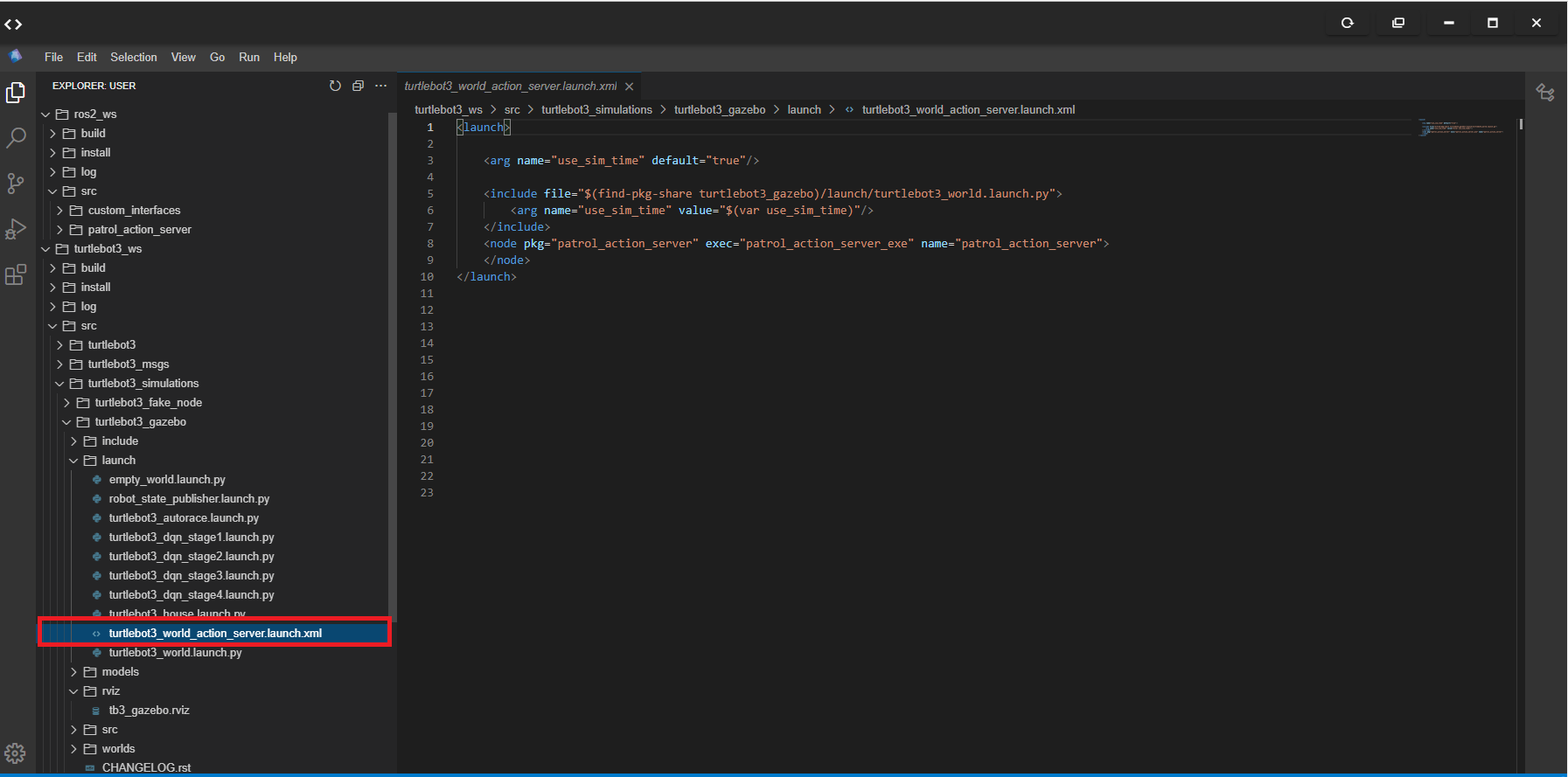
Open the IDE by clicking on the icon as shown above. You should now see something similar to the image below:
The main file we will work with in this post is the one highlighted in red in the image above:
Double-click on the file in the IDE to open and study the contents. We will discuss this file in the following steps.
Step 3: Understand how to create ros2 XML launch files
Wait first! I thought ros2 launch files are only written in Python! Yes, Python is one of the options when writing ros2 launch files; we can also use XML files, especially if we are writing simple launch files that do not need to leverage Python’s powerful API.
On line 2, we define an argument (variable) use_sim_time with a default value of true.
On line 3, we include another launch file, turtlebot3_world.launch.py for launching the TurtleBot3 world. The launch file can be found in the turtlebot3_gazebo package.
On line 4, we pass a required argument use_sim_time to the included launch file, assigning it the value of the use_sim_time defined on line 2.
On line 6, we define a node to be started by the launch file. This node can be found in the package patrol_action_server, the node executable is patrol_action_server_exe and the name of the node would appear as patrol_action_server.
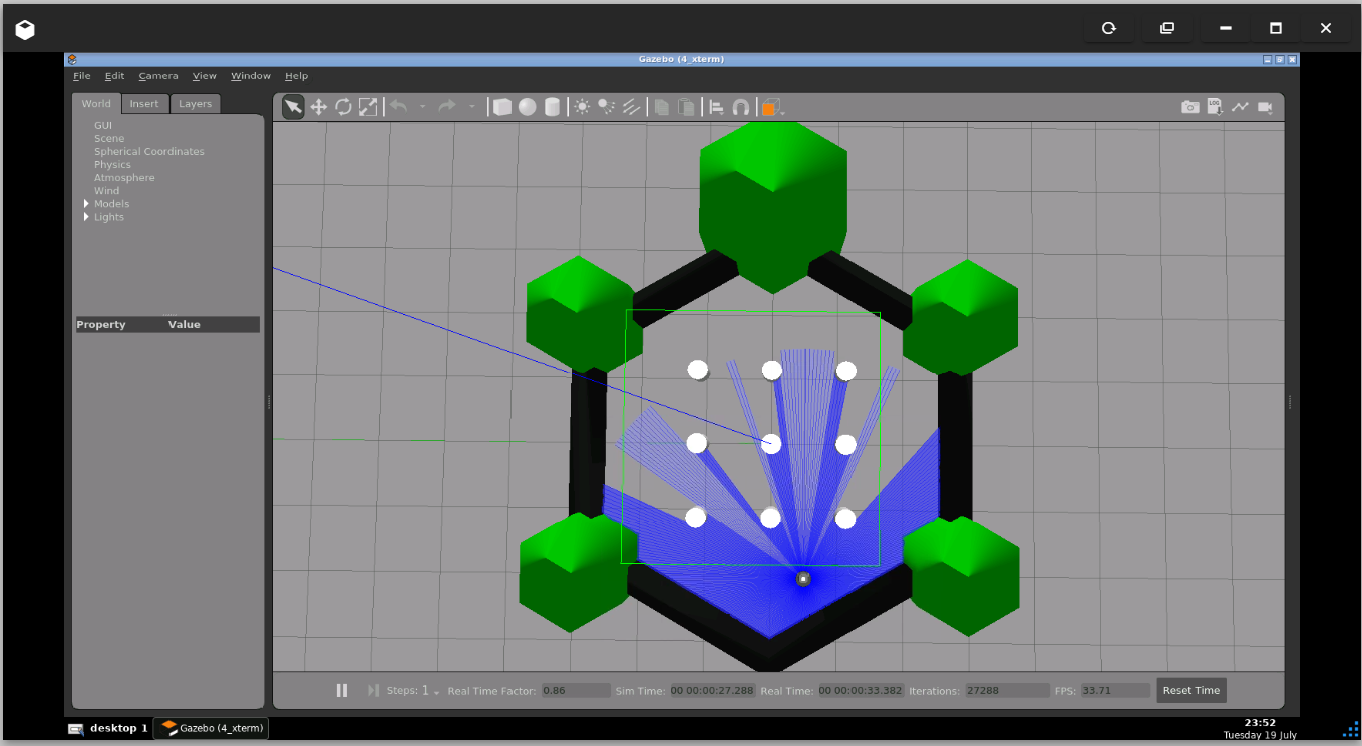
In short, this launch file launches the TurtleBot3 world and starts the Patrol action server. The same launch file can be written in Python, but this XML looks simpler and easier to understand. And it does all we want it to do, and we can even include Python-based launch files!
Step 4: Understand how ros2 XML launch files are similar to/different from ros1 XML launch files
If you are familiar with ros1 launch files, you should already notice some similarities:
The same <launch> tag.
Similar <arg> tag.
Familiar <include> tag.
Similar <node> tag.
Now if we were writing the same launch file in ros1, it would be something like this (PS: we can’t include ros2 launch file in a ros1 launch file in reality):
Did you like this post? Do you have any questions about how to read and write parameters in ros1 and ros2? Whatever the case, please leave a comment on the comments section below, so we can interact and learn from each other.
If you want to learn about other ROS topics, please let us know in the comments area and we will do a video or post about it.
In this post, you will learn how to read and write parameters in ros1 and ros2, using C++ nodes. You will see the slight differences in the ros1 and ros2 nodes and parameter files.
Step 1: Get a Copy of the ROS package containing the code used in the post
Click here to copy the project. It would be copied to your cloud account at The Construct. That done, open the project using the Run button. This might take a few moments, please be patient.
PS: If you don’t have an account on the The Construct, you would need to create one. Once you create an account or log in, you will be able to follow the steps to read and write parameters in ros1 and ros2.
You might also want to try this on a local PC if you have ROS installed. In that case you need to read on and duplicate the source code of the package in your own local workspace. However, please note that we cannot support local PCs and you will have to fix any errors you run into on your own.
Step 2: Explore the source code using the IDE
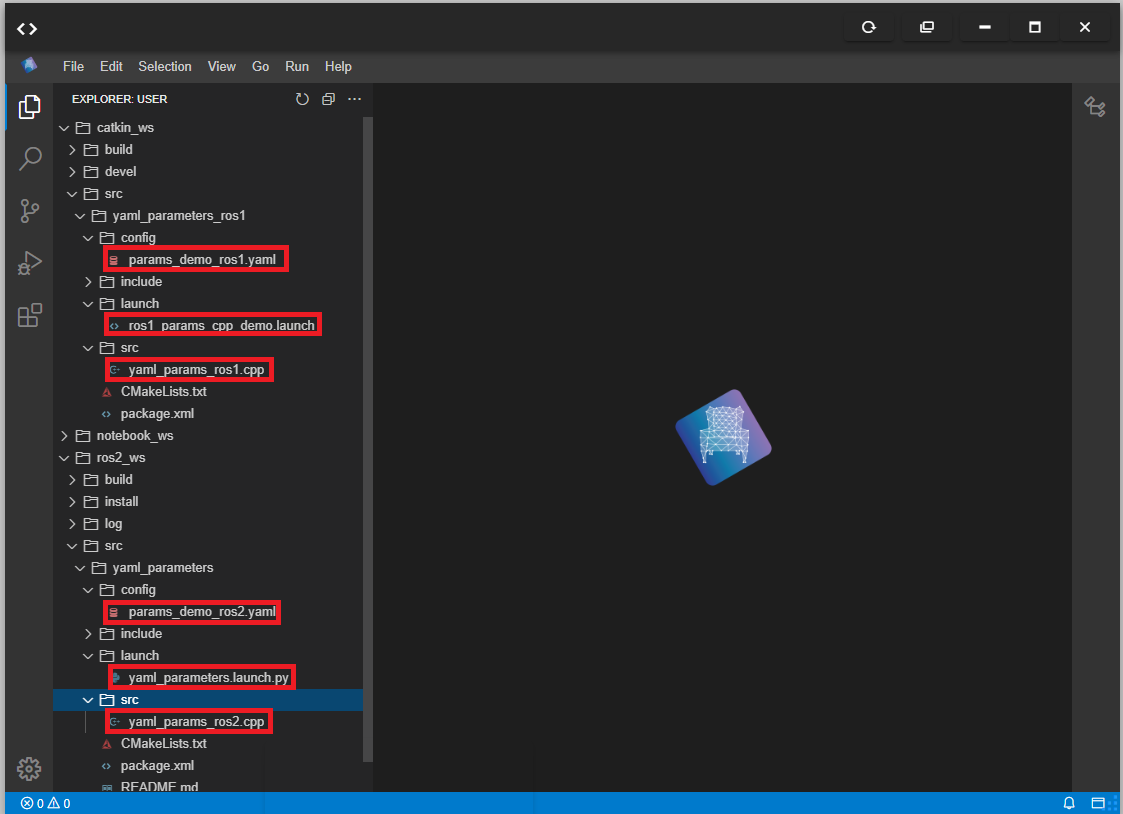
Open the IDE by clicking on the icon as shown above. You should now see something similar to the image below:
The six main files we will work with in this post are highlighted in red in the image above. These files are:
Double-click on each of the files in the IDE to open and study the contents. We will examine some of these files in the following steps.
Step 3: Understand how to read and write (load) parameters in ROS1
Now it’s time to see how to read and write parameters in ros1, working in the ros1 workspace.
Open a web shell and run the following commands:
cd ~/catkin_ws
source /opt/ros/noetic/setup.bash
source devel/setup.bash
roscore
The code block above changes to the ros1 workspace, sources it, and then starts the roscore (needed for ros1). Now let’s see a list of the current ros1 parameters available. Open another web shell and type the following:
But wait…are we getting the parameters in the YAML file (catkin_ws/src/yaml_parameters_ros1/config/params_demo_ros1.yaml) and their correct values? Let’s see what’s the in there!
Gosh, we are not getting these parameters nor their values, and you probably know why! So far we have been reading the parameters but have loaded them. Now let’s get that done: enter the launch file catkin_ws/src/yaml_parameters_ros1/launch/ros1_params_cpp_demo.launch.
Can you spot the differences between the formal and the latter outputs of these commands? Sure you can! So, well, that’s how to read and load parameter in ros1!
Step 4: Understand how to read and write (load) parameters in ROS2
Now let’s change to the ros2 workspace.
cd ~/ros2_ws
source /opt/ros/foxy/setup.bash
source install/setup.bash
In ros2 we need to have a node running before we can check for parameters, because there is no parameter server in ros2. Let’s try running the node then. The logic behind this node is contained in the ros2_ws/src/yaml_parameters/src/yaml_params_ros2.cpp file:
#include <rclcpp/rclcpp.hpp>

class MainNode : public rclcpp::Node {
public:
  MainNode() : rclcpp::Node("node", rclcpp::NodeOptions()) {

    // example: declare parameters, default value given
    declare_parameter("param0", 1);
    declare_parameter("param1", 0.1);
    declare_parameter("param2", "default");
    declare_parameter("param3.weight", 1);
    declare_parameter("param3.name", "default");
    declare_parameter("param4", false);
    // example: declare a variable when declaring a parameter
    declare_parameter("param5", std::vector<bool>(3, false));
    declare_parameter("param6", std::vector<int64_t>(4, 1));
    declare_parameter("param7", std::vector<double>(4, 0.1));
    declare_parameter("param8", std::vector<std::string>(5, "default"));

    // Get parameter values one by one
    auto p0 = get_parameter("param0").as_int();
    auto p1 = get_parameter("param1").as_double();
    auto p2 = get_parameter("param2").as_string();
    auto p3weight = get_parameter("param3.weight").as_int();
    auto p3name = get_parameter("param3.name").as_string();
    auto p4 = get_parameter("param4").as_bool();
    auto p5 = get_parameter("param5").as_bool_array();
    auto p6 = get_parameter("param6").as_integer_array();
    auto p7 = get_parameter("param7").as_double_array();
    auto p8 = get_parameter("param8").as_string_array();

    // Print parameters
    RCLCPP_INFO(get_logger(), "Integer parameter: %ld", p0);
    RCLCPP_INFO(get_logger(), "Double parameter: %f", p1);
    RCLCPP_INFO(get_logger(), "String parameter: %s", p2.c_str());
    RCLCPP_INFO(get_logger(), "Nested integer parameter: %ld", p3weight);
    RCLCPP_INFO(get_logger(), "Nested string parameter: %s", p3name.c_str());
    RCLCPP_INFO(get_logger(), "Boolean parameter: %d", p4);
    RCLCPP_INFO(get_logger(), "Boolean vector parameter [0]: %d",
                static_cast<int>(p5[0]));
    RCLCPP_INFO(get_logger(), "Integer vector parameter [0]: %d",
                static_cast<int>(p6[0]));
    RCLCPP_INFO(get_logger(), "Double vector parameter [0]: %f",
                static_cast<double>(p7[0]));
    RCLCPP_INFO(get_logger(), "String vector parameter [0]: %s", p8[0].c_str());
  }
};

int main(int argc, char **argv) {
  rclcpp::init(argc, argv);

  rclcpp::spin(std::make_shared<MainNode>());
  rclcpp::shutdown();
  return 0;
}
No, we are not :(. But not to worry, the launch file ros2_ws/src/yaml_parameters/launch/yaml_parameters.launch.py comes to the rescue! Let’s examine its content.
#!/usr/bin/env python3

import os
from launch import LaunchDescription
from launch_ros.actions import Node
from ament_index_python.packages import get_package_share_directory


def generate_launch_description():
    return LaunchDescription([
        Node(
            package='yaml_parameters',
            executable='main_node',
            name='parameter_types_example',
            parameters=[os.path.join(
                get_package_share_directory('yaml_parameters'),
                'config', 'params_demo_ros2.yaml')],
            output='screen'),
    ])
Oh my, it’s a Python! Let’s set it loose and see what happens! Stop the currently running program with Ctrl + C and run the following in its place and check that your output is similar.
The launch file simply loads the parameters in the YAML file and also runs the node we run earlier.
Well, that’s it!
Step 5: Check your learning
Do you understand how to read and write parameters in ros1 and ros2, using C++ nodes?
Did you notice the slight differences in the format of the YAML files for ros1 and ros2?
Did you notice that you the ros2 parameters are tied to specific nodes vs existing in a parameter server in ros1?
If you didn’t get any of the points above, please go over the post again, more carefully this time.
Extra Step: Watch the video to understand how to read and write parameters in ros1 and ros2
Here you go:
Feedback
Did you like this post? Do you have any questions about how to read and write parameters in ros1 and ros2? Whatever the case, please leave a comment on the comments section below, so we can interact and learn from each other.
If you want to learn about other ROS topics, please let us know in the comments area and we will do a video or post about it.
In this post, we will see how to program drones using ROS2. Perhaps you have programmed drones using ROS1, found that programming drones using ROS2 is not as straightforward, and have been wondering, “how the heck do you program drones using ROS2?” You have come to the right place!
Step 1: Grab the required source code
You can program drones using ROS2 on your local PC by following the instructions in this repository step by step. However if you use the rosject you copied below, we have already done most of the heavy lifting for you and you just need to run a few commands to get your drone flying!
Click here to get your own copy of the project (PS: If you don’t have an account on the ROS Development Studio, you would need to create one. Once you create an account or log in, we will copy the project to your workspace).
That done, open the project using the Run button. This might take a few moments, please be patient.
Step 2: Understand the basic components
The ros2 drone system used in this post consists of three main parts:
A ros2 simulation containing the simulation and the plugin that connects to the rest of the system.
cd ~/ros2_ws
source install/setup.bash
ros2 launch ls2n_drone_simulation single_drone_trajectory_sitl.launch.py
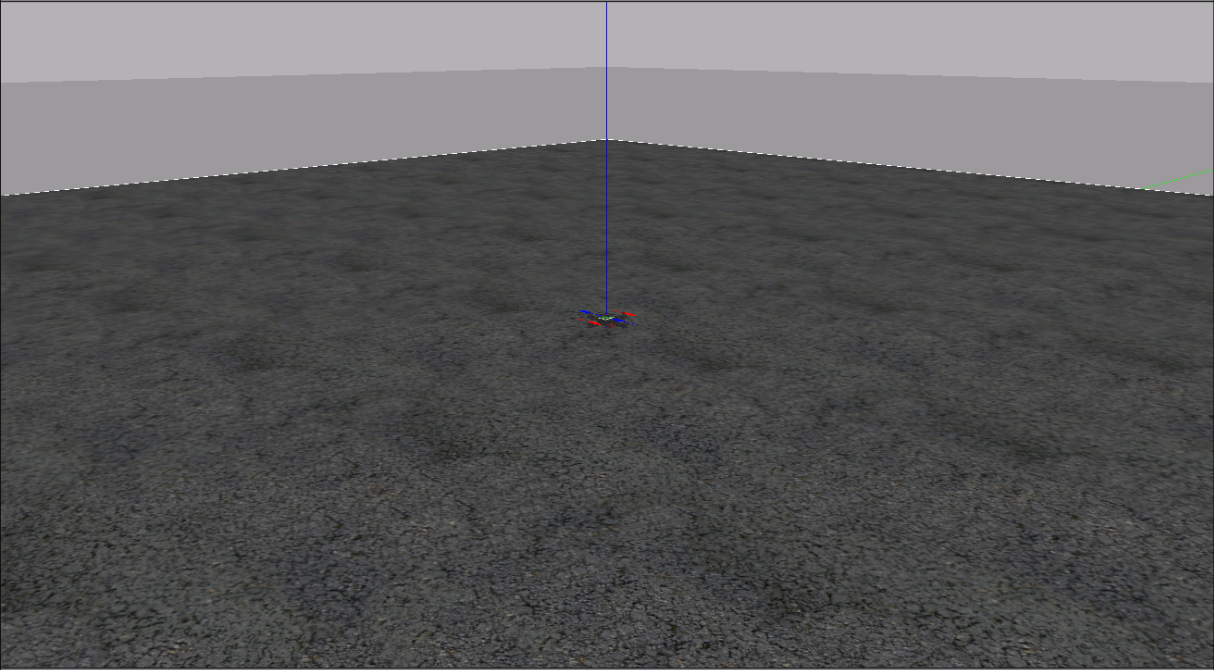
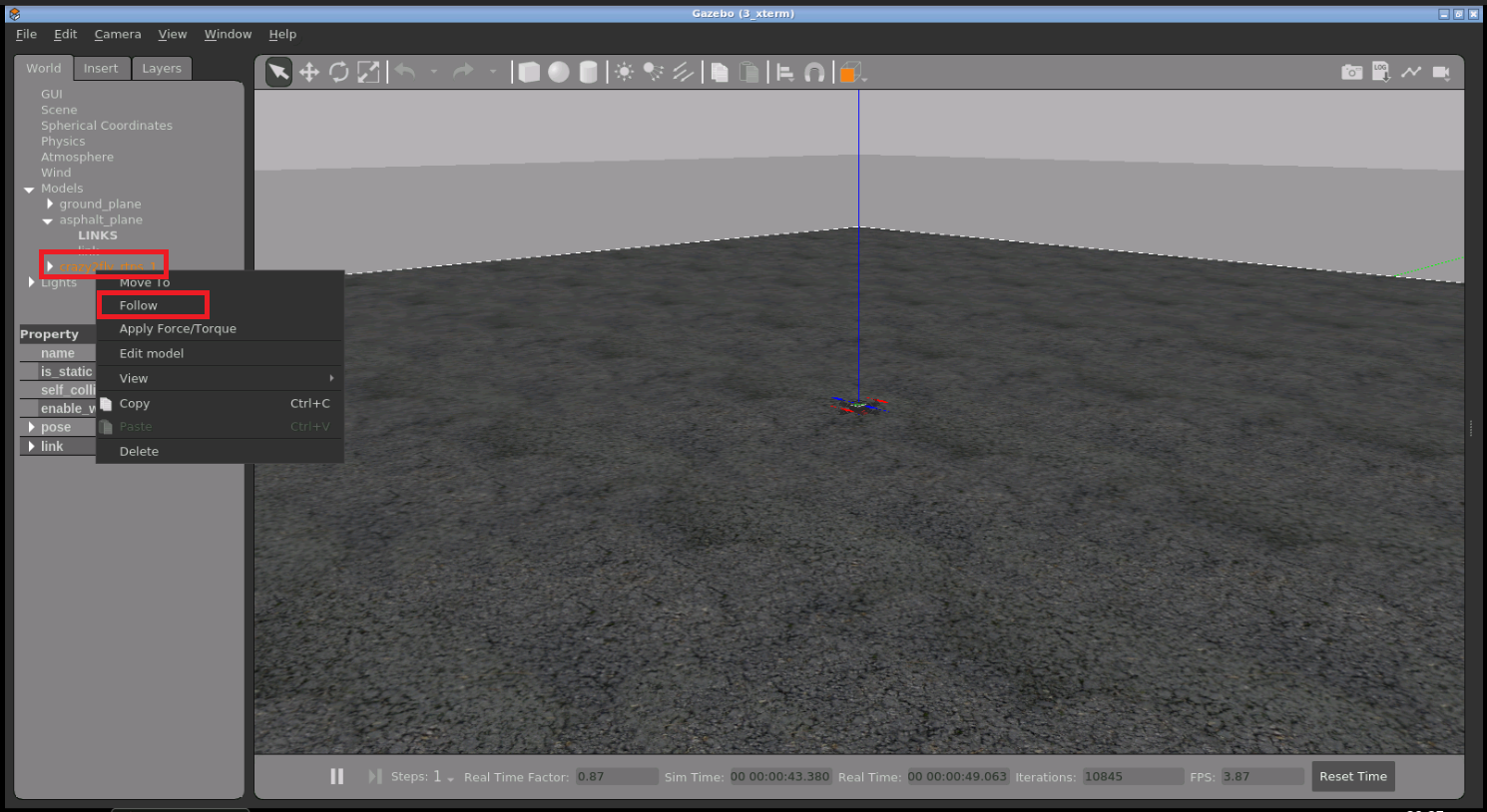
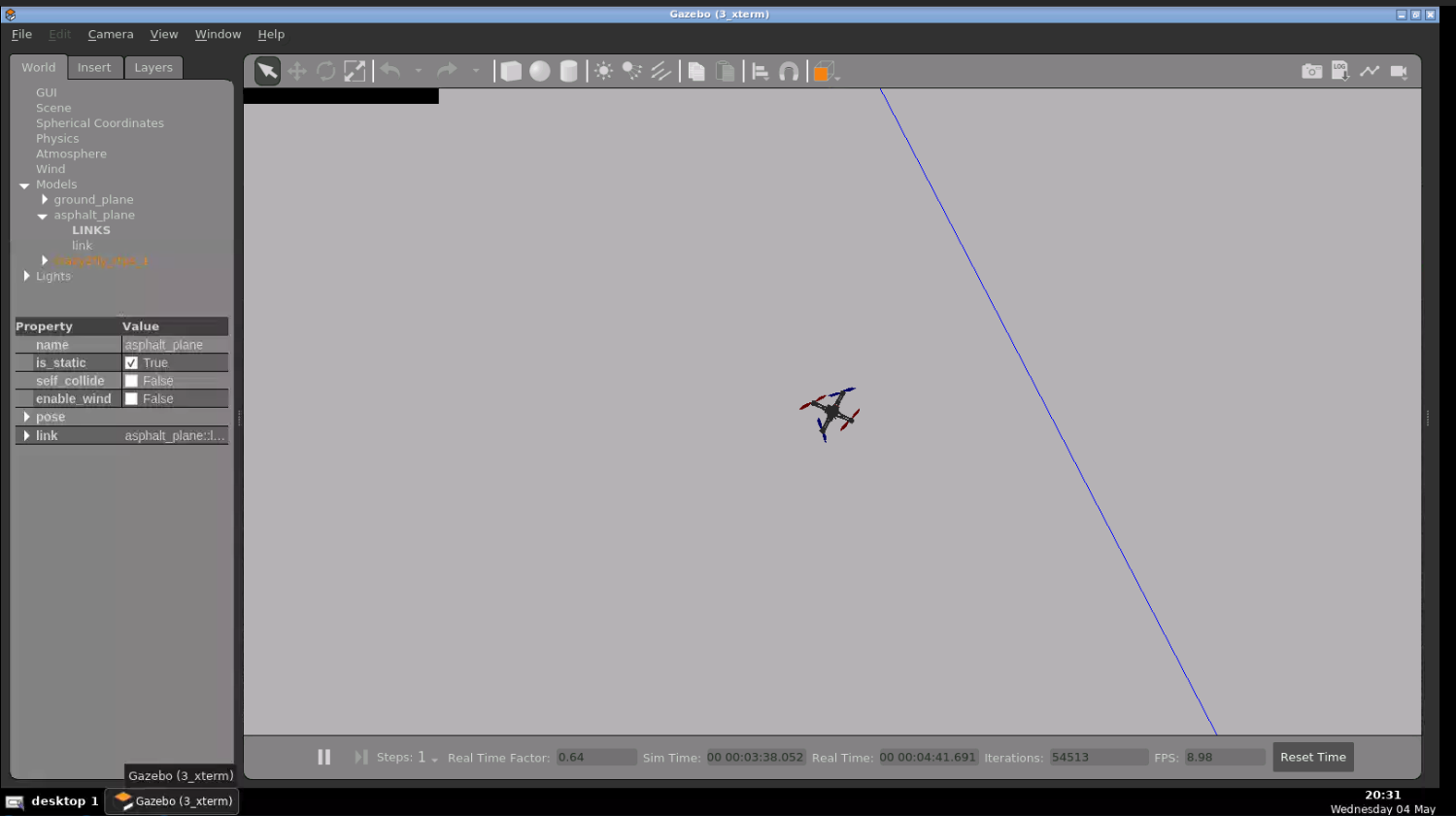
By this time, you should have the simulation running. Open the Gazebo app (if not opened automatically) to see it. Right click on the drone model on the left pane and select “Follow” to keep seeing the drone when it takes off.
Now, open another web shell and start the PX-4 system:
cd ~
cd px4-autopilot/Tools/
./gazebo_sitl_multiple_run_only_px4.sh
Finally, start the ground control system in another web shell:
user:~$ cd squashfs-root/
user:~/squashfs-root$ ./AppRun
The ground control GUI should load shortly. Open the Graphical Tools app to see it, if not opened automatically:
Time to take off the drone!
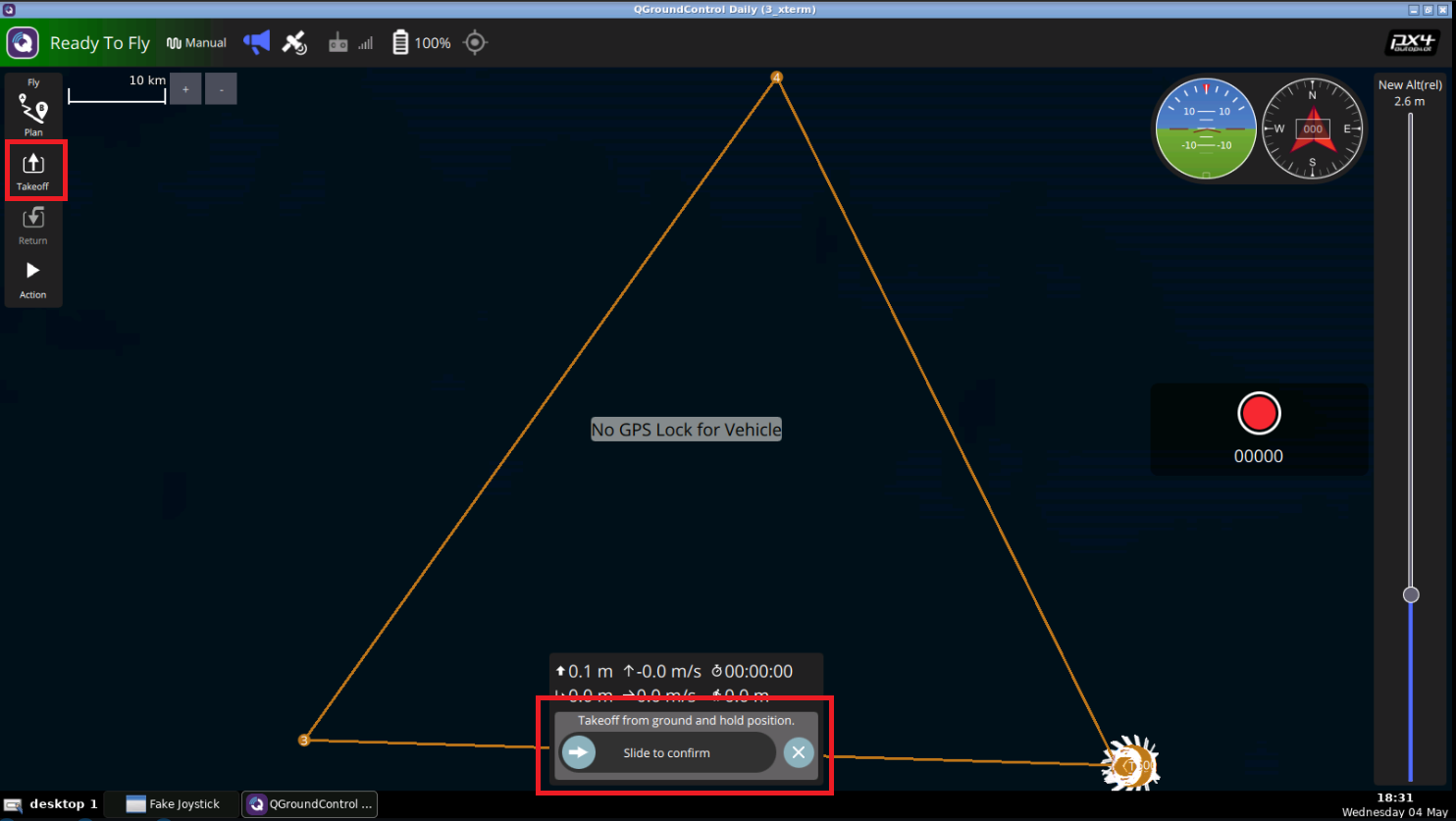
Ensure the top-left corner of the controller says “Ready to Fly” in a green background.
Click the Takeoff button on the top left.
In the bottom middle, drag the slider to the right to confirm takeoff. You should see something similar to the image below.
If the takeoff does not work, repeat 2 & 3.
After takeoff, the button changes to “Land”. Use it to land the drone.
Step 4: Consolidate your learning
Do you understand how to program drones using ROS2 after watching the video? If not, please review the material again and perhaps go over the video again. Let us know any problems you are seeing in the comments.
Extra Step: Watch the video for the sights and sounds version of how to program drones using ROS2
Did you like this post? Do you have any questions about the explanations? Whatever the case, please leave a comment on the comments section below, so we can interact and learn from each other. If you want to learn about other ROS2 topics, please let us know in the comments area and we will do a video or post about it.
PS: If you don’t have an account on the ROS Development Studio, you would need to create one. Once you create an account or log in, you will be able to follow the steps to setup MoveIt! for a Robot Arm. You will also get access to the robot arm in our remote real robot lab, among other features.
You might also want to try this on a local PC if you have ROS installed. However, please note that we cannot support local PCs and you will have to fix any errors you run into on your own.
Step 2: Watch the video to understand how to setup MoveIt! for a Robot Arm
Main point: you just need to have the URDF file for the robot arm and you feed that into MoveIt!
Here you go:
Step 3: Consolidate your learning
Do you understand how to setup MoveIt! for a Robot Arm? If not, have you gone over the video again? If you have any problems with setting up MoveIt! for the arm, please let us know in the comments.
Did you like this post? Do you have any questions about how to setup MoveIt! for a Robot Arm? Whatever the case, please leave a comment on the comments section below, so we can interact and learn from each other.
If you want to learn about other ROS topics, please let us know in the comments area and we will do a video or post about it.
In this post, we will see how to get an RGB camera working in ROS2 and RVIZ2. You might already be used to doing this in ROS1 and RVIZ1, and it’s easy-peasy. In ROS2 however, it’s a bit tricky and you are about to learn how to break the codes.
Step 1: Grab a copy of the ROS Project containing the code
Click here to get your own copy of the project (PS: If you don’t have an account on the ROS Development Studio, you would need to create one. Once you create an account or log in, we will copy the project to your workspace).
That done, open the project using the Run button. This might take a few moments, please be patient.
You should now see a notebook with detailed instructions. This post includes a summary of these instructions and some other tips.
Step 2: Explore the source code using the IDE
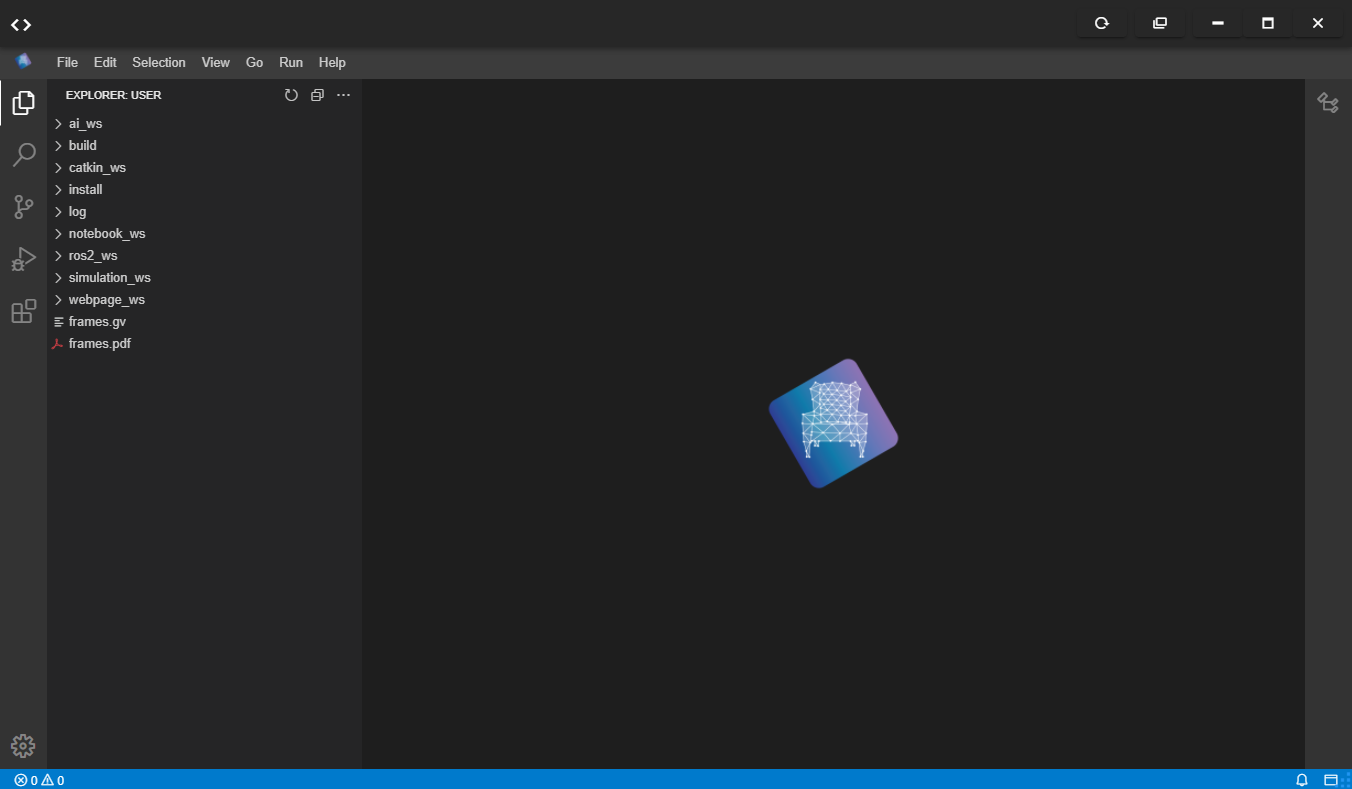
Open the IDE by clicking on the icon as shown above. You should now see something similar to the image below:
All the files used in the simulation are in the ros2_ws/src directory. Explore the files. Double-click to open a file in the editor. You will refer back to some of the files later on.
Step 3: Study the main files needed to get an RGB camera working in ROS2 and RVIZ2
There are two main things you need to do to get this working:
Add the camera to the URDF file (and launch the URDF file) so we can have the camera in Gazebo
Create a robot state publisher node for the robot so we can visualize it in Rviz2
Let’s see these steps in details.
All the code for the simulation is in ros2_ws/src/box_bot/. Let’s examine the main files related to launching the camera, so you can understand how to implement yours.
#!/usr/bin/python3
# -*- coding: utf-8 -*-
import os  from ament_index_python.packages import get_package_share_directory
from launch import LaunchDescription
from launch.actions import DeclareLaunchArgument
from launch.actions import IncludeLaunchDescription
from launch.conditions import IfCondition
from launch.launch_description_sources import PythonLaunchDescriptionSource
from launch.substitutions import LaunchConfiguration
from launch_ros.actions import Node


def generate_launch_description():

    pkg_box_bot_gazebo = get_package_share_directory('box_bot_gazebo')
    pkg_box_bot_description = get_package_share_directory('box_bot_description')

    # Start World
    start_world = IncludeLaunchDescription(
        PythonLaunchDescriptionSource(
            os.path.join(pkg_box_bot_gazebo, 'launch', 'start_world_launch.py'),
        )
    )
    # Spawn the robot
    spawn_robot_world = IncludeLaunchDescription(
        PythonLaunchDescriptionSource(
            os.path.join(pkg_box_bot_description, 'launch', 'spawn_robot_launch_v3.launch.py'),
        )
    )

    return LaunchDescription([
        start_world,
        spawn_robot_world
    ])
The launch file above does two things:
Spawns the world, by calling the launch file that spawns the world.
Spawns the robot, by calling the launch file that spawn the robot. This is where our interest lies. Let’s see how this is done, in the launch file ros2_ws/src/box_bot/box_bot_description/launch/spawn_robot_launch_v3.launch.py.
import os
from ament_index_python.packages import get_package_share_directory
from launch import LaunchDescription
from launch.actions import DeclareLaunchArgument
from launch.substitutions import LaunchConfiguration
from launch_ros.actions import Node

def generate_launch_description():

    use_sim_time = LaunchConfiguration('use_sim_time', default='true')

    # Get the path to the URDF file
    urdf = os.path.join(get_package_share_directory('box_bot_description'), 'robot/', 'box_bot.urdf')
    assert os.path.exists(urdf), "Thebox_bot.urdf doesnt exist in "+str(urdf)

    # Open the URDF file
    with open(urdf, 'r') as infp:
        robot_desc = infp.read()

    return LaunchDescription([
        DeclareLaunchArgument(
            'use_sim_time',
            default_value='false',
            description='Use simulation (Gazebo) clock if true'),
        Node(package='box_bot_description', executable='spawn_box_bot.py', arguments=[urdf], output='screen'),
        Node(
            package='robot_state_publisher',
            executable='robot_state_publisher',
            name='robot_state_publisher',
            output='screen',
            parameters=[{'use_sim_time': use_sim_time, 'robot_description': robot_desc}],
            arguments=[urdf]),
    ])
The launch file above does two things:
Creates a node that that spawns the box bot with the camera, taking the path to the URDF file as the argument. The node is implemented in the file spawn_bot_bot.py file. We’ll look at this file next.
Creates a node that publishes the robot state. It takes the URDF file string as a parameter. This will be used by Rviz2.
#!/usr/bin/python3
# -*- coding: utf-8 -*-
import os
import sys
import rclpy
from gazebo_msgs.srv import SpawnEntity

def main(args=None):
    rclpy.init(args=args)
    node = rclpy.create_node('minimal_client')
    cli = node.create_client(SpawnEntity, '/spawn_entity')

    content = ""
    if sys.argv[1] is not None:
        with open(sys.argv[1], 'r') as content_file:
            content = content_file.read()

    req = SpawnEntity.Request()
    req.name = "box_bot"
    req.xml = content
    req.robot_namespace = ""
    req.reference_frame = "world"

    while not cli.wait_for_service(timeout_sec=1.0):
        node.get_logger().info('service not available, waiting again...')

    future = cli.call_async(req)
    rclpy.spin_until_future_complete(node, future)

    if future.result() is not None:
        node.get_logger().info(
            'Result ' + str(future.result().success) + " " + future.result().status_message)
    else:
        node.get_logger().info('Service call failed %r' % (future.exception(),))

    node.destroy_node()
    rclpy.shutdown()


if __name__ == '__main__':
    main()
The file simply takes the URDF file passed to it and spawns the robot.
Now, let’s see the URDF file itself. The part that adds the camera is labelled Camera, somewhere in the middle of the file. Locate the file in the IDE:
Step 4: Launch the Simulation and Rviz2 to see the RGB camera
Open a web shell and run the following command:
user:~$ cd ~/ros2_wsuser:~/ros2_ws$ source install/setup.bash
user:~/ros2_ws$ ros2 launch box_bot_gazebo box_bot_launch.py
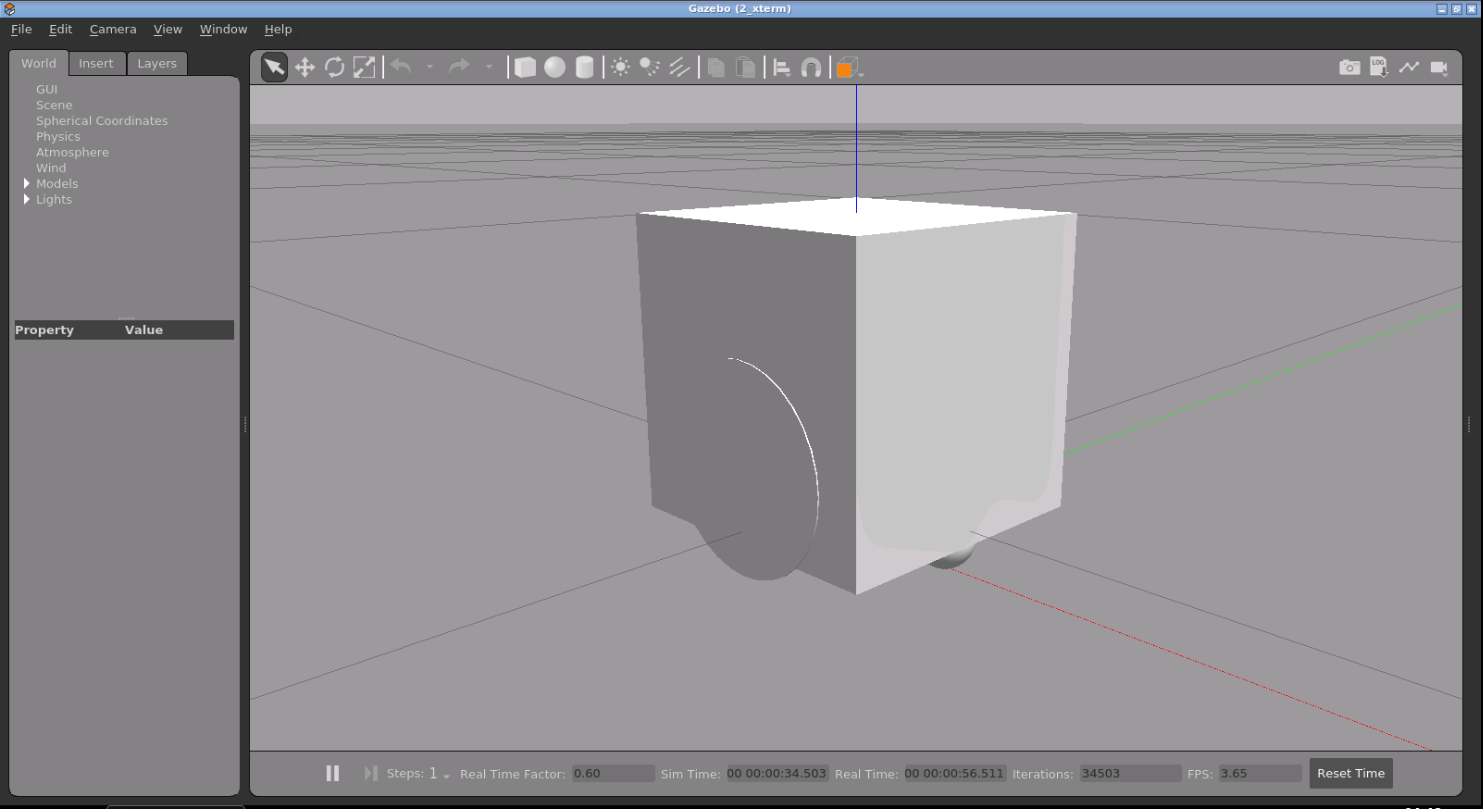
Open the Gazebo app (if it does not open automatically). You should see a simulation similar to this one:
Next, let’s launch Rviz2 to see the camera. In another web shell, type:
rviz2
Now open the graphical tools app (if it does not open automatically).
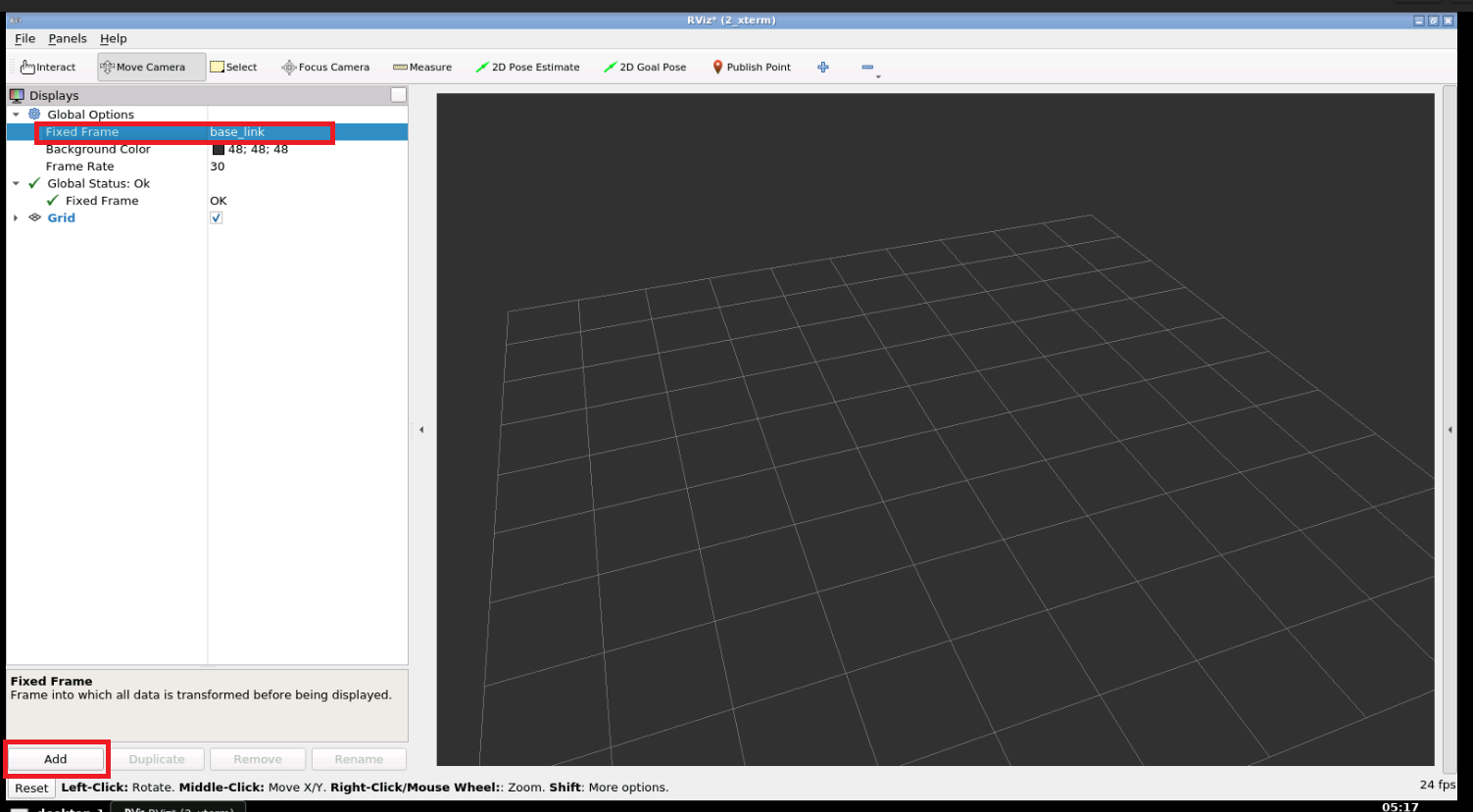
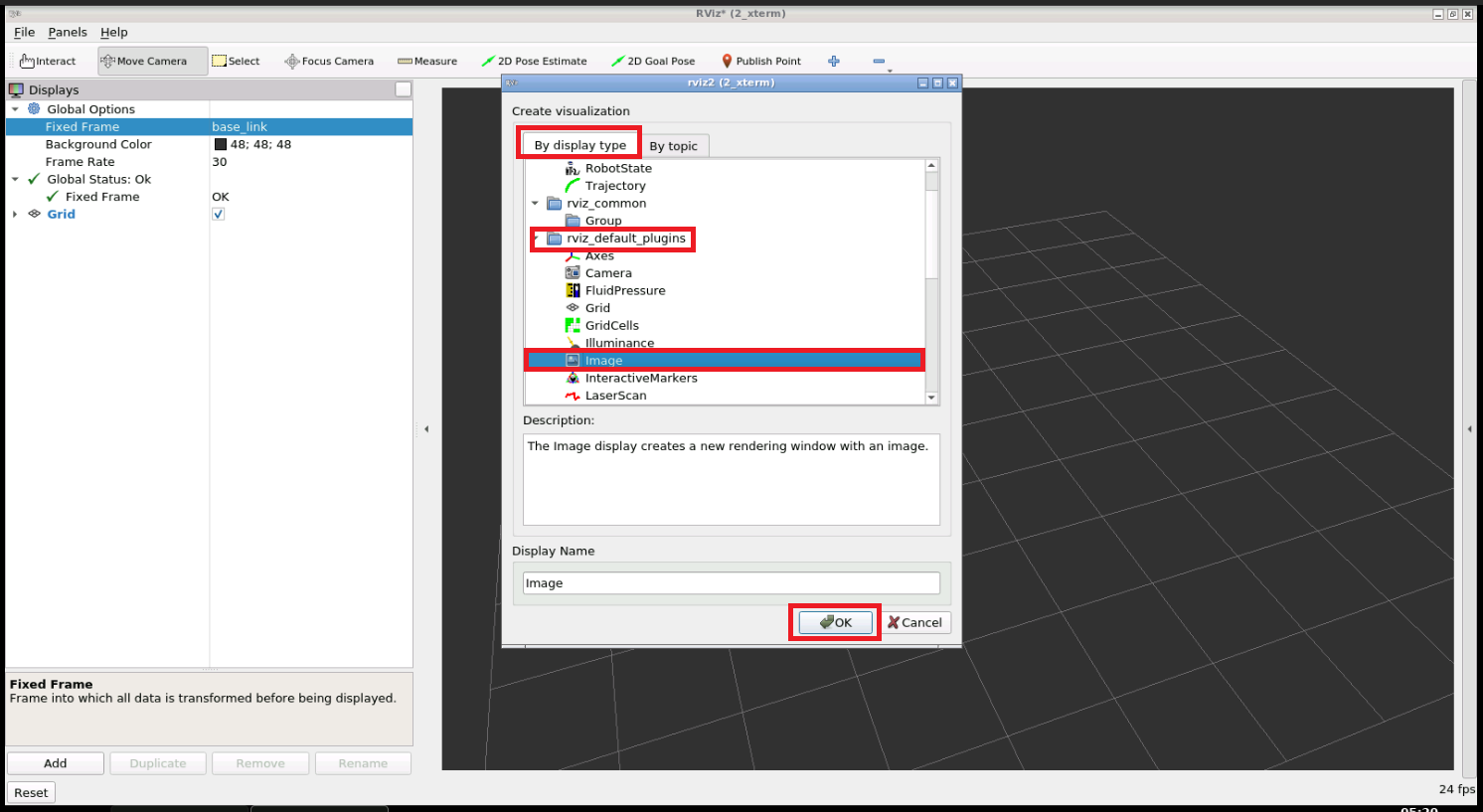
You should now see the Rviv2 window. Set the Fixed Frame to base_link and click Add to add an Image display.
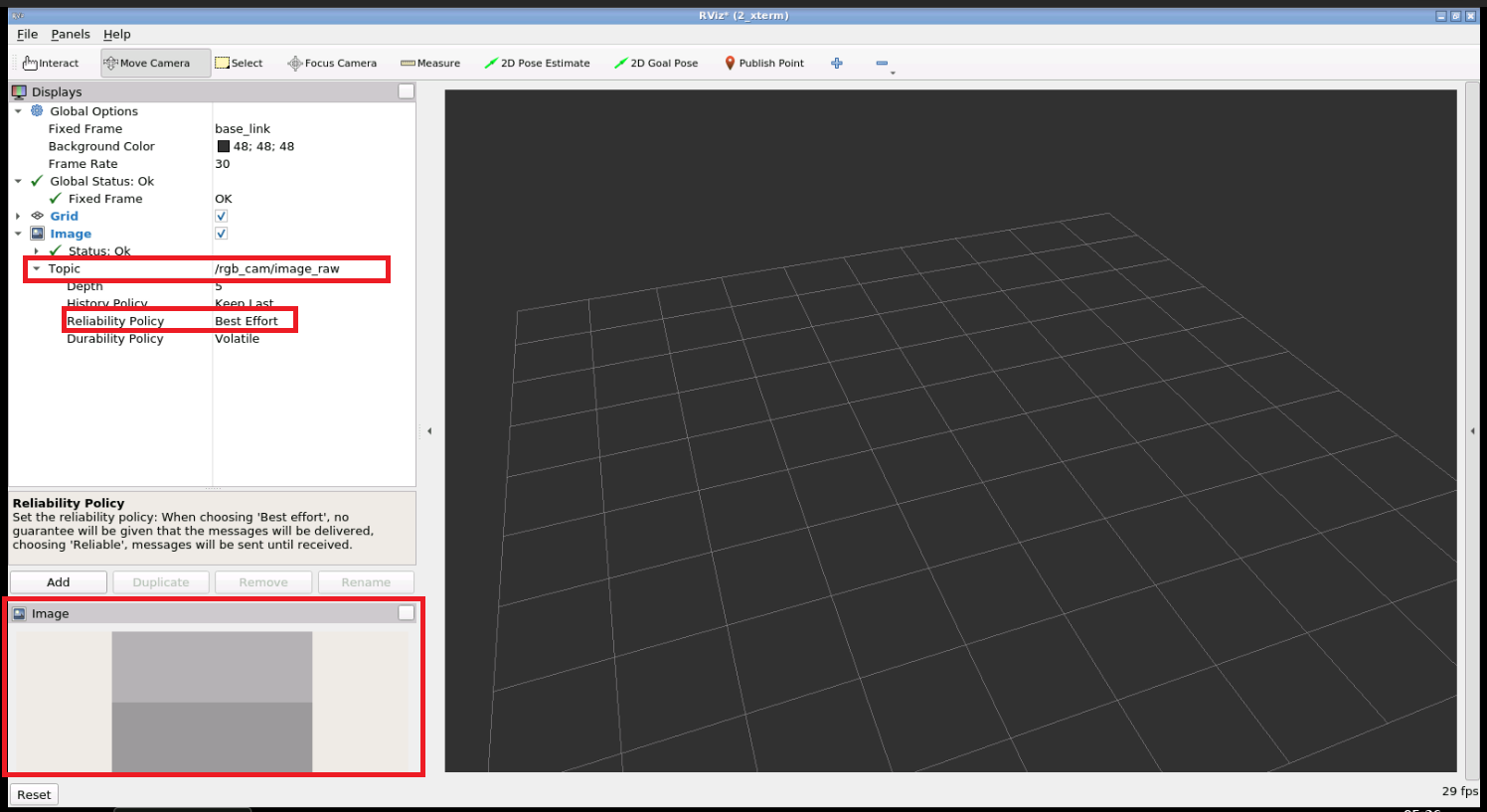
Expand the Image display, then expand the Topic property. Select the /rgb_cam/image_raw topic and set the Reliability to Best Effort. There you go!
Step 5: Consolidate your learning
Do you understand how to get an RGB camera working in ROS2 and RVIZ2? Are you able to implement a camera in your own simulation? If not, please go over the post again and maybe watch the video below? Let us know what worked for you in the comments.
Extra Step: Watch the video to see the sights and sounds version how to get an RGB camera working in ROS2 and RVIZ2
Did you like this post? Do you have any questions about the explanations? Whatever the case, please leave a comment on the comments section below, so we can interact and learn from each other.
If you want to learn about other ROS2 topics, please let us know in the comments area and we will do a video or post about it.